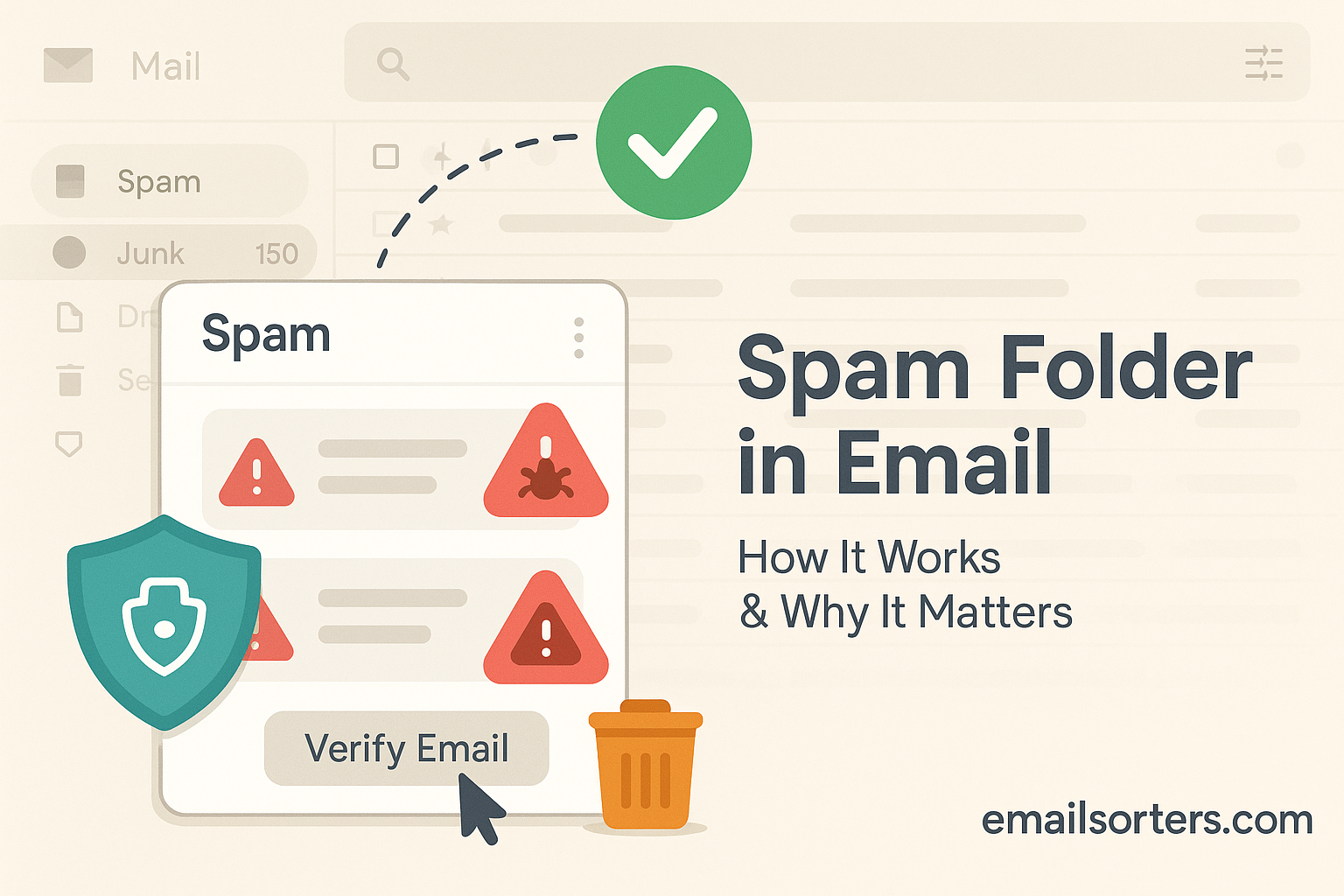
The spam folder stores unwanted or harmful emails separately from the inbox to keep it clean and secure. It uses automated filters to detect phishing, fake offers, and malware. Modern email systems apply algorithms and user data to identify risky emails, allowing users to review or recover them when needed.
This guide explains what the spam folder does, how to find it in any email client, and how to manage it so you never miss an important message.
What Is a Spam Folder?
A spam folder, also known as a “junk” folder, is a dedicated location in your email account where messages identified as spam are automatically moved. Spam is unsolicited, unwanted, and often commercially motivated email. This folder isolates these messages from your primary inbox to protect you from scams, malware, and general clutter.
This automatic sorting is the first line of defense in modern email. Without it, your main inbox would be unusable, flooded with thousands of irrelevant and dangerous messages. The system isn’t perfect, but it’s a key part of maintaining strong email security.
How Does It Work?
Email services like Gmail, Outlook, and Yahoo use complex algorithms to analyze every incoming message. These “spam filters” scan for common red flags. If a message scores too high on these checks, it’s diverted directly to the spam folder, skipping your inbox entirely.
These filters check for many signals, including:
- Sender Reputation: The system checks the sender’s email address and IP address. Has this sender been reported for spam by other users? Is the server new or suspicious?
- Message Content: The filter reads the text of the email. It looks for “spammy” phrases (like “act now,” “you’ve won,” or suspicious financial terms), excessive capitalization, and lots of exclamation points.
- Links and Attachments: The filter scans all links to see if they lead to known phishing or malware websites. It also checks attachments for viruses.
- User Behavior: Your own actions train the filter. When you mark an email as spam, the system learns. When you rescue an email from spam, it also learns.
- Email Metadata: The filter even checks the email’s hidden code. It looks for technical tricks spammers use to disguise their identity or content.
For a deeper dive into the history and technical nature of unsolicited messages, see Email Spam.
Why Do Emails End Up in Spam/Junk Folders?
An email lands in your spam folder because your provider’s filter flagged it as high-risk. This can happen for many reasons. The sender might be a known spammer, the content may contain suspicious links or keywords, or the sender’s server may not be properly authenticated, making it look like a forgery.
Here are the most common reasons a legitimate email might get sent to junk:
- You Marked It as Spam: You may have accidentally reported a previous email from that sender as spam.
- Suspicious Wording: The email, even if legitimate, might use words that trigger the filters. A marketing newsletter that is too aggressive can get flagged.
- Poor Sender Authentication: The sender’s organization may not have set up its email verification correctly (like SPF, DKIM, and DMARC). This makes their emails look like potential “spoofing” attempts.
- Low Sender Reputation: If the sender shares a server with other people who send spam, their reputation can be damaged by association.
- User Reports: If many other users have marked emails from this sender as spam, your provider will learn to treat them as spam for everyone.
How to Check the Spam Folder and Why You Should Do It Regularly
To check your spam folder, look for a “Spam” or “Junk” label in the left-hand menu of your email client. It is vital to check it every few days because filters make mistakes. Legitimate messages like job offers, appointment confirmations, or password resets can be incorrectly flagged as spam.
This is the most important habit to develop. We call it “filter-checking.” Filters are aggressive by design. They are programmed to be overly cautious. They would rather send one good email to spam (a “false positive”) than let one dangerous email into your inbox (a “false negative”).
Because of this, you risk missing:
- Important Confirmations: Order receipts, travel bookings, or event tickets.
- Password Resets: Requests to reset your password for other services.
- Replies from New Contacts: If you email someone for the first time, their reply might get filtered.
- Job Opportunities: Inquiries from recruiters or responses to applications.
- Automated Alerts: Notifications from your bank, social media, or other services.
Set a reminder to check your spam folder every two to three days. It only takes a moment and can save you from a major headache.
Where Is My Spam Folder?
Your spam folder is almost always located in the main navigation menu of your email service, usually on the left-hand side of the screen. The exact name changes: Gmail and Yahoo call it “Spam,” while Outlook often calls it “Junk Email.” If you don’t see it, it might be hidden under a “More” link.
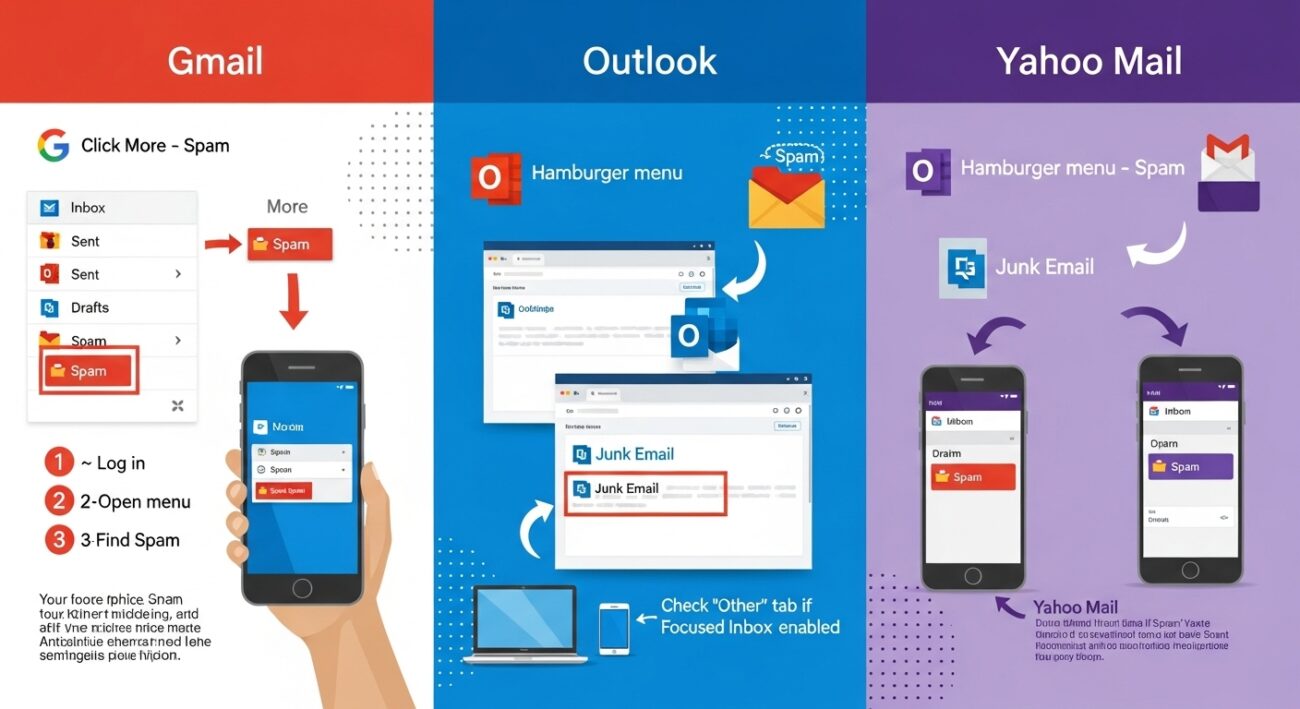
Finding it can be tricky the first time. Here are step-by-step instructions for the most popular email providers.
How to Find the Spam Folder in Gmail
On a desktop computer, finding the Gmail spam folder is straightforward.
- Go to mail.google.com and log in.
- On the left-hand side, you will see your main labels (Inbox, Sent, Drafts).
- If you don’t see “Spam,” click the “More” link at the bottom of the list.
- This will expand the list to show more labels. “Spam” will be in this secondary list.
Gmail’s folder system is robust and a key part of its strong Gmail security features.
How to Find Your Gmail Spam Folder on the Mobile App
In the Gmail mobile app (for iOS or Android), the folder is also in the main menu.
- Open the Gmail app on your phone.
- Tap the three horizontal lines (the “hamburger” menu) in the top-left corner.
- A new menu will slide out.
- Scroll down past your primary inboxes and labels.
- You will see the “Spam” folder. Tap it to open.
How to Check Spam Folder in Outlook
Outlook, part of the Microsoft 365 suite, typically calls the spam folder “Junk Email.”
- Log in to your account at Outlook.com or open the desktop app.
- On the left-hand navigation pane, look for the “Folders” list.
- You should see “Junk Email” listed directly under your “Inbox.”
- If you have “Focused Inbox” enabled, Outlook may sometimes move less important, non-spam email to the “Other” tab, so be sure to check there as well.
How to Find the Spam Folder in Yahoo Mail
Yahoo Mail is very similar to Gmail in its layout.
- Log in to your Yahoo Mail account.
- On the left-hand menu, look for the “Spam” folder.
- It is usually listed with other system folders like “Inbox,” “Sent,” and “Drafts.” You should not need to click “More.”
Why to Mark Emails as Spam
You should mark emails as spam to train your email filter. When you report a message, you are not just deleting it; you are telling the system, “This is unwanted, and you should block messages like this in the future.” This helps improve the filter’s accuracy for you and all other users.
This is an active way to fight back. Every time you mark a message, you provide a valuable piece of data to your email provider. This data is used to refine the global filters, making it harder for that spammer to reach anyone’s inbox.
Do not just delete unwanted marketing emails. Use the “Report Spam” button. This action is more powerful than simply deleting the message.
How to Report Emails as Spam
The process is simple and very similar across all platforms.
- Open the email you want to report. Do not click any links or download attachments.
- Look for a button in the toolbar, often an icon that looks like a stop sign with an exclamation point, or a button labeled “Report Spam” or “Junk.”
- In Gmail, it’s the stop sign icon. In Outlook, it’s a button labeled “Junk” or “Report.”
- Clicking this button will do two things:
- It moves the selected message to your spam folder.
- It sends a report to your provider (Google, Microsoft) to help them identify and block this sender in the future.
How to Prevent Your Emails From Going to Spam (For Senders)
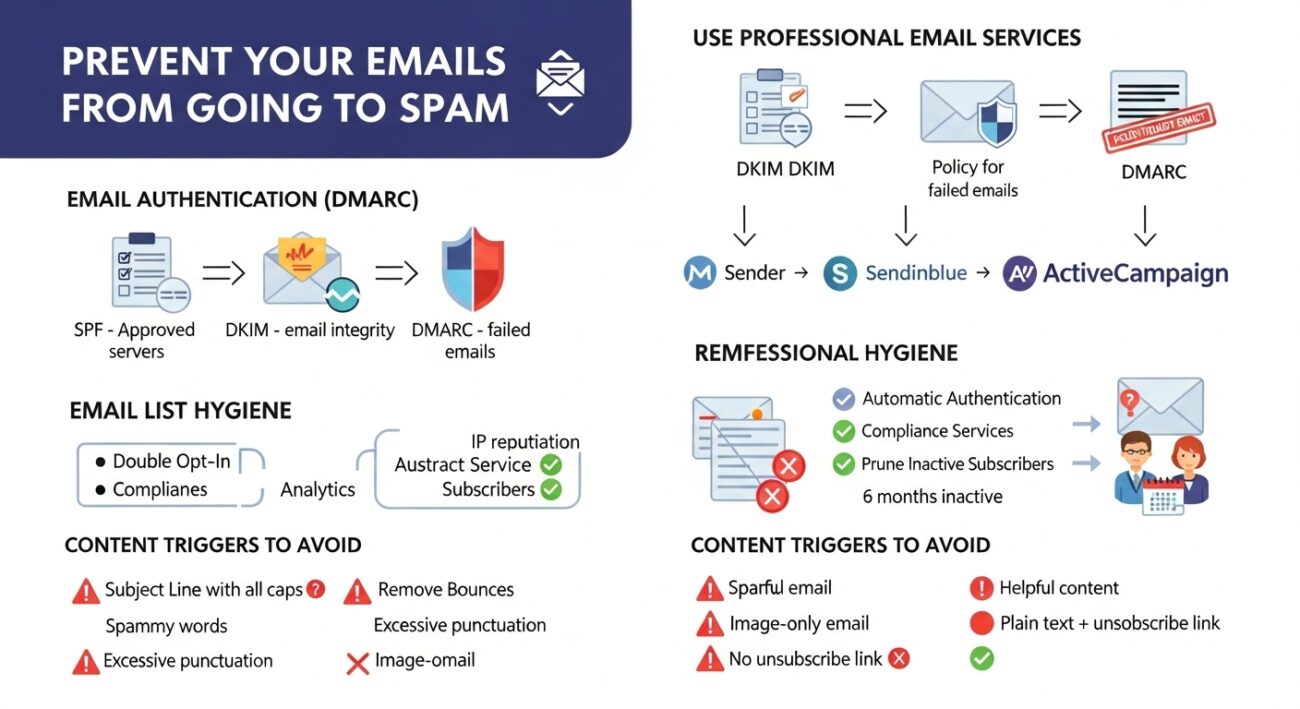
To prevent your emails from going to spam, you must prove to filters that you are a legitimate sender. This involves three main tasks: using technical authentication (SPF, DKIM, DMARC), maintaining a clean email list (hygiene), and sending content that your audience actually wants.
For businesses, newsletters, or anyone sending bulk messages, your sender reputation is your most valuable asset. If you get flagged as a spammer, your messages stop getting delivered, and it’s very hard to reverse that damage. Here is what you need to do to protect your reputation.
What Are Email Authentication Records (SPF, DKIM, DMARC)?
SPF, DKIM, and DMARC are technical standards that prove your email is really from you. They are like a passport, a signature, and a security policy for your email server. Setting them up is the number one way to build trust with receiving email systems like Gmail and Outlook.
These are acronyms for code added to your domain’s settings (DNS).
- SPF (Sender Policy Framework): This is a public list of all the servers (IP addresses) that are authorized to send email on your behalf. If a message comes from a server not on your list, the receiving filter sees it as a potential forgery.
- DKIM (DomainKeys Identified Mail): This adds a unique digital signature to every email you send. The receiving server can check this signature against your public key to confirm the message was not altered in transit.
- DMARC (Domain-based Message Authentication, Reporting & Conformance): This is the policy that tells the receiving server what to do if an email fails the SPF or DKIM checks. You can tell it to “do nothing,” “send to spam” (quarantine), or “reject the email” entirely.
Why Must You Use a Professional Email Service?
You must use a professional email service (like Mailchimp, Sendinblue, or ActiveCampaign) because they manage your technical reputation for you. Sending a marketing newsletter from your personal Gmail or Outlook account will get you flagged as a spammer almost immediately.
Here’s why:
- IP Reputation: Professional services send emails from high-reputation, monitored servers (IP addresses). Personal accounts are not designed for bulk sending and have strict limits.
- Authentication: These services automatically handle your SPF and DKIM setup for you.
- Compliance: They legally require you to include an “unsubscribe” link, which is a key signal of a legitimate sender.
- Analytics: They provide data on who opened, clicked, or bounced. This helps you clean your list and send better content.
How to Maintain Good Email List Hygiene
Email list hygiene is the practice of regularly cleaning your list to remove bad or inactive subscribers. Sending emails to thousands of people who never open them, or to addresses that are no longer valid, is a massive red flag for spam filters.
Good hygiene practices include:
- Use Double Opt-In: When someone signs up, send them a confirmation email they must click. This proves the email address is real and the person truly wants your content.
- Remove Bounces: If an email “hard bounces” (meaning the address is invalid), remove it from your list immediately.
- Prune Inactive Subscribers: If a user hasn’t opened your emails in six months, send them a “re-engagement” campaign. If they still don’t respond, remove them. A smaller, engaged list is always better than a large, dead one.
What Content Triggers Spam Filters?
Spam filters are triggered by content that feels deceptive or overly aggressive. This includes misleading subject lines, “spammy” keywords (like “free money,” “act now”), excessive capitalization or punctuation, and hiding the unsubscribe link. Your content should be helpful, not pushy.
Common filter triggers to avoid:
- Misleading Subject Lines: Never use Re: or Fwd: to trick someone into opening an email.
- Spammy Words: Avoid words associated with common scams: !!!, CASH, Winner, 100% Free, No cost.
- ALL CAPS: Writing in all capital letters is seen as “shouting” and is a classic spam tactic.
- Excessive Punctuation: Using ?!?!?! looks unprofessional and suspicious.
- Image-Only Emails: Spammers sometimes hide text in images. If your email is just one big image, filters get suspicious. Always include plain text.
- No Unsubscribe Link: This is the biggest red flag of all. Every legitimate newsletter must have a clear, easy-to-find link to unsubscribe.
How to Mark the Email as Not Spam
This is the most important action you can take to fix a filter’s mistake. It’s often called “whitelisting.”
- Go to your “Spam” or “Junk Email” folder.
- Find the legitimate email that was incorrectly filtered.
- Open the email.
- At the top of the message, your email provider will show a large banner with a warning that this message is in spam.
- In this banner, there will be a button or link that says “Report not spam,” “Not Junk,” or “Looks safe.”
- Click that button.
This action does two things: it moves the email back to your inbox and, more importantly, it signals to your email provider that you trust this sender. This makes it much less likely that future emails from this sender will be filtered.
If you want to permanently ensure a sender’s messages get through, you can whitelist an email in Gmail, which involves adding them to your contacts or creating a filter.
Tools and Filters to Help Manage Spam Emails
Beyond the default spam folder, most email providers offer advanced tools. You can create custom “filters” or “rules” to automatically manage incoming mail. These rules can move messages from specific senders to the trash, or move messages from trusted senders to your inbox, bypassing the spam filter entirely.
These tools give you granular control.
- Custom Filters (Rules): In your email settings, you can create rules. For example, you can make a rule that says “Any email from @company.com is safe” or “Any email with the subject line ‘Invoice’ should go to my ‘Finances’ folder.”
- Block Sender: This is a more aggressive option than “Report Spam.” Blocking a sender creates a permanent rule that sends all future messages from that specific email address directly to the trash or spam folder. This is useful for newsletters you can’t unsubscribe from.
- Add the Sender to Contacts: This is the simplest and most effective whitelisting method. When you add an email address to your contacts list, you are telling your email provider that you know and trust this person. Nearly all email systems are programmed to never send messages from your contacts to the spam folder.
If you are overwhelmed with spam in Gmail and these tools aren’t enough, you might even consider looking at Gmail alternatives that offer different features or filtering philosophies. For most users, however, learning to use these built-in tools is the best way to stop spam emails for good.
FAQ: Managing Your Spam Folder
Where do I find my spam folder?
Look in the left-hand navigation menu of your email client. It is usually labeled “Spam” (in Gmail) or “Junk Email” (in Outlook). You may need to click a “More” link to see it.
What does a spam folder do?
It automatically collects and isolates emails that your provider’s filters identify as unsolicited, unwanted, or dangerous. This keeps your main inbox clean and protects you from scams, phishing, and malware.
How do I mark a specific email as spam?
Open the email. Look for a button in the toolbar, often an icon of a stop sign, and click it. This is usually labeled “Report Spam” or “Junk.” This moves the email and teaches your filter to block similar messages.
How do I stop emails from going to junk mail?
The best way is to find a legitimate email from that sender in your junk folder and mark it as “Not Spam” or “Not Junk.” The most permanent solution is to add the sender’s email address to your contacts list.
How do I permanently mark email as spam?
Use the “Report Spam” button. This trains your filter. If you want to be more aggressive, you can also select the “Block Sender” option, which creates a rule to send all mail from that address to your junk folder.
What does mark as junk do in Outlook?
“Mark as Junk” in Outlook is the same as “Report Spam” in Gmail. It moves the email to your “Junk Email” folder and reports it to Microsoft to help improve their spam filters.
Is the junk folder the same as spam in Outlook?
Yes. Outlook uses the term “Junk Email” for its folder, while Gmail and Yahoo use the term “Spam.” They serve the exact same purpose: to quarantine unwanted messages.
How do you check your spam folder?
Log in to your email and find the “Spam” or “Jdunk Email” folder in the left-hand menu. Click on it to open it and review the messages inside.
How do I get emails out of the spam folder?
Open the spam folder, find the email you want to save, and open it. At the top of the message, click the button that says “Not Spam,” “Not Junk,” or “Report as safe.” This will move the email to your inbox.
Is it OK to delete spam?
Yes, it is perfectly safe to delete the contents of your spam folder. Most email services do this for you automatically every 30 days. It is better to “Report Spam” on new messages, but for emails already in the folder, deleting them is fine. Do not click links or reply.