Welcome! Let’s be honest, being asked to “create an email account” can feel a little intimidating if you’ve never done it before. It feels like something everyone just knows how to do. But where do you even start? What’s a “provider”? What makes a “good” username? And how do you make sure it’s secure?
You’ve come to the right place. This is not a technical manual. This is a simple, step-by-step guide that will walk you through every single part of the process, from A to Z.
By the time you’re done with this article, you won’t just have a new email account, you’ll understand how to choose the right one for your needs, how to create a professional address you can use for years, and how to set it up securely from the very first click.
Let’s get started.
What Is an Email Account and How Does It Work?
An email account is your personal digital mailbox on the internet. It lets you send and receive electronic messages, called emails, using a unique address. This address (like [email protected]) allows you to communicate with anyone else who also has an email account, anywhere in the world.
At its core, an email (or “electronic mail”) account is just a way to send and receive messages over a computer network. The concept has been around for decades, in fact, we’ve already passed the fiftieth anniversary of email, but it’s become far more than just a simple messaging tool.
Think of your email account as your digital passport.
You need it to sign up for almost every service online, from social media and online banking to job applications and e-commerce sites. It’s your primary digital identity, your filing cabinet, and your main communication hub all rolled into one. Understanding its basic parts is the first step to mastering it.
Understanding the Key Components: Username, Domain, and Suffix (e.g., .com)
Every email address is made of three key parts. Let’s use a common example: [email protected].
- The Username (
jane.doe): This is the unique part you choose. It’s your personal identifier. It could be your name, a nickname, or a creative handle. (We have a whole guide on email address ideas if you get stuck). No two people on the same service can have the exact same username. - The “@” Symbol: This is the separator. It simply means “at.” So,
jane.doe“at”gmail.com. - The Domain (
gmail.com): This is the “provider” or the service that hosts your email account. Think of it as the digital post office that handles all your mail. When you choose a provider (like Gmail, Outlook, or Proton), you are choosing what your email domain is.
Webmail vs. Email Clients: What’s the Difference?
This is a common point of confusion, but the distinction is simple:
- Webmail: This is when you access your email by logging into a website in your browser (like Chrome, Safari, or Firefox). When you go to
gmail.comoroutlook.comto check your messages, you are using webmail. Your emails live on the provider’s servers “in the cloud.” This is the easiest and most common way to manage email, and it’s what we’ll be focusing on in this guide. - Email Clients (Apps): This is a dedicated software program you install on your computer (like Microsoft Outlook, Apple Mail, or Thunderbird) or a mobile app on your phone. This app connects to your provider’s server to download your messages so you can view and manage them.
What Information Do You Need Before You Start?
Before you start, it’s helpful to have a few things ready. You will typically need to provide your full name (first and last), your birthdate, and have a recovery phone number or an alternate recovery email address. Most importantly, you should have a few ideas for your desired username.
Walking into a process prepared is the best way to make it stress-free. The email sign-up process is designed to be quick, but it will ask you for some specific personal information.
Having this ready to go makes everything much smoother. Here’s a simple checklist of what to have on hand:
- Your Name: Your first and last name.
- A Username Idea: This is the part that takes the most thought. You’ll want a few backups in case your first choice is taken. (We’ll cover this in-depth in our “10 Tips for Choosing a Good Email Address” section).
- A Password Idea: You’ll need to create a strong password. Don’t use
password123. Think of a long phrase or a complex mix of letters, numbers, and symbols. We’ll also cover this in more detail later. - Your Birthdate: Most providers require this for age verification and to help recover your account if you get locked out.
- A Recovery Method: This is crucial. You’ll need either a mobile phone number or an alternate email address.
Why Providers Ask for Your Phone Number (And How to Handle It)
It can feel a bit invasive, can’t it? “Why do you need my phone number just for an email account?”
Providers aren’t (usually) trying to spam you with marketing calls. This has become the standard for two main reasons:
- Security: It’s the most common way to set up Two-Factor Authentication (2FA). This means that even if a hacker steals your password, they also need to have your physical phone in their hand to approve the login. It’s one of the single best ways to secure your account.
- Recovery: It’s the easiest way for you to prove you are you. If you ever forget your password, the provider can send a verification code to your phone via text message, allowing you to reset your password and get back into your account.
If you don’t have a phone number or are uncomfortable providing one, we’ll discuss how to create an email account without a phone number later in this guide.
Preparing Your Recovery Information: Why You Shouldn’t Skip This Step
When you’re in the flow of signing up, it’s so tempting to click “Skip” or “Do this later” when the system asks for a recovery email or phone number.
Please, do not skip this step.
Let me tell you a quick, true story. A friend of mine set up a new email for a side project. They were in a hurry and skipped the recovery step. A few months later, they forgot the password. Because they had no recovery phone or email linked, there was absolutely no way to prove to the system that they were the real owner. All of that work, all those contacts… just gone. They had to start over from scratch.
Your recovery information is the only lifeline you have when you get locked out. It takes 30 seconds to set up and can save you hours or even days of panic and frustration. If you don’t have a second email address to use, just use your phone number. It’s all about ensuring you and only you can get back in.
How to Create a Free Email Account (A Detailed Walkthrough)
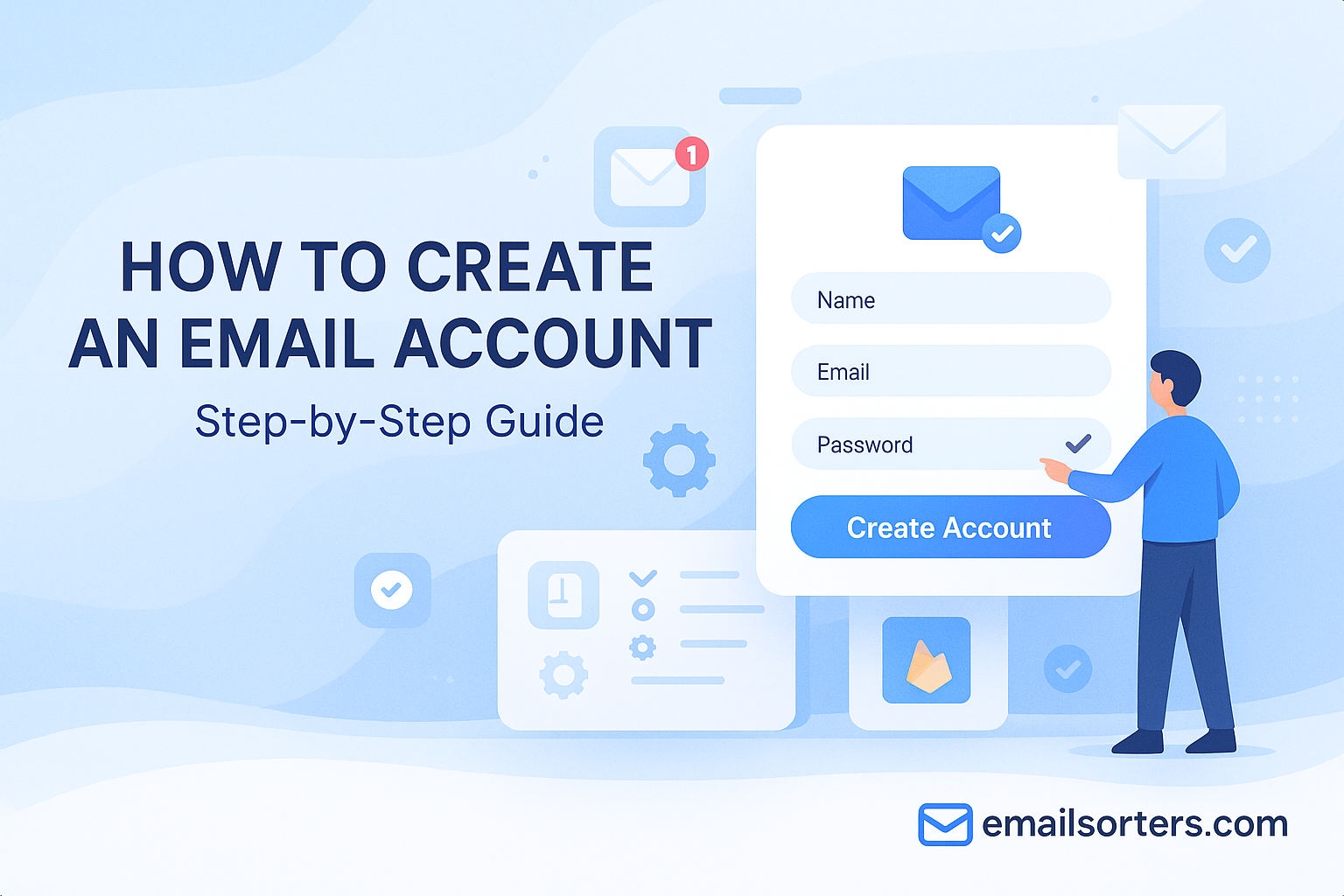
Creating an email account involves four main steps: first, choosing a provider (like Gmail or Outlook); second, navigating to their official sign-up page; third, filling out your personal details and choosing a unique username; and finally, verifying your identity and accepting the terms of service.
Alright, this is the main event! Don’t worry, this part is just a simple “follow the leader” process. While the exact button text or layout might look slightly different depending on which provider you choose, the steps are 99% identical across the board.
We’ll use a general framework that applies to all of them.
Step 1: Choose Your Email Provider (Weighing Your Options)
You can’t create an address without first picking your “digital post office.” As we’ll cover in the next section, you have many options, like Gmail, Outlook, Proton Mail, and Mail.com.
If you’re feeling overwhelmed, don’t be. You can’t really make a “wrong” choice here, and you can always have multiple accounts for different purposes.
- For most users: Gmail (from Google) or Outlook (from Microsoft) are the most common choices.
- For users focused on privacy: Proton Mail is a fantastic option.
For this guide, let’s just pick one to get started. You can apply these same steps to any of the others.
Step 2: Navigate to the Official Sign-Up Page
This is a critical security step. Always make sure you are on the official, legitimate website.
- Do this: Go to your search engine and type in “create gmail account” or “create outlook account.” The official links will be
accounts.google.comoroutlook.live.com. - Don’t do this: Never click a link in a random email or a pop-up ad that says “Create your free account here!” This is a common way scammers try to steal your information.
Once you’re on the official homepage, look for a button that says “Create account,” “Sign up,” or “Create a free account.” It will be obvious.
Step 3: Enter Your Personal Information (Name, Birthday, etc.)
This is the easy part. The system will present you with a simple form. Just fill in the boxes:
- First Name and Last Name
- Birthdate (As mentioned, this is for age verification and account recovery)
Step 4: Choose Your Email Address (The “Username”)
Now comes the creative (and sometimes frustrating) part. You’ll need to type in your desired username.
You will type in your idea (e.g., jane.doe) and click “Next.” The system will immediately check if that username is already taken. If it is, it will tell you “Sorry, this username is already in use” and often suggest alternatives (like jane.doe774 or jdoe_01).
You can either accept one of its suggestions or keep trying different email addresses until you find an available one you like.
Step 5: Create a Strong, Secure Password
This is your new account’s front door, and it needs a strong lock. Do not rush this.
- Avoid:
12345678,password,qwerty, your pet’s name, or your birthday. These are the first things hackers try. - Best Practice: Create a passphrase. This is a short, memorable sentence that is easy for you to remember but almost impossible for a computer to guess.
- Example:
MyCatEats!Blueberries2x
- Example:
- Most providers will require a mix of uppercase letters, lowercase letters, numbers, and symbols. Write your new, strong password down temporarily on a piece of paper until you have it memorized or stored in a secure password manager.
Step 6: Verify Your Identity (Using a Phone Number or Recovery Email)
This is the step we prepared for. The provider will now ask for your mobile phone number or a recovery email address.
They will send a 6-digit code (via text or email) to prove you are the real owner. Just type that code into the box on the sign-up page, and you’re in. This links your account to a recovery method from day one.
Step 7: Review and Accept the Terms of Service
You’ll be presented with a (very long) document detailing the provider’s Privacy Policy and Terms of Service. This is the legal agreement between you and the company. While most of us just scroll to the bottom, it’s good practice to at least skim the headings related to your data privacy.
You must click “I agree” or “Accept” to proceed.
Step 8: Your First Sign-In and the Welcome Screen
That’s it! You’re in.
You’ll be automatically logged into your new account and taken to your inbox for the first time. It will probably look very clean and empty, with just one or two “Welcome” emails from the provider team.
Congratulations, you now have your own email account!
How to Choose the Best Email Provider for You
The best provider depends on your needs. For most people, Gmail or Outlook offers the best balance of features, storage, and ease of use. If you prioritize privacy above all else, Proton Mail is the clear winner. If you want a unique address, Mail.com is a great choice.
Now that you know how to create an account, you’re faced with the big question: which one should you choose?
A decade ago, most email providers were basically the same. Today, they’ve specialized. The one you pick can shape your entire digital experience. It’s no longer just about sending messages; it’s about what ecosystem you want to live in.
Don’t overthink it, but do consider these four key factors.
Factor 1: Security and Privacy (Encryption and Data Policies)
This is the most important, and most overlooked, factor.
- Standard Security (Gmail, Outlook): These services are very secure against outside threats like hackers and spam. They use encryption when your email is in transit (being sent). However, the companies themselves can scan your email content to provide features like spam filtering, travel reminders, and, in Gmail’s case, to personalize your overall Google experience (though not for ads in Gmail directly).
- Zero-Access Encryption (Proton Mail): This is a different league of privacy. Proton Mail, based in Switzerland (which has very strong privacy laws), uses end-to-end encryption. This means your emails are encrypted on your device and can only be decrypted by the recipient. Not even the employees at Proton Mail can read your messages. This is the best choice if you are handling sensitive information or simply dislike the idea of a corporation scanning your mail.
Factor 2: Storage Space (How Much Do You Get for Free?)
Your storage space is your digital filing cabinet. It’s shared between your emails and any attachments (like photos, documents, etc.).
- The Standard (Gmail, Outlook): Gmail gives you a generous 15 GB of free storage, but it’s shared across your entire Google Account (including Google Drive and Google Photos). Outlook also provides 15 GB of free email storage, plus an additional 5 GB for files in their cloud service, OneDrive. For 99% of users, this is more than enough.
- The Privacy Choice (Proton Mail): The free plan is more limited, offering around 1 GB. This is because secure, private storage is more expensive to maintain. It’s designed for communication, not for storing thousands of high-resolution photos.
- The Storage Giants (GMX, Mail.com): Both of these providers offer a massive 65 GB of free email storage, blowing the others out of the water. If you plan to send and receive a huge number of large attachments and never want to delete anything, they are fantastic options.
Factor 3: Ease of Use and Interface
This is purely subjective, but it matters for your daily sanity.
- Gmail: Known for its clean, fast interface and powerful search. If you can “Google” something, you can find any email you’ve ever sent or received. Its integration with Google Calendar and Meet is seamless.
- Outlook: If you’re used to Microsoft Office (Word, Excel), you’ll feel right at home. Its “Focused Inbox” feature is excellent at automatically sorting your important messages from newsletters and clutter.
- Proton Mail: The interface is clean, minimalist, and ad-free (even on the free plan). It’s designed for productivity and security, not for flashy themes or add-ons.
Factor 4: Key Features (The “Ecosystem”)
What else do you get besides email?
- Gmail: You’re not just getting an email; you’re getting a key to the entire Google Ecosystem (Drive, Docs, Sheets, Photos, Calendar, Maps, etc.). It’s incredibly powerful.
- Outlook: You’re tapping into the Microsoft 365 Ecosystem. It integrates perfectly with your Windows computer, Microsoft Office apps, and OneDrive. It’s a top choice for professional or student use.
- Proton Mail: You’re getting an Encrypted Ecosystem. The free plan also gives you access to Proton Calendar (encrypted) and Proton Drive (encrypted).
- Mail.com: Its killer feature is domain choice. You don’t have to be
[email protected]. You can be[email protected],[email protected],[email protected], and hundreds of other options to get a unique, memorable address.
Comparison: The 5 Best Free Email Providers of 2026
Here’s a head-to-head breakdown of the providers we’ve been discussing.
1. Google (Gmail): Best for Ecosystem Integration and Features
Gmail is the default choice for a reason. It’s reliable, its spam filtering is unmatched, and its “smart” features (like Smart Compose, which finishes your sentences) are genuinely useful. If you already use Google Drive, Android, or Google Photos, this is a no-brainer.
- Storage: 15 GB (shared with Drive and Photos)
- Best For: Everyone, especially Google users and Android owners.
- Key Feature: Seamless integration with the entire Google suite.
2. Microsoft (Outlook): Best for Professional and Business Use
Outlook (formerly Hotmail) has evolved into a polished, professional service. Its tight integration with Windows and Microsoft 365 makes it the go-to for many businesses and students. Its “Focused Inbox” is arguably better than Gmail’s tabbed inbox at sorting what matters.
- Storage: 15 GB (plus 5 GB OneDrive)
- Best For: Professionals, students, and Windows users.
- Key Feature: Deep integration with Microsoft Office apps (Word, Excel) and Calendar.
3. Proton Mail: The Ultimate Choice for Privacy and Security
If you’re troubled by the idea of a company reading your mail, Proton Mail is your answer. It is built from the ground up with privacy as its only goal. Because it’s based in Switzerland, it’s protected by some of the world’s strictest privacy laws. Your messages are end-to-end encrypted, meaning no one but you and your recipient can read them.
- Storage: ~1 GB (on the free plan)
- Best For: Privacy-conscious users, journalists, activists, and anyone handling sensitive data.
- Key Feature: Zero-access, end-to-end encryption.
4. Mail.com: Best for Unique and Custom Domain Options
Mail.com’s main selling point is pure personalization. Why settle for a boring @mail.com or @gmail.com when you can have an address that truly reflects your personality or profession? With over 200 domain names to choose from (like @usa.com, @dr.com, @engineer.com, @musician.org), you’re almost guaranteed to get the exact username you want.
- Storage: 65 GB
- Best For: Creatives, professionals, or anyone who wants a unique, memorable email address.
- Key Feature: Huge selection of over 200 custom domains.
5. GMX: A Solid All-Rounder with Generous Storage
GMX is a reliable and feature-rich service that’s been around for a long time. It runs on the same platform as Mail.com, so its biggest draw is the massive 65 GB of storage. It also has a very strong virus and spam filter. A key bonus: GMX allows you to create up to 10 alias addresses for free, which is perfect for signing up for newsletters or websites without giving out your “real” email.
- Storage: 65 GB
- Best For: Users who need massive storage and the flexibility of multiple alias addresses.
- Key Feature: 65 GB of storage and 10 free alias inboxes.
10 Tips for Choosing a Good Email Address
To choose a good email address, keep it simple, professional, and easy to spell. For professional use, stick to variations of your real name, like firstname.lastname. Avoid using numbers or hyphens if possible. For personal use, you can be more creative, but choose a name you won’t be embarrassed by later.
This is a bigger decision than it seems. You might have this email address for the next 10, 15, or even 20 years. It will be on your resume, your business cards, your bank account, and given out to hundreds of people.
A little thought now can save you a lot of cringing later. Here are our top 10 tips, followed by specific strategies.
- Use Your Name: The best and most professional option is always a variation of your real name.
- Keep It Simple:
jane.doe@is infinitely better thanSuperJaneDoeFan1987@. - Make It Easy to Say: If you have to spell it out phonetically every time you’re on the phone (“No, ‘k’ as in ‘knight,’ then ‘8’…”) it’s a bad username.
- Make It Easy to Type: Avoid clever misspellings (like
nitesky@instead ofnightsky@) or hard-to-type symbols. - Avoid Numbers (If Possible):
jane.doe84@instantly looks less professional and more “I couldn’t get the name I wanted” thanjane.m.doe@. - Avoid Hyphens and Underscores (If Possible): They are easy to forget (
was it jane-doe or jane_doe?) and clutter up the address. A simple period (.) is the most professional separator. - Don’t Be Too Creative:
TechWizardSam@might sound great now, but it will look silly on a resume or a mortgage application. - Think Long-Term: The “hobby” you have today might not be your identity in five years.
SurferDude88@is a classic mistake. - Consider Its Purpose: Will this be for job applications or just for friends and family? (It’s often a good idea to have different email addresses for different purposes).
- Don’t Use a “No-Reply” Format: Never create an address like
donotreply@orinfo@for your personal mail. It’s impersonal and can be confusing. (It’s a different story for businesses, which you can read about in our guide to “no-reply” emails).
If you’re really stuck, we have a complete guide with dozens of email address ideas to get your creativity flowing.
How to Create a Professional Email Address (e.g., firstname.lastname)
For any professional, job-seeking, or official use, your formula should be simple: First Name + Last Name.
Here are the most common (and best) formats, in order of preference:
jane.doe@j.doe@janedoe@jdoe@jane.m.doe@(using a middle initial is a great way to get a unique name)
How to Create a Good Personal Email Address (e.g., hobby.name)
For a personal account—maybe for friends, family email, newsletters, or just casual use—you have more freedom.
The best strategy is to combine your name with a stable, long-term interest or location.
sam.writes.code@the.austin.millers@alex.bakes.bread@
This is still clear, personal, and far more memorable than a string of random numbers.
What to Do If Your Preferred Username Is Taken
With billions of users, this is almost guaranteed to happen, especially if you have a common name. Don’t panic and add a bunch of numbers. Try these first:
- Add a Middle Initial: This is the best solution.
john.smith@is taken, butjohn.t.smith@is probably available. - Add a Professional Prefix/Suffix: Try
john.doe.writes@orask.janedoe@orjanedoe.MBA@. - Use an Initial: Try
j.doe@orjane.d@. - Reverse the Name: Try
doe.jane@instead ofjane.doe@. - Try a Different Provider: Your name might be taken on Gmail, but it could be wide open on Outlook or Proton Mail.
(Writer Must Integrate a First-Hand Anecdote Here)
Let me save you some future pain with a quick story from my high school days. When I was 15, I needed my first “real” email to sign up for something. Thinking I was incredibly cool, I created [email protected].
It was hilarious… for about two years.
Then, I was 18, applying for my first part-time job at a local cafe. The application form had one line: “Email.” I remember the feeling of my face turning bright red as I had to write that ridiculous address down on a professional form. I went home that same day and created a new, boring, firstname.lastname@ account.
Trust me: when in doubt, just be boring and professional. Your future self, who is trying to get a job, an apartment, or a car loan, will thank you.
How to Create a Secure Email Account That Resists Hacking
A secure email account relies on two main things: a complex, unique password (ideally a “passphrase”) and, most importantly, enabling two-factor authentication (2FA). 2FA adds a second layer of security, like a text message code, so a stolen password alone isn’t enough to get in.
This is the most important section in this entire guide. Creating your account is easy, but protecting it is something you have to do every day. Your email is the key to your entire digital life—if a hacker gets in, they don’t just see your messages; they can reset the passwords for your bank, your social media, and everything else.
The good news is that basic security is simple. You don’t need to be a tech expert. You just need to build two strong walls.
What Is Two-Factor Authentication (2FA) and Why You Must Use It
If your password is the first wall, 2FA is the second, reinforced-steel wall right behind it.
Two-Factor Authentication (also called “2-Step Verification”) means you need two different things to log in:
- Something you know: Your password.
- Something you have: Your phone.
When you (or a hacker) try to log in from a new computer, the provider will say, “Okay, great password. Now, please type in the 6-digit code we just sent to your phone.”
Unless the hacker also stole your physical phone, they are completely stuck. They can’t get in. This one, simple step neutralizes the threat of a stolen password. Every single provider we’ve mentioned (Gmail, Outlook, Proton, etc.) offers this for free. You should turn it on the moment you create your account.
How to Create a Password That Is Actually Secure (Passphrases vs. Gibberish)
We’ve been told for years that a “secure” password is something like Jg$7!k_pW. The problem? It’s impossible to remember, so people write it on a sticky note or reuse it everywhere, making it insecure.
A modern, much safer method is the passphrase.
A passphrase is a short, unique sentence that is easy for you to remember but almost impossible for a computer to guess.
- Bad Password:
Fluffy123(A computer would guess this in seconds) - Good Passphrase:
MyDogFluffy!HatesBaths(A computer would take centuries to guess this)
Your passphrase should be:
- Long: At least 16 characters.
- Unique: Never reuse this password for any other website.
- Complex: Mix in capitals, numbers, or a symbol to make it even stronger.
Include a statistic on account breaches)
Why is a weak password so dangerous? Automated hacking “bots” are trying to log into accounts 24/7 using lists of common or stolen passwords. According to industry reports, over 80% of all hacking-related data breaches are due to weak or stolen passwords. This means that the vast majority of breaches aren’t sophisticated “hacks” like in the movies; they’re simply someone guessing Password123 or using a password that was stolen from another, less secure website.
Recognizing Phishing Scams: Your First Line of Defense
Your password and 2FA protect your account from the “outside,” but you have to protect it from the “inside.” This means learning to spot phishing scams.
A phishing email is a fake message designed to trick you into giving up your password. It might look exactly like it’s from Netflix, your bank, or even your email provider, and it will usually say something urgent like:
- “Your account has been suspended! Click here to log in and fix it.”
- “Suspicious activity detected. Please verify your identity now.”
- “You have a new invoice. Click to view.”
When you click the link, it takes you to a fake login page that looks real. The moment you type in your email and password, you’ve just handed your keys to the hacker.
How to spot them:
- Check the Sender: Look at the full email address, not just the name. A real email from Netflix won’t come from
[email protected]. - Hover, Don’t Click: Move your mouse over the link (don’t click!). In the bottom corner of your browser, it will show you the actual web address it’s going to. If the link doesn’t go to
Netflix.com, it’s a scam. - Look for Panic: Scams almost always use urgent, threatening language (“account will be deleted”) to make you panic and not think clearly. Be wary of anything that demands immediate action, including strange “undelivered mail” notices from a Mailer Daemon.
Can You Create an Email Account Without a Phone Number?
Yes, it is possible, but it is becoming more difficult as major providers prefer a phone number for security. Some providers, like Proton Mail, prioritize privacy and do not require a phone number for sign-up. Others, like Gmail or Outlook, may offer an alternative, such as using a recovery email.
This is one of the most common questions users have, and the answer is a firm “maybe.”
In the past, it was easy. Today, most major providers (especially Gmail and Outlook) see a phone number as a non-negotiable part of their security and identity verification process. They use it to stop automated “bot” accounts from being created by the thousands and to help you recover your account.
If you try to sign up for a Gmail account, it will almost certainly require a phone number for verification.
However, you still have options if you are unable or unwilling to provide one.
Which Providers Are Best for No-Phone-Number Sign-ups
If not providing a phone number is your number one priority, your choice of provider becomes very simple.
- Proton Mail: This is your best option. Proton is built on a foundation of privacy and anonymity. Not only do they not require a phone number, but they also don’t require any personal information. You can use a recovery email as your backup method, making the entire process anonymous.
- Mail.com / GMX: These providers are often less strict than Google and may allow you to sign up using only a recovery email address.
- Temporary “Burner” Email: If your goal is just to create an account for a one-time sign-up or to remain anonymous, you can use a “disposable” email service. However, these are not secure, permanent, or private accounts. They are temporary inboxes that often expire after a few hours.
The Risks and Benefits of Not Linking a Phone Number
While it’s possible to avoid, it’s important to understand the trade-off you’re making.
- The Benefit (Privacy): The obvious benefit is privacy. You are not linking your identity (via your phone number) to your email account. For journalists, activists, or anyone in a sensitive situation, this is a critical feature.
- The Risk (Security & Recovery): The risk is significant. Without a linked phone number, you are losing two major things:
- Two-Factor Authentication (2FA): You lose the most effective security layer (getting a text code). While you can use an “Authenticator App” as a 2FA method, it’s not as simple as a text message for most users.
- Easy Recovery: If you forget your password and you lose access to your recovery email, your account is likely gone forever. There is simply no other way for the provider to verify that you are the real owner.
For 99% of users, the security and recovery benefits of linking a phone number far outweigh the privacy concerns. For the 1% who need true anonymity, Proton Mail is the clear and best choice.
What to Do Immediately After Creating Your Email Account (Your First 15 Minutes)
In your first 15 minutes, focus on security and setup. The three most important actions are: 1) Go to settings and immediately enable Two-Factor Authentication (2FA). 2) Double-check that your recovery phone number or email is correct. 3) Create your professional email signature.
Congratulations! Your new email account is live. You probably have a “Welcome” email from the provider, but otherwise, your inbox is a beautiful, clean slate.
Before you start sending messages or signing up for newsletters, let’s use the next 15 minutes to “harden” your account and set it up for success. This is the stuff everyone skips, but it makes all the difference.
Go to the “Settings” or “Options” menu (usually a gear icon ⚙️ in the top-right corner).
Step 1: Secure Your Account (Enable 2FA)
We’ve said it three times in this guide, and we’ll say it again because it’s that important. Your account is not secure until you do this.
- Find the “Security” tab in your settings.
- Look for “Two-Factor Authentication” or “2-Step Verification.”
- Turn it ON.
- Follow the on-screen steps to link it to your phone number (or an authenticator app).
This step alone puts you in the top 10% of secure users.
Step 2: Set Up Your Email Signature
Your email signature is the little block of text that automatically appears at the bottom of every email you send. It saves you from re-typing your name every time and makes you look far more professional.
- Find the “General” or “Mail” tab in settings.
- Look for “Signature.”
- Create a simple, professional one.
Good Example:
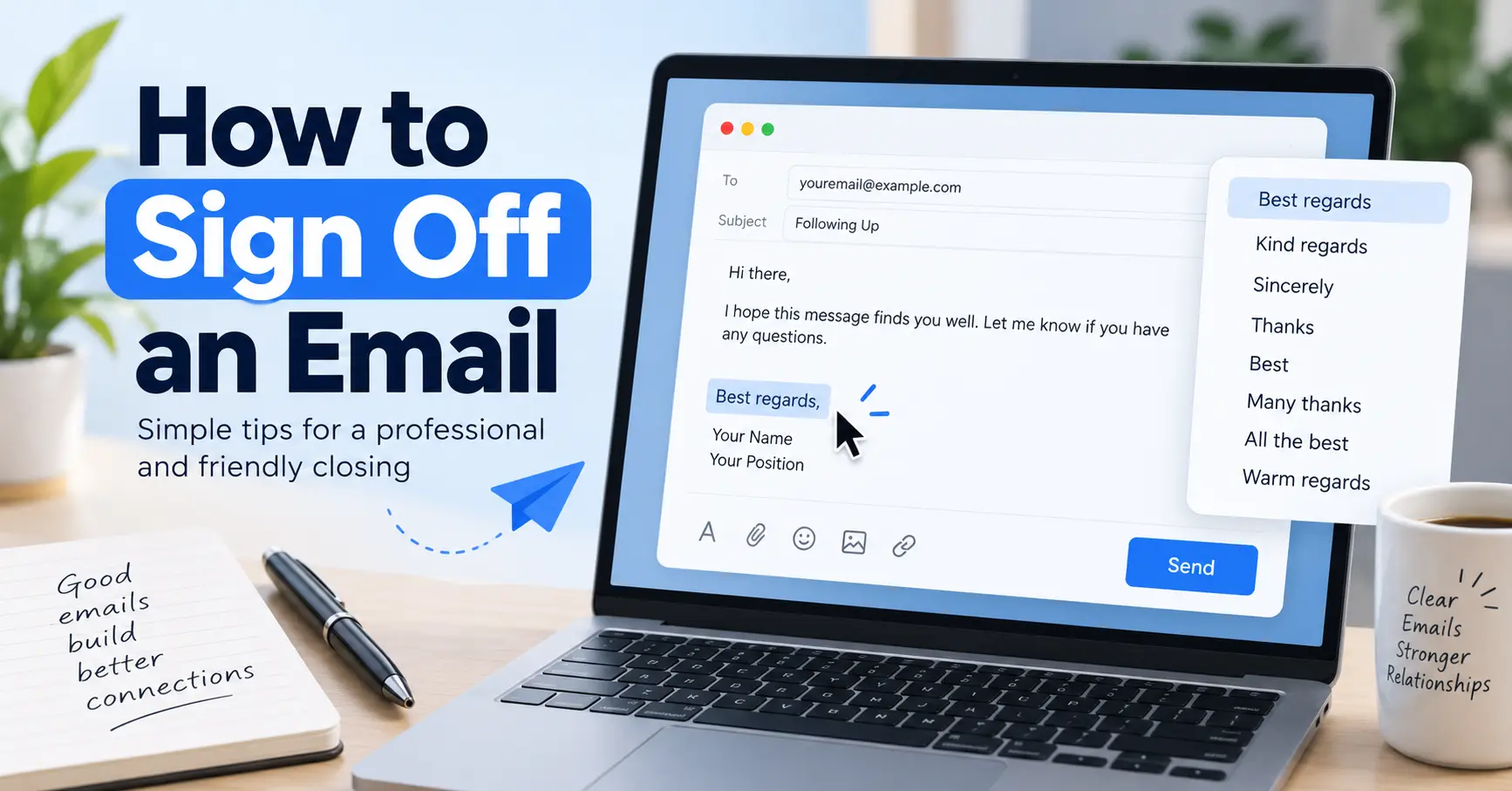
Best regards,

Jane Doe
Bad Example:
~*~JaNe DoE~*~ (Sent from my iPhone, pls excuse typos)
Step 3: Organize Your Inbox with Folders or Labels
You won’t have any mail yet, but you can build the shelving before the books arrive. By configuring your email folders, you create a system to handle the chaos before it starts.
- In Outlook or Mail.com, these are called Folders.
- In Gmail, these are called Labels.
Create a few simple ones to start:
WorkFamily & FriendsReceipts & BillsNewsletters
This way, you can start organizing from day one instead of facing an inbox with 10,000 unread messages five years from now.
Step 4: Import Your Contacts from Another Account
If this new account is replacing an old one, you don’t have to rebuild your address book from scratch. In the settings, look for an “Import” or “Accounts” section. All major providers have tools that let you automatically connect to your old account (from Gmail, Outlook, Yahoo, etc.) and pull in all your contacts.
Step 5: Send Your First Test Email
You’re all set. Now it’s time to see it in action.
- Click “Compose” or “New Mail.”
- Send an email to a friend, a family member, or even back to yourself. (This is a great way to see your new signature in action!)
- You can also try setting up your new email on an iPhone or Android device to get mobile notifications.
You’re now the secure and organized owner of a brand-new email account.
Frequently Asked Questions (FAQ)
How many email accounts can I have?
You can have as many email accounts as you want. There is no limit. In fact, it’s a smart practice to have multiple accounts for different purposes: one for professional use (job applications, banking), one for personal use (friends and family), and even a “burner” account for online shopping, newsletters, and sign-ups that might lead to spam.
Is it possible to change my email address (username) later?
No. Once you create an email address (the username@ part), it is locked in and cannot be changed. If you decide you don’t like [email protected] anymore, your only option is to create an entirely new account and, if you want, forward messages from the old one to the new one. This is why choosing a good username from the start is so important.
What’s the difference between POP3, IMAP, and Exchange?
These are technical protocols for how an email client (like the Mail app on your phone) syncs with the email server.
- IMAP (Recommended): This is the modern standard. It syncs your account in real-time. When you read an email on your phone, it’s marked as “read” on your computer, too. If you delete it on your computer, it’s gone from your phone.
- POP3 (Outdated): This downloads your mail to a single device and then (usually) deletes it from the server. It’s an old-fashioned system that doesn’t work well in our multi-device world.
- Exchange: This is Microsoft’s corporate-level protocol, which syncs not just email but also calendars, contacts, and tasks. You’ll primarily see this in a business environment.
How do I create a business email account (e.g., [email protected])?
A business email (like [email protected]) requires you to have your own custom domain name (the janesbakery.com part). This is a paid service, but it’s essential for looking professional. You can get this through services like Google Workspace (which gives you Gmail for your business) or Microsoft 365 (which gives you Outlook).