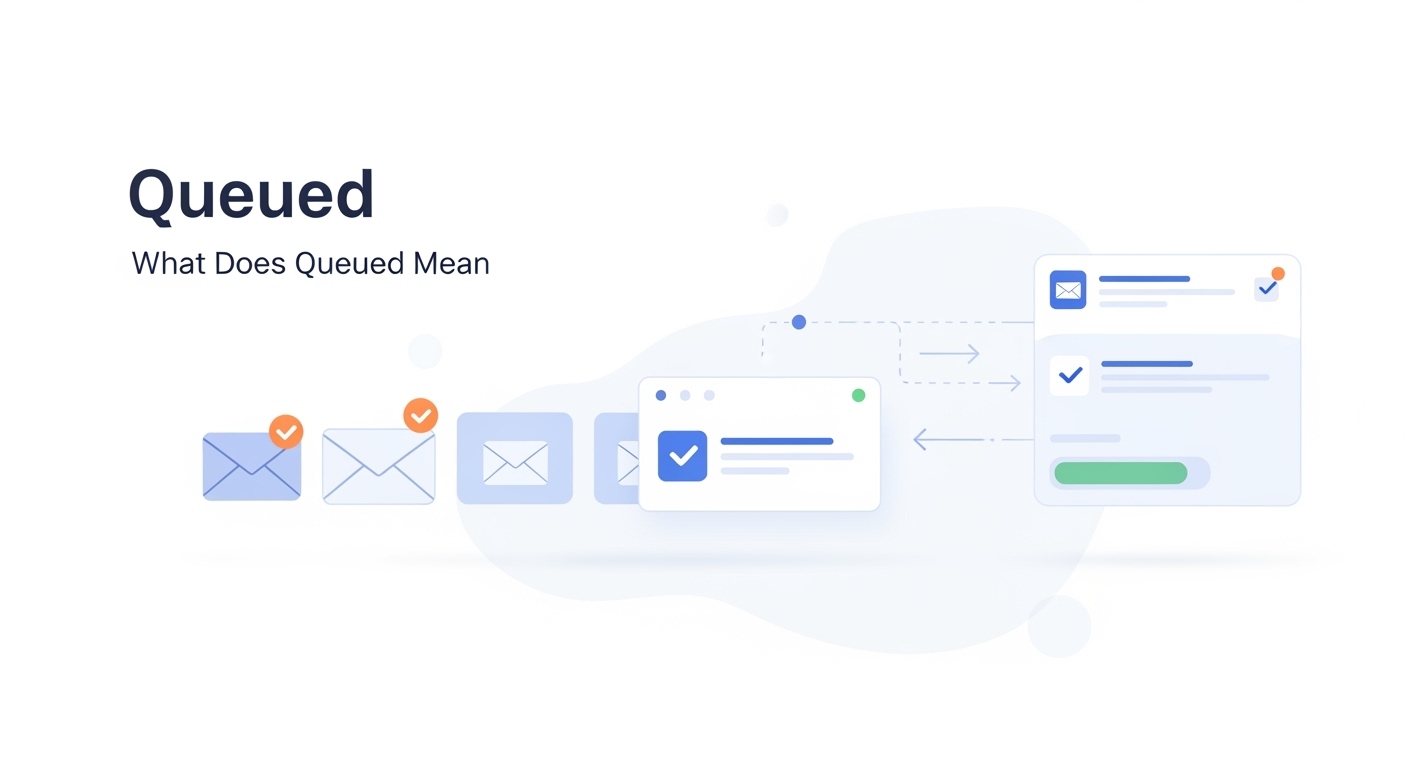
Queued meaning in Gmail refers to an email that is waiting in line to be sent but has not yet left your account. You will often see this status when your device cannot establish a stable connection with the Google servers. Understanding why this happens helps you resolve the issue quickly and ensures your professional communication remains on schedule. This guide explains the causes of queued emails and provides practical steps to get your messages moving again.
What Does Queued Mean in Gmail?
Queued meaning in Gmail is that your email is temporarily held in a waiting area because it cannot be delivered immediately. You should view this as a “holding pattern” rather than a permanent failure or a deletion of your message. Your email is still safe in your outbox, and Google will attempt to send it once the underlying issue is resolved.
This status simply means the sending process has started but encountered a small delay. You do not need to rewrite the email or worry that it has disappeared forever. It is a common occurrence, especially when you are working on a mobile device or in areas with poor service. Once the conditions for sending are met, Gmail will automatically push the message through to your recipient without any further action from you.
Why Does Gmail Say an Email Is Queued?
Gmail queues emails when they cannot be sent immediately due to technical or environmental factors. You might experience this if your phone is in airplane mode or if you have a very weak Wi-Fi signal. Google also uses queuing to manage your account if you try to send too many large attachments at once.
One common reason is a lack of available storage space in your Google account. If your Drive or Gmail storage is full, the system may struggle to process new outgoing data. Another cause is a temporary sync error between your mobile app and the main server. In some cases, aggressive battery-saving settings on your phone can prevent the app from finishing the send process in the background. Identifying these factors is the first step toward clearing your outbox and restoring your normal workflow.
Is a Queued Email Sent or Not?
A queued email is not yet sent and remains in your possession until the system can complete the delivery process. You should understand that the recipient has not received your message while it carries the “queued” label. It is currently waiting for the right conditions, such as a stronger data connection, to move from your outbox to the destination.
Understanding the waiting state versus delivery
When your message is in a queue, it is effectively stuck in your digital outbox. Gmail will continue to try sending the email automatically at short intervals. You do not need to hit the send button again, as the system manages the retry behavior for you. Once the delivery is successful, the label will change from “queued” to “sent,” and the message will appear in your Sent folder.
Why you might see a delay
You might notice an email stays in this state if your attachment is too large for your current upload speed. The system holds the data until it can ensure a complete transfer without errors. This prevents your recipient from receiving a broken or incomplete file. As soon as your connection stabilizes or the server is ready, the transfer finishes, and your status updates immediately.
How Long Can an Email Stay Queued in Gmail?
The duration an email stays queued depends entirely on the specific cause of the delay and your current network environment. You might find that a message clears in a few seconds, while others could remain stuck for several hours if you are offline. Google designed this system to be persistent, so your email will stay in the queue until the problem is fixed.
General time ranges for queuing
Most queued messages resolve themselves within a few minutes once you enter an area with better reception. If the issue is related to Google’s internal servers, it might take longer, but these instances are rare. You should only start to look for manual fixes if your email has not moved for more than thirty minutes despite having a good internet connection.
No exact guarantees for delivery time
You cannot predict the exact second a queued email will go through because the retry cycles are automated. The app prioritizes battery life and data usage, so it might wait for a specific trigger to try again. Keeping your Gmail app open can sometimes encourage the system to prioritize the outgoing queue. Once the block is removed, the delivery happens almost instantly.
How Can You Fix a Queued Email in Gmail?
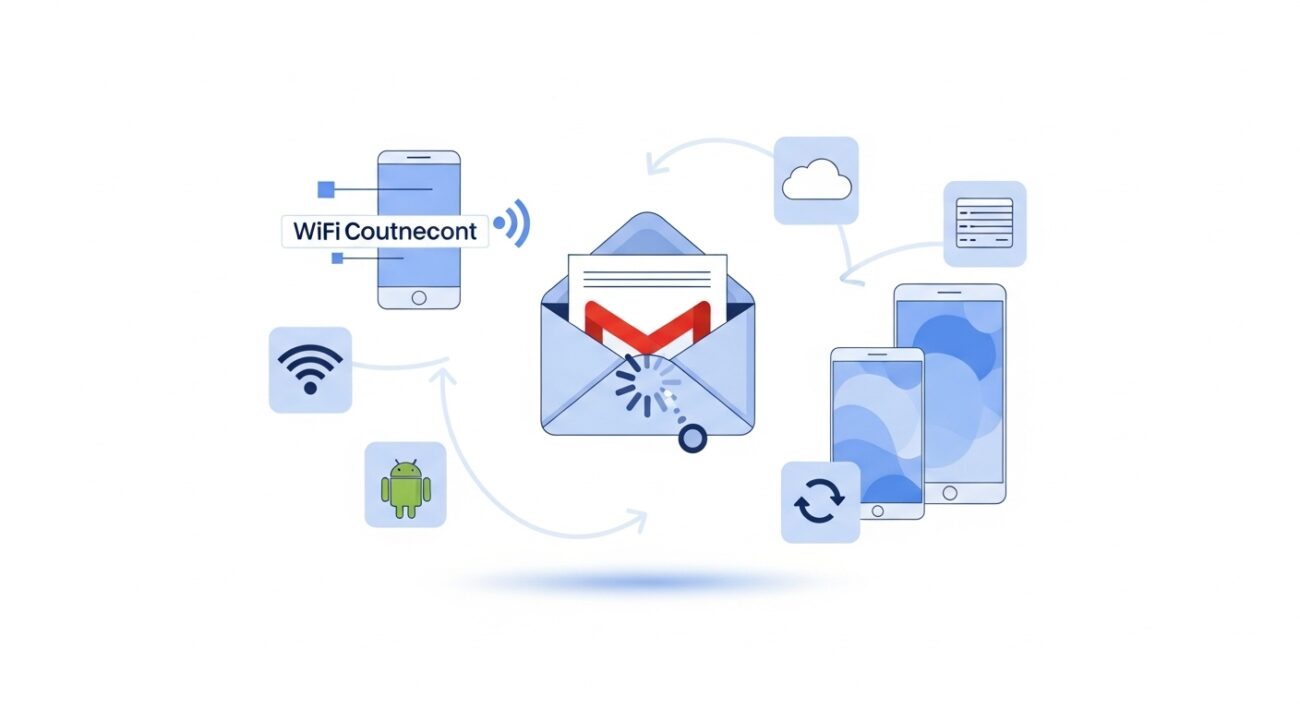
Queued emails can usually be fixed with simple actions that focus on your connection and account settings. You should start by checking your internet signal to ensure your device can reach the Google servers. Often, a quick refresh of your sync settings or clearing up space in your account will resolve the issue and send your message immediately.
Refreshing your network connection
You should toggle your Wi-Fi or mobile data off and on again to reset your connection. If you are in a building with thick walls, try moving closer to a window to get a better signal. You can also try switching to airplane mode for a few seconds and then turning it off. This forces your iPhone to search for the strongest available network, which often clears the queue instantly.
Managing your Google storage limits
Your email might stay stuck if you have run out of space in your Google account. You should check your storage usage across Google Drive, Photos, and Gmail to see if you have hit your limit. Deleting large, unnecessary files or emptying your trash can free up the space needed to process outgoing messages. Once you have enough room, Gmail will attempt to send the queued items again without any extra effort from you.
Clearing the Gmail app cache
Sometimes the app itself needs a quick reset to function correctly. You can try closing the Gmail app completely and then reopening it to trigger a fresh sync. If you use an Android device, you can clear the app cache in your system settings to remove temporary glitches. For iPhone users, simply restarting your phone is often enough to fix minor software errors that cause emails to hang in the outbox.
What Is the Difference Between Queued, Sent, and Failed Emails?
Gmail uses different labels to show delivery status so you know exactly where your message is in the process. You can use these labels to track your communication and identify if you need to take action. Understanding these terms helps you manage your professional expectations and your recipient’s experience.
Queued versus sent status
A queued email is still on your device waiting for the right time to leave. A sent email has successfully reached the Google servers and is now on its way to the recipient’s inbox. You should only consider a task finished once the message appears in your “Sent” folder. This shift in status confirms that your data transfer is complete and your part of the communication is done.
Understanding failed deliveries
A failed email is different from a queued one because the system has stopped trying to send it. You will usually receive a notification or a “bounce-back” message explaining why the delivery failed. This often happens if the recipient’s email address is typed incorrectly or if their inbox is full. Unlike queued messages, you must manually fix a failed email and hit send again to try a second time.
Can Queued Emails End Up in the Spam Folder?
Queued emails do not automatically go to the spam folder of your recipient. You should understand that the queued status is a temporary delay on your end, not a reflection of the content of your message. The email must first leave your outbox and reach the recipient’s server before any spam filtering occurs.
How sender reputation affects delivery
Your email address ideas and past behavior determine if your message eventually lands in a spam folder. If you send many emails from a new account or use suspicious links, filters might flag your message once it is sent. However, being stuck in a queue does not add any “spam points” to your message. It is a technical hurdle that is separate from the quality of your professional communication.
Maintaining trust after a delay
You should focus on sending clear and helpful content once your connection is restored. If a queued email was time-sensitive, you might want to send a quick follow-up to explain the technical delay. This keeps your relationship professional and proves that you are attentive to your work. A short delay in sending is much better than a message that never arrives at all.
How Can You Prevent Emails From Getting Queued in Gmail?
Most queued emails are preventable if you follow a few best practices for your mobile and desktop devices. You should ensure you have a strong connection before hitting the send button on long or important messages. Being mindful of your storage and attachment sizes will also keep your outbox clear and your communication moving fast.
Checking your connection before sending
You should look at your signal bars before you try to send a message with a large file. If you are on a weak public Wi-Fi network, wait until you have a more stable connection to avoid the queue. Large attachments are the most common cause of stuck messages, so verify your speed first. This simple check saves you the frustration of seeing a “queued” label later in the day.
Keeping your account healthy
You should regularly monitor your Google storage to ensure you always have a buffer for new messages. Delete old promotional emails or large files from your Drive to prevent hitting your capacity limit. Additionally, make sure you add email iPhone accounts correctly to ensure the sync settings are optimal. A well-maintained account experiences fewer technical glitches and faster delivery times.
When Should You Be Concerned About Queued Emails?
Occasional queuing is normal and usually resolves when your signal improves. You should only feel concerned if your message stays stuck for several hours despite a strong internet connection. Persistent queuing often points to a larger account error or a storage limit that requires your immediate attention to fix.
Signs of a bigger problem
Occasional queuing is normal. Most people see this status when they move through dead zones. You should stay calm when you see a short delay. Your phone often fixes the problem on its own. You should pay attention if an email stays in the outbox for a full day. This suggests that a simple signal reset will not work.
Check your Google account for any security alerts. Sometimes a password change on another device can break your mobile sync. You might need to sign in again to restore your connection. A full inbox can also stop all outgoing mail. You will see a red warning at the top of your Gmail app. This means you must delete old data to send new messages.
Handling persistent app errors
You cannot bypass this limit with a better signal. Address this problem quickly to keep your work moving. Your app might crash or freeze while trying to send data. If you see the status alongside a slow phone, restart your device. This clears the memory and gives the app a fresh start. You should worry if your app keeps freezing during every send attempt. This might mean you need to update your software from the App Store.
How Do You Know If a Queued Email Was Finally Sent?
Gmail updates email status automatically once the delivery process is complete. You can verify this by checking your Sent folder for the message. If the email is no longer in the Outbox and appears in the Sent area, your recipient has now received the communication on their end.
Checking your Outbox folder
Gmail updates email status automatically. You do not need to refresh your screen constantly. The app handles the state change in the background. You can trust the labels that Google provides. You should look in your Outbox to see if the queue is clear. If the folder is empty, your messages have moved on.
Most mobile users find this folder in the side menu. It only appears when there is a delay. Once the mail leaves, the Outbox often disappears from view. Your Sent folder is the final proof of delivery. Every successful message ends up here. You can click on the message to see the exact time it left your account.
Verifying the delivery time
This confirms that your data reached the server. You can now rest easy knowing your work is done. Your phone might show a small banner when the queue clears. This is a quick way to know your status without opening the app. You can also set a sound alert for outgoing mail. This gives you instant feedback. You will stay informed as you go about your day.
What Is the Spam Folder and How Does It Affect Email Delivery?
The spam folder is a separate area where Gmail stores messages that look suspicious or unwanted. It acts as a shield to keep your main inbox clean and safe. If your messages land here, your recipients will likely never see your work. You should avoid using clickbait subject lines to stay out of this folder. Maintaining a clean sender history ensures your emails reach the primary tab.
How Do Email Addresses Affect Email Delivery and Queuing?
Email address quality affects delivery because simple, name-based addresses build more trust with spam filters. Using clear email address ideas helps your messages bypass security checks and reach your contacts faster. A cluttered address with too many numbers can trigger a queue or a bounce. You should pick an address that is easy to read and type. This small choice improves your professional reputation over time.
How Do Apple Mail Extensions and Apps Handle Queued Emails?
Email apps handle queued messages differently based on their specific sync settings and background rules. Some Apple Mail extensions can add extra features to help you track your outbox more closely. These tools often provide more detailed alerts when an email fails to leave your phone. You should ensure your extensions are updated to prevent them from causing their own delays. A well-tuned app environment keeps your communication smooth.
How Do You Add or Manage Email Accounts on iPhone to Avoid Issues?
Proper account setup reduces email issues like stuck queues and sync errors. You should add email iPhone accounts using the official settings menu to ensure all server details are correct. Check that you have enabled background app refresh for your mail software. This allows the app to send your queued messages even when your phone is locked. Correct management keeps your outbox empty and your inbox updated.
Where Can You Find a Full Explanation of Queued Meaning in Gmail?
Detailed Gmail-specific explanations are available for those who want to master their inbox. You can find a deep dive into queued meaning in Gmail to help you troubleshoot complex issues. These resources provide the steps you need to keep your account in top shape. You gain more control over your time when you understand how your tools work. Stay curious and keep learning to stay productive.
Final Thought
Queued meaning in Gmail is simply a brief pause in your digital communication journey. While seeing a message sit in your outbox can feel frustrating, you should view it as a helpful system check that prevents incomplete or broken data from reaching your contacts. Most instances resolve themselves within minutes as your connection improves or your storage clears.
By staying aware of your network strength and maintaining a healthy Google account, you can keep these delays to a minimum. A proactive approach to managing your digital tools ensures that your professional messages arrive exactly when they are needed. Use this knowledge to stay calm during technical hitches and maintain a smooth, reliable workflow every day.