
Your Mac just stopped working. Maybe the screen cracked. Maybe it will not turn on. Or maybe it has been running slow for weeks and you finally reached your limit. Whatever the problem is, you now have one big question: what do you do about it?
Mac repairs are not one-size-fits-all. You have real choices, and the right one depends on your Mac model, the type of problem, your budget, and whether you still have Apple warranty coverage. This guide breaks down every repair option available, shows you real cost ranges, and walks you through exactly what to do before and after your Mac gets fixed.
What Are the Most Common Mac Repairs?
Before picking a repair path, it helps to know what kind of problem you are dealing with. Some issues are simple and cheap to fix. Others are serious hardware failures that cost real money.
Here are the most common Mac repairs people need:
- Cracked or damaged screen: One of the most frequent repairs for MacBook Pro and MacBook Air users. Display replacements can be costly depending on the model.
- Battery replacement: Mac batteries wear out over time. Most modern MacBooks need a battery replacement after 3 to 5 years of heavy use.
- Keyboard failure: Older MacBooks with the butterfly keyboard mechanism are known for sticky or unresponsive keys. Apple settled a class action over this issue.
- Charging port damage: A worn or broken MagSafe or USB-C charging port can stop your Mac from powering on at all.
- Logic board failure: This is the most serious and expensive Mac hardware problem. The logic board is essentially the brain of your Mac.
- SSD or storage issues: A failing SSD can cause data loss, slow performance, and startup errors.
- Water damage: Liquid damage is unpredictable and can affect multiple components at once, making repair costs hard to estimate.
Knowing your specific problem helps you compare repair quotes and decide whether a repair is even worth pursuing. According to iFixit, most modern MacBooks score between 1 and 4 out of 10 on repairability, which means many components are not easy to replace.
How Much Does Mac Repair Cost?
Mac repair costs vary a lot depending on what is broken and who does the fixing. The national average cost of Apple computer repair ranges from about $143 to $209, according to Thumbtack data. But some repairs go much higher than that.
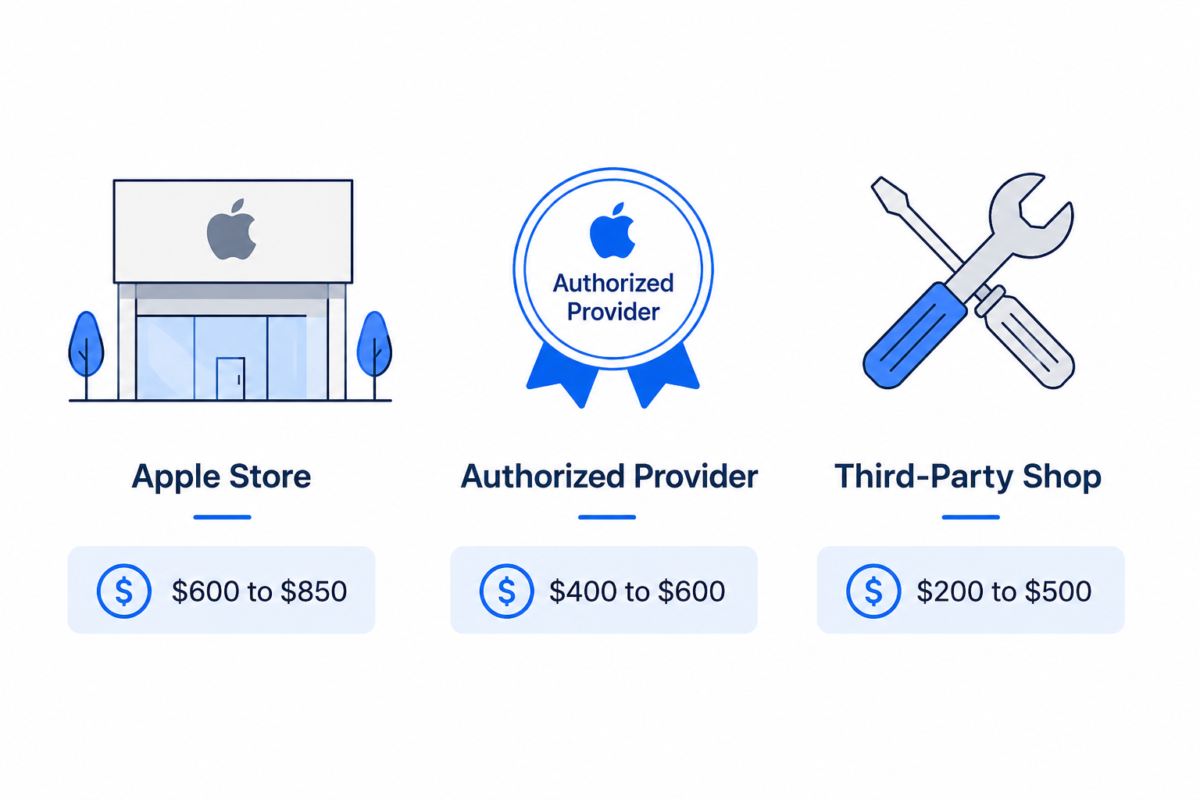
Here is a general cost breakdown by repair type:
| Repair Type | Apple Store Cost | Third-Party Shop Cost | DIY Cost |
| Battery Replacement | $100 to $200 | $80 to $150 | $50 to $100 (parts only) |
| Screen Replacement | $200 to $400 | $150 to $300 | Not recommended |
| Keyboard Replacement | $125 to $300 | $100 to $250 | Difficult without tools |
| Logic Board Repair | $600 to $850 | $400 to $600 | Not feasible for most |
| Water Damage Repair | $300 to $800+ | $200 to $600+ | Not recommended |
| Charging Port Repair | $100 to $200 | $80 to $150 | Possible on some models |
For example, a MacBook Pro logic board repair at the Apple Store can cost close to $850. A third-party shop may charge $400 to $600 for the same repair. That is a big difference.
Does AppleCare+ Lower These Costs?
Yes, it can lower your costs significantly. AppleCare+ covers hardware failures at no extra charge (beyond the plan cost). It also covers up to two incidents of accidental damage per year, but each incident comes with a service fee. For Mac, that fee is typically around $99 to $299 depending on the type of damage. Always check your AppleCare+ status at support.apple.com before paying out of pocket.
Apple Store vs. Authorized Provider vs. Third-Party: Which Should You Choose?
This is the most important decision you will make. Each repair path has real trade-offs. Here is how they compare:
| Repair Path | Best For | Cost Range | Warranty Risk | Typical Speed |
| Apple Store (Genius Bar) | Official repairs, warranty claims, AppleCare+ users | Highest | None | 3 to 7 business days |
| Apple Authorized Service Provider (AASP) | Official parts without going to an Apple Store | Similar to Apple | None | 3 to 7 business days |
| Third-Party Independent Shop | Budget-conscious repairs, older Mac models | Lowest | Possible (see note) | 1 to 5 business days |
| Apple Self Service Repair | DIY on eligible Mac models | Parts cost only | None if using genuine parts | Your own pace |
Both the Apple Store and Apple Authorized Service Providers use genuine Apple parts and certified technicians. Your Mac warranty stays intact with either option.
When Third-Party Mac Repair Is a Smart Choice
Third-party repair shops have gotten more legitimate in recent years. Right-to-Repair legislation passed in California, New York, Minnesota, and other US states now requires Apple to provide parts, tools, and repair manuals to independent shops and consumers. This means more third-party shops can now access genuine Apple components legally.
If your Mac is out of warranty and you face a high repair bill from Apple, getting a quote from a reputable independent shop is a smart move. Just ask whether they use OEM or genuine Apple parts, and check reviews before committing.
Can You Repair Your Mac Yourself?
DIY Mac repair is possible for some Mac models, but not all. Most modern MacBooks have components that are soldered directly to the logic board, which makes them nearly impossible to swap at home without specialized equipment.
Here is what you need to know before going the DIY route:
- Check your Mac model. Older Mac Pros, Mac Minis (pre-2020), and some MacBook Air models from earlier generations are more user-serviceable than newer ones.
- Use iFixit guides. iFixit publishes free step-by-step repair instructions for hundreds of Mac models at ifixit.com/Device/Mac.
- Consider Apple’s Self Service Repair program. Apple launched a Self Service Repair program that lets you order genuine Apple parts and tools for eligible Mac models. This is an official DIY path that does not void your warranty.
- Avoid DIY on M1/M2/M3 chip Macs. Apple Silicon Macs (M1, M2, M3 series) have extremely integrated components. Attempting repairs on these models without proper training carries serious risk of permanent damage.
- Run Apple Diagnostics first. Before opening anything, run Apple Diagnostics on your Mac. Restart your Mac and hold the D key during startup. This gives you an error code that helps pinpoint the problem.
If your Mac is a newer M-series model, professional repair is almost always the safer path.
What to Do Before Sending Your Mac in for Repairs
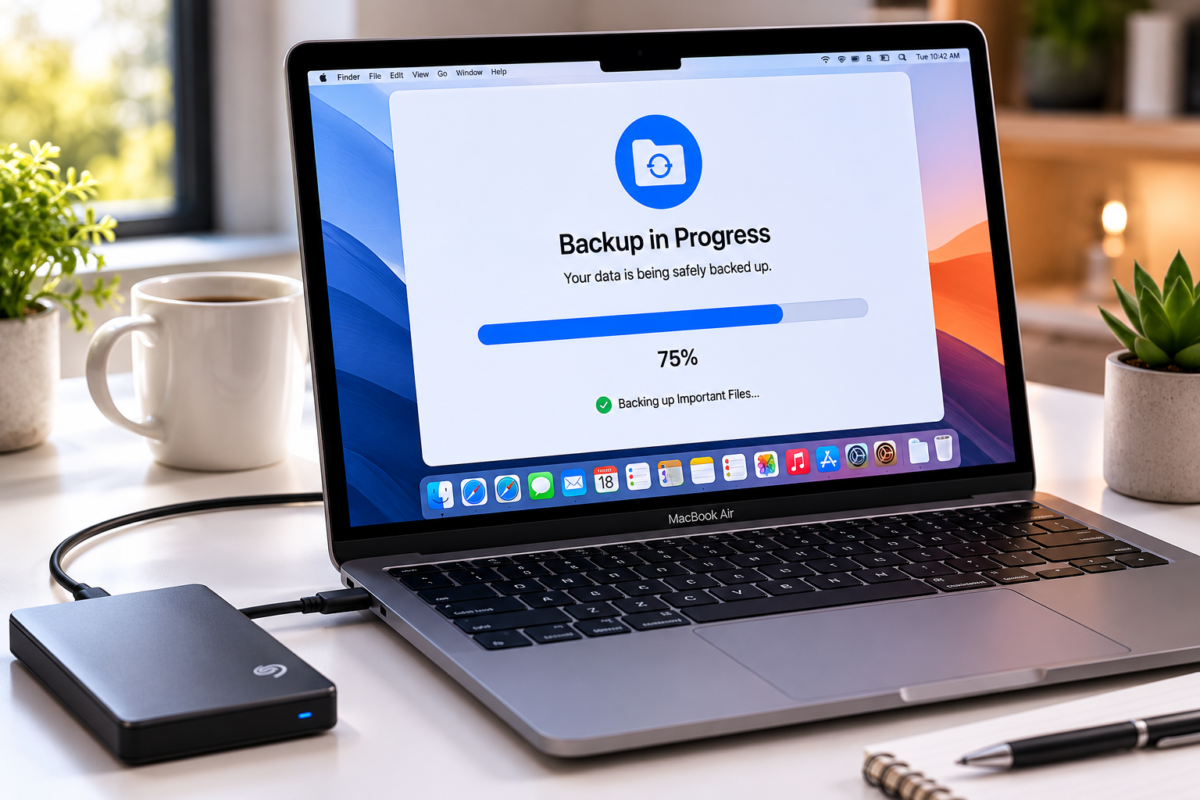
Do not hand your Mac over to anyone without completing these steps first. Skipping this list can mean lost data or a longer repair process.
- Back up your Mac with Time Machine. Connect an external drive and run a full Time Machine backup. This protects all your files if macOS needs to be reinstalled.
- Sign out of iCloud. Go to System Settings, click your Apple ID, and select Sign Out. This prevents account lock issues during and after the repair.
- Disable Find My Mac. Find My Mac must be turned off before Apple or any service provider can service your device. Go to System Settings, click Apple ID, then Find My, and toggle it off.
- Note your Mac serial number. Find it by clicking the Apple logo in the top left corner, then About This Mac. The serial number lets you check your Mac warranty status online.
- Check your warranty status. Go to checkcoverage.apple.com
- and enter your serial number. This tells you whether your repair might be free or discounted.
- Remove your login password (if required by the repair shop). Some repairs require access to macOS. Ask in advance whether you need to provide your password or create a temporary service account.
How to Set Up Your Mac After It Comes Back from Repair
Most guides stop at the repair itself. But what happens after you get your Mac back matters just as much. A repair can reset your macOS settings, wipe your email configuration, or change app preferences. Getting everything running smoothly again takes a few steps.
- Restore from your Time Machine backup. If macOS was reinstalled, use Migration Assistant to restore your files and apps from the backup you made before the repair.
- Check your macOS version. Repairs sometimes involve a fresh macOS install. Make sure you are on the latest compatible version by going to System Settings and clicking Software Update.
- Reinstall key apps. Some apps may need to be redownloaded. Check your Applications folder and reinstall anything missing from the App Store or vendor website.
- Recheck your storage. Go to System Settings, then General, then Storage. Make sure your data transferred correctly and no unexpected files are taking up space.
Reconfiguring Your Email Client After a Mac Repair

Email is often the first thing that breaks after a Mac repair or restore. Accounts disappear, inboxes stop syncing, and server settings reset. This is one of the most overlooked parts of post-repair Mac setup.
Start by reopening Mail or Microsoft Outlook and checking whether your accounts are still connected. If they are missing, you will need to re-enter your incoming and outgoing server settings. For a full walkthrough on getting your Mac email up and running correctly, follow the step-by-step process in the complete Mac email setup guide.
If you use Outlook as your main email client, a repair or fresh macOS install can also slow it down significantly. Get it back to peak performance with this guide on how to optimize your Outlook performance on Mac.
If your email uses older server protocols or a provider like Roadrunner (now Spectrum), those account settings often need to be reconfigured manually after a system restore. You can find the exact settings you need in this guide to update your email server settings.
Is It Worth Repairing Your Mac or Buying a New One?
This is the question most people avoid asking until they get a repair quote that makes them flinch. The honest answer is: it depends on the numbers.
A practical rule of thumb is this. If the repair cost is more than 50% of what a comparable replacement Mac costs, replacing is worth serious consideration. If the repair is minor and the Mac is still performing well overall, fixing it makes more sense.
Here is a simple decision framework:
Repair your Mac if:
- The Mac is less than 4 years old
- The repair cost is under 40% of a comparable new model
- You have AppleCare+ coverage
- The problem is isolated (battery, screen, keyboard)
- The Mac has an M-series chip with years of software support ahead
Consider replacing your Mac if:
- The Mac is 5 or more years old
- The repair involves logic board failure
- The repair cost exceeds $600 without warranty coverage
- The Mac uses an older Intel processor and is already slow
- Multiple components are failing at the same time
Apple typically supports Mac models with macOS updates for 7 to 8 years. Checking where your Mac falls in that support window is a smart step before committing to an expensive repair.
Final Thoughts
Mac repairs do not have to be stressful. Once you understand your three main options (Apple Store, an Apple Authorized Service Provider, or a trusted third-party shop), know the real costs, and follow the right steps before and after the repair, the whole process becomes manageable.
The most important things to remember are: always back up with Time Machine before handing your Mac to anyone, always check your Mac warranty status before paying out of pocket, and always reconfigure your apps and email settings after getting your Mac back.
If your Mac is back up and running and your email is acting up, your inbox needs reorganizing, or Outlook is sluggish, the next step is easy. Follow our complete Mac email setup guide to get your productivity tools running at full speed again.


