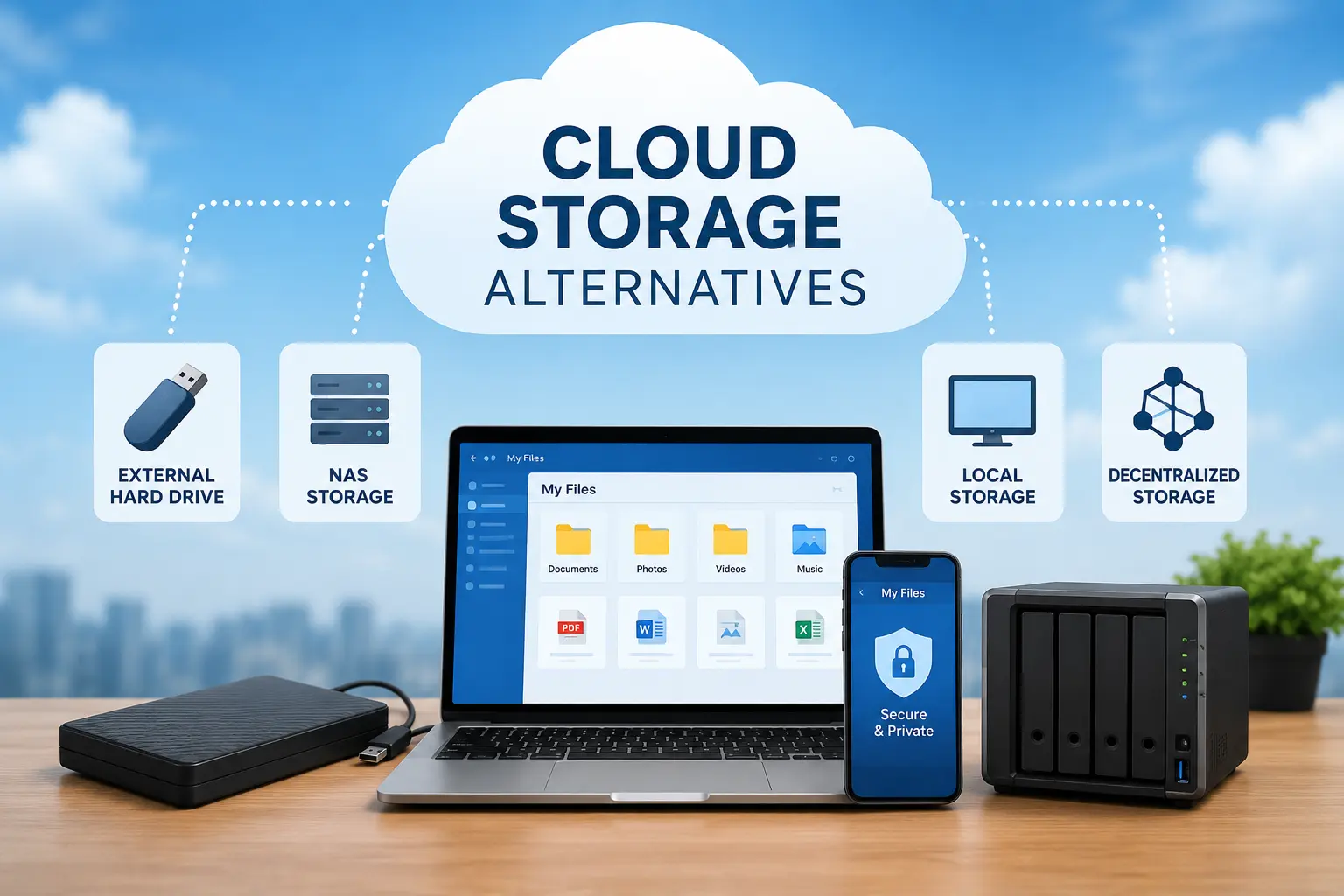
The best cloud storage alternatives depend on what you need most. Some tools are better for team work, while others focus on privacy, large files, or easy file sharing. Before switching, compare storage space, sharing tools, security, device support, and how well the service fits your daily workflow.
Cloud storage alternatives can help when your current account is full, too expensive, hard to use, or not private enough.
Maybe you use Google Drive but want more privacy. Maybe Dropbox feels costly. Maybe you need a better place for work files, email attachments, photos, or shared folders.
The good news is that you have choices.
Some services work best for Google Workspace users. Others are better for Microsoft 365, Apple devices, remote teams, or private files. This guide compares popular cloud storage alternatives in simple words, so you can choose the right learning-free tool for your files.
How We Chose These Cloud Storage Alternatives
Not every cloud storage service works the same way. A tool that is great for a remote team may not be the best choice for private family documents.
We looked at these important areas:
- Free storage and paid plan value
- File synchronization across devices
- Shared folders and file sharing tools
- Storage capacity for photos, videos, and documents
- Version history and deleted-file recovery
- Desktop app and mobile app support
- Data privacy and account security
- End-to-end encryption options
- Google Workspace, Microsoft 365, and Apple support
- Ease of moving files from another service
Security also matters. The U.S. Cybersecurity and Infrastructure Security Agency recommends using strong passwords and multifactor authentication to protect online accounts. No matter which service you choose, turn on two-factor authentication when it is available.
A cloud service can help keep files safe, but it should not be your only backup. Keep important documents in more than one secure location.
Quick Comparison of Cloud Storage Alternatives
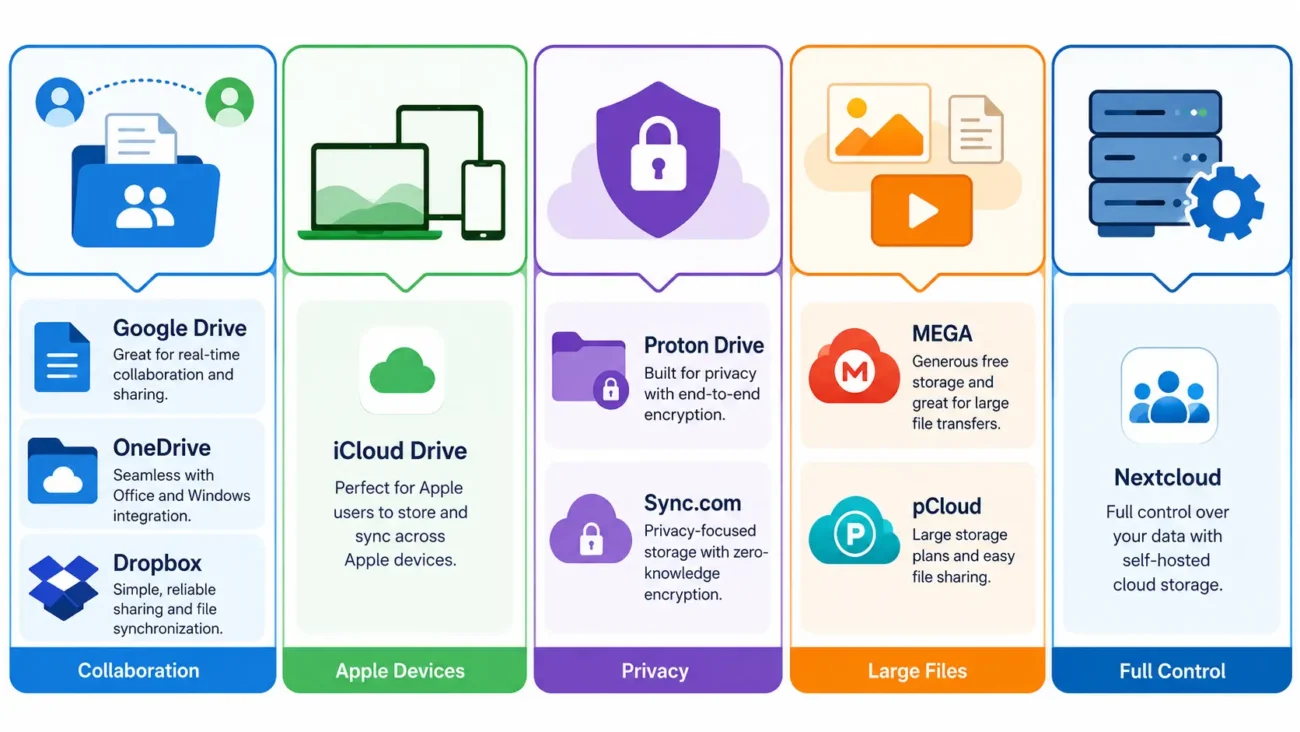
This table gives you a fast look at common cloud storage alternatives.
| Cloud Storage Service | Best For | Main Strength | Main Trade-Off |
| Google Drive | Google Workspace users | Easy document work and sharing | Less focused on zero-knowledge privacy |
| Microsoft OneDrive | Windows and Microsoft 365 users | Strong Office file support | Best value is often inside Microsoft tools |
| Dropbox | Remote teams | Simple file sharing and file syncing | Can cost more for large storage needs |
| iCloud Drive | Apple users | Smooth iPhone, iPad, and Mac support | Less useful outside the Apple ecosystem |
| Proton Drive | Privacy-focused users | Strong privacy and encrypted cloud storage | May have fewer team tools than large work platforms |
| Sync.com | Private file sharing | Privacy-first storage and sharing controls | Collaboration tools may feel simpler |
| MEGA | Free cloud storage users | Large storage focus and privacy options | Check current limits and account rules |
| pCloud | Large personal file libraries | Flexible personal storage options | Compare plan details before buying |
| Nextcloud | Self-hosted control | More control over where files live | Needs technical setup and support |
Cloud storage comparison is not only about how much storage you get. You should also think about how you work every day.
For example, a writer may need easy document sharing. A photographer may need large file storage. A small business may need shared folders and better account controls. A privacy-focused user may care most about encryption.
Which Cloud Storage Alternative Is Best for Your Needs?
The best cloud storage alternatives are different for every person. Start by asking why you want to switch.
Do you need more free storage? Do you want stronger data privacy? Do you need to share large files with clients? Or do you want your cloud folders to work better with your email and work tools?
Use this simple guide.
| Your Main Need | A Good Place to Start |
| Easy documents and group work | Google Drive |
| Windows and Microsoft Office files | Microsoft OneDrive |
| Remote team file sharing | Dropbox |
| Apple device syncing | iCloud Drive |
| Strong privacy | Proton Drive or Sync.com |
| Large personal file storage | MEGA or pCloud |
| Full control and self-hosting | Nextcloud |
However, there is no one perfect cloud service.
Privacy-first tools may have fewer live editing features. Team tools may collect more account data than privacy-focused services. Large free storage plans may have limits that do not work well for business files.
The right choice is the one that solves your main problem without creating a new one.
If you also want your digital tools to be simple, read our guide to choose user-friendly organization tools.
The 9 Best Cloud Storage Alternatives by Use Case
Here are the nine cloud storage alternatives to include in the article. Each one serves a different type of user, so readers can quickly find the best fit for their files, devices, privacy needs, and work style. Zapier similarly organizes its cloud-storage recommendations by user need, including Google Workspace, Apple, remote-team, and Microsoft 365 use cases.
- Google Drive for Google Workspace users and small businesses
- Microsoft OneDrive for Windows and Microsoft 365 users
- Dropbox for remote teams and simple file sharing
- iCloud Drive for Apple users
- Proton Drive for privacy-focused users
- Sync.com for private file sharing
- MEGA for free cloud storage users
- pCloud for large media files and personal storage
- Nextcloud for self-hosted control
Google Drive for Google Workspace and Everyday Collaboration
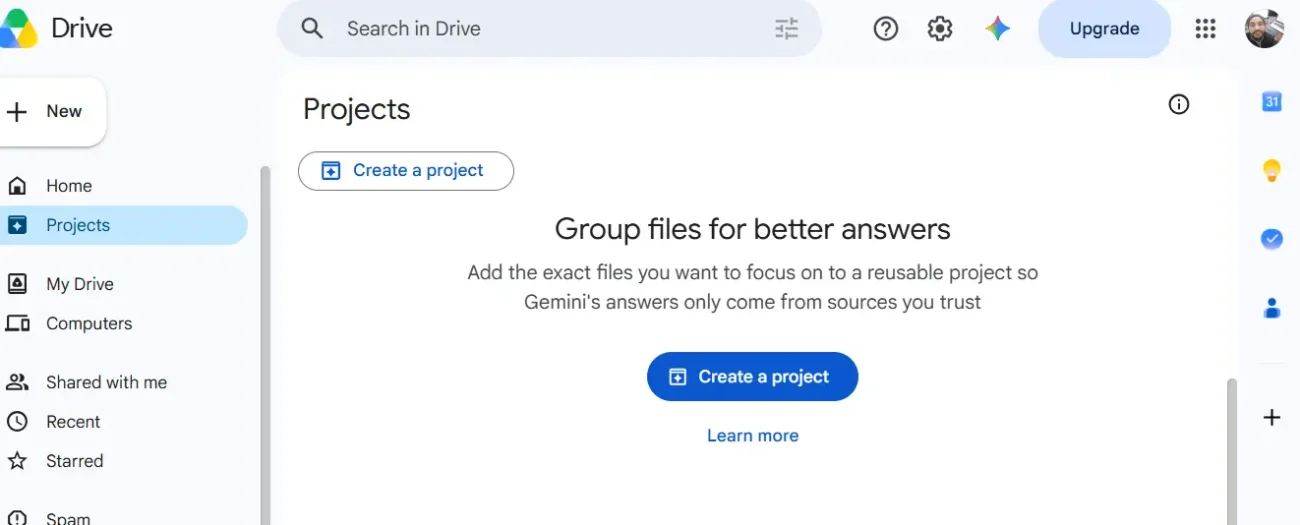
Google Drive is a strong choice for people who already use Gmail, Google Docs, Google Sheets, and Google Meet.
It works well for everyday documents, school files, personal folders, and small business work. You can create files, share folders, leave comments, and work with other people at the same time.
Google Drive is also useful for email attachments. When someone sends you a file through Gmail, you can save it to Drive instead of leaving it buried in your inbox.
Google Drive may be a good fit if you need:
- Easy file sharing
- Google Docs and Sheets
- Shared folders
- Team comments
- Fast collaboration
- Simple links for files
However, Google Drive may not be the best option if your main goal is encrypted cloud storage with a zero-knowledge privacy model.
Google Workspace users and small businesses often choose Google Drive because it works closely with other Google tools. Google Drive also offers a free 15 GB storage tier, according to TechRadar’s 2026 cloud document storage overview.
If Gmail is full of file notices, invoices, and attachments, learn how to organize Gmail and email attachments more efficiently.
Microsoft OneDrive for Windows and Microsoft 365 Users
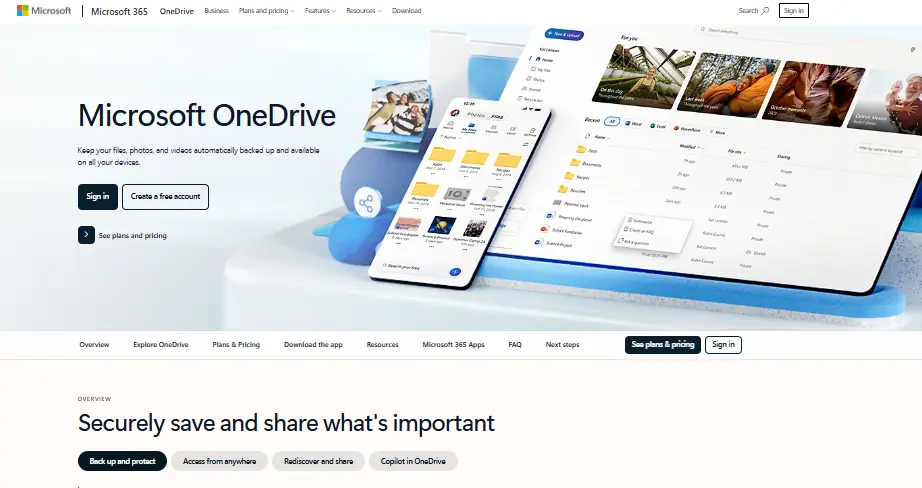
Microsoft OneDrive is often a good choice for people who use Windows, Microsoft Word, Excel, PowerPoint, and Microsoft 365.
It can make file synchronization easy between a Windows computer and cloud folders. This is helpful when you work on documents at home, in the office, or while traveling.
OneDrive can be a smart option if you need:
- Microsoft Word and Excel support
- Windows file syncing
- Shared work folders
- Microsoft 365 tools
- Business document storage
- Access across devices
For many users, the biggest reason to choose OneDrive is simple: it already fits their work setup.
If your school, job, or business uses Microsoft 365 every day, changing to a different service may create extra work. On the other hand, people who do not use Windows or Office tools may find another cloud storage service easier.
Microsoft’s Trust Center provides information about security, privacy, and compliance across Microsoft services. Check its current policies before storing sensitive business or personal files.
Dropbox for Simple File Sharing and Remote Teams
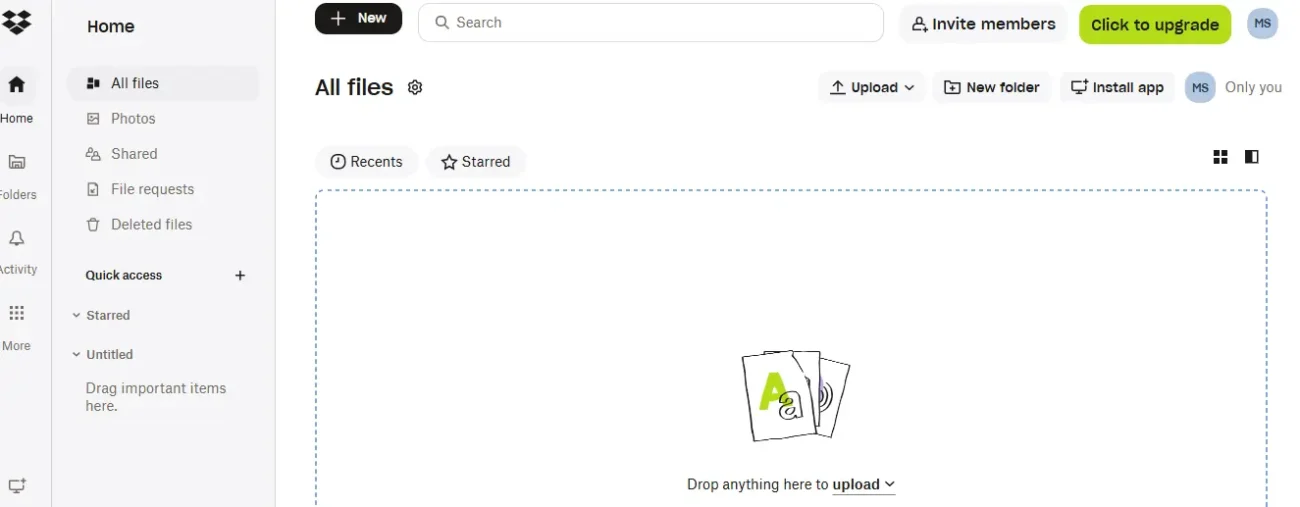
Dropbox is one of the best known Dropbox alternatives to consider when you want easy file syncing and simple sharing. It is popular with remote teams, freelancers, agencies, and people who send files to clients.
Dropbox can help you keep a shared folder updated across different devices. You can send a link instead of adding a large file to an email.
This can reduce inbox clutter and stop people from sending many copies of the same document.
Dropbox may work well if you need:
- Shared folders for a team
- Easy client file sharing
- File synchronization on different devices
- Better control than email attachments
- Simple document storage
- File recovery options
Dropbox says its cloud storage tools help users store files, access them across multiple devices, protect data, recover files, and share photos and folders.
Still, Dropbox may not be the cheapest option for everyone. If low cost or privacy is your main goal, compare it with secure cloud storage alternatives before choosing a plan.
For teams, better file organization and inbox organization can work together. You can also improve team productivity with better organization.
Proton Drive for Privacy-Focused Personal Files
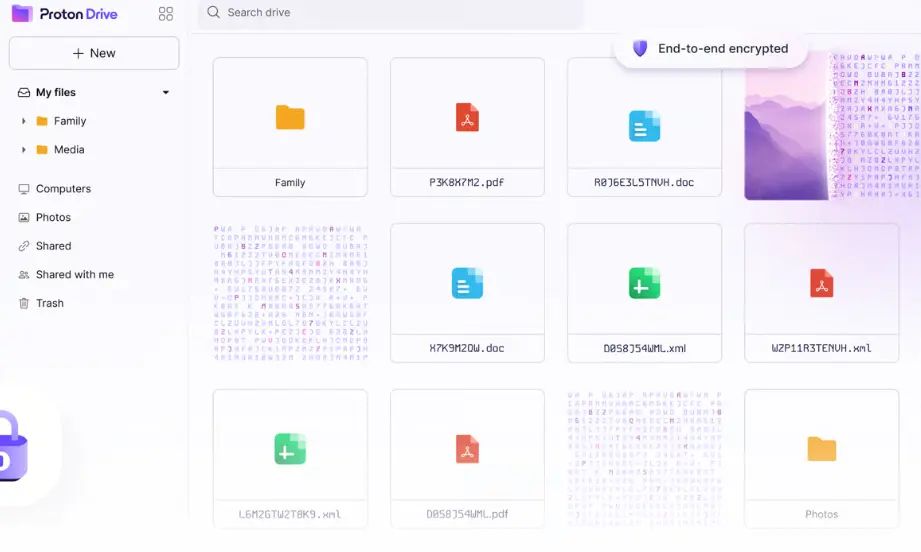
Proton Drive is a cloud storage choice for people who care strongly about data privacy. It is often considered by users who want an alternative to large platforms such as Google Drive or Dropbox.
Privacy tools can use end-to-end encryption. This means files are encrypted before leaving your device, and the service may not be able to read the files in the same way as a standard provider-managed system.
This sounds simple, but there is an important trade-off.
Stronger privacy may mean fewer collaboration tools, fewer fast search features, or different account recovery rules. Always read the provider’s current security page before uploading important files.
Proton Drive may suit you if you need:
- Private document storage
- Encrypted cloud storage
- Secure personal files
- Better privacy controls
- A privacy-first service
It may not be the best fit if your main need is live teamwork on large groups of documents every day.
A privacy-focused cloud service can be useful, but you should still use a strong password and two-factor authentication. Security is not only about encryption. It is also about how you protect your account.
Sync.com for Private File Sharing
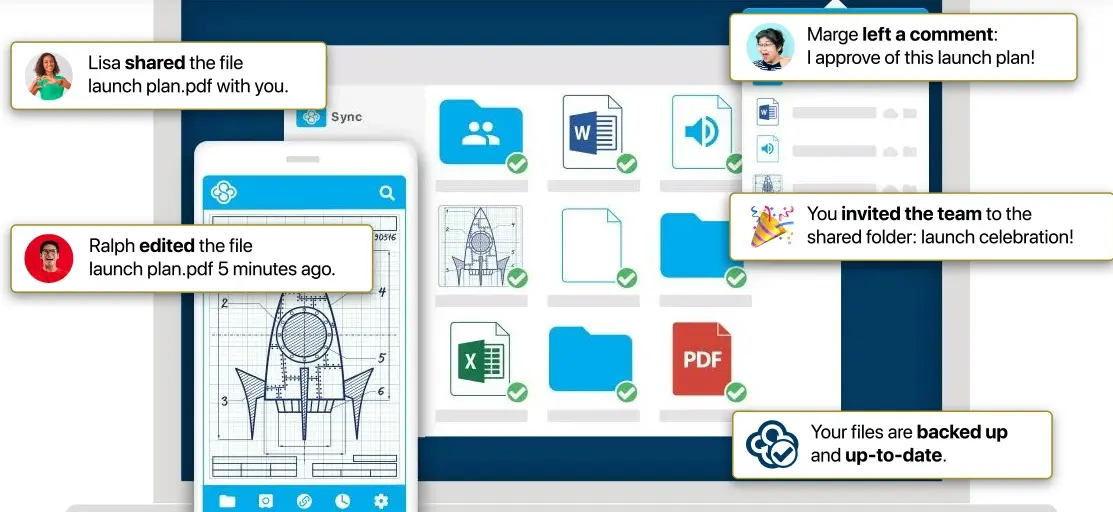
Sync.com is another option for people looking for secure cloud storage alternatives. It is often considered by users who want private file sharing and stronger control over files they share.
For example, you may want to share a document with a client but limit who can open it. You may also want to stop access after a project ends.
Private file sharing can be useful for:
- Client documents
- Financial files
- Personal records
- Freelance project folders
- Sensitive work files
- Important family files
Before choosing any privacy-first service, check these details:
- Does it support two-factor authentication?
- Can you recover deleted files?
- Can you set link passwords?
- Can links expire after a set time?
- Can you remove access later?
- What happens if you forget your password?
These questions matter because a strong privacy setup can also make account recovery harder.
iCloud Drive for Apple Users
iCloud Drive is often the easiest option for people who use an iPhone, iPad, and Mac every day.
It can automatically keep files, photos, notes, and documents available across Apple devices. This can feel smooth because the service is built into the Apple ecosystem.
iCloud Drive may be right for you if you need:
- Easy iPhone and iPad syncing
- Mac document access
- Photo and file storage
- Apple app support
- Simple personal file organization
The main downside is that iCloud Drive may not be the best choice for teams that use Windows, Android, or many non-Apple devices.
If your whole household uses Apple devices, it can be a simple choice. If your work team uses many different systems, Google Drive, OneDrive, or Dropbox may be easier.
Zapier’s current cloud storage guide also identifies iCloud as a fit for Apple users.
MEGA and pCloud for Large Personal Storage Needs
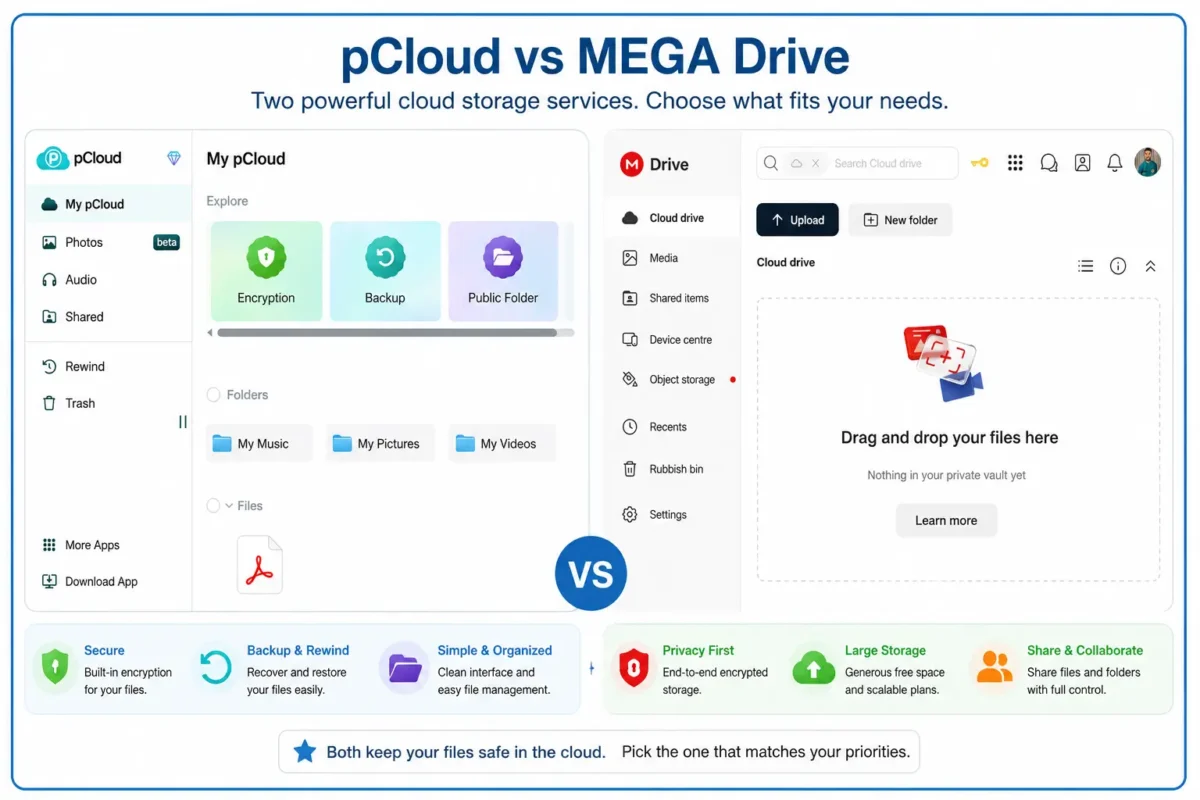
MEGA and pCloud are often considered by people who need more storage capacity for personal files. This may include photos, videos, backups, music files, or large work folders.
These services may be useful when a free cloud storage account fills up quickly.
Before choosing one, check:
- How much free storage is available now
- File-size limits
- Upload limits
- Download limits
- File recovery rules
- Sharing tools
- Mobile app support
- Encryption options
- Account recovery steps
Free cloud storage alternatives can look attractive at first. But the best free plan is not always the one with the most storage space.
For example, a plan may have plenty of space but weak file sharing. Another plan may be easy to use but offer limited deleted-file recovery. Always compare the features you will use most.
Do not rely on old articles for storage numbers. Free storage limits and paid plan rules can change often.
Nextcloud for Self-Hosted Control
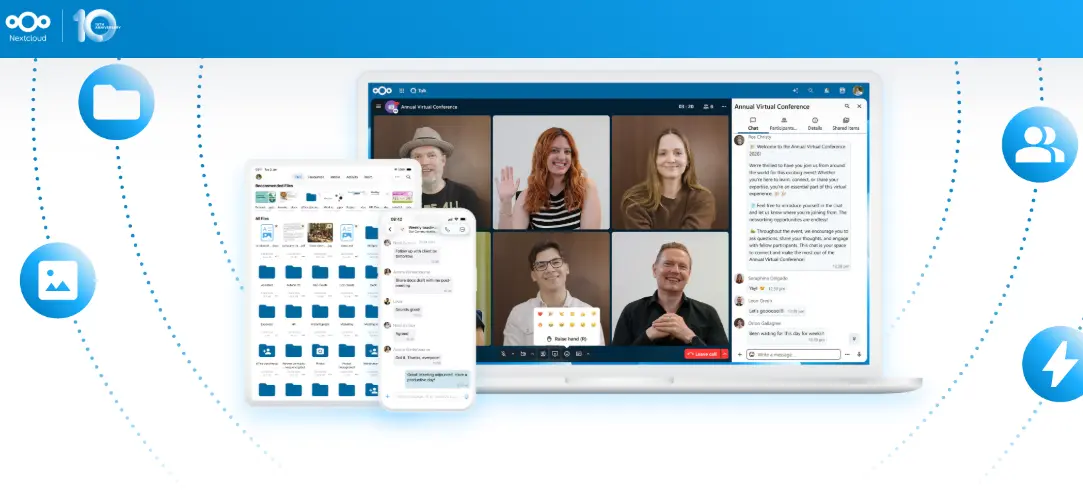
Nextcloud is different from many other cloud storage services. It can let people or organizations host their own files instead of placing everything with a large cloud provider.
This can give more control over file location, sharing rules, and setup.
Nextcloud may be a good fit for:
- Technical users
- Small organizations with IT support
- Privacy-focused teams
- Users who want self-hosted cloud storage
- People who want more control over data
However, self-hosting is not simple for everyone.
You may need to manage updates, backups, server security, storage space, and account access. If you do not have technical skills or IT help, a standard cloud provider may be easier and safer to use.
Nextcloud is best for people who understand the extra responsibility that comes with control.
What Should You Check Before Switching Cloud Storage?
Before moving your files, take time to compare more than storage capacity.
A cloud storage service may look great until you find out that it does not support your device, your file type, your shared folders, or your privacy needs.
Keep your files safe
Check version history and deleted-file recovery.
Version history can help when you change a file by mistake. It may let you return to an older version. Deleted-file recovery can help if you remove something important.
You should also check file-size limits. This is very important for videos, design files, backups, and large work folders.
Before switching, ask:
- Can I recover deleted files?
- How long are deleted files kept?
- Does the service save older versions?
- Can I upload large files?
- Does the desktop app work well?
- Can I access files from a mobile app?
Protect your account
Use a strong, unique password for every cloud account. Do not reuse the password from your email account.
Turn on two-factor authentication or multifactor authentication. This adds a second security step when you sign in.
The Cybersecurity and Infrastructure Security Agency advises people to use strong passwords and multifactor authentication to make accounts harder to break into.
You should also check account recovery options. If you lose your password, how will you get back into your files?
Avoid migration surprises
Moving files from one provider to another may not move everything perfectly.
You may lose:
- Old shared links
- Folder permissions
- Comments
- File versions
- Labels
- File activity history
- Connected app links
Before you cancel an old plan, check that your important files work in the new cloud storage service.
Is End-to-End Encrypted Cloud Storage Always Better?
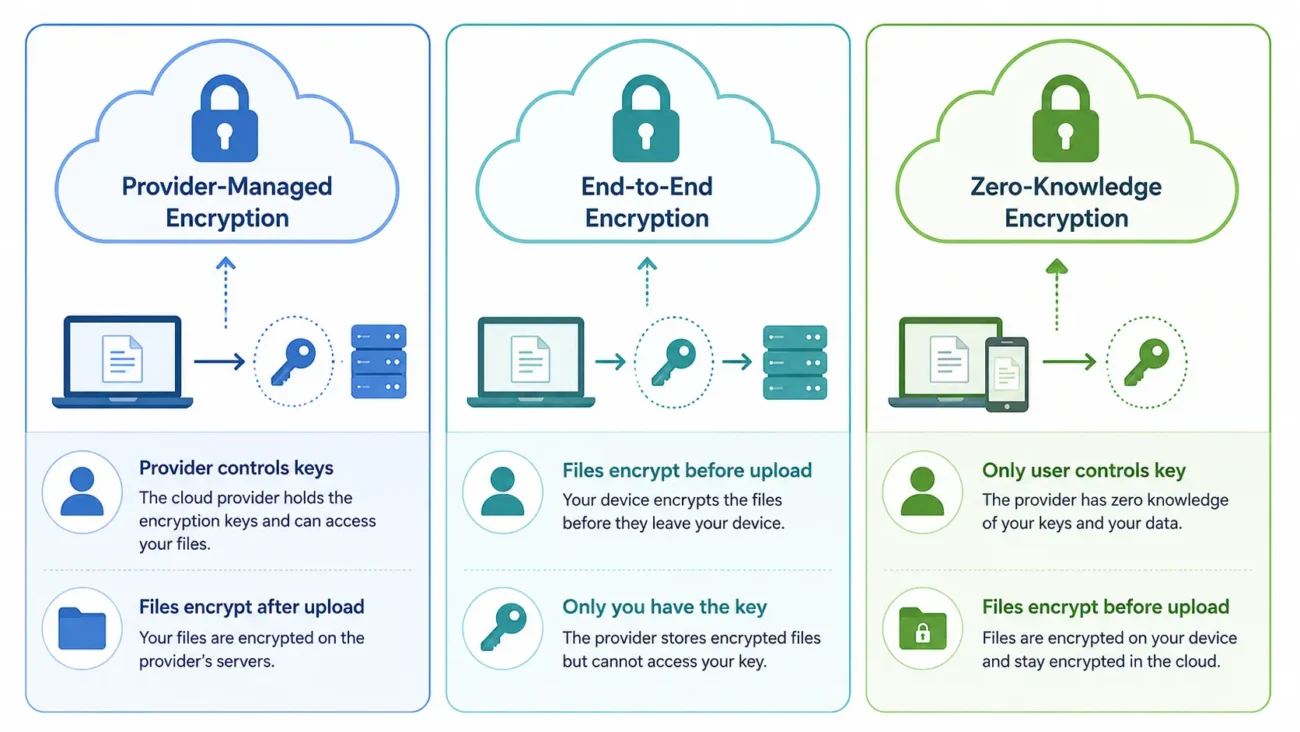
End-to-end encryption can be better for privacy, but it is not always better for every person.
With standard cloud storage, a provider may encrypt files while they move and while they are stored. However, the provider may still manage the encryption keys.
With end-to-end encryption, the files are encrypted before they leave your device. This can give stronger privacy because the provider may not be able to read your files.
Zero-knowledge encryption is a similar idea. It means the provider may not know your encryption password or key.
This can be good for private files. However, it can also make account recovery harder.
If you lose the password to a zero-knowledge account, the provider may not be able to restore your access.
Here is a simple comparison.
| Privacy Type | What It Means | Best For |
| Provider-managed encryption | The provider protects files but may manage encryption keys | Everyday work and easy recovery |
| End-to-end encryption | Files are encrypted before leaving your device | Private personal and sensitive files |
| Zero-knowledge encryption | The provider may not know your encryption key | Users who want stronger privacy control |
Privacy is important, but it is only one part of security.
You still need:
- A strong password
- Two-factor authentication
- Safe device habits
- Regular backups
- Careful sharing settings
- Updated apps and software
How Can You Organize Cloud Files and Email Attachments Together?
Cloud storage and inbox organization should work together.
Many people lose important files because they stay inside email threads. A contract may be in one message. An invoice may be in another. A client file may be mixed with newsletters and old replies.
A better system can help you find files faster.
1. Create clear folders
Make folders based on how you work.
For example:
- Clients
- Projects
- Bills
- Taxes
- School
- Family
- Photos
- Work documents
Inside each folder, use smaller folders when needed. For example, inside “Clients,” create one folder for each client.
2. Use clear file names
Do not save every file as document-final-new.pdf.
Use names that explain what the file is.
For example:
- Client-Name-Contract-2026.pdf
- Website-Project-Notes-July-2026.docx
- Invoice-001-June-2026.pdf
A clear file name makes searching much easier.
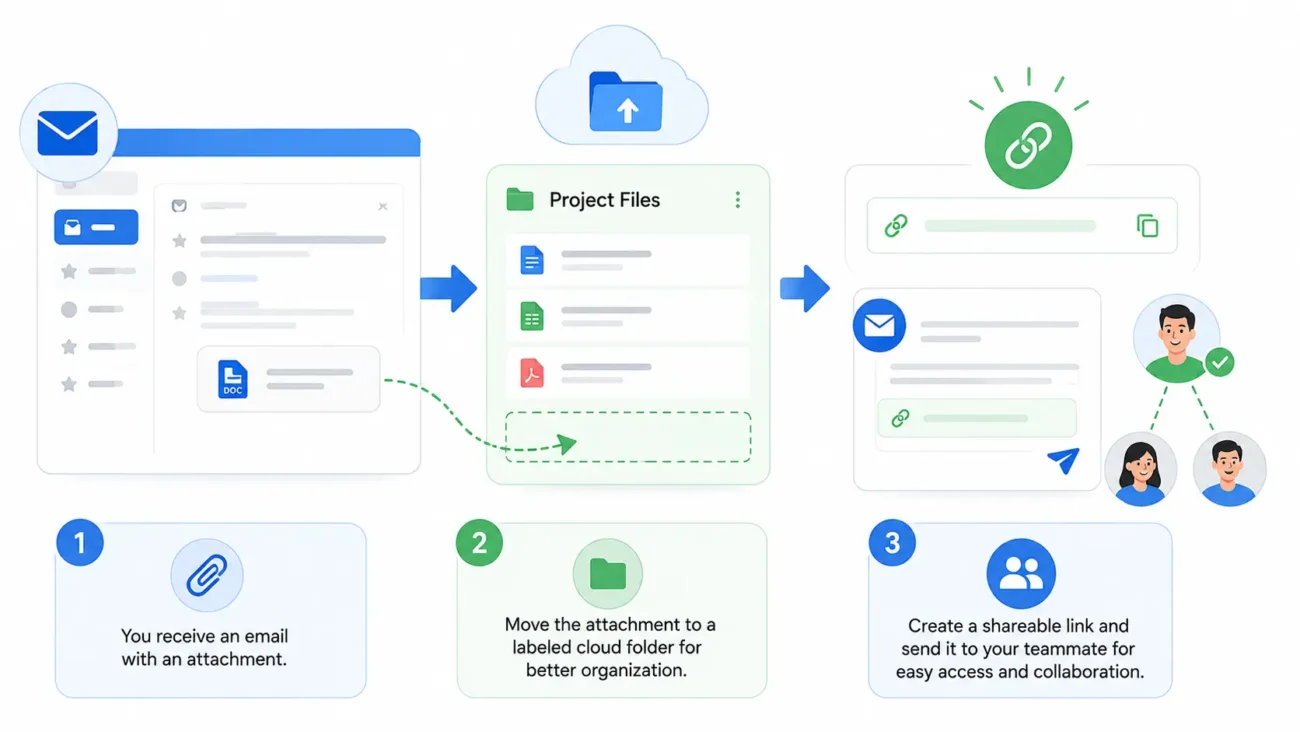
3. Save important email attachments
When you receive an important attachment, save it to the correct cloud folder. Do not leave it only in your inbox.
Then you can find it by project or client, even if the original email is old.
4. Share links instead of duplicate attachments
Instead of sending the same file again and again, share a cloud link.
This can reduce duplicate files. It can also help everyone use the newest version.
Be careful with shared links. Check who can open the file. Remove access after the project ends when needed.
5. Match email labels with cloud folders
Use the same names in your email and cloud storage.
For example, if you have a cloud folder called “Client A,” create an email label or filter called “Client A.” This makes your inbox and file storage easier to manage together.
If you need help cleaning up email, explore our guide to email sorter tools for a cleaner inbox. You can also learn about the benefits of email sorting software.
How Do You Move Files to a New Cloud Storage Service?
You can move files to a new cloud storage service safely if you take your time.
Do not move everything in one rush. Start with a small test folder first.
1. Review your current files
Look through your current cloud folders. Delete old files, duplicates, and items you no longer need.
This can save storage space and make the move easier.
2. Make a backup
Before moving anything, make a backup copy of your most important files.
You can keep a copy on an external drive or another secure cloud account. This gives you extra protection if something goes wrong.
3. Check the new service limits
Look at your new storage capacity. Check file-size limits, upload rules, sharing tools, and supported devices.
Make sure the service can hold your files before you move them.
4. Move a small test folder
Choose one folder with a few files. Upload or transfer it to the new service.
Then check:
- Did every file transfer?
- Can you open the files?
- Are file names correct?
- Can you share a test file?
- Does the mobile app work?
- Does file synchronization work on your computer?
5. Rebuild sharing settings
Shared folders may not keep the same permissions after moving.
You may need to invite people again. You may also need to create new shared links.
Tell clients, coworkers, or family members if an old link will stop working.
6. Update links in email and documents
Search your email templates, website pages, project notes, and saved messages for old cloud links.
Replace them with new links after the move.
7. Keep the old account for a while
Do not cancel your old cloud account right away.
Keep it active until you confirm that important files, folders, backups, and shared links are working correctly in the new service.
Choose the Right Cloud Storage Alternative
The best cloud storage alternative is the one that matches your real needs.
Choose Google Drive if you want simple documents and Google Workspace tools. Choose OneDrive if you use Windows and Microsoft 365. Choose Dropbox if you need easy team file sharing. Choose iCloud Drive if you use Apple devices. Choose Proton Drive or Sync.com if privacy is your top concern.
If you need more storage, compare MEGA and pCloud. If you want more control, Nextcloud may be worth exploring.
Cloud storage can keep your files organized. But important files can still get lost inside a busy inbox. To keep both your files and messages easier to manage, learn how AI email sorters can organize your inbox.
Frequently Asked Questions
What is the best alternative to Google Drive?
The best alternative to Google Drive depends on your needs. OneDrive can work well with Microsoft 365. Dropbox can be useful for file sharing. Proton Drive and Sync.com may suit people who care more about privacy and encrypted cloud storage.
What is the best cloud storage for privacy?
Privacy-focused cloud storage services often use end-to-end encryption or zero-knowledge encryption. These tools may be a good choice for private files, but you should also check account recovery, sharing tools, two-factor authentication, and current security policies.
Is Dropbox good for file sharing?
Dropbox can be a good choice for simple file sharing, shared folders, and file synchronization. It is often useful for remote teams, freelancers, and client work. Compare its storage plans and privacy features with other cloud storage alternatives before choosing.
Which cloud storage has the best free plan?
Free storage plans change often. Check current storage limits, file-size rules, sharing tools, and recovery features before choosing. The best free cloud storage alternative is the one that fits your files and workflow, not only the one with the biggest number.
Can I move files from Google Drive to another service?
Yes. You can download your files, use a migration tool, or move folders in stages. Start with a small test folder. Check that files open correctly and that you recreate important shared links, permissions, and folder access.
Is cloud storage safe for important documents?
Cloud storage can be safe when you use a unique password, turn on two-factor authentication, use careful sharing settings, and keep another backup copy. Do not keep important files in only one account.
Should I use more than one cloud storage service?
You can use more than one service if each one has a clear purpose. For example, you may use one for work collaboration and another for private files. However, too many accounts can create duplicate files and make organization harder.


