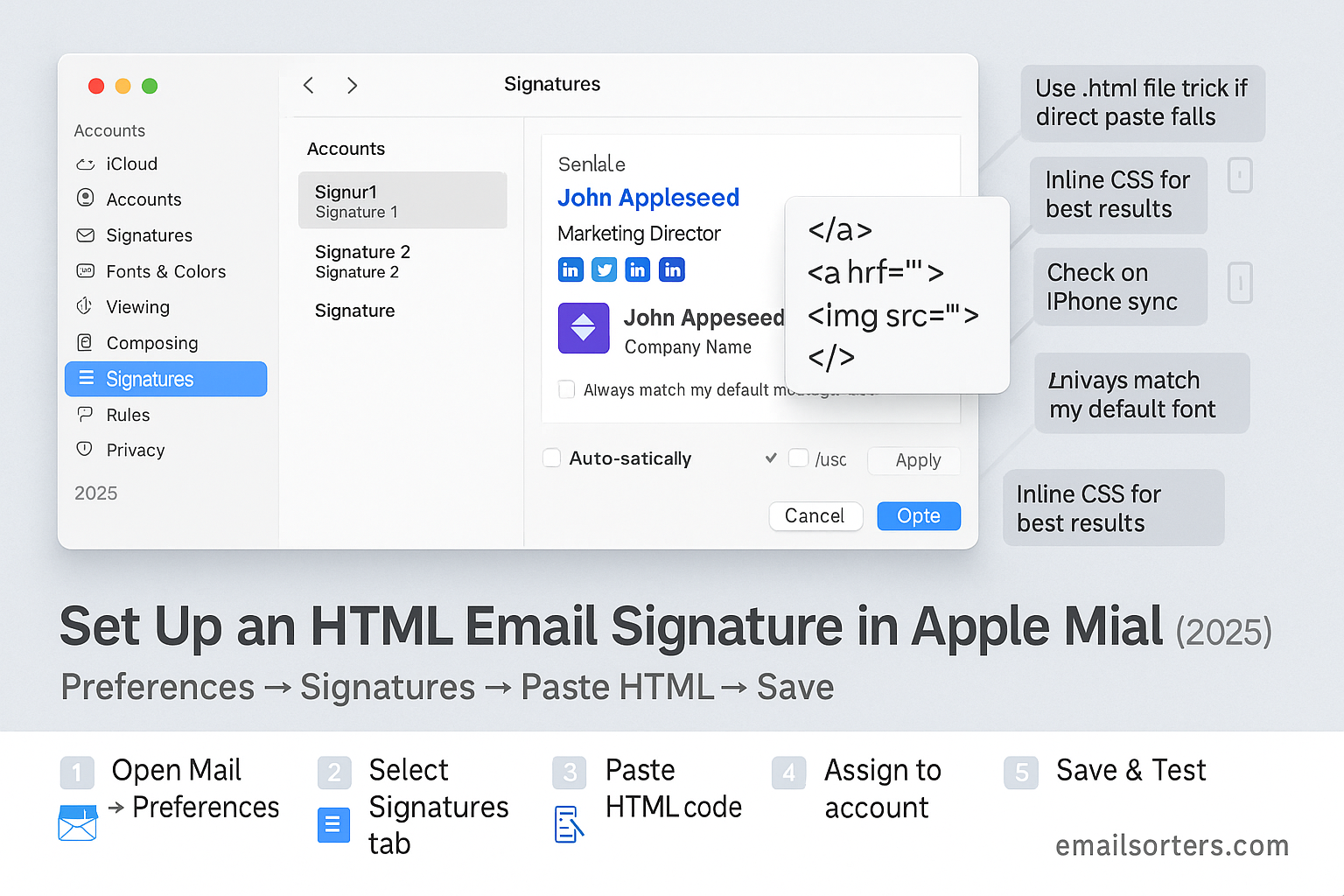
Apple Mail HTML signature can turn a simple sign-off into a branded, professional finish. With HTML, you can add styled text, your logo, clickable links, and social icons, so every email reinforces your identity and builds trust.
Apple Mail doesn’t make HTML setup obvious, but it’s absolutely doable. In this step-by-step guide, you’ll learn how to create a clean, consistent HTML signature, install it in Apple Mail, and keep it looking sharp across devices. Your emails will end with a credible, on-brand impression, every time.
What is an Apple Mail HTML Signature?
An Apple Mail HTML signature is a block of content at the bottom of your emails that uses HTML code for formatting. Instead of just plain text, it can include clickable links, images, custom fonts, and brand colors.
For example, a plain text signature might simply read:
nginxCopyEditEmily Carter
Marketing Director
[email protected]
An HTML signature, on the other hand, can display Emily’s name in bold, her title in smaller text, and her company logo aligned neatly beside her contact details.
How HTML Differs from Plain Text Signatures
Plain text signatures are easy but limited. They can’t include hyperlinks, images, or colors. They also look identical on every device, which can be both a benefit and a drawback.
HTML signatures allow for:
- Logos and branded colors
- Clickable phone numbers and websites
- Social media icons
- Layouts arranged in rows or columns
Why It Matters for Apple Mail Users
Apple Mail is the default email client on macOS, used by professionals, freelancers, and businesses worldwide. By adding an HTML signature, you ensure every message carries your branding. It’s especially important for client-facing communication where presentation and trust matter.
Benefits of Using Apple Mail HTML Signature
An HTML email signature is more than decoration, it’s a branding tool. Here’s why professionals on macOS should use one.
Brand Visibility
Your email signature is essentially a digital business card. Every time you send an email, recipients see your company’s logo, colors, and social links. Over time, this repetition strengthens recognition.
Professional Appearance
A well-formatted signature sets you apart. Instead of a block of plain text, you present a polished footer with links, a logo, and contact details that match your website and other communications.
Consistency Across macOS
Apple Mail integrates across macOS devices. Once you’ve installed your Outlook HTML signature correctly, it syncs with your Apple ecosystem (if you’re using iCloud for Mail), ensuring a uniform appearance whether you send emails from your iMac, MacBook, or Mac Mini.
Limitations of Apple Mail HTML Signature
Apple Mail supports HTML, but not without caveats. Before designing your signature, it’s important to know its limitations.
Restrictions Compared to Outlook and Gmail
- No built-in HTML editor: Apple Mail only allows you to paste rich text, not raw HTML. To install HTML, you have to replace a system file manually.
- Limited styling support: While Gmail and Outlook handle more advanced CSS, Apple Mail works best with inline CSS and simple layouts.
- Background images may not render: Stick with solid colors and logos instead.
Known Rendering Quirks
- Div-based layouts often break. Tables remain the most reliable method.
- Large images sometimes cause the signature to expand awkwardly.
- Apple Mail may strip certain external CSS or JavaScript.
Being aware of these quirks helps you design a signature that looks good without frustration.
Ways to Create Your HTML Signature
If you’re not a developer, don’t worry. There are user-friendly ways to create HTML signatures for Apple Mail.
Hand-Coding in a Simple HTML Editor
If you know basic HTML, you can create a custom signature using a text editor like Visual Studio Code or Sublime Text. Use tables for structure and inline CSS for styling. For example:
htmlCopyEdit<table>
  <tr>
    <td><img src="https://yourdomain.com/logo.png" width="100"></td>
    <td>
      <strong>Emily Carter</strong><br>
      Marketing Director<br>
      <a href="mailto:[email protected]">[email protected]</a><br>
      <a href="tel:+123456789">+1 234 567 89</a>
    </td>
  </tr>
</table>
Using an HTML Signature Generator
Online tools like:
- Wisestamp
- HubSpot Free Email Signature Generator
- MySignature
These allow you to design a signature through a form, then copy the HTML output for Apple Mail.
Exporting from Design Tools like Figma or Canva
Some creatives design their signatures in tools like Figma or Canva. While this works visually, be cautious: these tools may generate complex CSS that Apple Mail doesn’t support. Always test the exported HTML in Apple Mail before finalizing.
Step-by-Step: How to Install an HTML Signature in Apple Mail (macOS)
Here’s the process to install your HTML signature properly in 2025:
- Create a New Plain Signature in Apple Mail
- Open Apple Mail.
- Go to Mail > Preferences > Signatures.
- Select your email account and click the + button to create a new signature.
- Type a placeholder word like “TEMP” and close Preferences.
- Locate the Signature File in Library > Mail
- In Finder, press Command + Shift + G.
- Enter: swiftCopyEdit
~/Library/Mail/V10/MailData/Signatures/ - Find the most recent
.mailsignaturefile (it matches the “TEMP” signature you created).
- Replace It with Your Custom HTML File
- Open the
.mailsignaturefile in a text editor. - Delete the placeholder content.
- Paste your full HTML signature code into the file.
- Open the
- Lock the File to Prevent Overwriting
- In Finder, right-click the
.mailsignaturefile. - Select Get Info.
- Check Locked to prevent Apple Mail from resetting it.
- In Finder, right-click the
- Relaunch Mail and Test the Signature
- Quit Apple Mail completely, then reopen it.
- Create a new message and check that your HTML signature displays correctly.
Common Issues and How to Fix Them
Even when you follow the steps carefully, Apple Mail signatures can sometimes misbehave. Here are the most common problems and how to solve them.
Images Not Displaying
- Cause: The images are linked from your computer instead of hosted online.
- Fix: Upload your images (logos, icons) to a reliable server or image host, then use the direct URL in your HTML code.
- Cause: Apple Mail strips certain file paths.
- Fix: Always use full
https://URLs for images. Avoid relative paths.
Formatting Errors
- Apple Mail works best with tables instead of divs for layout. If your signature looks broken, replace
<div>tags with<table>and<td>. - Use inline CSS only. External stylesheets or
<style>tags are often ignored. - Stick with safe fonts like Arial, Helvetica, or Times New Roman to ensure consistency.
Signature Disappearing After Restart
This usually happens if the .mailsignature file wasn’t locked after editing. To fix:
- Re-open the signature file in Finder.
- Paste your HTML code again.
- Lock the file (via Get Info > Locked) so Apple Mail doesn’t overwrite it.
Best Practices for Designing HTML Signatures in Apple Mail
Your signature should look sharp, load quickly, and display consistently across devices. Follow these principles for the best results.
Inline CSS for Reliable Styling
Instead of using <style> blocks, write CSS directly inside the HTML elements. For example:
htmlCopyEdit<td style="font-size:14px; color:#333; font-family:Arial;">
  Emily Carter<br>Marketing Director
</td>
This ensures your formatting remains intact across Apple Mail updates.
Use Hosted Images, Not Attachments
Attaching images can increase email size and often leads to recipients seeing empty boxes. Instead, host your images on your company website or a trusted image server and link them via URL.
Tables Over Divs for Layout
While web design has largely moved away from tables, they remain the most reliable structure for email signatures. Tables help keep spacing consistent across email clients.
Keep It Simple
Avoid clutter. Stick to 3–5 lines of text, a logo, and social icons if needed. Long or overly complicated signatures may not display properly in all clients.
Ensuring Email Client Compatibility
Not everyone will open your email in Apple Mail. To protect your branding, you’ll want your signature to look good across popular clients.
Gmail Rendering
- Gmail supports most HTML from Apple Mail but may resize large images.
- Avoid fixed pixel widths; use percentages for responsiveness.
- Test your signature in Gmail using a test email.
Outlook Rendering
- Outlook is stricter and often ignores background colors or advanced CSS.
- Stick with tables and inline CSS for best results.
- Avoid background images—they rarely render properly.
Mobile Devices Rendering
- Many users open emails on iPhones or iPads.
- Keep your design under 600px wide so it fits small screens.
- Use larger font sizes (14–16px) for readability on phones.
- Test your signature on the Apple Mail app for iOS to confirm.
Maintenance Tips for Future macOS Versions
Apple Mail updates occasionally change how signatures are stored or displayed. To save time and headaches later, keep these tips in mind:
Keeping Backups of Your Signature
- Save a copy of your
.mailsignaturefile on your desktop or cloud storage. - Keep the raw HTML file too, so you can quickly re-install if Apple Mail updates.
Updating When Apple Mail Changes
- After each macOS update, check if your signature still displays correctly.
- If Apple resets your signature, simply reapply your backup and lock the file again.
- Subscribe to Apple Mail forums or newsletters to stay informed on changes affecting HTML signatures.
Conclusion
Setting up an HTML email signature in Apple Mail (2025 Edition) may feel tricky at first, but once you know the process, it’s straightforward. With a clean design, inline CSS, and hosted images, your signature can strengthen your brand and leave a lasting impression on every recipient. By following best practices and keeping a backup, you’ll ensure your signature remains consistent across Apple Mail, Gmail, Outlook, and mobile devices for years to come.
FAQs
1. Can I add multiple HTML signatures in Apple Mail?
Yes. You can create several signatures in Mail > Preferences > Signatures, each with a unique .mailsignature file that you edit with HTML.
2. Do animated GIFs work in Apple Mail signatures?
They do, but use them sparingly. Keep GIFs under 1MB so they don’t slow down email loading.
3. What’s the best size for Apple Mail signature images?
Logos should be around 100–200px wide. Keep total signature width under 600px for best mobile compatibility.
4. How do I sync my signature across multiple Macs?
Copy the edited .mailsignature file and paste it into the same directory on another Mac, then lock the file.
5. Is it safe to use third-party signature generators?
Yes, as long as you trust the source. Stick to well-known providers and avoid generators that insert ads or tracking pixels.


