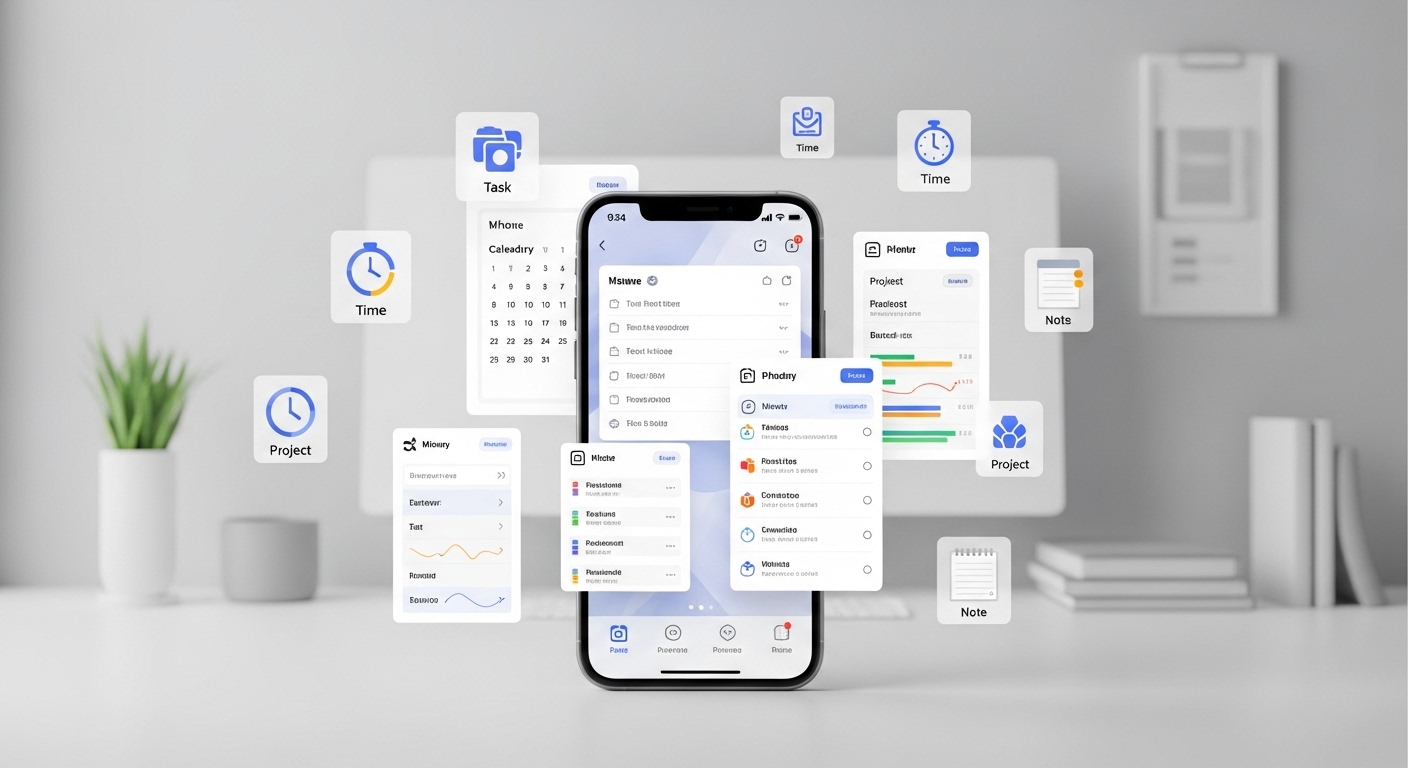
Productivity apps for iPhone help you stay on top of your daily goals and professional tasks. Your phone is a powerful tool when you use the right software to manage your schedule. This guide helps you navigate the App Store to find tools that actually work for your needs. You can transform your mobile experience by choosing apps that match your specific workflow and habits.
What Are the Best Productivity Apps for iPhone?
The best productivity apps for iPhone are Notion, Todoist, Evernote, and Trello because they offer reliable syncing and clear interfaces. These tools help you manage notes, tasks, and projects from a single device. You should also consider Google Tasks and Apple Reminders for simple, fast list management while you are on the move.
Finding the right software depends on what you need to achieve each day. Here is a list of the top options available right now:
- Notion: You can use this for notes, databases, and keeping your personal wiki in one place.
- Todoist: This app helps you organize tasks with natural language and clear priority levels for your day.
- Evernote: You can capture ideas and scan documents quickly to keep all your information searchable.
- Trello: This tool uses visual boards to help you track project progress through different stages of completion.
- Microsoft Outlook: You get a powerful combined view of your emails and your daily calendar in one spot.
- Google Tasks: This is a minimalist choice if you want a fast way to check off daily chores.
- Forest: You can use this to stay focused by growing digital trees while you put your phone down.
- Opal: This app helps you block distracting social media feeds so you can finish your deep work.
- Fantastical: You get a smart calendar that understands your typed events and shows your weather forecast.
- Apple Reminders: This built-in tool works great for location-based alerts and simple shopping lists.
- Otter.ai: You can record meetings and get instant transcripts to save time on manual note-taking.
- Slack: This is the standard for communicating with your team and keeping work chats in one place.
- Streaks: This app helps you build good habits by tracking how many days you complete a task.
- Drafts: You can open this app to type text quickly before sending it to other apps later.
- Goodnotes: This is perfect if you like to write by hand using an Apple Pencil on your screen.
Each of these choices offers something unique for your routine. You might prefer a tool that does everything like Notion. Or, you might want a specialized tool like Forest to stop yourself from scrolling. The key is to pick the one that feels natural to use.
What Makes an App One of the Best iOS Productivity Apps?
A top iOS productivity app combines a simple interface with helpful features that fit your specific daily habits. You should look for tools that offer fast syncing and work across all your Apple devices without lag. Great apps also respect your privacy and provide clear value without cluttering your mobile screen with menus.
Why usability matters for your focus
You need an app that lets you get in and out quickly. A complicated layout creates friction that stops you from actually doing your work. Look for designs that use clear icons and large tap targets. You should be able to add a new task or note with just one or two taps. If you have to dig through menus, you will likely stop using the app. Simple tools help you stay in a flow state throughout your day.
How your apps should talk to each other
Your productivity tools must work well with the software you already use. Good apps connect with your email, calendar, and file storage. You can save time by moving data between these tools without manual copying. For example, your task manager should show your calendar events in one view. This helps you plan your day based on your actual availability. Apps that sync with Apple Shortcuts are also a great choice for saving time.
Why reliability is your top priority
You cannot trust a tool that loses your data or fails to sync. A reliable app works even when your internet connection is weak or missing. It should save your progress locally and update the cloud once you are back online. You need to know your reminders will actually pop up at the right time. Check the update history in the App Store to see if the developer fixes bugs often. A stable app gives you the peace of mind to focus on your work.
Using the Apple ecosystem to your advantage
Apps designed for iPhone should use features like widgets and the Lock Screen. You can see your next meeting or task without unlocking your phone. Great tools also offer a companion app for your Apple Watch. This allows you to check your list while your phone stays in your pocket. Using these built-in features makes your productivity feel like a natural part of your phone. You get a more cohesive experience when your apps follow Apple’s design rules.
Which iPhone Productivity Apps Are Best for Task Management?
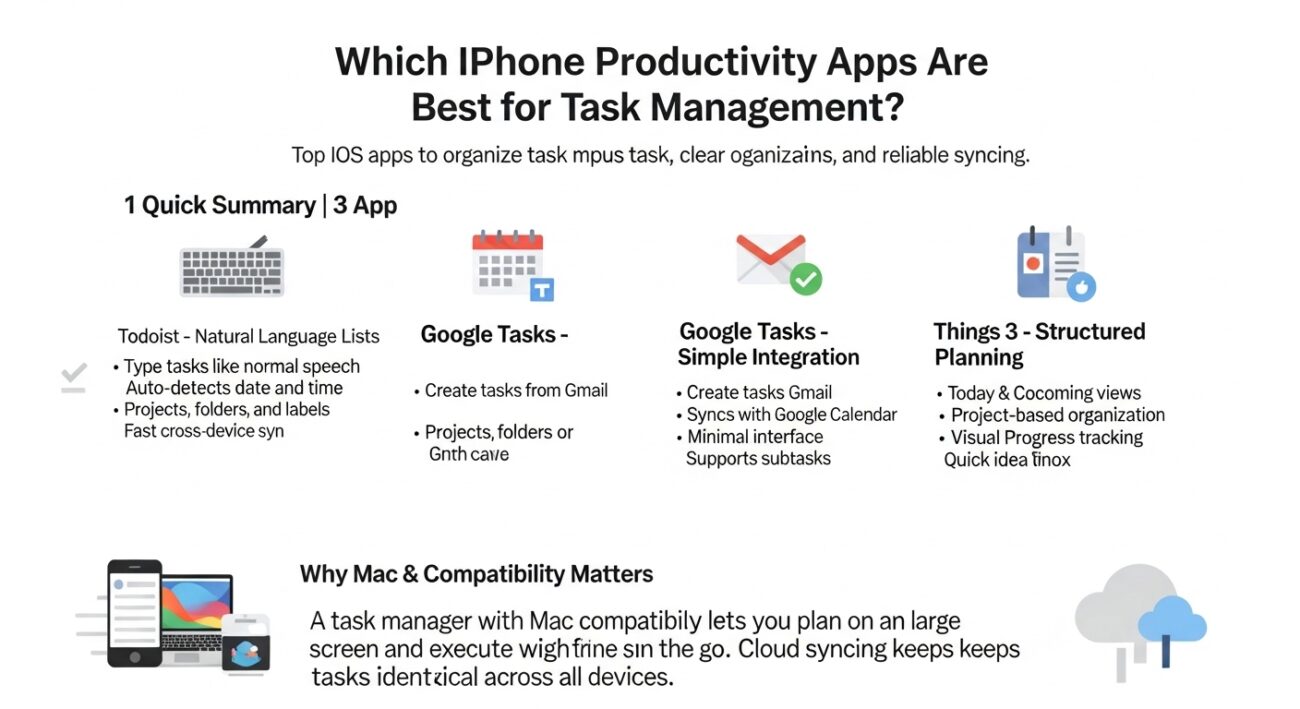
The best task management apps for iPhone include Todoist, Things 3, and Google Tasks because they offer fast input. You should use these tools to categorize your daily chores into specific lists or projects. These apps provide a central place for your focus. They ensure you never miss a deadline while moving between tasks.
Todoist for natural language lists
You can type your tasks exactly how you speak them into Todoist. If you type “get milk tomorrow at five,” the app automatically sets the date and time. This saves you from clicking through multiple menus to set a simple reminder. You can also organize your work into projects using folders and labels. This makes it easy to separate your personal life from your professional duties. The app syncs your data quickly across all your devices so you stay updated.
Google Tasks for simple integration
Google Tasks provides a minimalist way to track your work within the Google system. You can create tasks directly from your Gmail inbox on your phone. These items then appear in your Google Calendar automatically. This creates a unified view of your schedule without requiring extra steps. It is a great choice if you prefer a clean interface without too many complex features. You can also break large goals into smaller subtasks to make them easier to handle.
Things 3 for structured planning
Things 3 helps you plan your day with a beautiful and quiet design. You can use the “Today” and “Upcoming” views to see exactly what needs your attention. The app allows you to group related tasks into large projects with specific headings. This gives you a clear visual map of your progress on big goals. You can also use the “Inbox” to dump ideas quickly before you sort them later. It feels like a high-end digital planner built specifically for the Apple ecosystem.
Task manager Mac compatibility and sync
You should choose an app that works on your Mac as well as your iPhone. A task manager Mac version allows you to plan on a big screen and execute on the go. Most top apps use the cloud to keep your lists identical on every screen. This means you can add a task at your desk and see it on your wrist. Seamless syncing is the backbone of any reliable productivity system. You gain more control over your time when your tools stay in lockstep.
Which Productivity Apps Are Best for Project Management on iPhone?
The best project management apps for iPhone are Trello, Asana, and Monday. com because they simplify complex team coordination. You can use these tools to view project timelines and check task statuses quickly. They keep your team aligned and ensure everyone knows their specific duties. These apps help you stay organized anywhere.
Trello for visual work tracking
You can manage your projects using a simple board and card system with Trello. You move cards across lists to show progress from start to finish. This visual style helps you see exactly where a project stands in seconds. You can add due dates, labels, and checklists to any card on your phone. It is a great choice for creative teams or simple marketing plans. You get a clear view of your work without feeling overwhelmed by complex data.
Asana for structured team coordination
Asana helps you organize large projects by breaking them into smaller, manageable pieces. You can view your work as a list, a board, or a calendar. This flexibility allows you to choose the view that fits your current task. You can assign tasks to teammates and set clear deadlines to keep everyone on schedule. The app also allows you to link tasks to larger company goals. This ensures you always spend your time on what matters most for your business.
Monday. com for flexible team workflows
Monday.com offers a colorful and clear way to manage any type of business process. You can customize your boards to track sales, design projects, or hiring tasks. The mobile app makes it easy to update statuses and notify your team of changes. You can also use automated rules to move tasks between stages without manual work. This saves you time on repetitive chores and lets you focus on high-level decisions. It is a solid choice for teams that need a tool that grows with them.
Managing projects on the go with lightweight tools
You do not always need a full suite of features to manage your projects. Sometimes a fast mobile app with the core tools is enough for your daily check-ins. You can review documents and respond to comments directly from your iPhone screen. This keeps communication open and prevents project delays. You gain the freedom to work from a cafe or while traveling without losing control. Choosing a tool with a great mobile interface makes your work life much easier.
Which Free Productivity Apps for iPhone Are Worth Using?
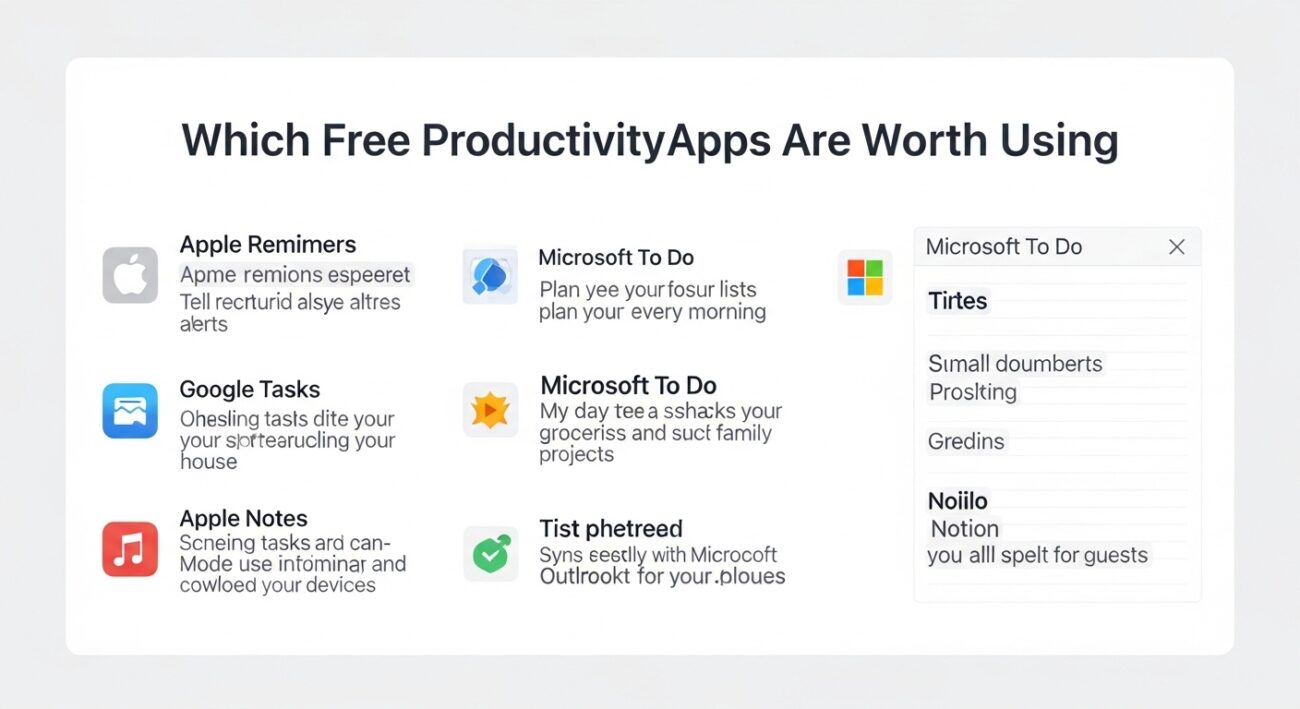
The best free productivity apps for iPhone include Apple Reminders, Google Tasks, and Microsoft To Do. You should also use the free versions of Notion and Trello for managing larger personal projects. These tools offer robust features like syncing, alerts, and list sharing at no cost to you. They are perfect for budget-conscious users today.
The power of built-in Apple apps
You already have some of the best productivity tools installed on your iPhone. Apple Reminders allows you to create lists with location-based alerts for free. You can tell your phone to remind you of a task when you arrive at your house. Apple Notes is also a powerful tool for scanning documents and organizing your thoughts. These apps sync with iCloud so your data stays safe on all your devices. You get a high-quality experience without downloading anything new.
Why Microsoft To Do is a top free choice
Microsoft To Do is a completely free app that helps you plan your day with ease. You can use the “My Day” feature to focus on specific tasks every morning. The app allows you to create shared lists for groceries or family projects. It syncs perfectly with Outlook if you use Microsoft tools for your work. You get features that other apps charge for, such as recurring tasks and file attachments. It is a reliable partner for your daily routine.
Exploring the free tier of Notion
You can use the free version of Notion to build a personal workspace that fits your life. The free plan offers unlimited pages and blocks for individual users. You can create a digital journal, a habit tracker, or a reading list. You can also invite a small number of guests to collaborate on specific pages. While the paid plans offer more for teams, the free tier is very generous. It gives you the freedom to design a system that works for your brain.
Understanding the “Freemium” model
Most productivity apps use a freemium model where basic features are free to use. You might have to pay for advanced tools like AI assistants or large file storage. You should check the limits of an app before you commit to using it long-term. Some apps limit the number of active projects or tasks you can have. Always look for apps that provide high value in their free version. This ensures you can stay productive without hitting a paywall.
Which iPhone Productivity Apps Are Best for Time Management?
The best time management apps for iPhone are Structured, Forest, and Toggl Track because they offer visual planning and focus tools. You should use these apps to set clear boundaries for your work sessions. They help you track billable hours and stay away from distracting social media feeds. These tools improve your daily results.
Structured for visual daily planning
Structured turns your chaotic to-do list into a beautiful, linear timeline on your screen. You can see your entire day as a series of clear blocks from morning until night. This visual approach helps you understand exactly how much time you have between meetings. You can also import your calendar events to see everything in one place. It is a great choice if you feel overwhelmed by traditional lists. You gain a sense of calm by knowing what comes next in your routine.
Forest for gamified focus sessions
You can stay away from your phone by growing a digital tree in the Forest app. When you start a focus session, your tree begins to grow on your screen. If you leave the app to check social media, your tree will wither and die. This simple game provides a visual reward for staying on task. You can even earn coins to plant real trees in the physical world. It is a fun way to build the habit of deep work without distraction.
Toggl Track for detailed time analysis
Toggl Track helps you understand where every minute of your workday goes with simple timers. You can start a timer with one tap and assign it to a specific client or project. The app provides detailed reports that show your most productive hours of the week. This data is vital for freelancers who need to bill clients accurately. You can also see which tasks take longer than you expected. This allows you to plan your future schedule with more accuracy.
Using digital planners to control your week
A digital planner combines the feel of a paper notebook with the power of your iPhone. Apps like Goodnotes or Notability allow you to write out your schedule by hand. You can decorate your pages with stickers and colors to make planning more enjoyable. These tools are perfect for people who find typing into a database too rigid. You get the flexibility to sketch out ideas and map out your month visually. This helps you keep the big picture in mind while you manage small details.
How Do Google Productivity Apps Work on iPhone?
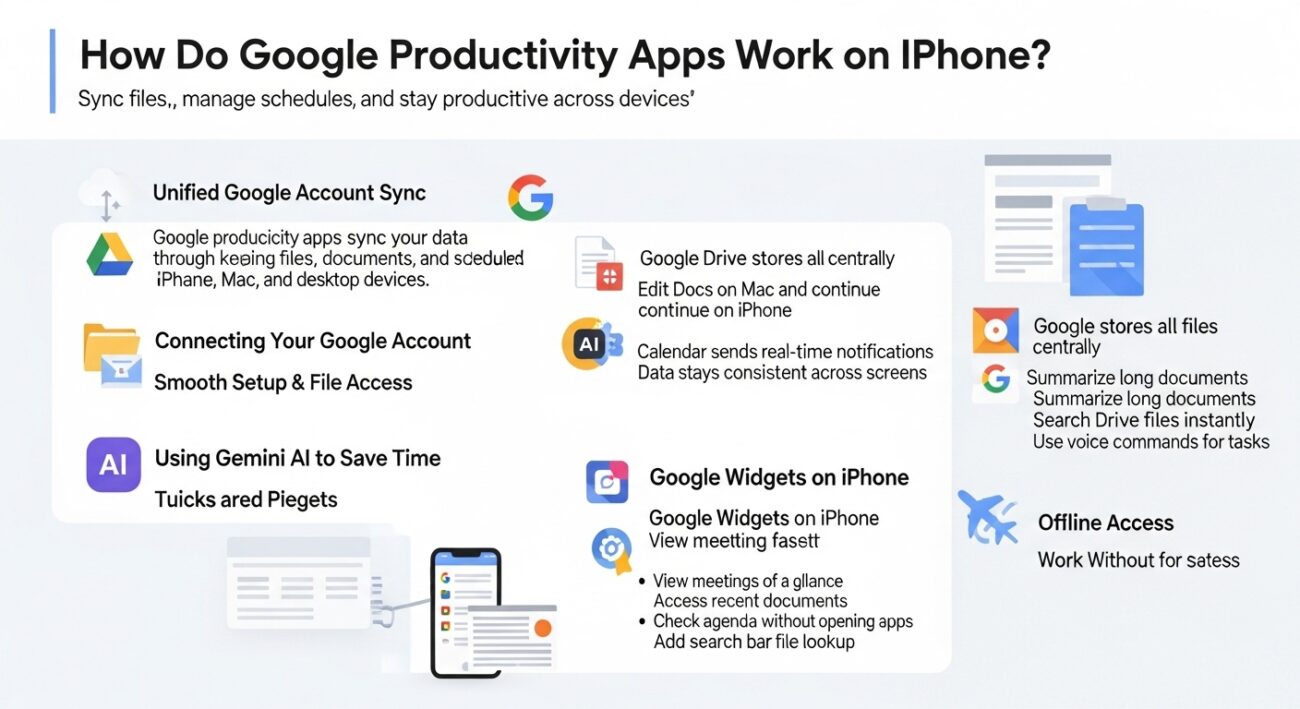
Google productivity apps work on iPhone by syncing your data through your Google account across all mobile and desktop devices. You can access files in Drive, edit documents in Docs, and manage schedules in Calendar. These apps provide a unified experience that keeps your work updated no matter where you sign in.
Connecting your Google account for smooth syncing
You get a smooth workflow when you use the official Google apps from the App Store. Google Drive acts as your mobile filing cabinet for all your important documents. You can start a document on your Mac and finish it on your iPhone in Google Docs. Google Calendar sends you push notifications so you never arrive late to a meeting. This setup ensures your information stays consistent on every screen you use.
Using Gemini AI features to save time
New Gemini AI features help you draft emails and summarize long documents quickly on your phone. You can ask the AI to find specific details in your Drive files without manual searching. This helps you get answers while you are standing in line or riding the train. You can also use voice commands to add tasks to your list. These smart tools make your mobile device more helpful for complex work tasks.
Organizing your home screen with Google widgets
You can add Google widgets to your home screen to see your schedule at a glance. These small windows show your next meeting or your most recent documents. You do not have to open the app to check your agenda. This saves you several taps throughout your busy day. You can also place a search bar widget to find files instantly. This keeps your most used tools right where you can see them.
Working without an internet connection
These tools work best when you have a stable internet connection for real-time saving. You can also enable offline access for specific files when you travel. This allows you to keep writing or editing when you are on a plane. Your changes will save to your phone and upload later. You gain more flexibility by knowing your work can continue anywhere. This makes your iPhone a reliable tool for any environment.
Sharing and collaborating with your team
Sharing files with teammates takes only a few taps within any Google app. You can set permissions so others can view or edit your work. This creates a shared workspace even when you are away from your office. You can see real-time edits from your coworkers directly on your iPhone screen. This keeps your projects moving forward without the need for endless email chains. You stay connected to your team with ease.
How Do Microsoft Productivity Apps Support iPhone Users?
Microsoft productivity apps like Outlook and Teams provide a professional workspace on your iPhone through deep cloud integration. You can manage emails, join meetings, and edit documents with smart AI tools like Copilot. These apps sync your work data instantly to keep you connected to your team while you are traveling.
Microsoft apps turn your iPhone into a portable office for your professional tasks. You can use Outlook to manage your inbox and your calendar in one view. The app helps you prioritize emails so you see the most important messages first. You can also join Teams meetings with one tap from your lock screen. These tools use your Microsoft account to keep your files updated on every device.
Using Microsoft Teams for mobile collaboration
Microsoft Teams helps you stay in touch with your coworkers through chat and video calls. You can share files and view project updates directly from your mobile chat window. The app now uses AI to summarize long meeting transcripts while you are away. This allows you to catch up on key decisions without watching the whole recording. You can also set your status to let others know when you are busy.
Managing your day with the Outlook mobile app
Outlook combines your professional email and your personal schedule into a single powerful app. You can use the “Focused Inbox” to filter out newsletters and distractions. The app allows you to RSVP to meetings and check your availability with ease. You can also attach files from your OneDrive cloud storage without leaving the app. This makes it easy to send reports or presentations from your phone.
Why Microsoft 365 Copilot improves your workflow
The new Copilot app for iPhone uses AI to help you draft emails and documents. You can ask the assistant to summarize your unread messages or plan your next meeting. It works across Word, Excel, and PowerPoint to speed up your content creation. This helps you stay productive when you only have a few minutes to spare. You get a smart partner that handles repetitive chores for you.
Syncing your work across the Apple ecosystem
Microsoft apps work well with built-in iPhone features like widgets and Siri. You can add an Outlook widget to your home screen to see your next appointment. The apps also sync with your Apple Watch for quick notifications. This ensures you never miss a vital message or a project deadline. You get a reliable and secure system for all your business needs.
How Do You Choose the Right Productivity App for Your iPhone?
The best way to choose a productivity app for your iPhone is to match the tool to your primary goal, whether that is task management, project tracking, or time blocking. You should look for apps that sync across your devices and offer a clear, intuitive interface. Prioritize tools that feel natural to your personal thinking style.
Match the app to your specific workflow
You must identify if you need a simple to-do list or a robust project management system. If you work alone on daily chores, a minimalist app like Apple Reminders or Things 3 is likely enough. If you coordinate with a team on long-term goals, you will need the structure of Trello or Asana. Picking a tool that is too complex for your needs will only create unnecessary work and frustration.
Prioritize simplicity and consistency
You gain more from an app you actually enjoy opening every day. Look for a design that uses clean layouts and allows for fast data entry with just a few taps. If you have to fight the interface to add a task, you will eventually stop using it. Consistency is the secret to real productivity, so choose a tool that stays out of your way and lets you focus on the work itself.
Check for ecosystem compatibility
Your iPhone apps should work seamlessly with your Mac, iPad, and even your Apple Watch. High-quality tools use iCloud or dedicated servers to keep your data updated on every screen instantly. You should also look for apps that support native iOS features like interactive widgets and the Dynamic Island. These features allow you to check your progress and check off tasks without ever unlocking your phone.
Avoid the “more features” trap
You might feel tempted to download the most powerful app with hundreds of settings and buttons. However, more features often lead to more distractions and a steeper learning curve. Start with the most basic version of an app and only upgrade when you find a specific need that your current tool cannot meet. Remember that the goal is to get things done, not to spend hours managing your productivity software.
What Are Common Mistakes When Using Productivity Apps on iPhone?
The most common mistakes include over-complicating your setup and using too many apps at once. You might waste time on “productive procrastination” by constantly tweaking your settings. Another error is ignoring your notifications or setting too many alerts. These habits turn your phone into a source of noise rather than a tool for focus.
You can avoid these pitfalls by staying mindful of how you interact with your device. Here are the specific mistakes to watch for:
- Downloading too many tools: You do not need five different apps to manage one schedule. Using multiple platforms leads to fragmented information and missed deadlines.
- Over-organizing your tasks: You might spend more time color-coding and labeling than doing the work. Keep your categories broad and simple to save your mental energy.
- Neglecting the “Review” phase: An app is only useful if you look at it. Failing to check your daily list regularly makes the software useless for your routine.
- Setting unrealistic alerts: Flooding your screen with constant pings causes notification fatigue. You will soon start to ignore every alert, including the vital ones.
- Chasing every new app: Switching tools every week prevents you from building a solid habit. Stick with one reliable system for at least a month before you consider a change.
- Keeping old data: A cluttered list of finished or irrelevant tasks slows you down. Delete or archive old items to keep your interface clean and fast.
- Using complex features unnecessarily: You do not need a database for a simple grocery list. Use the simplest tool possible for the task at hand to stay fast.
Focus on your output rather than the perfection of your system. Your iPhone is a tool to help you finish your work so you can put your phone away. If your apps make you spend more time on your screen, you should simplify your approach. A clean, lean system is always more effective than a complex one.
Are Productivity Apps on iPhone Better Than Desktop Tools?
iPhone productivity apps are not better than desktop tools, but they serve a different and vital purpose for your day. You should use your iPhone for quick captures, reminders, and communication while saving complex tasks for your computer. Both systems work together to create a seamless workflow that follows you everywhere.
When to choose your iPhone over your Mac
Your iPhone is the perfect tool for “micro-productivity” throughout your day. You can check off a task while waiting for coffee or reply to a quick message during your commute. The touch interface and always-on connectivity make it faster for simple inputs. You do not have to wait for a system to boot up or find a Wi-Fi signal. This instant access keeps your momentum high and prevents small tasks from piling up.
Why the task manager Mac version still matters
A task manager Mac version provides the screen space you need for planning large projects. You can see your entire week at once and drag tasks into different categories with ease. The desktop environment is better for focused work sessions where you need to look at multiple windows. You gain a higher level of control when you use a keyboard and mouse for detailed organization. Your iPhone then acts as a satellite to this main hub, keeping your plan in your pocket.
What Are Productivity Apps and How Do They Improve Daily Work?
Productivity apps are software tools designed to help you manage time, tasks, and information more effectively on your devices. These productivity tools simplify your routine by automating repetitive chores and providing a clear map of your daily goals. You get more done in less time because you spend less energy trying to remember your schedule. They act as a digital assistant that keeps you focused on your most important work.
How Do Productivity Apps Compare Across iPhone, Android, and Mac?
Productivity app experiences differ by platform because each operating system offers unique features and hardware capabilities. You will find that Android productivity apps often allow for more home screen customization and deeper file system access. In contrast, iPhone apps usually offer a more polished design and tighter integration with other Apple devices. Choosing the right platform depends on your personal preference for flexibility versus a controlled, smooth experience.
Which Productivity Apps Work Best on Mac Alongside iPhone?
Many iPhone productivity apps sync with Mac to provide a unified workspace that covers both mobile and desktop needs. You should look for productivity apps Mac versions that use iCloud to keep your notes and tasks identical on every screen. This allows you to start a project on your computer and finish it on your phone without any manual data transfer. A synced system ensures you always have the latest version of your work.
How Are AI Productivity Tools Changing iPhone Workflows?
AI tools enhance automation and planning by predicting your needs and drafting content for you based on simple prompts. These AI productivity tools can summarize long meeting notes and suggest the best times for your deep work sessions. You save hours of manual labor every week by letting the software handle the initial drafts of your emails or reports. This shift allows you to focus on high-level strategy and creative thinking.
How Do Email and Communication Apps Fit Into iPhone Productivity?
Email apps are core productivity tools on iPhone because they act as the primary gateway for your professional communication. You can use Apple Mail extensions and smart filters to keep your inbox clean and manageable while on the move. Managing your messages effectively prevents your inbox from becoming a distraction that pulls you away from your real goals. Good communication tools ensure you stay connected to your team without feeling overwhelmed by noise.
Final Thought
The best way to use productivity apps on your iPhone is to keep your system as simple as possible to avoid screen fatigue. You should view your phone as a supportive tool rather than a constant distraction. Choosing just two or three high-quality apps that sync perfectly with your computer will yield the best results for your focus.
You gain the most value when your tools work for you without requiring constant maintenance. Prioritize apps that offer clear widgets so you can see your goals without unlocking your device. Remember that the goal of any productivity software is to help you finish your work faster. By selecting tools that match your natural habits, you turn your iPhone into a reliable partner for your professional and personal success.


