We’ve all been there. You’re composing a new email, you’ve filled in the “To” field, and then you see them: two little letters lurking in the corner, “Cc” and “Bcc.”
You probably know they’re for copying people. But what’s the real difference? When should you use one and not the other? Is there a secret etiquette everyone else knows? And what, exactly, is the horrifying difference between “Reply” and “Reply All”?
It’s one of the oldest parts of email, dating back to the fiftieth anniversary of email and beyond, yet it’s still the most common source of professional anxiety and embarrassing mistakes.
You’ve come to the right place. This is the definitive guide. We’ll explain exactly what CC and BCC mean, where the terms come from, and—most importantly—how to use them to protect your privacy, follow proper etiquette, and finally conquer the “Reply All” button with total confidence.
What Does CC Mean in an Email?
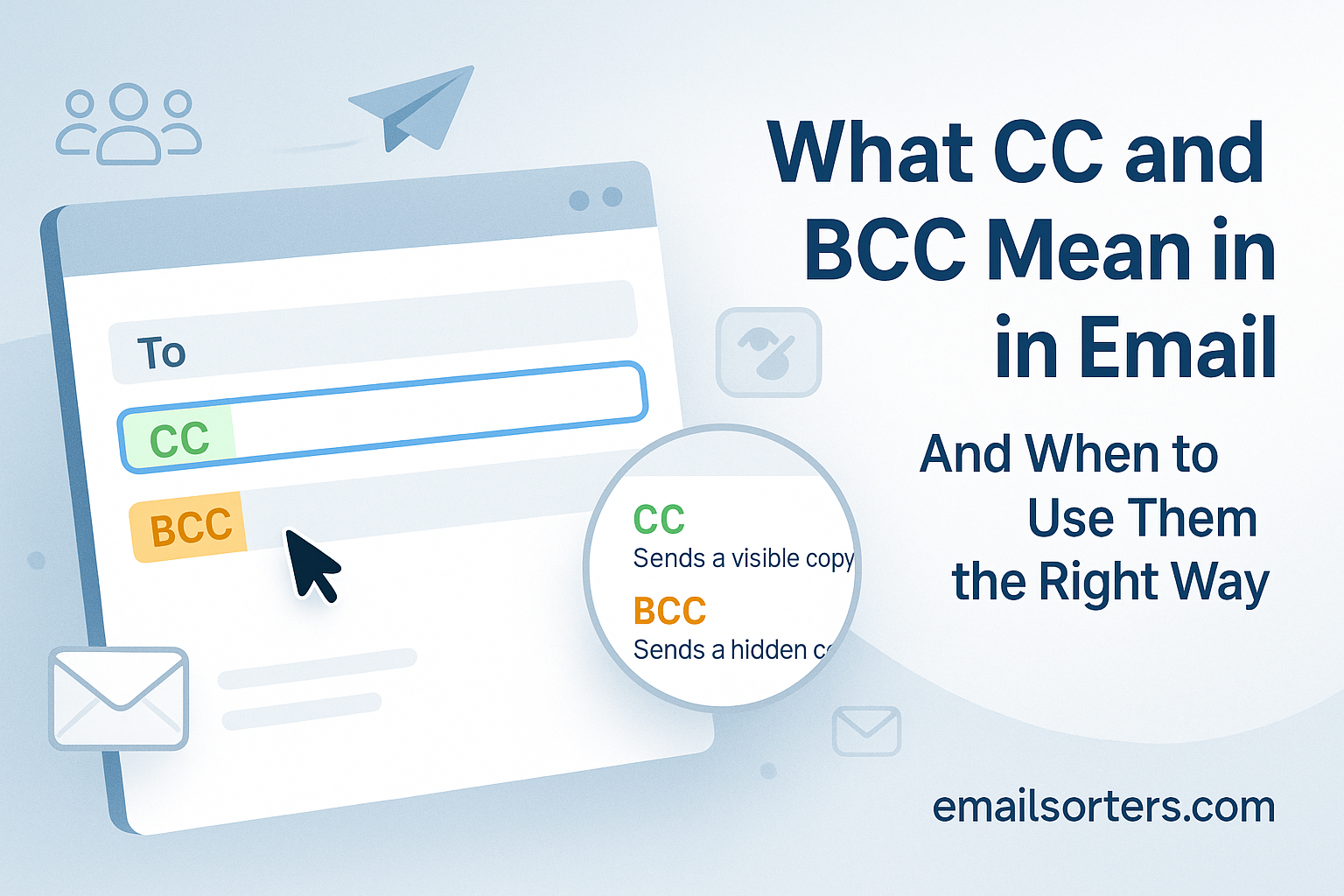
“CC” stands for “Carbon Copy.” Using the CC field means you are sending a copy of the email to one or more recipients for their information. All recipients (in the “To” and “CC” fields) can see the full list of who was copied on the message.
Think of the “CC” field as the digital equivalent of saying, “Just FYI…” or “Looping you in on this.”
The person in the “To” field is the primary recipient. They are the one who (usually) needs to take action or respond.
The person in the “CC” field is a passive observer. They are being included for visibility only. They don’t need to respond, but they now have a record of the conversation. Everyone involved in the email—in the “To” field and the “CC” field—can see the entire list of recipients. It’s a fully transparent, public copy.
Where Does the Term “Carbon Copy” Come From? (A Quick History Lesson)
This term is a direct holdover from the pre-digital world. Before email and photocopiers, people used typewriters to create physical documents.
To make a copy of a letter, a secretary would feed two pieces of paper into the typewriter, separated by a sheet of carbon paper (a thin sheet of paper coated with a layer of dry, waxy ink).
When the typewriter key struck the top sheet, the pressure would push the ink from the carbon paper onto the second sheet, instantly creating an identical “carbon copy.” The original letter was sent to the main recipient, and the “carbon copy” was often filed away or sent to someone else for their records.
When email was invented, the system simply mimicked this real-world process. When you create an email account, you’re using a digital version of a system invented in the 1800s.
How Does the CC Field Work in Practice?
Let’s say you’re a project manager. You need to send an update to an important client.
- To:
[email protected](This is the person who needs to read and approve the update) - CC:
[email protected](Your boss doesn’t need to do anything, but you want them “in the loop” and aware that you sent the update)
In this scenario:
- The Client sees they are the main recipient.
- The Client also sees that your Boss was copied.
- Your Boss sees the email was sent to the Client and that they were copied for visibility.
What Does BCC Mean in an Email?
“BCC” stands for “Blind Carbon Copy.” Using the BCC field sends a private copy of the email to one or more recipients. No one else—not the “To” recipient, the “CC” recipients, or any other “BCC” recipients—can see that this person was included on the email.
This is the “privacy” or “secret” field.
It’s the digital equivalent of slipping someone a secret note. The “To” and “CC” recipients get the email as normal. They see each other, but they have no idea that a “blind” copy was also sent to the person on the BCC list.
This feature is incredibly important, as it’s the primary tool for protecting the privacy of your recipients, especially when sending a message to a large group.
Where Does the Term “Blind Carbon Copy” Come From?
This term also comes from the old days of typewriters. Just like a “Carbon Copy” (CC), a “Blind Carbon Copy” (BCC) was a way to create a copy for a third party.
The difference was in the process. To create a BCC, a secretary would type the main letter and the carbon copies. Afterward, they would take the original letter, put it back into the typewriter, and type “bcc: Mr. John Smith” on the original copy only.
This way, the main recipient (“To”) would see that “Mr. John Smith” was secretly copied, but Mr. Smith’s own carbon copy would not have this notation, so he would have no idea who else (if anyone) was secretly copied. Email simply automated this process, making it far more powerful and truly “blind” for everyone.
How Does the BCC Field Work for Privacy?
The BCC field is all about privacy and discretion. It hides the recipient list from everyone.
Let’s say you’re sending out an invitation to a family email account or a small event, and you’re sending it to 30 people who don’t know each other.
The WRONG Way (Using CC):
- CC:
[email protected],[email protected],[email protected]… (and 27 others) - Result: You just created a massive data breach. You have publicly broadcasted the private email addresses of 30 different people to a group of total strangers.
The RIGHT Way (Using BCC):
- To:
[email protected](It’s a best practice to put your own email address here) - BCC:
[email protected],[email protected],[email protected]… - Result: Every single recipient receives the email, but it looks like it was sent only to them. They cannot see the other 29 people on the list. Their privacy is 100% protected. This is the entire purpose of Blind Carbon Copy.
What Is the Main Difference Between CC and BCC?
The main difference is visibility. Recipients in the “CC” field are visible to all other recipients. Recipients in the “BCC” field are invisible to everyone. CC is for “keeping someone in the loop” publicly, while BCC is for “privately sending a copy” without anyone knowing.
It’s the simplest, most important rule of email:
- CC = Public. Use it when you want everyone to see who is on the list.
- BCC = Private. Use it when you must hide the recipient list to protect everyone’s privacy.
Choosing the wrong one can be, at best, a minor annoyance, and at worst, a massive privacy breach or a source of professional embarrassment.
Quick Comparison Table: To vs. CC vs. BCC
Sometimes the easiest way to see the difference is to just lay it all out. Here’s a simple cheat sheet for all three fields.
| Field | What It Means | Is It Visible to Others? | Is Action Required? |
| To | Primary Recipient | Yes. Everyone can see who is in the “To” field. | Yes. This person is expected to read and act on the email. |
| CC | Carbon Copy | Yes. Everyone can see who is in the “CC” field. | No. This person is just an observer, “in the loop.” |
| BCC | Blind Carbon Copy | No. No one (not “To,” “CC,” or other “BCCs”) can see this list. | No. This person is a secret, invisible observer. |
Can CC Recipients See the BCC List?
No. Absolutely not.
The “CC” recipients have no way of knowing that a “BCC” copy was sent to anyone. As far as they’re concerned, the “To” and “CC” lists are the only lists of recipients.
Can BCC Recipients See the CC List?
Yes.
A person on the “BCC” list can see the entire “To” list and the entire “CC” list. This is necessary so they can understand the full context of the conversation they are being secretly copied on. They are “blind” to others, but they are not “blind” themselves.
Can BCC Recipients See Each Other?
No.
This is a critical point. If you put 30 people in the “BCC” field, none of them can see the other 29. Each person receives the email as if they were the only person on the BCC list. This is precisely what makes the BCC field the perfect tool for sending mass emails, like a company newsletter or a holiday greeting, to different email addresses at once.
When Should You Use the CC Field? (Proper Email Etiquette)
Use the “CC” field when you want to keep someone informed about a conversation, but they are not the primary person who needs to take action. It’s for visibility only. For example, you would “CC” your manager on a project update you’re sending to a colleague.
The “CC” field is all about transparency. It’s a public signal to everyone on the email that you are “looping in” other relevant parties. Using it correctly shows that you are a good communicator. Using it incorrectly (which we’ll cover later) can make you look passive-aggressive or like you don’t know how to assign tasks.
The golden rule is: People in “To” are for action. People in “CC” are for information.
Use Case 1: Keeping Your Team or Manager “In the Loop”
This is the most common and appropriate use of “CC.”
- Scenario: You are emailing a client with the final proposal for a project.
- To: The Client (the person who needs to act on the proposal).
- CC: Your Manager (the person who needs to be informed that the proposal was sent).
By CC’ing your manager, you create a public record that the task is complete. Your manager appreciates being kept in the loop, and the client sees that your manager is aware of the conversation.
Use Case 2: Introducing Two People (e.g., “Looping in John”)
The “CC” field is perfect for making digital introductions.
- Scenario: Your colleague, Sarah, wants to be introduced to a contact of yours, John.
- To: Sarah (the person who requested the action).
- CC: John (the person being looped in).
- Subject: Introduction: Sarah (Our Team) <-> John (XYZ Corp)
- Body: “Sarah, as requested, I’m looping in John from XYZ Corp. John, Sarah is the marketing lead I mentioned…”
This is a clean, transparent way to connect two people. (A common follow-up is to say, “John, I’ll let you take it from here. Moving you to BCC to spare your inbox.”)
Use Case 3: When All Recipients Need to See Each Other (e.g., a small project group)
Sometimes, there isn’t one “primary” recipient, but a small group of equals who all need to be on the same page.
- Scenario: You are a student kicking off a small group project with three classmates.
- To:
[email protected] - CC:
[email protected],[email protected] - Subject: Group Project Kick-off
In this case, it’s perfectly fine to put one person in “To” and the others in “CC” (or even put all of them in the “To” field). The point is that this is a small, contained group where everyone knows each other and needs to see the full list of participants for future replies.
When Should You Use the BCC Field? (Protecting Privacy)
Use the “BCC” field when you need to protect the privacy of your recipients. The most common and critical use is when sending a mass email, like a newsletter, an announcement, or an event invitation, to a large group of people who do not know each other.
The “BCC” field is your most important tool for data privacy. While “CC” is for transparency, “BCC” is for protection. Using it correctly is a sign of professionalism and respect for your contacts’ personal information.
The golden rule is: If your recipients do not know each other and have not consented to share their email addresses, you must use BCC.
Use Case 1: Sending Mass Emails (The Most Important Use)
This is the big one. This is the primary reason the BCC field exists in the modern world.
- Scenario: You are sending out a company newsletter, a team update to 50 employees, a holiday greeting, or an invitation to a party.
- The Mistake (Using CC): You paste all 50 email addresses into the “CC” field. You have just committed a major privacy breach. You’ve exposed the personal email of every single person to a list of 49 strangers. This is how spammers get lists, and it’s a terrible look.
- The Correct Way (Using BCC):
- To: Your own email address (e.g.,
[email protected]) - BCC: The entire list of 50 recipients.
- To: Your own email address (e.g.,
Each of those 50 people will receive the email, and it will look like it was sent only to them. They cannot see anyone else on the list. Their privacy is protected.
Use Case 2: Sending a “Quiet Copy” to a Third Party (e.g., your assistant or your own archive)
Sometimes, you need to keep a record of a conversation without publicly signaling it.
- Scenario: You are sending a formal warning or a sensitive email to an employee and you want your HR department to have a copy for their records, but you don’t want to escalate the situation by publicly “CC’ing” them.
- To:
[email protected] - BCC:
[email protected]
The employee sees only a direct email from you. The HR department receives a silent copy for its files. This can also be useful for sending copies to your own alias addresses or a separate archive account without cluttering the main conversation.
Use Case 3: Protecting the Privacy of Sensitive Recipients
In many professions, protecting privacy is not just polite; it’s a legal or ethical requirement.
- Scenario: You are a therapist sending a reminder to your patients, a teacher contacting all the parents of your students, or a lawyer communicating with multiple clients about a similar matter.
- The Rule: You must use BCC. Putting all those addresses in the “CC” field would be a massive breach of confidentiality.
BCC ensures that no recipient ever learns the identity (or email address) of another, which is critical in any situation involving sensitive personal information.
The “Reply All” Problem: What Happens When Someone Replies?
When a recipient clicks “Reply,” their response only goes to the original sender. When they click “Reply All,” their response goes to the original sender and everyone listed in the “To” and “CC” fields. BCC recipients are never included in a “Reply All” chain.
This is, without a doubt, the #1 source of email-related nightmares. Clicking the wrong “reply” button can be a career-limiting move. The difference is simple but the consequences are massive. Understanding this workflow is the key to avoiding a major email catastrophe.
“Reply” vs. “Reply All” vs. “Forward”: A Simple Breakdown
Let’s break down the three “action” buttons you have. Imagine you receive an email from Alex, who also CC’d Beth.
- You click “REPLY”:
- Your response goes only to Alex.
- Beth, who was on the CC list, does not see your reply. This is a private, one-on-one response.
- Use this when: Your response is only relevant to the sender (e.g., “Got it, thanks!”).
- You click “REPLY ALL”:
- Your response goes to Alex (the sender) and Beth (the CC’d recipient).
- Use this when: Your response is relevant to everyone in the “To” and “CC” fields (e.g., “Thanks, Alex. Beth, can you please send me your part of the report?”).
- You click “FORWARD”:
- You create a brand new email that includes the original message. You must manually type in new recipients.
- Use this when: You need to send the conversation to a new person who was not on the original email at all (e.g., forwarding a client email to your manager for advice).
The “BCC Reply All” Nightmare: What Happens?
This is the most important scenario to understand.
Let’s say a sender, Alex, emails a client in the “To” field and secretly “BCCs” you to keep you in the loop.
- From:
[email protected] - To:
[email protected] - BCC:
[email protected]
The client has no idea you’re on this email. You are a silent, invisible observer.
But then, you make a mistake. You hit “REPLY ALL.”
What happens?
Your reply will be sent to [email protected] (the sender) and [email protected] (the “To” recipient). Your email client is smart enough not to send it to other potential BCC recipients, but it will send it to everyone on the “To” and “CC” lists.
The client, who never knew you existed, suddenly gets a reply from you. You have just revealed to the entire thread that you were being secretly BCC’d. This can be incredibly embarrassing. It instantly makes it look like you and Alex were secretly talking “behind the client’s back.” It’s a huge breach of trust and looks deeply unprofessional.
The rule: If you know you are on the BCC list, NEVER, EVER click “Reply All.” If you must respond, click “Reply” (which goes only to the original sender) or “Forward” the message to the sender with your comments.
The day I accidentally ‘Replied All’ to an email I was BCC’d on…
I still get a cold feeling just thinking about it. Early in my career, my manager was in a sensitive negotiation with a vendor. He “BCC’d” me on his “final offer” email so I could have it for my records.
I saw a small flaw in the terms he sent. Wanting to be helpful (and fast), I hit “Reply All” and typed, “Hey boss, great email, but we should probably correct that fourth point before he signs!”
Two seconds later, I realized what I’d done.
My email went to my manager… and to the vendor. I had just revealed to the vendor that my manager was copying me, and I had also called out a mistake in his offer, completely undermining his negotiating position. It was horrifying. My manager was furious, the vendor was confused, and I felt about two inches tall.
It’s a mistake you only make once. Learn from my pain: Always check the “To” and “CC” fields before you hit “Reply All.” If you don’t see your own name, you are on the BCC list. Do not reply.
Common Mistakes: When Not to Use CC and BCC
Do not use “CC” to assign a task; that person should be in the “To” field. Do not use “CC” to “tattle” or passively-aggressively monitor a coworker. And never put a long list of people who don’t know each other in the “CC” field; this is a major privacy breach.
The CC and BCC fields are powerful, but they are easily abused. Using them incorrectly can, at best, make you look unprofessional and, at worst, lead to a massive, reportable data breach. Knowing when not to use them is just as important as knowing when to use them.
The Critical Privacy Breach: Why You Must Never Put a Mass List in “CC”
This is the single biggest mistake you can make. When you paste a list of 50, 100, or 1,000 email addresses into the “CC” field, you are publicly broadcasting every single one of those addresses to every other recipient.
This isn’t just rude; it’s a serious data breach.
- You expose your contacts to spam: A spammer on that list can (and will) harvest every other email address.
- You breach confidentiality: You may be revealing sensitive information. For example, a UK-based HIV clinic was famously fined £180,000 for accidentally CC’ing its newsletter recipients, as it implicitly revealed their HIV status to all other recipients. [Cite: The ICO/Data Protection Network]
- It’s illegal in many contexts: Under privacy laws like the GDPR, an email address is “personally identifiable information.” Exposing this data without consent can lead to massive fines. The UK’s Information Commissioner’s Office (ICO) has stated that “failure to use BCC correctly” is one of the top data breaches reported to them every year.
Rule: If the recipients do not personally know each other and have not consented to share their info, you must use BCC. There are no exceptions.
The Passive-Aggressive “CYA” Email: A Bad Use of CC
We’ve all seen this. A coworker sends you a simple request, but they “CC” your boss, their boss, and the entire department.
- Email: “Hi, just following up on that report you said you’d have done yesterday. Thanks!”
- CC:
[email protected],[email protected],[email protected]
This is not a friendly reminder; it’s a passive-aggressive “tattle-tale” or a “CYA” (Cover Your… self) email. It’s a way of saying, “I’m publicly notifying everyone that you are the bottleneck.” It creates a hostile, low-trust environment.
Rule: Don’t use the CC field to manage, discipline, or shame a colleague. If there’s an issue, talk to them directly or to your manager in a separate, private email.
When to Use “To” Instead of “CC” (Assigning Action vs. Providing Info)
This is a common mistake that creates confusion.
- The Mistake: You send an email to a client with a question, and you “CC” your designer,
[email protected]. Your email says, “Sarah, can you please send the new mockups?” - The Problem: The client (in the “To” field) is confused. Are they supposed to answer? And Sarah (in the “CC” field) is also confused. Is she just an observer, or is she being given a task?
This is weak communication. The “To” and “CC” fields send strong signals about who is responsible for what.
- “To” field = Action is required.
- “CC” field = No action is required (information only).
The Correct Way:
- To:
[email protected](The person who has the task) - CC:
[email protected](The person who needs to be informed) - Body: “Hi Sarah, can you please send the new mockups to the client? Looping them in here for visibility. Thanks!”
This is clear, direct, and professional.
How to Use CC and BCC in Gmail, Outlook, and Apple Mail
In most modern email clients, the “CC” and “BCC” fields are hidden by default to keep the compose window clean. To use them, you must find a clickable text link (usually on the right side of the “To” field) labeled “Cc” and “Bcc.” Clicking this link will reveal the fields, allowing you to add recipients.
It’s a common point of confusion: “Where did the BCC button go?” Most providers hide it to simplify the interface. Here are the exact steps to find it on the most popular platforms.
How to Find and Use the CC/BCC Fields in Gmail (Desktop and Mobile)
On Desktop (in your browser):
- Click the “Compose” button to start a new email.
- Look in the “To” field. To the far right, you will see two small, clickable text links: Cc and Bcc.
- Click Cc to add a Carbon Copy recipient.
- Click Bcc to add a Blind Carbon Copy recipient.
- Shortcut: You can also use a keyboard shortcut. Press Cmd + Shift + C (Mac) or Ctrl + Shift + C (PC) to reveal the CC field. Press Cmd + Shift + B (Mac) or Ctrl + Shift +B (PC) for the BCC field.
On the Gmail Mobile App (iOS and Android):
- Tap the “Compose” button (the pencil icon).
- In the “To” field, you will see a small downward-facing arrow (v) on the far right.
- Tap that arrow.
- This will expand the “To” field and reveal the Cc and Bcc fields, allowing you to add your recipients.
How to Find and Use the CC/BCC Fields in Outlook (New and Classic)
On “New” Outlook Desktop and Outlook on the Web (Browser):
- Click the “New mail” button.
- Look in the “To” field. Similar to Gmail, you will see two clickable text links to the far right: Cc and Bcc.
- Click either one to add that field to your message.
- To always show them: Click the “Settings” gear icon > “View all Outlook settings” > “Mail” > “Compose and reply.” Scroll down and check the box that says “Always show Bcc.”
On “Classic” Outlook Desktop:
- Click “New Email.”
- The BCC field is hidden by default. To show it, go to the “Options” tab in the ribbon at the top of the new email window.
- In the “Show Fields” section, click the “Bcc” button.
- This will add the Bcc field to your email permanently for all future messages. You only have to do this once.
How to Find and Use the CC/BCC Fields in Apple Mail (Mac and iPhone)
On Mac (Desktop):
- Open the Mail app and click the “New Message” icon.
- By default, you will only see “To,” “Cc,” and “Subject.”
- To show the Bcc field, go to the “View” menu in the top menu bar (at the very top of your screen) and select “Bcc Address Field.”
- This will add the Bcc field to your new message. You can also click the small icon with several lines on the left side of the “Subject” field to toggle these fields on and off.
On iPhone (the built-in Mail app):
- Open the Mail app and tap the “Compose” icon.
- You will see the “To” field and a “Cc/Bcc, From:” field directly below it.
- Tap the “Cc/Bcc, From:” text.
- This will expand the field, revealing the Cc: and Bcc: lines, allowing you to add your recipients. You can also tap and hold a contact and drag them from the “Cc” field to the “Bcc” field.
Frequently Asked Questions (FAQ)
Common questions include: Can “CC” see “BCC”? (No). Can “BCC” see “CC”? (Yes). Can I hide the “To” list? (Yes, put your own email in “To” and everyone else in “BCC”). Is it unprofessional to use “BCC”? (Only if used deceptively).
If I BCC someone, can the “To” recipient find out?
No, it is not possible for a “To” or “CC” recipient to find out who was on the “BCC” list. The entire purpose of the “BCC” field is to make that list completely invisible to all other recipients. The email’s data is stripped from the message header before it is delivered, leaving no trace. The only way they would find out is if the “BCC’d” person replies to the thread, revealing their presence.
How can I send a mass email without showing all recipients?
The correct way to send a mass email is to use the BCC field.
- Start a new email.
- In the “To” field, put your own email address. This makes the email look professional and prevents it from looking like spam.
- In the “BCC” field, paste the entire list of your recipients. This way, everyone receives the email, but it appears to be sent only to them. They cannot see the other 20, 50, or 100+ people on the list.
What is the maximum number of people I can CC or BCC?
This limit is set by your email provider, not by the email protocol itself. Most major providers limit the total number of recipients (To + CC + BCC) on a single email to prevent spam.
- Gmail: You can typically send to 500 total recipients per email (and 2,000 per day).
- Outlook/Hotmail: The limit is often lower for free accounts, around 100-300 recipients per email.
- Email Servers: Professional email servers for businesses may have much higher limits.
If you need to email more than 500 people, you should not be using BCC. You should be using a dedicated email marketing service (like Mailchimp).
Why can’t I see the BCC field in my email?
The BCC field is hidden by default in almost all modern email clients (Gmail, Outlook, Apple Mail) to keep the interface clean. You must manually enable it. As shown in the “How-To” section above, you can almost always find it by clicking a “Bcc” text link on the right side of the “To” field or by going into the “Options” or “View” menu of a new message.
Is it unprofessional to use BCC in a business email?
It depends entirely on the intent.
- It IS professional and required when you are sending a mass email (like a newsletter or update) to protect the privacy of your recipients.
- It IS unprofessional and deceptive if you are using it to secretly “tattle” on someone or include a third party in a conversation where they are not welcome. Using BCC to secretly copy a manager on a conversation with a colleague is seen as a breach of trust.