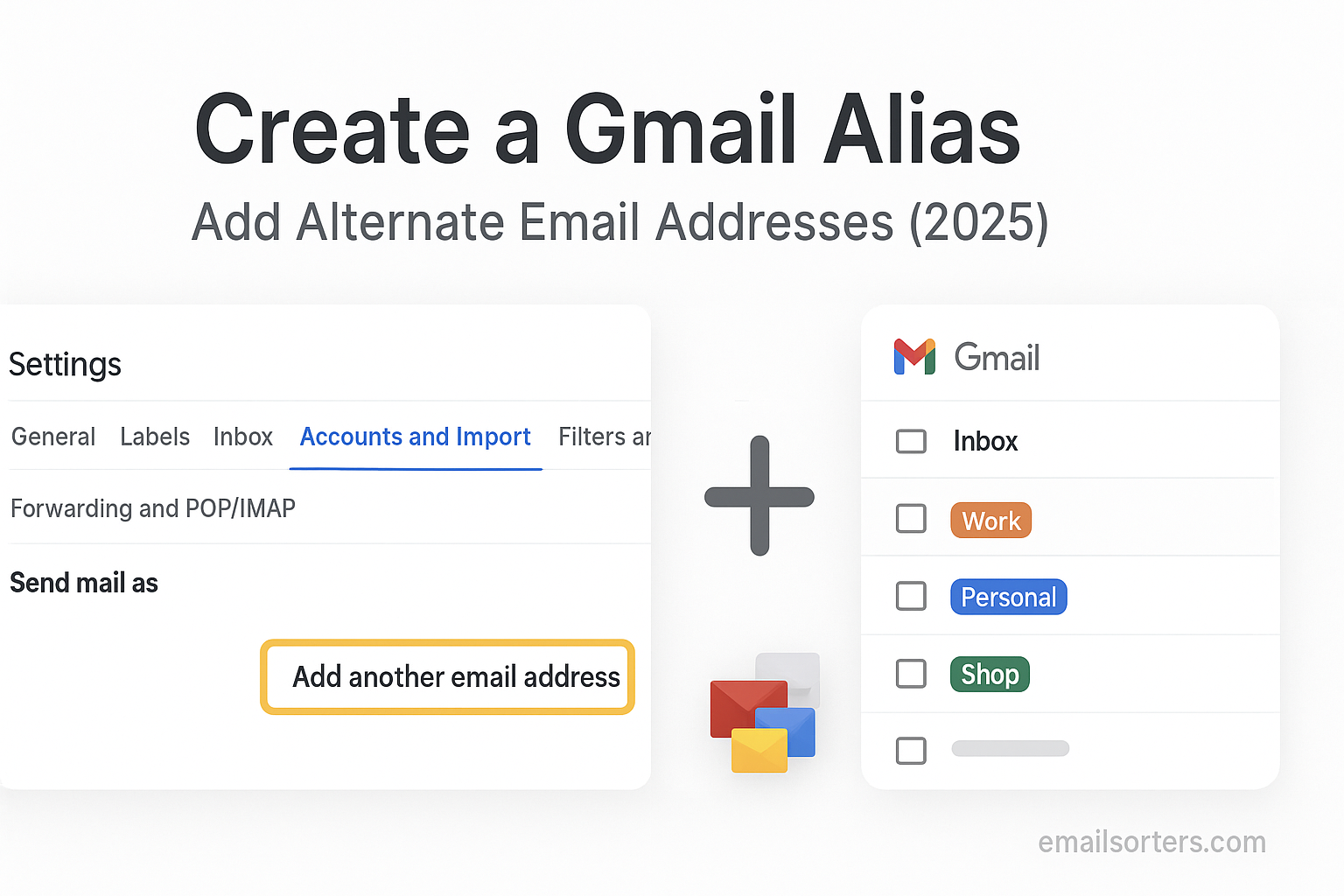
Create Gmail alias and instantly make your inbox more flexible. Whether you want a cleaner way to sort newsletters, keep your work and personal messages separate, or protect your main address, an alias is the perfect trick.
The best part? You don’t need a new account. With Gmail, you can set up aliases in seconds and use them for different purposes, all while keeping everything in one inbox.
In this guide, I’ll show you how to create a Gmail alias step by step, plus some clever ways to use it to stay organized and secure. Ready to make Gmail work smarter for you? Let’s dive in.
What Is Gmail Alias?
A Gmail alias is an alternate version of your existing email address. It delivers mail to the same inbox as your primary email but allows you to separate roles or purposes without creating separate Gmail accounts. For example, if your email is [email protected], you could use aliases like [email protected] or [email protected] (with dots removed). These variants all route to your inbox but display as separate addresses when received by others.
Aliases don’t require password management, syncing, or extra storage; they operate under the same primary account. They’re often used to separate tasks such as personal communications, online registrations, newsletters, or team-related correspondence while keeping everything accessible in one place.
Difference Between Alias and Gmail Account
It’s important to distinguish between an alias and a separate Gmail account. A full Gmail account requires its own login, password, settings, and storage. An alias is merely a variation of your original address and does not require new credentials or a separate inbox. If you want to maintain completely separate identities (e.g., for work and personal), a full Gmail account might be more appropriate.
Aliases simplify management for low-stakes identity separation. They are ideal for newsletter sign-ups, quick tests, or role-based communication. A full account is better suited when strict access control or separate security profiles are needed. Aliases share the entire environment of your primary account, meaning if it’s compromised, all aliases are affected. Use them wisely.
Why Use Gmail Alias?
Managing Multiple Roles or Projects
Many people juggle different roles; small business owner, teacher, volunteer manager, writer; and need separate email contexts. Creating an alias for each role allows you to keep incoming messages grouped by purpose. You can assign filters and labels so emails sent to [email protected] end up in the “Clients” label, while [email protected] goes into a “Projects” label.
Without aliases, your inbox becomes a melting pot of unrelated messages. With them, you reduce manual sorting and increase focus. Aliases make it easy to send replies and maintain consistent identity across roles; without signing in and out or managing multiple accounts.
Reducing Spam and Increasing Privacy
Using aliases for online forms, newsletters, or public postings helps manage your exposure. When an alias starts receiving spam or unwanted messages, you can block or filter it without impacting your primary address. This strategy also creates a layer of privacy; you don’t have to expose your actual email address directly.
Instead of sharing your main address widely, you give users or sites a disposable alias like [email protected]. If spam becomes a problem, delete the filter or block without affecting your personal inbox. It’s a practical way to engage online while maintaining control over message flow.
How Gmail Handles Aliases Internally
Email Routing Behind the Scenes
Gmail treats alias addresses as variants of your main email address. When someone sends mail to [email protected], the system strips the +alias part and routes the message to [email protected]. No separate mailbox is created. The same applies to dots: [email protected] and [email protected] are considered identical.
This routing method requires no extra configuration. All aliases are inherently active for receiving mail once you own the primary Gmail account. There is no activation step, no password, and no extra overhead. Gmail handles all alias logic invisibly.
How Filters Identify Aliases
Aliases are especially powerful because Gmail filters can detect them programmatically. You can set conditions like “To contains ‘+clients’” or “To: [email protected]” to apply labels or forward messages automatically. This allows automated organization and routing inside the inbox.
Filters can segregate alias messages into locked labels or folders, ensuring that project-related or role-based emails don’t mix. Knowing how this routing works lets you build efficient automation that reduces manual filing and keeps your inbox organized without effort.
Methods to Create Gmail Alias
Gmail aliases are easy to create using several built-in methods.
Using Plus Sign Method
One of the most popular alias techniques is the plus sign format. By inserting +tag between your username and the @gmail.com, Gmail treats it as an alias. For example: [email protected], [email protected], or [email protected]. All those variants point to [email protected], allowing you to track where the email was sent.
The plus sign format is particularly useful for mailing registrations or categories; unsubscribe or block the alias later without affecting your main email.
Adding Dots for Alias Variation
Gmail ignores periods in the local part of addresses. For instance, [email protected], [email protected], or [email protected] all resolve to the same mailbox. While this method is less flexible than plus tagging, it’s still a built-in alias technique useful for typing convenience or variant appearance.
Because dots are ignored, you can modify how your alias looks to others without adding characters. It’s another simple way to segment identities with zero configuration.
Linking Another Email Address (One list allowed here)
If you want a fully distinct alias, you can link an external email address you own as a “Send mail as” alias inside Gmail.
- Go to Gmail Settings > Accounts and Import > “Add another email address.”
- Enter the external address, verify ownership via confirmation email, and configure SMTP settings.
- Gmail now allows you to choose that address in the “From” field when sending, while replies still arrive in your main Gmail account.
This method gives you a separate email identity you control without maintaining a separate Gmail login or mailbox.
Adding a Send-As Address to Gmail
Step-by-Step Setup for “Send Mail As”
Once the external address is verified, Gmail shows it in the “From” drop-down during compose. Users can choose the alias to send mail, giving the appearance of using a different email. This means you can manage separate identities; like support@yourdomain or personal branding addresses; within one Gmail interface.
This alias behaves like a separate address when replying and receiving mail, even though all messages arrive in your main account. Signatures, filters, and labels can be customized to match each alias identity.
Verifying Alternate Email Ownership
Google requires verification to prevent spoofing. After setting up the alias, Gmail sends a code to the external address. You must retrieve that code and enter it in Gmail to complete the setup. This step confirms you control the alias address.
Once verified, Gmail handles the sending through your alias’s SMTP settings if configured explicitly, or via Google’s own servers if permission is granted. Either way, the message appears valid and authenticated to recipients.
Use Case Examples for Gmail Aliases
Aliases shine in practical situations where maintaining separate identities matters. For freelancers, an alias lets you manage client correspondence; like [email protected]; without logging into a separate account. Teachers handling multiple classes can use separate aliases for each group, making replies and grading workflow easier. Freelancers and project managers often reply with the appropriate context without needing separate inboxes.
Aliases are also invaluable for subscriptions. Signing up for newsletters with [email protected] lets you filter those messages automatically. If they become overwhelming or you need to unsubscribe later, you can remove or delete that alias-based address without affecting your main identity. This approach builds neatly organized, purpose-specific inbox zones without complex setup.
Filters and Labels for Alias Management
Managing aliases means keeping track of how mail to each alias is handled. Gmail filters can automatically detect alias addresses and route messages into labeled groups. When an email is sent to [email protected], you can set a filter that moves it to a label called “Shopping.” Similarly, alias emails for feedback or recruitment can be directed into dedicated labels, keeping your inbox segmented.
Labels become your organizational tool; allowing multiple categories without duplicate contacts. You might see a subject line marked “[email protected] via +clientname” grouped under a “Clientname” label. This visual grouping helps you quickly identify sender context without opening the message. Smart use of filters and labels transforms simple alias usage into a streamlined workflow.
Gmail Alias in Google Workspace
If you use Google Workspace (formerly G Suite), alias management offers additional power. Administrators can create both user-level aliases and domain-level alias accounts. For example, someone might have [email protected] with aliases like [email protected] or [email protected]. These aliases give flexibility for role-based email handling while maintaining access control under one login.
Workspace also allows admin configuration of who can send as an alias, whether alias mail is allowed externally, and how alias permission requests are approved. This makes aliases suitable for business communication roles or departmental addresses (e.g. support@) while still granting personal ownership and inbox review.
Security Considerations When Using Aliases
Aliases add flexibility but also require thoughtful management to avoid security risk. If you use the same password and security settings across every alias (since they all link to a single Gmail account), a compromised alias means the main account is compromised too. Always enable two-step authentication and monitor account activity.
Aliases might also cause confusion with phishing. Someone could spoof tiny variations; like [email protected]; to trick you into receiving malicious emails. To prevent this, double-check “To” addresses before replying, and set filters to alert you when messages go to unfamiliar alias variants. This adds a layer of internal awareness beyond simple spam filtering.
Limits and Restrictions of Gmail Aliases
Gmail aliases are powerful but not limitless. One limitation is that Gmail ignores plus signs and dots for routing; while this creates aliases, it also prevents any email address variation from filtering separately if the service strips the identifier. That means you can’t truly block an alias variant if someone tries using it maliciously.
Additionally, Gmail imposes sending limits per account, not per alias. If you send too many messages in short bursts via an alias, Google may temporarily restrict sending for the entire account. Aliases do not bypass these limits.
Aliases also don’t work with all third-party services; some authentication or sharing platforms may not recognize alias variations and may refuse access, requiring a full Google account.
Forwarding vs Alias: Key Differences
Aliases and forwarding serve different needs. Forwarding sends messages from one account to another; often from a secondary account back to your primary one. Aliases, on the other hand, all remain within one account.
If you own two separate Merge Gmail accounts; like [email protected] and [email protected]; forwarding from the second into the first consolidates mail without needing aliases. Aliases, however, allow complete identity variation without signing into another account.
Forwarding can cause complexity when sending replies originating from the primary address, whereas with alias “Send Mail As” setup, replies come from the appropriate alias address, preserving identity consistency.
Monitoring Alias Effectiveness
Aliases are only useful if they help manage your inbox intelligently. Monitor how each alias is used; check reply rates, spam incidence, and filter accuracy. If an alias consistently attracts spam or fewer meaningful messages, you may choose to retire it.
You can audit filters to ensure alias-based rules still apply correctly, especially after renaming labels or reorganizing inbox structure. Some users include emails within alias names to analyze traffic sources; like [email protected] vs [email protected]; to see which signup source is more prone to spam or engagement.
Troubleshooting Alias Problems
Occasionally an alias won’t receive mail, either because someone typed the address incorrectly or because your filter or SPF/DKIM settings are interfering. Confirm the alias variant is spelled exactly as expected. If you’re using “Send Mail As” addresses, the alias must be verified; otherwise, Gmail will refuse to send.
If alias replies appear generic or from your main address, double-check the alias’s “From” configuration during compose. Sometimes default settings revert to the primary address unintentionally.
Best Practices for Alias Management in 2025
Looking ahead, alias management is evolving along with identity tools, privacy tools, and email automation. Choose alias names that align with your organizational style; simple, descriptive, and consistent. Labeling and grouping alias messages offer scale and clarity.
Rotate older aliases: if you change roles, or a project ends, archive or remove inactive alias filters to keep your system lean. Implement routine inbox cleaning to retire outdated addresses and maintain relevance.
Conclusion
Learning to create Gmail alias effectively unlocks flexible, organized inbox management without the headaches of multiple accounts. Whether segmenting roles, avoiding spam, or maintaining privacy, aliases let you shape how messages arrive and how they’re displayed.
Using alias filtering, labels, correct send-as settings, and clear organizational habits, you turn a simple account into a multi-role workspace. While not suitable for every situation, aliases offer huge benefits when aligned with your needs; without the burden of separate logins or fragmented messaging.
FAQs
Can I alias multiple domains?
You can alias external addresses via “Send Mail As,” but alias variants (plus or dot) only work under the same Gmail domain.
Does alias affect login security?
Aliases aren’t separate logins; they share access and skirt Google authentication. Secure your main account carefully to protect all aliases.
Can I stop unwanted alias mail?
Use filters or block specific alias variants; filters can catch particular alias patterns and archive automatically.
Is alias visible to recipients?
Yes, if you’re sending with “Send Mail As,” the recipient sees the alias address. Plus and dot aliases appear as written, so think carefully before using them externally.
Why clicking Send Mail As alias sometimes fails?
If alias isn’t verified or SMTP isn’t configured, Gmail may prevent sending from that alias. Always complete the verification process first.


