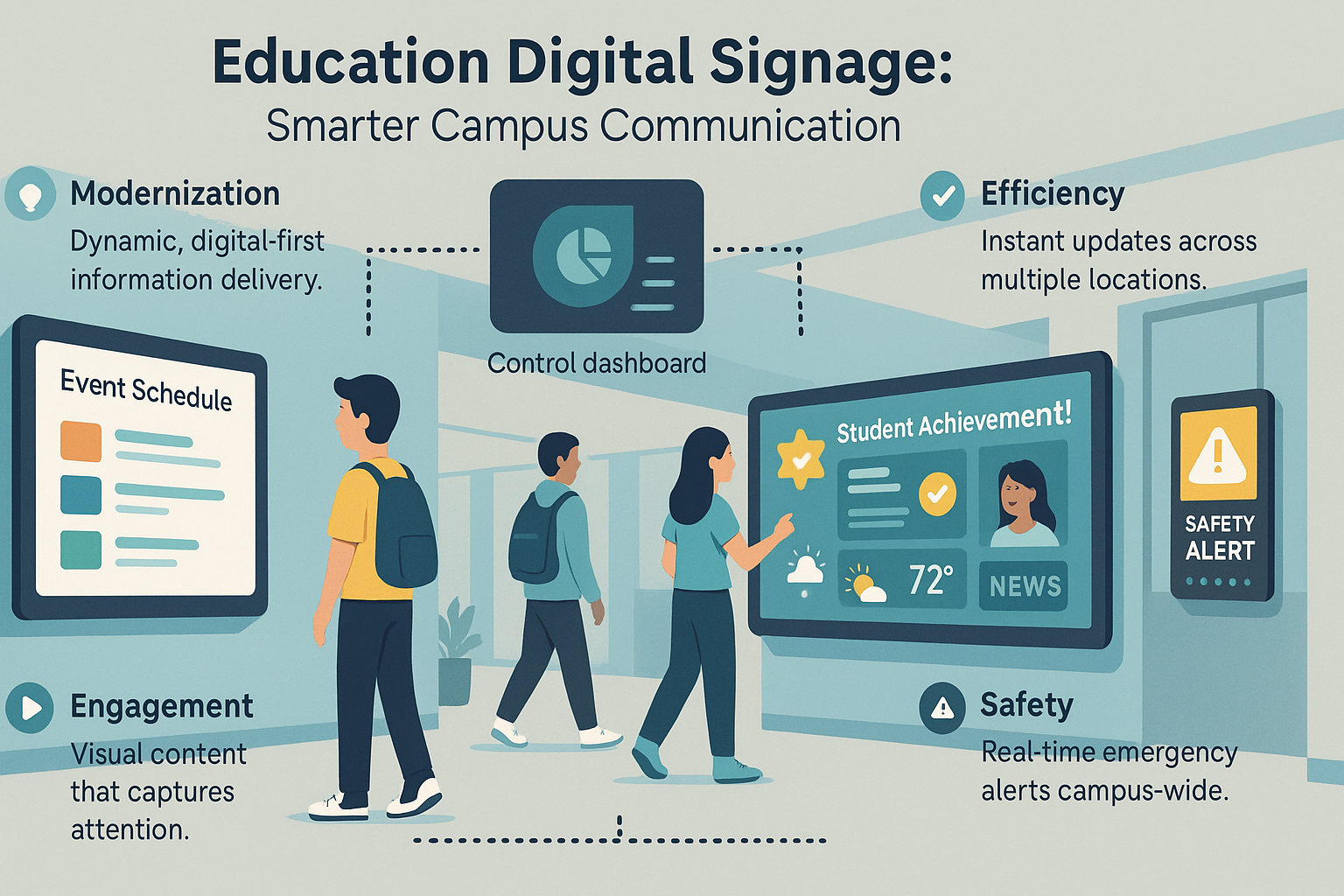
Education digital signage is transforming how schools, colleges, and universities communicate, replacing outdated bulletin boards and missed email announcements with smart, dynamic display solutions. Remember the days of scanning crowded notice boards covered in faded flyers, hoping not to miss a sports tryout or last-minute classroom change? Or the frustration of discovering a canceled lecture only after walking across campus because the email got lost in your inbox? For decades, educational institutions relied on fragmented systems, paper notices, PA announcements, and inconsistent emails, leading to confusion and missed opportunities.
Today, digital signage in education has become the modern answer to these challenges. It’s a centralized, real-time communication tool that uses vibrant LCD screens, LED panels, or projectors to share multimedia messages instantly across campuses. This article explores how education digital signage enhances student engagement, simplifies campus communication, and strengthens school branding. From improving information flow to boosting safety and participation, these smart displays are reshaping the way learning environments connect, inform, and inspire.
Forget the paper clutter and inbox chaos, it’s time to see how smart display solutions for education are creating more connected, efficient, and interactive schools.
What Is Education Digital Signage and Why Is It Transforming Learning Environments?
Education digital signage is a network of electronic displays strategically placed across a campus, centrally managed to deliver timely, targeted information. It uses hardware like screens and media players, controlled by specialized software, replacing static posters and fragmented announcements with dynamic, engaging visual communication fit for modern learning.
Think beyond just putting up some TVs. Education digital signage is a cohesive system. It involves commercial-grade screens built for durability, media players that process and display content, and Content Management Software (CMS) that acts as the central brain. This setup allows administrators or designated staff to update information instantly across multiple screens, schedule content for specific times, and even target messages to particular locations. Fundamentally, digital signage leverages technology to broadcast information effectively.
So, why is this technology considered “transforming”? It’s not just about looking modern, though that helps. The transformation lies in its ability to solve long-standing communication challenges unique to educational settings:
- Modernization: Today’s students are digital natives. They expect information to be accessible, visual, and immediate. Paper flyers and static boards feel outdated. Digital signage meets students where they are, reflecting a technologically current institution.
- Communication Efficiency: Schools are busy places with diverse audiences. Digital signage allows for broadcasting campus-wide alerts or showing specific messages only in the faculty lounge or the science building. It cuts through the noise of overflowing email inboxes, ensuring critical information is visible.
- Engagement: Let’s face it, a colourful video or animated graphic is far more likely to catch the eye than a plain text notice. Dynamic content – event promotions, student achievements, news feeds – actively engages viewers and fosters a stronger sense of community.
- Safety & Immediacy: In emergencies, speed and clarity are paramount. Digital signage networks can instantly override regular content to display critical alerts, evacuation routes, or safety instructions across the entire campus simultaneously.
It’s important to distinguish education digital signage from specific classroom technologies like interactive whiteboards. While those are vital teaching tools, digital signage serves a broader communication purpose, disseminating information campus-wide to students, staff, and visitors outside direct instructional time.
How Does Digital Signage Differ from Traditional School Communication Methods?
Digital signage offers immediate updates, targeted messaging, and high visual engagement, unlike traditional methods like paper flyers or emails. It bypasses the physical limitations and potential waste of print materials and avoids the information overload common with email blasts, providing a more efficient and captivating communication channel.
Comparing digital signage to older methods highlights its distinct advantages:
| Feature | Digital Signage | Paper Flyers/Posters | PA Systems | |
| Immediacy | Instant updates | Slow (print, distribute) | Relatively fast, but easily missed | Instant |
| Targeting | High (by location, time, audience) | Low (general placement) | Moderate (lists), often ignored | Low (everyone) |
| Engagement | High (visual, dynamic) | Low (static, easily ignored) | Low (text-heavy, overload) | Moderate (audio) |
| Cost (Long-Term) | Lower (no consumables) | High (paper, ink, time) | Low | Moderate |
| Environmental | Low impact | High waste | Low impact | Low impact |
| Reach | High (passive visibility) | Moderate (requires active looking) | Variable (depends on opening) | High (intrusive) |
| Emergency Use | Excellent (visual, instant) | Very Poor | Poor (delayed, unreliable) | Good (audio only) |
Traditional methods clearly have significant drawbacks. Paper flyers create clutter and waste, require manual distribution and removal, and offer no way to make timely updates. Emails, while faster, often get lost in crowded inboxes – a significant issue when important announcements are missed, sometimes leading people to seek out free email sorters apps to try and manage the deluge – and lack the visual impact needed to grab attention quickly. Public address (PA) systems are good for immediate, campus-wide audio alerts but are disruptive, lack visual information, and are ineffective for detailed or targeted communication. Digital signage overcomes these specific limitations.
What Makes Digital Signage a “Smart” Solution for Education?
Digital signage is considered “smart” because it offers centralized control over multiple screens, allowing for targeted messaging to specific locations or audiences. It supports dynamic content that updates automatically, can incorporate interactive elements, and provides analytics, making communication more efficient, relevant, and measurable than static methods.
Let’s break down what makes these systems truly intelligent communication tools:
- Centralized Control: Imagine managing dozens or even hundreds of screens across campus from a single web-based dashboard. That’s the power of a digital signage CMS. Staff can schedule content weeks or months in advance, make instant updates during emergencies, group screens logically (e.g., “Library Screens,” “Cafeteria Displays”), and assign different permissions to various users. This eliminates the need to physically visit each screen to update a USB stick or change a poster.
- Targeted Messaging: Not every message is for everyone. Digital signage allows administrators to show specific content only where it’s relevant. The screens in the athletics building can display game schedules and team scores, while screens in the faculty lounge show professional development reminders. Content can be scheduled by time of day (e.g., breakfast menus in the morning, lunch menus later) or targeted to specific events happening in a particular building.
- Dynamic Content: This is where digital signage truly shines. Instead of static images or text, screens can display live, automatically updating information. This includes:
- Calendar Feeds: Pulling directly from school calendars, potentially integrating with platforms students and staff already use, whether comparing options like Ymail vs Gmail or using established systems like Outlook Calendar. This ensures event information is always current.
- Weather Forecasts: Displaying local weather conditions.
- News Tickers: Showing relevant school news or general headlines.
- Social Media Walls: Moderated feeds from official school accounts.
- Emergency Alerts: Integration with alert systems (like CAP) for immediate overrides.
- Interactivity (Optional but Smart): Touch screens transform passive displays into interactive resources. Students can use them for wayfinding (campus maps with directions), browsing directories, or accessing specific information on demand. QR codes on non-touch screens can also link viewers to websites, registration forms, or online resources via their smartphones.
- Data & Analytics: More advanced systems can provide valuable insights. Administrators might see which content playlists get the most screen time, identify screens that are offline, or even (with more complex setups involving sensors or interactions) get anonymized data on viewer engagement. This data helps refine the content strategy over time.
What Are the Key Benefits of Using Digital Signage in Educational Institutions?
Education digital signage significantly benefits schools by enhancing communication for students and staff, boosting engagement with dynamic content, improving campus safety through instant alerts, and projecting a modern image to visitors. It streamlines information flow, increases participation, and ensures critical messages are seen promptly.
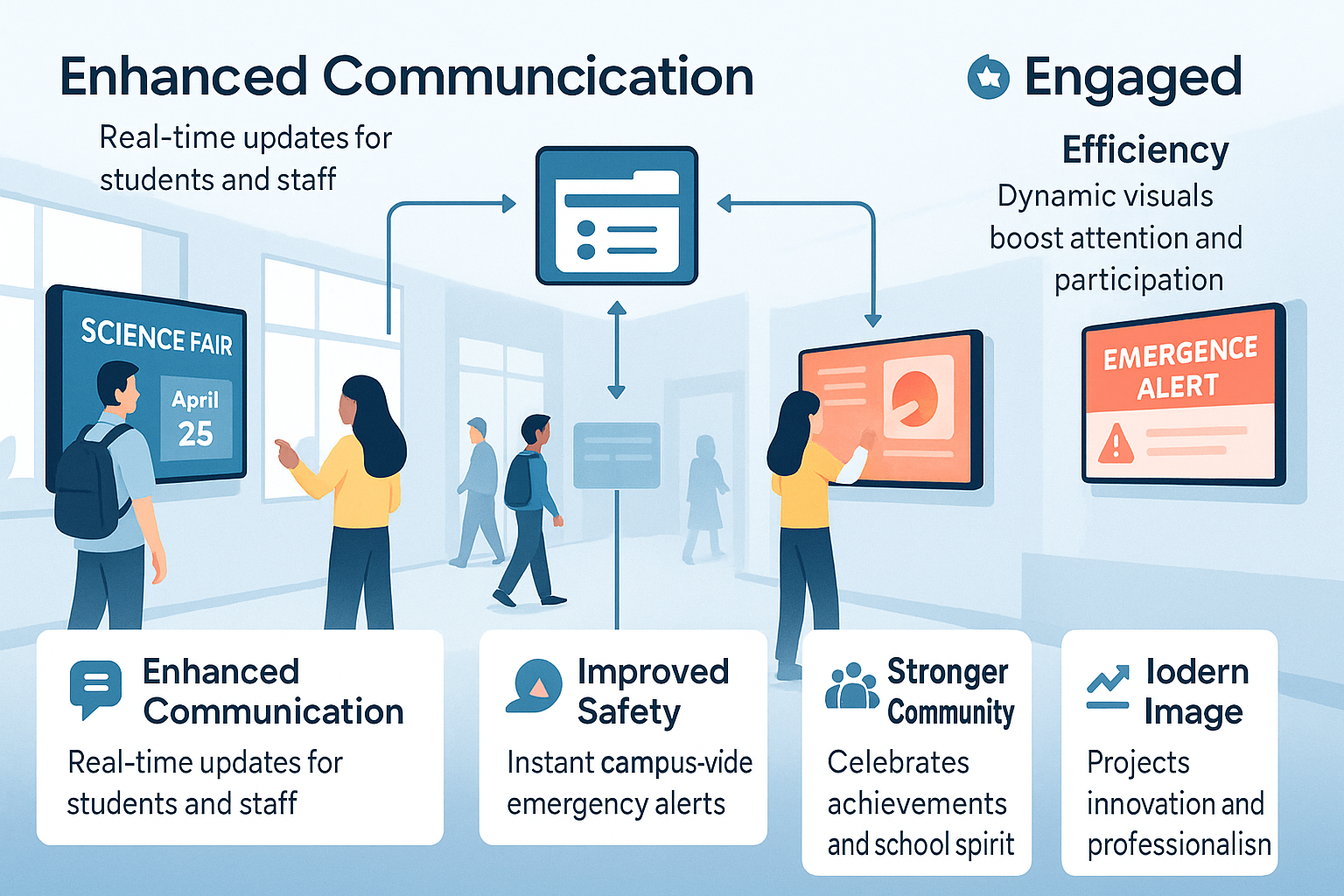
The positive impacts of implementing digital signage ripple throughout the entire educational community, touching students, teachers, administrators, support staff, and even visitors and parents. It’s a versatile tool that addresses multiple institutional goals simultaneously. Schools often report tangible improvements after adoption; for instance, many see a noticeable increase, sometimes upwards of 20%, in attendance at extracurricular events promoted via digital screens compared to traditional methods. Furthermore, considering that studies show visual information is processed significantly faster by the brain than text (some estimates suggest up to 60,000 times faster), the potential for improved information retention and engagement is substantial.
How Does Education Digital Signage Enhance Student Engagement and Information Access?
Digital signage grabs student attention with visually appealing content, ensuring they receive timely updates on schedules, events, and deadlines they might otherwise miss. It fosters school spirit by celebrating achievements and increases participation by making activities highly visible, ultimately making information more accessible and engaging.
- Improved Information Retention: The human brain is wired for visuals. Dynamic graphics, videos, and even well-designed text layouts on screens are more memorable than static notices or lengthy emails. Displaying key information visually helps students retain it better.
- Timely Updates: No more outdated flyers! Digital screens provide real-time access to crucial information: changes in class schedules, upcoming assignment deadlines, club meeting locations, sports results, and special event details. This reduces the common student complaint of “I didn’t know about that.”
- Celebrating Achievements: Digital displays are perfect for fostering a positive school culture. Showcase student artwork, highlight academic award winners, display photos from recent events, announce sports victories, or feature “student of the week” profiles. Public recognition boosts morale and school spirit.
- Promoting Events & Activities: Drive participation in everything from guest lectures and workshops to pep rallies and bake sales. Visually appealing promotions with dates, times, locations, and perhaps a QR code for more info are far more effective than a simple listing on a website or a buried email.
- Wayfinding: Large campuses can be confusing, especially for new students or visitors. Digital displays can show clear campus maps, building directories, or temporary directions for specific events, reducing stress and improving navigation.
- Curriculum Reinforcement: Screens can subtly reinforce learning. Displaying a “word of the day,” interesting historical facts relevant to the current week, quick science trivia, or even links to pertinent online educational resources keeps learning visible outside the classroom.
What Advantages Does It Offer for Teachers and Staff Communication?
For teachers and staff, digital signage reduces reliance on email for routine announcements, provides a visible channel for resource sharing and professional development info, helps build a stronger internal community, and ensures consistent messaging during regular operations and emergencies, improving overall internal communication efficiency.
- Internal Announcements: Place screens in staff lounges, department offices, or mailrooms to display information relevant only to faculty and staff. This includes reminders about upcoming staff meetings, deadlines for submitting grades, professional development opportunities, or important policy updates.
- Reduced Email Clutter: How many internal emails get deleted unread? Moving non-urgent, informational announcements (like HR benefit reminders or IT maintenance schedules) from email to digital screens ensures visibility without adding to inbox overload. This allows email to be reserved for more critical, actionable communication.
- Resource Sharing: Keep staff informed about available resources. Highlight new teaching tools available in the library, provide quick links or contact info for IT support, share updates from the administration, or remind staff about HR procedures and deadlines.
- Building Community: Use screens in staff-only areas to foster collegiality. Celebrate staff birthdays or work anniversaries, welcome new hires with a photo and brief bio, or showcase departmental achievements. Little touches like these can significantly boost morale.
- Emergency Preparedness: Beyond campus-wide alerts, screens in staff areas can display specific instructions for faculty during drills or emergencies, ensuring they know their roles and responsibilities clearly and consistently.
How Can Digital Signage Improve Campus Safety and Emergency Communication?
Digital signage dramatically improves campus safety by enabling instantaneous, campus-wide visual alerts that override regular content. It provides clear, consistent instructions during emergencies like lockdowns or evacuations, reducing panic and ensuring everyone receives the same critical information simultaneously through a highly visible medium.
- Instantaneous Alerts: This is arguably one of the most critical benefits. In an emergency, administrators can trigger alerts that immediately take over every screen on the network. Whether it’s a severe weather warning, a lockdown notification, an evacuation order, or another urgent situation, the message gets out instantly and visually. Many systems can integrate with existing Common Alerting Protocol (CAP) or other emergency notification platforms.
- Clear Instructions: Panic situations can make audio announcements hard to comprehend. Visual instructions on screens – showing evacuation routes, shelter-in-place procedures, contact numbers for security, or specific safety protocols – provide clarity. Using simple text, clear icons, and consistent messaging across all displays is vital.
- Reduced Panic: Authoritative, calm, and clear visual information delivered consistently across campus can help manage anxiety and prevent the spread of misinformation during a crisis. It provides a single source of truth when rumors might otherwise circulate.
- Day-to-Day Safety Info: Screens aren’t just for emergencies. They can routinely display important safety reminders: protocols for reporting suspicious activity, locations of emergency call boxes, tips for staying safe on campus, or information about upcoming safety drills. This reinforces a culture of safety.
What Is the Role of Digital Signage in Welcoming Visitors and Enhancing the School’s Image?
Digital signage plays a vital role in creating strong first impressions and shaping the overall perception of a school. By delivering professional welcome messages, simplifying navigation, reinforcing institutional branding, and presenting real-time event information, digital signage in education helps schools project a modern, organized, and technologically advanced image.
First Impressions
A well-designed welcome display in the main lobby or reception area immediately communicates professionalism and innovation. Schools can present tailored welcome messages for specific guests, highlight key achievements, or play a brief introductory video showcasing the school’s values and learning environment. This immediate visual engagement sets a positive tone and establishes credibility with visitors, parents, and community members.
Wayfinding for Visitors
Navigating a campus—especially for new students or visiting families—can often be confusing. Digital signage systems equipped with interactive maps, building directories, and step-by-step directions significantly improve wayfinding. Touchscreen displays enable visitors to locate classrooms, administrative offices, and event venues quickly. Even static digital maps, strategically placed in corridors and entrance areas, provide clarity and reduce navigation time.
Showcasing the School Brand
Digital displays offer valuable opportunities for schools to strengthen their brand identity and communicate their mission. Through visual storytelling, schools can highlight their mission statements, showcase awards, celebrate student achievements, and display photographs that capture vibrant campus life. Including historical milestones or community engagement initiatives further reinforces the institution’s values and builds trust among stakeholders.
Event Information
For open houses, parent-teacher conferences, performances, and athletic events, education digital signage serves as a dynamic communication channel. Event schedules, room assignments, speaker profiles, sponsor acknowledgments, and live updates can all be displayed clearly across campus. This ensures that attendees have access to accurate, up-to-date information, improving both event organization and overall visitor satisfaction.
Where Can Education Digital Signage Be Most Effectively Used on Campus?
Education digital signage is most effective in high-traffic common areas like lobbies, hallways, and cafeterias for broad announcements and engagement. It’s also valuable in locations with longer dwell times, such as libraries and student lounges, for more detailed information, promoting resources, and reinforcing community messages.
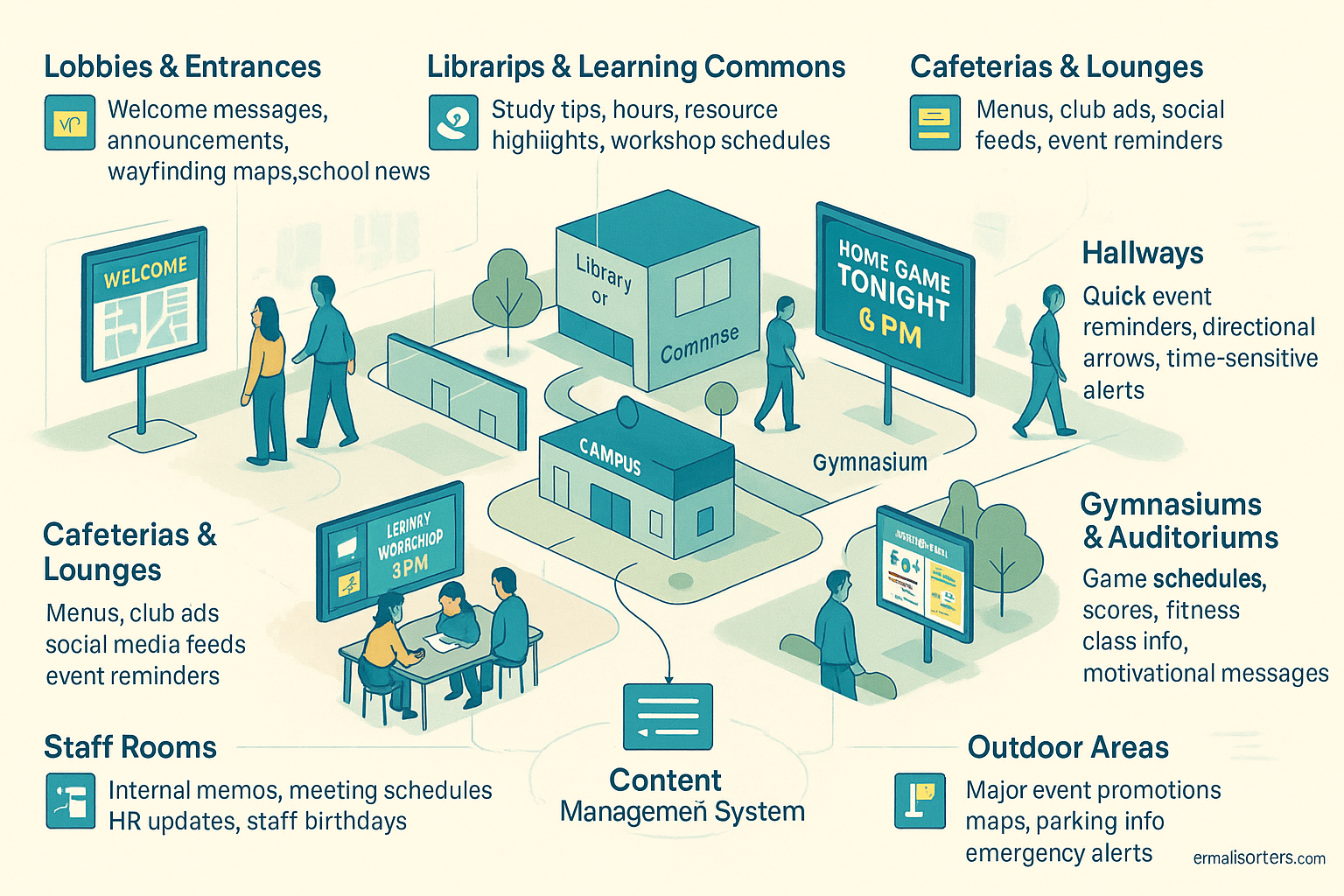
Simply installing screens isn’t enough; strategic placement is absolutely crucial for maximizing the impact of your digital signage network. The effectiveness of any display hinges on putting the right information in front of the right audience at the right time. Consider the typical foot traffic, the average time people spend in the location, and the primary purpose of the space when deciding where to place screens and what content to show on them.
Here’s a quick comparison of common locations and suitable content:
| Location | Typical Content Types |
| Lobbies/Entrances | Welcome messages, general announcements, event highlights, wayfinding, school news |
| Libraries/Commons | Hours, resource spotlights, workshop schedules, study tips, quiet reminders |
| Cafeterias/Lounges | Menus, nutritional info, student club ads, social media feeds, event reminders |
| Hallways | Quick announcements, directional signs, event teasers, time-sensitive reminders |
| Gymnasiums | Game schedules, team scores, fitness class info, motivational content |
| Staff Rooms | Internal memos, PD opportunities, HR updates, meeting schedules |
| Outdoor Areas | Major event promotion, campus maps, parking info, large-scale emergency alerts |
Why Are Lobbies and Main Entrances Prime Locations?
Lobbies and main entrances are high-traffic hubs, making them ideal spots for general announcements, welcome messages, and wayfinding information. As the first point of contact for students, staff, and visitors, screens here create a crucial first impression and ensure broad visibility for key campus-wide news.
These areas act as information crossroads. Everyone passes through them at some point. Content displayed here should be visually engaging but also concise, as people are often on the move. Effective uses include:
- Welcoming Visitors: Displaying personalized welcome messages for scheduled guests or groups.
- General News: Highlighting major school achievements, upcoming holidays, or important deadlines.
- Event Highlights: Promoting significant upcoming events like plays, concerts, or guest speakers.
- Wayfinding: Providing basic campus maps or directions to key administrative offices or event locations.
- School Spirit: Showcasing recent photos, school motto, or upcoming pep rallies.
How Can Digital Displays Be Utilized in Libraries and Learning Commons?
In libraries and learning commons, digital displays can share detailed resource information, promote workshops, display hours, and reinforce study-focused messaging. The generally quieter environment and longer dwell times allow for more text-heavy or nuanced content compared to high-traffic hallways.
Students visit libraries to study, research, and access resources. Digital signage here should support these activities:
- Operating Hours: Clearly displaying current and upcoming hours, including any holiday changes.
- Resource Spotlights: Highlighting specific online databases, research guides, or new book arrivals.
- Workshop & Event Schedules: Promoting upcoming library-hosted workshops on research skills, citation management, or technology use.
- Study Tips & Etiquette: Displaying reminders about quiet zones, booking study rooms, or effective research strategies.
- Tech Availability: Showing real-time availability of computers or other reservable equipment (requires integration).
What Is the Impact of Digital Signage in Cafeterias and Student Lounges?
Cafeterias and lounges are key social hubs where digital signage can effectively promote student life activities, display menus, share club news, and even run social media feeds. High dwell times during breaks mean students are more likely to engage with varied, less formal content in these relaxed settings.
These spaces offer a captive audience during lunch breaks or between classes. Content can be more varied and engaging:
- Menus & Nutrition: Displaying daily or weekly menus, including nutritional information and specials.
- Student Life Announcements: Promoting club meetings, student government initiatives, volunteer opportunities, or campus events.
- Social Media Integration: Showcasing moderated feeds from the school’s official social media accounts or specific event hashtags.
- Entertainment/News: Displaying school news broadcasts, relevant (and appropriate) news headlines, or even campus radio information.
- Health & Wellness Info: Sharing tips for healthy eating, stress management resources, or campus health service information.
Can Digital Signage Be Integrated Directly into Classrooms?
While less common for general campus communication, digital signage can be used in classrooms for displaying daily schedules, learning objectives, quick reminders, or subject-specific reinforcement. However, its primary role here is supplemental, distinct from the main interactive displays used for teaching.
Classroom digital signage typically serves a supporting role, managed either centrally or by the teacher:
- Daily Information: Showing the day’s schedule, lesson objectives, or homework reminders.
- Quick Announcements: Displaying brief, non-disruptive school-wide messages if needed (e.g., altered bell schedule).
- Subject Reinforcement: Displaying relevant vocabulary words, historical timelines, scientific diagrams, or mathematical formulas related to the current lesson.
- Classroom Procedures: Reminding students of specific rules, upcoming test dates, or project deadlines.It’s crucial to differentiate this from the main interactive whiteboard or projector used for active instruction. Classroom signage is more for passive information display.
What About Hallways, Gymnasiums, and Outdoor Areas?
Digital signage in hallways requires brief, high-impact messages due to short viewing times. Gymnasiums can display event schedules and scores. Outdoor signage needs weatherproof, high-brightness screens for major promotions, maps, or critical alerts, ensuring visibility in diverse conditions.
- Hallways: These are high-traffic but transient spaces. Content must be glanceable. Think quick event reminders (“Play Auditions Today!”), directional arrows during events, rotating safety tips, or positive behavior reinforcement messages. Video walls can make a big impact here.
- Gymnasiums & Auditoriums: Ideal for promoting upcoming games or performances, displaying team schedules and scores, advertising concession stand items, showing fitness class schedules, or recognizing athletes and performers. Large video walls are effective here.
- Outdoor Areas: Requires specialized hardware resistant to weather and bright sunlight. These are used for major campus entrance signs, promoting large public events (concerts, games), displaying campus maps for visitors, providing parking information, or broadcasting large-scale emergency alerts visible across open areas.
What Types of Content Engage Students and Staff on Education Digital Signage?
Engaging content for education digital signage includes timely event promotions, dynamic schedules, celebrations of student/staff achievements, clear safety alerts, helpful wayfinding maps, and visually appealing curriculum reinforcements. Relevance, visual appeal, brevity, and regular updates are key to keeping audiences interested and informed.
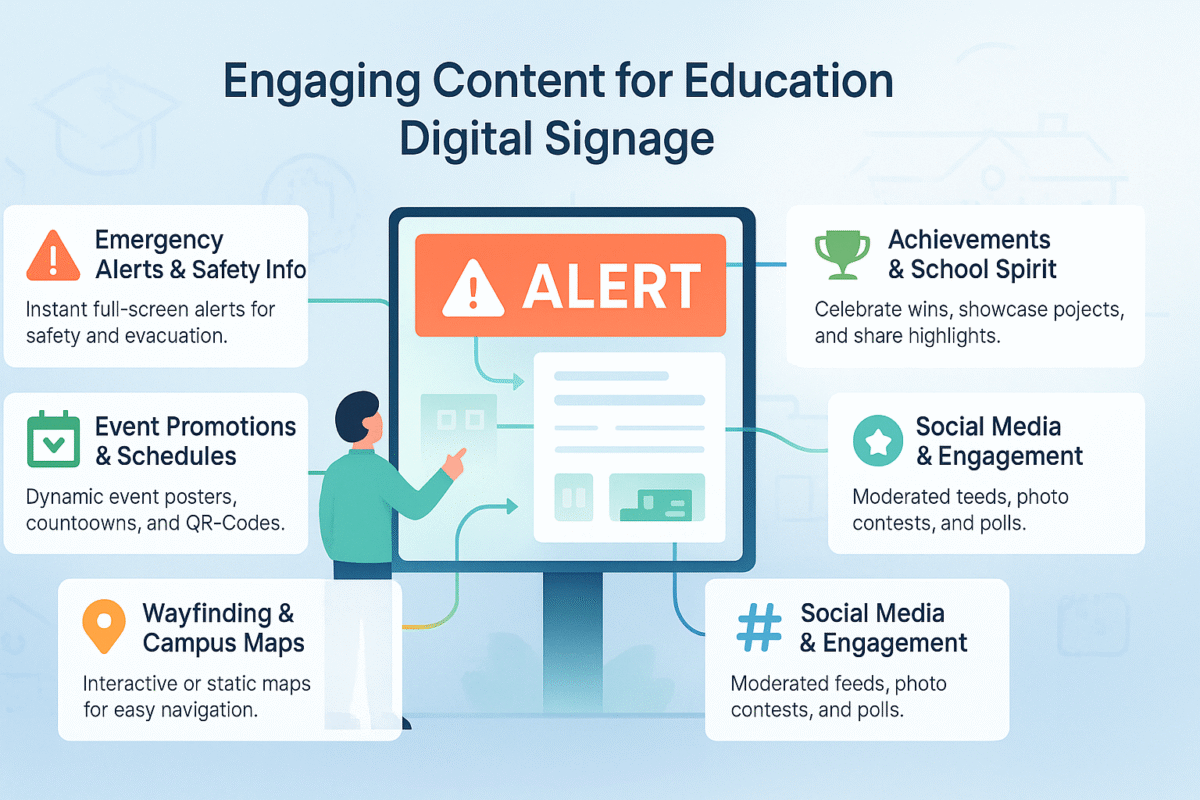
Even the most advanced digital signage hardware is only as good as the content displayed on it. If screens show outdated, irrelevant, or uninspired information, they quickly become ignored background noise. To truly capture attention and communicate effectively in a busy school environment, the content strategy is paramount. It needs to be thoughtfully planned, visually appealing, easy to understand at a glance, and consistently refreshed. The goal is to make looking at the screens a valuable and engaging habit for both students and staff.
How Can Emergency Alerts and Safety Information Be Displayed Effectively?
Emergency alerts require immediate visibility and clarity. Use high-contrast text, simple language, and universally understood icons. Standardized colours (like red) help convey urgency. Alerts should override all other content instantly using full-screen takeovers to ensure they cannot be missed during critical situations.
When safety is on the line, clarity is non-negotiable. Effective emergency displays prioritize:
- Maximum Visibility: Alerts must automatically interrupt scheduled playlists and take over the entire screen. No small tickers or split screens.
- High Contrast & Legibility: Use bold, clear fonts (like sans-serif) against a high-contrast background (e.g., white text on red, black text on yellow). Ensure text size is large enough to be read from a distance.
- Simple, Direct Language: Avoid jargon or complex sentences. Use short, actionable instructions (e.g., “LOCKDOWN: Shelter in Place,” “EVACUATION: Exit via North Doors”).
- Visual Cues: Incorporate recognizable icons (fire, tornado, lockdown) alongside text to aid quick comprehension, especially in multilingual communities.
- Consistency: Ensure the messaging format is consistent across all screens and aligns with other alert systems (PA, SMS) to avoid confusion.
- System Integration: The digital signage CMS should ideally integrate seamlessly with the school’s official emergency alert system (like CAP-enabled platforms) for automated triggering.
What Role Does Event Promotion and Scheduling Play?
Event promotion and scheduling are core functions, driving awareness and attendance for campus activities. Use integrated calendars for automated updates, display digital event posters, employ countdown timers to create excitement, and include QR codes for easy access to registration or more details.
Digital signage excels at getting the word out about everything happening on campus:
- Dynamic Calendars: Integrate the screens directly with the school’s primary calendar system (e.g., Google Calendar, Outlook). This ensures that event listings, times, and locations displayed on screens are always up-to-date automatically, reducing manual entry errors.
- Digital Posters: Replace paper flyers with eye-catching digital versions. These can include animations, short video clips, or simply well-designed graphics that grab attention far better than static paper.
- Countdown Timers: Build anticipation for major events like school plays, homecoming games, or prom by displaying a countdown clock in the days or hours leading up to it.
- QR Codes: Make it easy for students to take action. Include a QR code on event promotions that links directly to the event registration page, ticket purchase site, or a webpage with more detailed information.
- Highlighting Key Events: Use prominent screen time or special templates for major school-wide events versus routine club meetings.
How Is Wayfinding and Campus Mapping Implemented?
Wayfinding is implemented using static maps on screens in key locations for general orientation, or interactive maps on touch screens allowing users to search for destinations and get directions. Temporary digital signs can also guide attendees during specific large events.
Navigating a campus, especially a large one, can be challenging. Digital signage provides clear solutions:
- Static Digital Maps: Place clear, easy-to-read campus maps on screens near entrances, elevators, and major corridor intersections. Highlight key buildings, departments, and “You Are Here” markers.
- Interactive Wayfinding (Touch Screens): In lobbies or central hubs, touch screen displays allow users to search for specific classrooms, offices, or event locations. The system can then display a map with the best route highlighted. These often include searchable directories of staff or departments.
- Event-Specific Signage: For large events like college fairs, open houses, or sports tournaments, temporarily change hallway screens to act as directional guides, pointing attendees toward specific venues or registration areas (e.g., “Science Fair -> Gymnasium”).
Why Is Celebrating Achievements and Building School Spirit Important Content?
Celebrating achievements via digital signage validates student and staff efforts, fosters a positive school culture, and builds community pride (school spirit). Showcasing successes, from sports scores to academic awards, makes individuals feel recognized and reinforces shared values and accomplishments visibly.
Digital screens are powerful tools for building morale and a sense of belonging:
- Student Spotlights: Feature outstanding student projects, artwork, competition wins, or acts of good citizenship.
- Staff Recognition: Acknowledge teacher awards, years of service, retirements, or special contributions from support staff.
- Sports Updates: Display game schedules, live scores (if integrated), final results, team photos, and athlete spotlights.
- Academic Honors: Announce honor roll lists, scholarship winners, debate team victories, or science fair results.
- Event Photo/Video Montages: Share engaging visual recaps from recent school events like dances, field trips, or spirit weeks.
- Positive Messaging: Reinforce school values, anti-bullying campaigns, or positive behavior expectations.
Can Curriculum-Related Content Be Integrated?
Yes, curriculum-related content can be integrated subtly through “fact of the day” snippets, vocabulary words, historical timelines, or relevant diagrams. Screens can also highlight online learning resources or showcase exemplary student projects, extending learning beyond classroom walls in an engaging way.
While screens shouldn’t replace teaching, they can supplement it:
- Bite-Sized Learning: Display quick, interesting facts related to subjects being taught (e.g., “This Day in History,” a science fact, a math puzzle, a foreign language “Word of the Day”).
- Resource Promotion: Highlight useful online learning platforms the school subscribes to, library databases, or educational websites relevant to current studies.
- Showcasing Student Work: With permission, display outstanding student essays (excerpts), digital art, science project photos, or video presentations. This provides recognition and inspires peers.
- Departmental News: Screens located within specific academic departments (e.g., the science wing) can display relevant news, upcoming lectures in that field, or profiles of faculty research.
How Can Social Media and User-Generated Content Be Leveraged?
Social media can be leveraged by displaying moderated feeds from official school accounts or relevant hashtags, running interactive campaigns like photo contests, or using polls on interactive screens. Proper moderation is crucial to ensure appropriateness and safety when incorporating user-generated content.
Integrating social media requires careful planning and robust moderation tools:
- Official Feeds: Display posts from the school’s official Twitter, Instagram, or Facebook accounts to amplify reach and keep the community informed. Use tools that allow pre-approval of posts before they appear on screen.
- Hashtag Campaigns: Promote a specific event hashtag (e.g., #SchoolSpiritWeek25) and display moderated posts using that tag on screens during the event. This builds buzz and showcases engagement.
- User-Generated Content Contests: Run contests (e.g., photo contests) where students submit content via social media or a dedicated portal, with selected entries displayed on screens.
- Interactive Polls/Q&A: On touch screens or via web links shared on screens, conduct quick polls or allow moderated Q&A sessions related to school events or topics.
- Crucial Moderation: Never display unmoderated social feeds directly on public screens. Use CMS features or third-party tools that allow an administrator to approve or reject content before it goes live to prevent inappropriate material from being shown.
How Does the Technology Behind Education Digital Signage Work?
Education digital signage technology works through an ecosystem combining display hardware (screens), media players (small computers running the content), and Content Management Software (CMS). The CMS sends scheduled content over a network connection (Wi-Fi or Ethernet) to the media players, which then render and show it on the connected screens.
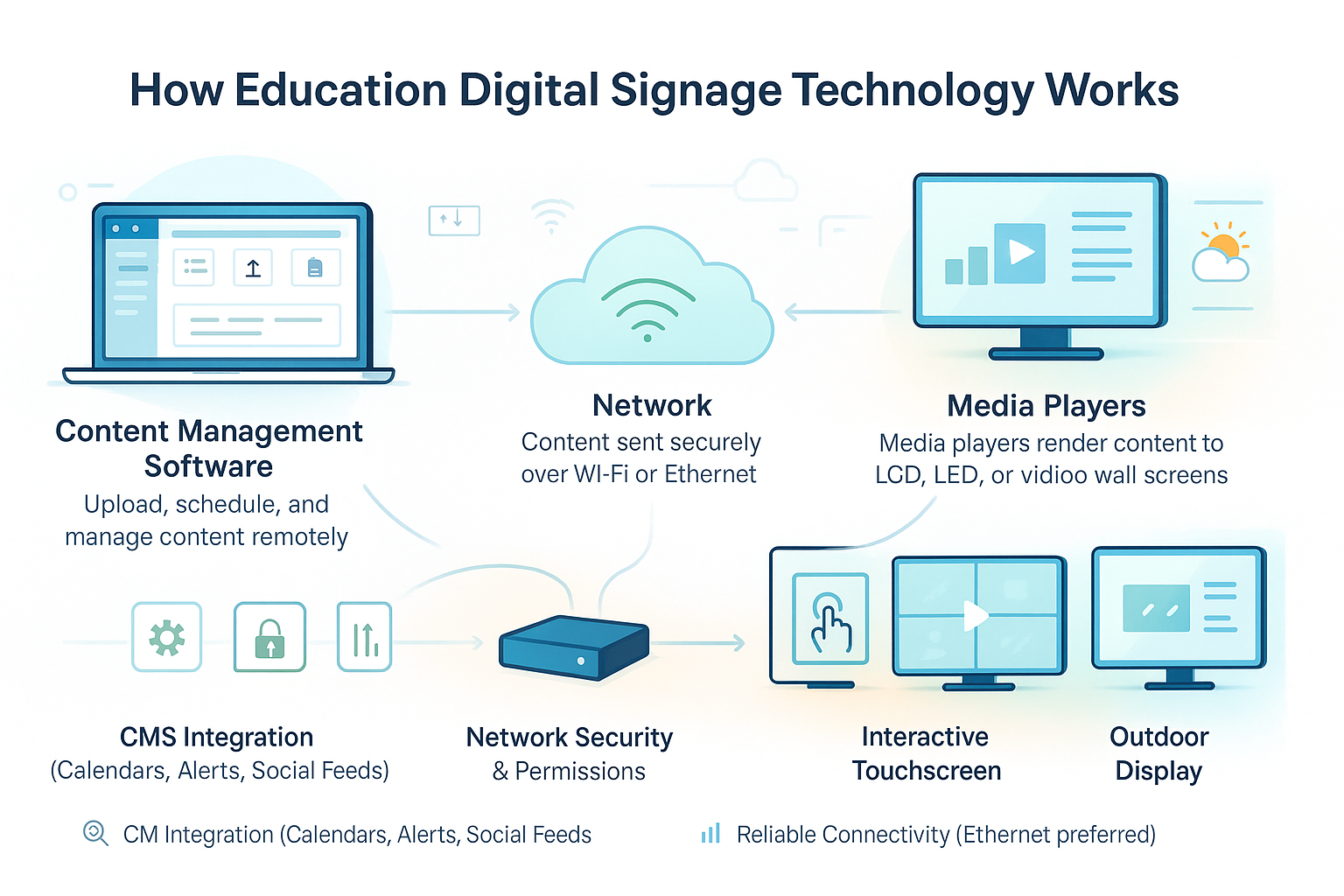
Understanding the components involved helps demystify how digital signage operates. It’s essentially a coordinated system where software tells hardware what to display, and when. Let’s break down the key pieces:
What Are the Different Types of Display Hardware Used?
The most common display hardware includes commercial-grade LCD or LED screens, designed for durability and long operating hours. Schools also use video walls for large impact, interactive touch screens for engagement, and sometimes projectors or specialized outdoor displays for specific environmental needs.
Choosing the right screen is crucial and depends heavily on the intended location and use case:
- Commercial-Grade LCD/LED Screens: These are the workhorses of most digital signage networks. Unlike standard consumer TVs you’d buy for your home, commercial displays are built to run for extended hours (often 16/7 or 24/7), are typically brighter to combat ambient light in hallways or lobbies, have better cooling systems, and come with longer warranties. They are available in various sizes, from small room signs to large lobby displays.
- Video Walls: For maximum visual impact in large spaces like auditoriums, gyms, or main entrances, multiple commercial screens can be tiled together to form one large, seamless video wall. These require specialized mounting hardware and media players capable of synchronizing content across all screens.
- Interactive Touch Screens: These invite user engagement. Perfect for wayfinding directories, exploring course catalogs, providing on-demand information, or running interactive polls. They are more expensive and typically used in specific, high-value locations like libraries or main lobbies.
- Projectors: While less common for typical signage due to bulb life and ambient light issues, projectors (especially laser projectors with longer lifespans) can be cost-effective for creating very large, temporary displays in controlled environments like auditoriums or for special events.
- Outdoor Displays: Placing screens outside requires specialized hardware. These displays must be weatherproof (sealed against rain, dust, and temperature extremes) and possess extremely high brightness levels (measured in nits) to be visible in direct sunlight. They are significantly more expensive than indoor displays.
What Is the Role of Media Players?
Media players are the small, dedicated computers that connect to the digital displays and actually run the content. They receive instructions and media files from the Content Management Software (CMS), store them locally (usually), and then render the video, images, and data onto the screen according to the schedule.
Think of the media player as the engine that drives the display. Key aspects include:
- Internal vs. External:
- System-on-Chip (SoC): Many modern commercial displays have a media player built directly into the screen itself (SoC). This simplifies installation as there’s no separate box. However, SoC players might have less processing power or flexibility than external options.
- External Players: These are separate devices (like a small box or stick PC) that connect to the screen via HDMI or DisplayPort. They often offer more processing power, storage options, and potentially wider software compatibility.
- Operating Systems: Media players run on various operating systems, such as Android, Windows, ChromeOS, Linux, or proprietary systems developed by the hardware/software vendor (like BrightSign OS). The choice often depends on the selected CMS software’s compatibility requirements.
- Connectivity: Players need a stable network connection to receive content updates from the CMS. This can be via Wi-Fi or a more reliable wired Ethernet connection. They typically download content and store it locally, so they can continue playing even if the internet connection temporarily drops.
How Does Content Management Software (CMS) Control the Network?
A Content Management Software (CMS) is the central hub or “brain” used to upload, create, schedule, and manage the content displayed across the entire network of digital signage screens. It allows administrators to control everything remotely, ensuring screens show the right information at the right time.
The CMS is where the magic happens in terms of managing the signage network efficiently. It’s typically a web-based platform accessed through a browser, though some legacy systems might be installed on-premise. Core functions include:
- Content Uploading & Creation: Users can upload various media files (images, videos, PDFs, PowerPoint slides). Many CMS platforms also include built-in tools or widgets to create simple content layouts, integrate web pages, or display dynamic data feeds (like weather or clocks).
- Scheduling & Playlists: This is fundamental. The CMS allows users to create playlists of content and schedule them to run on specific screens or groups of screens at particular times or days. You can set content expiration dates, schedule recurring items (like daily announcements), or create complex day-parting schedules.
- Screen/Player Management: Administrators can see the status of all connected screens and media players (online/offline), group them logically (e.g., “Building A Hallways,” “Library Entrance”), and assign specific content schedules to these groups.
- User Permissions: Different users can be granted different levels of access. For instance, a central administrator might have full control, while a department head might only be allowed to upload content for screens within their building.
- Ease of Use: A crucial factor for school environments where content creators might not be highly technical. An intuitive drag-and-drop interface, clear navigation, and helpful tutorials are essential for widespread adoption.
- Template Libraries: Many CMS platforms offer pre-designed templates for common educational use cases (event promotion, lunch menus, welcome messages), making content creation much faster for busy staff.
- Integration Capabilities: The ability to connect with other systems is vital. Good CMS platforms can integrate with school calendar systems (Google Calendar, Outlook 365), social media feeds, emergency alert systems (CAP), RSS feeds, and potentially even student information systems for highly targeted messaging.
- Monitoring & Reporting: Basic monitoring shows which screens are online. More advanced reporting might track content playback frequency or provide proof-of-play logs.
Brief examples of CMS platforms used in education include Rise Vision, ScreenCloud, Yodeck, NoviSign, and many others, each with different feature sets and pricing models.
What Are the Network and Connectivity Requirements?
A reliable network connection (wired Ethernet is preferred over Wi-Fi for stability) is essential for digital signage players to receive content updates from the CMS. Sufficient bandwidth is needed, especially if deploying high-resolution video content frequently, and network security must be considered in collaboration with the IT department.
Connectivity is the lifeline between the CMS and the screens:
- Reliability is Key: While players often cache content locally, they need to connect periodically to download new schedules and media files. A stable network connection is crucial. Wired Ethernet connections are generally more reliable than Wi-Fi, especially in potentially congested school network environments.
- Bandwidth Considerations: Simple images and text use minimal bandwidth. However, frequently updating large video files across many screens can consume significant bandwidth. This needs to be factored into the school’s overall network capacity planning.
- Network Security: Digital signage players are devices connected to the school network and must be secured like any other computer. This involves working closely with the IT department to ensure players are on a secure network segment (perhaps a VLAN), use strong passwords, and receive necessary security updates. Firewalls need to allow communication between the players and the cloud-based CMS. IT involvement from the start is non-negotiable.
How Do You Choose the Right Education Digital Signage Solution for Your School?
Choosing the right education digital signage solution involves defining clear goals (like improving communication or safety), assessing your budget comprehensively, evaluating CMS ease of use and required features, selecting appropriate hardware for different locations, and ensuring strong vendor support and training are available for long-term success.
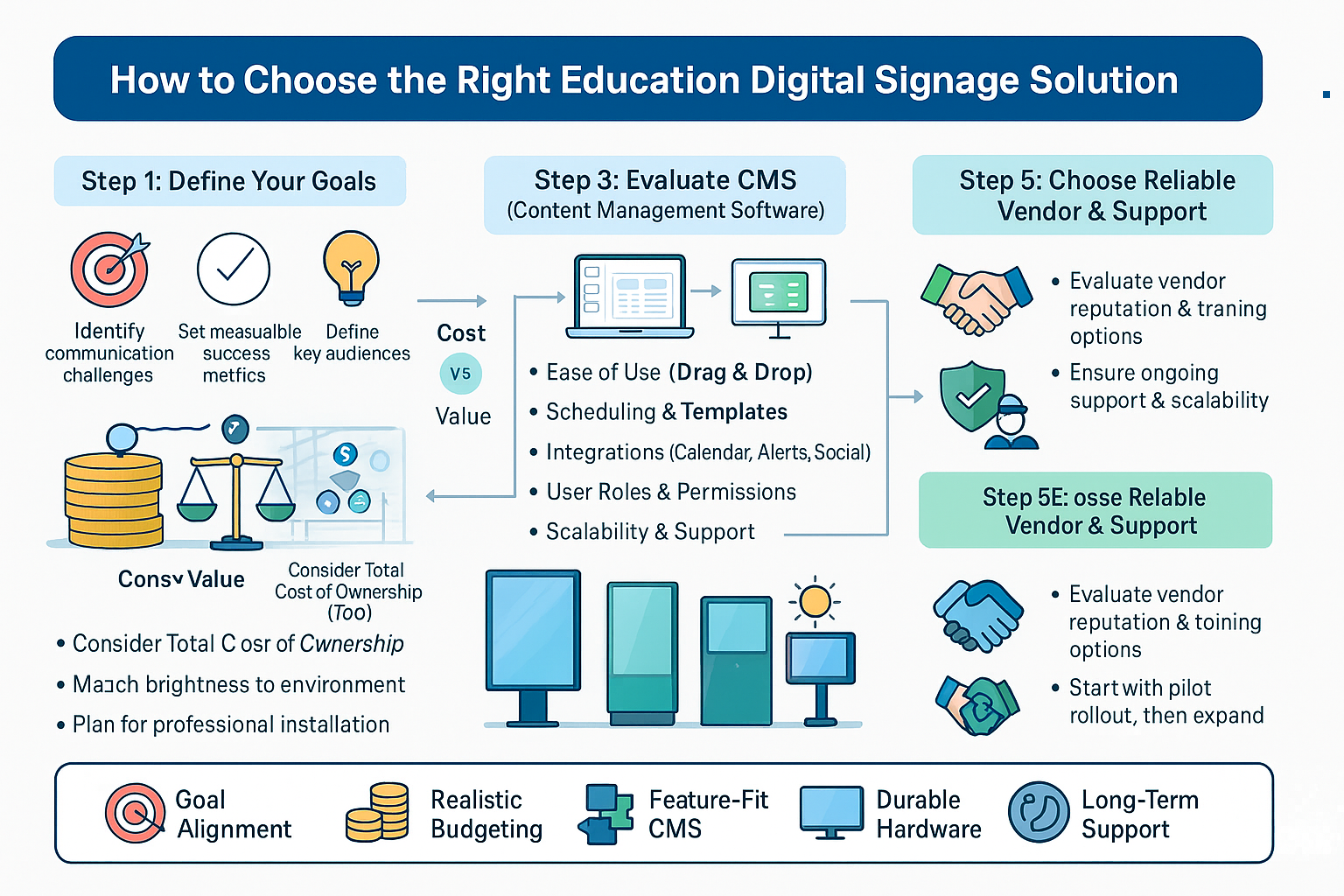
There isn’t a single “best” digital signage system for every educational institution. The ideal solution depends entirely on the specific needs, resources, technical capabilities, and communication objectives of your particular school, district, or university. Rushing into a purchase without careful consideration can lead to wasted investment and underutilized technology. A thoughtful selection process ensures the chosen system aligns perfectly with your goals and environment.
What Key Goals Should Define Your Selection Process?
Your selection process must start by clearly defining what you want to achieve. Are you primarily focused on improving emergency communication, boosting student engagement in activities, streamlining internal staff updates, or enhancing the visitor experience? Specific goals will dictate the necessary features and priorities.
Don’t start by looking at screens; start by asking “Why?”
- Identify Pain Points: What communication problems are you trying to solve? Is email ineffective? Are paper flyers wasteful? Is critical safety information hard to disseminate quickly?
- Define Success Metrics: How will you know if the system is successful? Increased event attendance? Faster emergency alert dissemination? Positive feedback from students/staff? Reduced paper usage?
- Prioritize Objectives: Rank your goals. Is instant emergency override the absolute top priority, meaning CMS integration with alert systems is non-negotiable? Or is showcasing student work the main driver, requiring easy image/video uploading?
- Identify Target Audiences: Who needs to see what information? Students in hallways? Staff in the lounge? Visitors in the lobby? This informs screen placement and content targeting needs.
How Do Budget Constraints Impact Your Choices?
Budget constraints significantly impact choices by determining the scale of the initial rollout, the quality of hardware (commercial vs. consumer grade), the sophistication of the CMS (feature tiers, license fees), and the need to factor in installation, maintenance, and potential training costs.
It’s crucial to consider the Total Cost of Ownership (TCO), not just the upfront price tags:
- Hardware Costs: Screens (commercial grade recommended), media players (if external), mounting hardware, potentially interactive overlays.
- Software Costs: CMS license fees (often recurring – per screen, per user, or tiered), potential add-on modules for specific features (e.g., advanced integrations).
- Installation Costs: Professional installation is often required for mounting screens, running network cables, and ensuring electrical safety.
- Network Infrastructure: Potential upgrades needed for Wi-Fi coverage or network port availability.
- Content Creation: Time/resources needed for staff to create and manage content (or costs for design services).
- Training Costs: Time for staff to learn the CMS.
- Maintenance & Support: Potential costs for extended warranties or vendor support contracts.
- Energy Consumption: Ongoing electricity costs for running multiple screens.
Funding Strategies: Explore specific technology grants, departmental budgets, parent association fundraising, or potentially E-rate funding opportunities. A phased rollout – starting with a few key screens and expanding later – is a common way to manage initial costs.
What Should You Look for in Content Management Software (CMS)?
Look for a CMS that is intuitive and easy for non-technical staff to use, offers features aligned with your goals (scheduling, templates, crucial integrations like calendars/alerts), is scalable for future growth, provides reliable support and training resources, and has a transparent pricing model that fits your budget.
The CMS is the heart of your system. Get this choice right:
- Ease of Use: This is paramount. If the software is clunky or confusing, staff won’t use it, and content will become stale. Always request live demos and involve the actual staff members who will be managing content in the evaluation. Look for drag-and-drop interfaces and clear workflows.
- Essential Features: Does it meet your goal-driven requirements?
- Robust Scheduling: Ability to schedule content far in advance, set expiration dates, day-parting.
- Content Creation Tools/Templates: Built-in tools or widgets? Good template library for quick content creation?
- Key Integrations: Does it connect easily with your school calendar, emergency alert system, social media feeds?
- User Roles & Permissions: Ability to control who can manage which screens or content types.
- Remote Monitoring: Can administrators easily see if screens are online or offline?
- Scalability: Can the CMS easily handle adding more screens in the future without a massive price jump or performance degradation?
- Support & Training: What kind of documentation, tutorials, webinars, or direct support does the vendor offer? Is support included in the license fee, or is it extra?
- Pricing Model: Understand how the CMS is priced. Common models include:
- Per Screen/Player: A monthly or annual fee for each connected device.
- Per User: A fee based on the number of people accessing the CMS.
- Tiered Features: Different price levels unlock more advanced features.
- One-Time License: Less common for cloud-based CMS, might be an option for on-premise solutions.
What Hardware Considerations Are Most Important?
Key hardware considerations include selecting the appropriate screen type (commercial grade is highly recommended for durability and brightness) and size for each location, choosing compatible media players (SoC vs. external), planning for professional installation and mounting, and determining if interactive touch screens are needed for specific applications like wayfinding.
Don’t underestimate the hardware decisions:
- Screen Type & Size: Match the screen size to the viewing distance of the location. Consider brightness requirements – hallways and lobbies need brighter screens than libraries.
- Commercial vs. Consumer: Strongly prefer commercial-grade displays. They are built for longer run times, have better warranties (often 3 years vs. 1 year), are typically brighter, have better cooling, and often include features like landscape/portrait mode flexibility and scheduling capabilities lacking in consumer TVs. While the upfront cost is higher, the TCO is often lower due to longevity and reliability.
- Media Player Choice: If not using SoC displays, ensure the external media players are fully compatible with your chosen CMS. Consider processing power needs (especially for complex layouts or 4K video) and storage capacity.
- Installation & Mounting: Screens need to be securely mounted. Consider wall type, accessibility for maintenance, and placement relative to power outlets and network ports. Professional installation is highly recommended for safety and optimal setup.
- Interactivity: If interactive maps or directories are a goal, factor in the higher cost of touch screen displays and ensure the CMS supports interactive content creation.
Why Is Vendor Support and Training Essential?
Reliable vendor support is crucial for troubleshooting technical issues quickly, minimizing screen downtime. Comprehensive training resources are essential for ensuring staff feel comfortable and proficient using the CMS, which directly impacts content freshness and overall system success. Good support prevents the system from becoming an expensive paperweight.
Support and training are not afterthoughts; they are vital for long-term success:
- Implementation Support: Does the vendor offer assistance during the initial setup, configuration, and rollout phase?
- Ongoing Technical Support: What are the support channels (phone, email, chat)? What are the guaranteed response times? Is support available during school operating hours? What do user reviews say about the vendor’s support quality?
- Training Resources: Look for a vendor that provides a rich library of documentation, video tutorials, knowledge base articles, and potentially live training webinars. This empowers your staff to manage the system effectively.
- Software Updates: How does the vendor handle CMS updates and security patches? Is the process automatic or manual?
What Are the Steps for Successfully Implementing Education Digital Signage?
Successfully implementing education digital signage goes far beyond simply buying screens; it requires careful, structured planning and execution. Following a clear process ensures the system meets its goals, stays within budget, and gets adopted effectively by staff and students from day one. Skipping steps often leads to technical headaches, underutilized screens, and wasted investment.
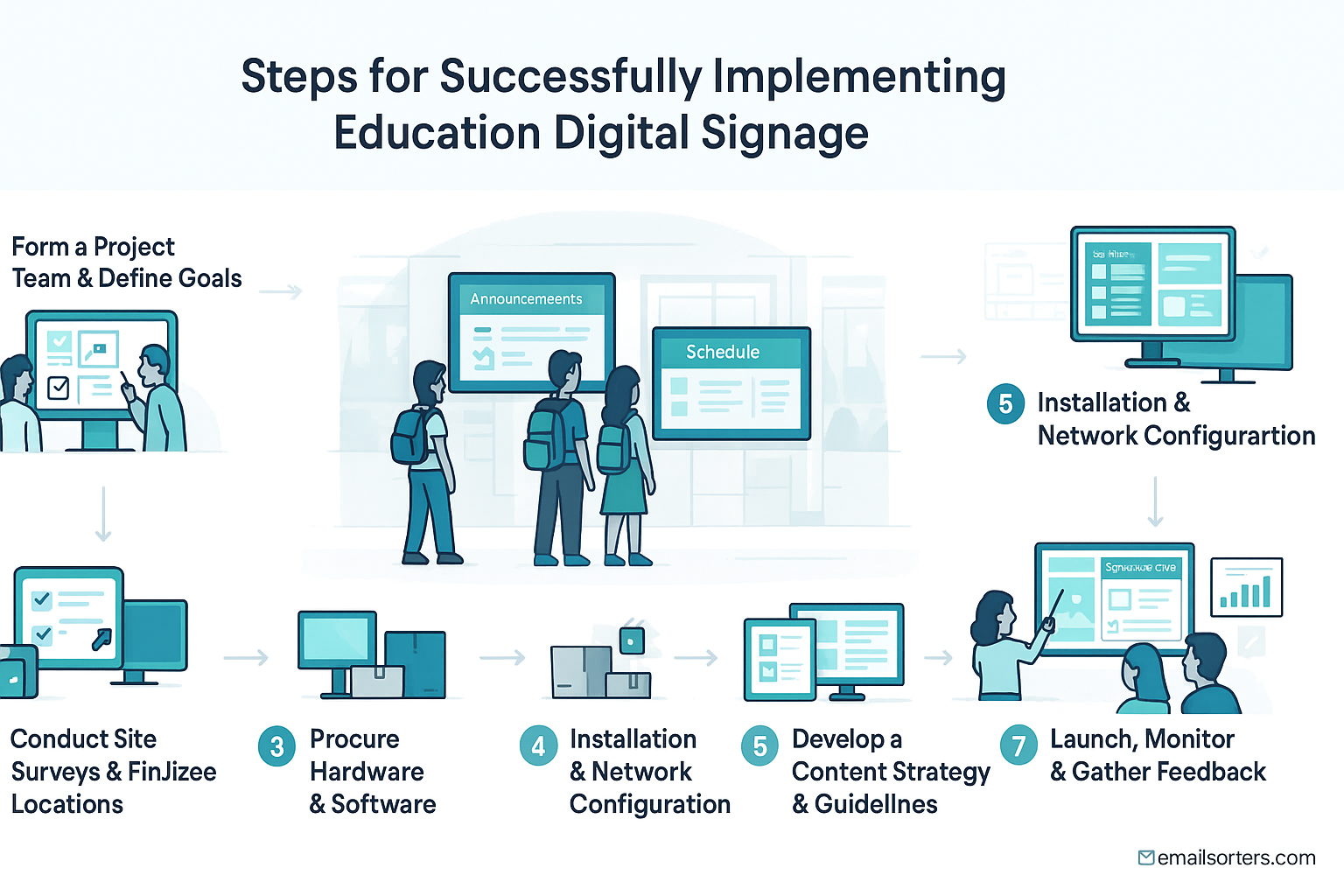
Here are the key steps for a smooth rollout:
Step 1: Form a Project Team and Define Goals
Assemble a cross-functional team involving key stakeholders like IT, administrators, communications staff, and perhaps even student representatives. This team should revisit and finalize the specific goals identified during the selection phase, ensuring everyone is aligned on what the digital signage network aims to achieve.
- Identify Stakeholders: Who needs to be involved? IT handles network and security. Administration approves budgets and policies. Communications/Marketing manages messaging and branding. Facilities might handle installation. Teachers or department heads will be content contributors. Getting buy-in from all groups early is crucial.
- Solidify Goals: Reconfirm the primary objectives. Is it reducing paper usage by X%? Increasing attendance at after-school events by Y%? Ensuring 100% campus coverage for emergency alerts within Z minutes? Measurable goals help justify the investment and track success.
- Appoint a Project Lead: Designate one person responsible for overseeing the entire implementation process, coordinating between departments, and communicating with vendors.
Step 2: Conduct Site Surveys and Finalize Locations
Physically inspect every proposed screen location to assess critical factors like power outlet availability, network connection options (Wi-Fi signal strength vs. Ethernet port access), potential viewing obstructions, ambient light levels, and structural suitability for mounting. Get necessary approvals for installation in each spot.
- Technical Assessment: Don’t rely on blueprints alone. IT and facilities staff should visit each spot to confirm:
- Power: Is there an accessible outlet nearby? Will new wiring be needed?
- Network: Is there a reliable Wi-Fi signal, or is a wired Ethernet port available/feasible to install?
- Mounting Surface: Is the wall suitable for supporting the weight of the screen and mount? (Concrete, drywall with studs, etc.)
- Environmental Assessment:
- Viewing Angles: Will the screen be easily visible from the main traffic paths?
- Obstructions: Are there pillars, furniture, or doorways blocking the view?
- Ambient Light: How bright is the area? (Determines required screen brightness).
- Approvals: Ensure you have permission from facilities management or building administrators for each installation location, especially if drilling or new wiring is involved.
Step 3: Procure Hardware and Software
Based on the finalized goals, budget, and site survey results, make the final vendor selections for screens, media players (if needed), mounting hardware, and the Content Management Software (CMS). Place the orders, keeping vendor lead times for delivery in mind.
- Final Vendor Decision: Confirm your choices based on demos, quotes, and feature alignment.
- Purchase Orders: Issue official purchase orders according to your institution’s procurement procedures.
- Coordinate Delivery: Understand the estimated delivery times for all components. Hardware shortages or shipping delays can impact the project timeline, so plan accordingly. Ensure you have a secure place to store equipment upon arrival.
Step 4: Installation and Network Configuration
Arrange for professional installation of the screens and media players, ensuring they are securely mounted and properly connected. Work closely with the IT department to get the media players configured and securely connected to the school network, allowing communication with the CMS.
- Physical Installation: Unless your facilities team is specifically trained, use professional installers experienced with commercial displays. This ensures safety, proper mounting, and clean cable management.
- Network Setup: This is IT’s domain. They need to:
- Assign IP addresses (static or DHCP reservation often preferred).
- Configure Wi-Fi credentials or connect Ethernet cables.
- Ensure firewall rules allow players to communicate with the cloud CMS.
- Implement necessary security protocols for network devices.
- Player Configuration: Each media player needs to be linked or “provisioned” to your CMS account so it knows where to get its content schedule. Follow the CMS vendor’s specific instructions.
Step 5: Develop a Content Strategy and Guidelines
Crucially, define who can submit content, the approval workflow, and establish clear brand guidelines (logos, colors, fonts). Create content templates, define best practices (visuals first, keep text brief), and set policies for how long different types of content should run.
- Governance:
- Who Creates/Approves? Will a central communications office manage all content, or will departments/schools have designated contributors? Define the workflow for submission and approval clearly.
- Roles & Permissions: Configure user roles within the CMS accordingly.
- Branding: Maintain a consistent look and feel. Specify approved logos, color palettes, and fonts to be used on all signage content.
- Content Best Practices: Provide simple guidelines:
- Prioritize visuals (images, videos).
- Keep text minimal and large enough to read from a distance.
- Ensure messages are clear and have a specific call to action (if applicable).
- Consider accessibility (e.g., color contrast).
- Templates: Develop easy-to-use templates within the CMS for common announcements (events, menus, alerts) to ensure consistency and speed up creation.
- Scheduling Policies: How long should a typical event announcement run? When should outdated content be removed? Define standard durations.
Step 6: Train Content Creators and Administrators
Provide thorough training on using the selected CMS platform to designated content creators and system administrators. Clearly establish who is responsible for updating which screens or types of content to ensure accountability and consistent updates.
- CMS Training: Utilize vendor-provided resources (webinars, tutorials, documentation). Conduct hands-on training sessions for key users. Focus on practical tasks: uploading media, using templates, scheduling content.
- Define Responsibilities: Make it explicit who manages content for the main lobby vs. the athletics department vs. emergency alerts. Clear roles prevent confusion and ensure all screens stay current.
- Ongoing Support: Provide internal support contacts or clear pathways to vendor support for users who encounter issues.
Step 7: Launch, Monitor, and Gather Feedback
Start with an initial launch, perhaps activating only a few key screens first. Continuously monitor the system’s technical performance (are screens online?) and the relevance of the content. Actively solicit feedback from students and staff on the system’s effectiveness and use it to refine the content strategy.
- Phased Launch (Optional but Recommended): Launching a few pilot screens allows you to test workflows and gather initial feedback before a full campus-wide rollout.
- Monitoring: Regularly check the CMS dashboard for offline players or error messages. Physically check screens periodically.
- Content Relevance Check: Periodically review playlists. Is the information current? Are event details accurate? Remove outdated slides promptly.
- Gather Feedback: Use simple surveys, suggestion boxes near screens, or focus groups to understand how the community perceives the signage. Are the screens helpful? Is the content engaging? What information is missing?
- Iterate: Use the monitoring data and feedback to make adjustments to content types, scheduling, screen locations, or even CMS workflows. Continuous improvement is key.
What Are Common Challenges and How Can Schools Overcome Them?
Implementing education digital signage isn’t without potential hurdles. Common challenges include managing costs (both initial and ongoing), ensuring staff adoption through adequate training, keeping content consistently fresh and engaging, and handling technical issues or maintenance effectively. Proactive planning and clear strategies can overcome these obstacles.
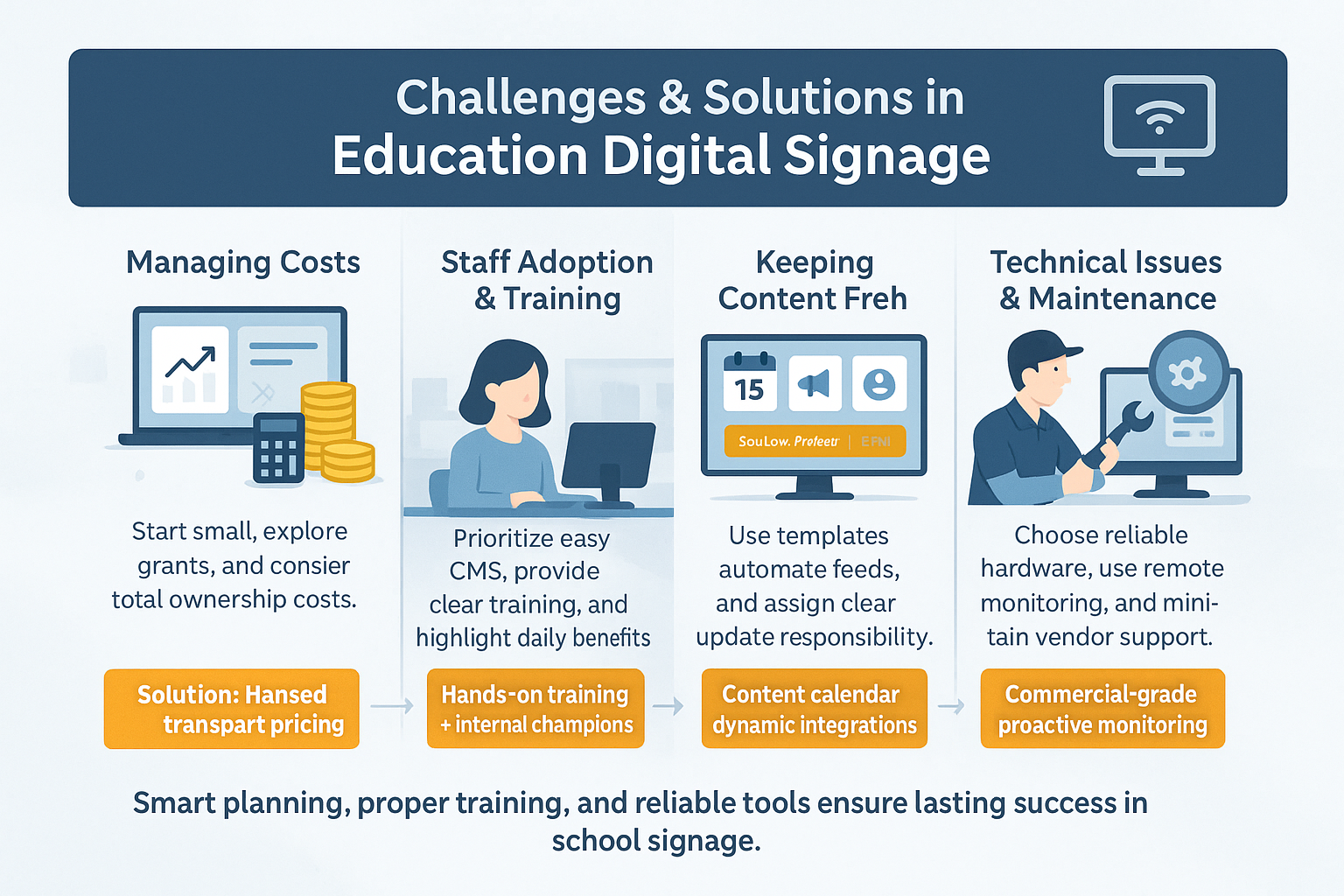
Acknowledging potential difficulties upfront allows schools to plan solutions rather than react to problems. While digital signage offers immense benefits, a successful long-term deployment requires addressing these common pain points proactively.
How Can Schools Manage the Initial and Ongoing Costs?
Schools manage costs by exploring grants and funding options, implementing a phased rollout starting small, choosing solutions with transparent pricing, and factoring in the total cost of ownership (TCO) including energy and potential maintenance, rather than just the initial hardware price.
Budget is often the primary concern. Here’s how to approach it strategically:
What Is the Best Way to Ensure Staff Adoption and Training?
Ensure staff adoption by selecting an easy-to-use CMS, providing comprehensive and ongoing training resources, clearly defining roles and responsibilities for content management, making the submission process simple, and consistently highlighting the benefits for staff (like reduced email overload).
Technology is only effective if people use it. Overcoming resistance or apathy requires a user-centric approach:
- Prioritize Ease of Use: During the selection process, heavily weigh the intuitiveness of the CMS interface. If it’s complex, staff will avoid it. Involve potential content creators in CMS demos.
- Provide Robust Training: Offer initial hands-on training sessions. Ensure access to vendor-provided resources like video tutorials, knowledge bases, and user manuals. Consider creating school-specific “quick start” guides. Offer refresher sessions periodically.
- Designate Champions: Identify tech-savvy or enthusiastic staff members in different departments to act as local experts or “champions.” They can provide first-level support and encourage colleagues.
- Clear Roles & Simple Workflows: Make it obvious who is responsible for what content. Create a straightforward process for submitting content requests or uploading approved materials. Avoid overly bureaucratic approval chains.
- Communicate the “Why”: Continuously reinforce how digital signage benefits staff directly – less email clutter, better reach for their announcements, a more informed student body, improved safety communication. Focus on how it makes their jobs easier or more effective.
How Do You Keep Content Fresh, Relevant, and Engaging?
Keep content fresh by assigning clear responsibility for updates, utilizing a content calendar for planning, leveraging templates for quick creation, automating feeds (calendars, social media), encouraging content submissions through a simple process, and performing regular content audits to remove outdated information.
Stale content is the enemy of engagement. Maintaining dynamism requires ongoing effort and strategy:
- Dedicated Resources: Someone (or a small team) must be explicitly responsible for overseeing content strategy and ensuring updates happen. This role might be part of a communications department, IT, or administration, but it needs clear ownership.
- Content Calendar: Plan content themes or major announcements weeks or months in advance, just like any other communication channel. Align content with the academic calendar, school events, and awareness campaigns.
- Leverage Templates: Use pre-designed templates in the CMS for recurring content types (e.g., event announcements, lunch menus, staff spotlights). This ensures brand consistency and significantly speeds up the creation process.
- Automate Where Possible: Integrate dynamic feeds to automatically pull in fresh content. Link to school calendars, moderated social media accounts (#SchoolSpirit), weather forecasts, or approved news sources. Automation reduces the manual workload significantly.
- Encourage Submissions: Create a simple online form or email address for departments, clubs, or teachers to submit content requests or ready-to-display slides (that meet guidelines). Make it easy for others to contribute.
- Regular Review & Purge: Schedule periodic reviews (e.g., monthly or quarterly) of all content playlists. Remove outdated announcements, expired event promotions, and irrelevant information promptly. Nothing undermines credibility faster than seeing an ad for an event that happened last month.
How Are Technical Issues and Maintenance Handled?
Technical issues are handled by choosing reliable commercial-grade hardware, understanding vendor warranties and support level agreements (SLAs), having IT staff trained for basic troubleshooting (or a vendor maintenance contract), and utilizing remote monitoring features within the CMS to quickly identify offline screens or player problems.
Technology inevitably requires maintenance. Plan for it:
- Invest in Reliability: Commercial-grade hardware is designed for continuous operation and typically fails less often than consumer-grade equipment. The upfront investment pays off in reduced downtime.
- Understand Warranties & Support: Know the warranty period for screens and players. Understand the vendor’s process for technical support – response times, replacement procedures (Advanced Exchange vs. Return-to-Depot), and costs associated with out-of-warranty repairs.
- IT Involvement: Ensure the school’s IT department is equipped for basic troubleshooting – checking network connections, power cycling devices, confirming player configurations. For more complex issues, they need a clear process for escalating to the vendor. Some schools opt for vendor maintenance contracts.
- Remote Monitoring: A good CMS provides a dashboard showing the real-time status (online/offline) of all connected players. This allows administrators to proactively identify and address issues, often before users even notice a screen is down. Configure alerts for offline devices.
- Spare Equipment (Optional): For very large deployments or critical screen locations, consider keeping one or two spare media players on hand for quick swaps in case of failure, minimizing downtime while a replacement is processed.
What Does the Future Hold for Education Digital Signage Technology?
The future of digital education signage points towards smarter content delivery powered by AI, increased interactivity through touchscreens and mobile integration, deeper integration with other campus systems like LMS and SIS for personalization, and advancements in display technology offering higher resolutions and greater energy efficiency.
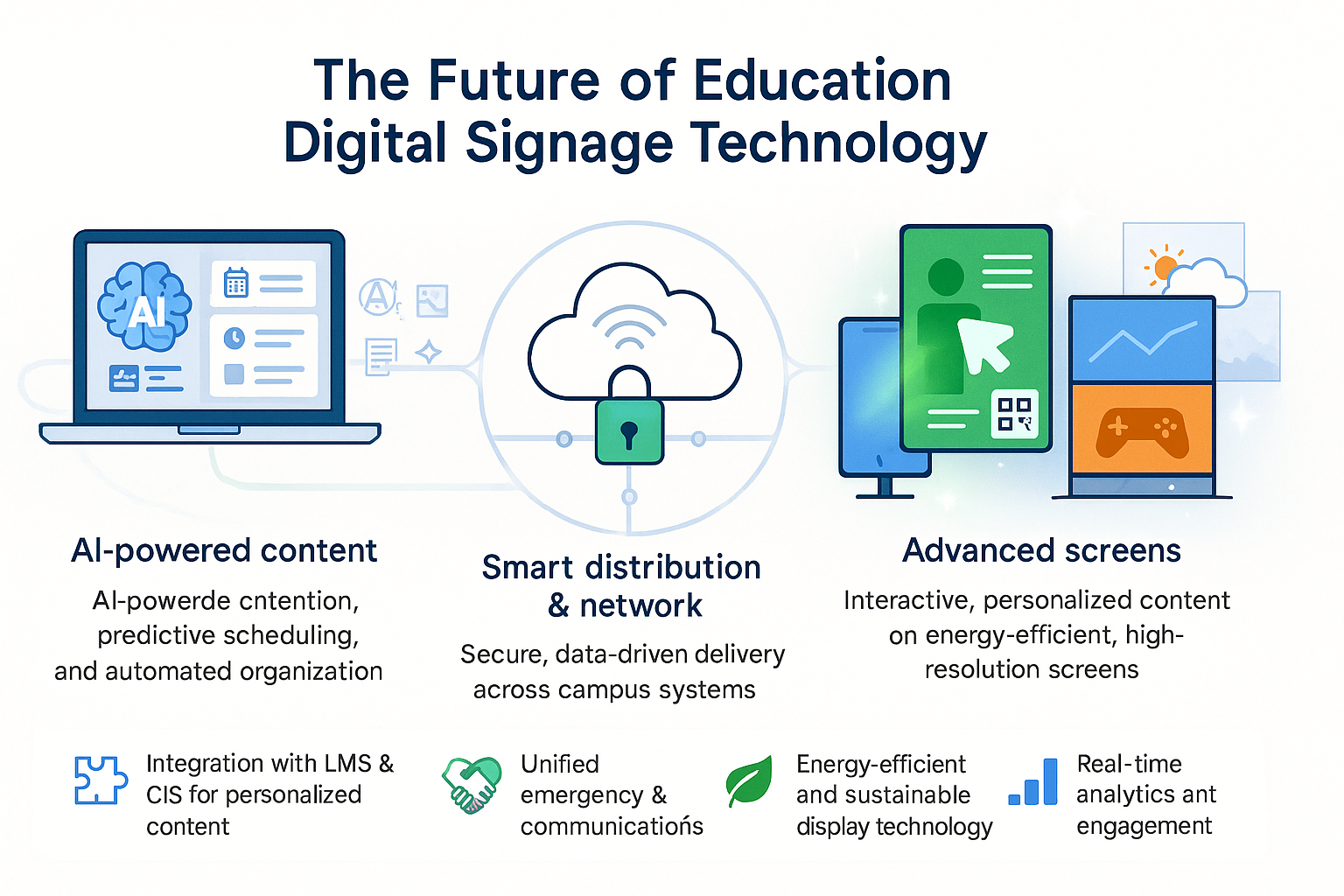
Digital signage in education is far from static; it’s a rapidly evolving field. As technology advances, we can expect screens on campus to become even more integrated, intelligent, and impactful. The focus will likely shift from simple information broadcast to more personalized, interactive, and data-driven communication experiences. Here are some key trends shaping the future:
How Will AI and Machine Learning Impact Content and Delivery?
AI and machine learning (ML) are poised to make digital signage more dynamic and intelligent. Expect AI to assist in content creation, potentially personalize content based on detected audience demographics or time of day, and automate scheduling for optimal engagement, making content management smarter and more effective.
The role of artificial intelligence is expanding rapidly:
- AI-Powered Content Suggestions: CMS platforms may incorporate AI to suggest relevant content based on school calendars, recent news, or even curriculum topics being covered in nearby classrooms. AI might help generate simple text announcements or suggest visually appealing templates.
- Personalized Experiences (with Privacy Considerations): Future systems, potentially using sensors or anonymous analytics, could adapt content based on the general audience present (e.g., showing different content when primarily students vs. adults are nearby) or time of day. This requires careful ethical consideration regarding privacy.
- Predictive Scheduling: AI could analyze past engagement data (if available) to recommend optimal times to display certain types of content for maximum visibility or impact.
- Automated Content Tagging & Organization: AI can help automatically tag uploaded media files, making it easier for administrators to search for and manage large content libraries.
What Role Will Interactivity and Touch Screens Play?
Interactivity will become more prevalent, moving beyond simple wayfinding. Expect more touch screens for on-demand information access (like browsing course catalogs or club directories), seamless integration with mobile devices via QR codes or NFC for personalized experiences, and potentially gamified engagement features.
Passive viewing will increasingly be supplemented by active engagement:
- Enhanced Information Kiosks: Touch screens will allow students and visitors to delve deeper into information – exploring detailed event schedules, looking up staff contact information, accessing course descriptions, or taking virtual campus tours.
- Mobile Integration: Screens will work more closely with smartphones. QR codes linking to relevant web pages or apps are already common. Near Field Communication (NFC) or Bluetooth beacons could enable personalized content delivery or interaction when a user is near a screen (e.g., pushing event reminders to opted-in users).
- Feedback & Polls: Interactive screens can facilitate quick polls, surveys, or suggestion boxes, providing valuable real-time feedback to school administrators.
- Gamification: Simple interactive games or quizzes related to school trivia or curriculum could be displayed on touch screens in common areas to boost engagement.
How Will Integration with Other Campus Systems Evolve?
Future digital signage systems will feature deeper, more seamless integrations with core educational platforms. This includes connections to Learning Management Systems (LMS) for assignment reminders, Student Information Systems (SIS) for highly targeted messaging (e.g., graduation info for seniors), and unified emergency alert systems for maximum reach.
Breaking down data silos will unlock more powerful communication:
- LMS Integration: Screens could potentially display reminders about upcoming assignments or exams pulled directly from platforms like Canvas, Blackboard, or Moodle, targeted perhaps to screens near relevant departments.
- SIS Integration: With careful permissions and privacy controls, signage could display messages targeted to specific student groups based on data in the SIS – e.g., registration deadline reminders for sophomores, graduation application info only for seniors, scholarship opportunities relevant to specific majors shown in department buildings.
- Unified Emergency Communications: Expect tighter integration where triggering an emergency alert automatically pushes consistent messaging across all campus communication channels simultaneously: digital screens, SMS/text alerts, email, website banners, PA systems, and mobile apps.
- Room Scheduling Integration: Screens outside classrooms or meeting rooms could automatically display the current schedule pulled directly from the campus room booking system.
What Advances Are Expected in Display Technology?
Display technology will continue to improve, bringing higher resolutions like 4K and 8K as standard, more energy-efficient panels to reduce operating costs, potential use of flexible or transparent displays for creative installations, and a likely decrease in the cost of large-format and outdoor-ready screens.
The screens themselves will get better and potentially cheaper:
- Higher Resolution: 4K is becoming standard, and 8K displays will become more common, offering incredibly crisp visuals, especially important for large screens viewed up close.
- Energy Efficiency: Manufacturers are continually improving the energy efficiency of LED and LCD panels, helping to lower the ongoing electricity costs associated with running numerous displays. Look for Energy Star ratings.
- New Form Factors: Flexible screens could allow for curved installations around pillars. Transparent displays could overlay information onto windows or glass partitions, offering futuristic ways to integrate digital content into architecture.
- Falling Costs: As manufacturing scales and technology matures, the cost per screen, especially for larger sizes and outdoor models, is expected to continue decreasing, making deployments more affordable.
- Improved Brightness & Durability: Outdoor displays will become even brighter and more resilient to weather extremes, expanding the possibilities for external campus communication.
Conclusion
Education Digital Signage is undeniably more than just a trend; it’s a fundamental shift towards smarter, more effective communication within modern learning environments. Moving beyond the limitations of paper flyers and overflowing inboxes, these dynamic display networks offer a powerful solution to keep students, staff, and visitors informed, engaged, and safe.
Throughout this guide, we’ve explored the significant advantages these systems bring – from boosting student participation and streamlining staff announcements to providing critical, instantaneous emergency alerts and enhancing the overall image of the institution. We’ve seen how strategic placement in lobbies, libraries, cafeterias, and hallways, combined with relevant, visually appealing content like event schedules, achievement celebrations, and safety protocols, maximizes impact. Understanding the technology – the interplay of commercial-grade screens, media players, and intuitive Content Management Software – empowers schools to make informed choices.
Successful implementation, however, hinges on careful planning. Defining clear goals, securing appropriate budgets, selecting the right hardware and user-friendly software, developing a robust content strategy, and ensuring adequate training are crucial steps. While challenges like cost management and keeping content fresh exist, proactive strategies can overcome them. As technology continues to evolve with AI integration, increased interactivity, and deeper system connections, the role of digital signage in fostering connected, informed, and safe educational communities will only grow stronger. Investing thoughtfully in this technology is an investment in a more efficient, engaging, and modern future for any school.


