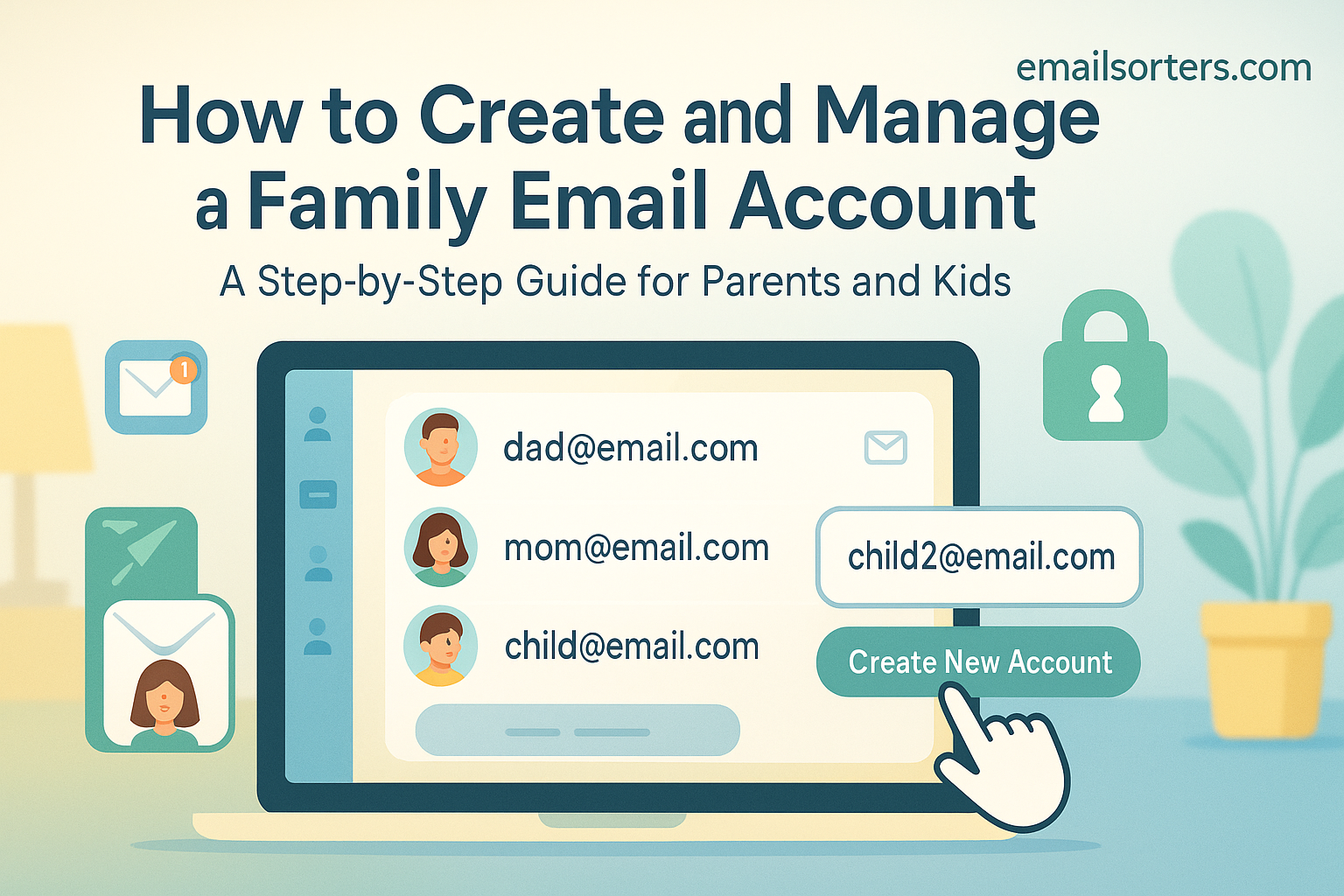
A family email account can be the digital “junk drawer” that saves your sanity. Or it can be a source of total chaos. Done right, it becomes a central hub for your entire household. It’s the one place for school newsletters, utility bills, vacation receipts, and shared calendars.
The problem is management. Without a plan, you will end up with notification overload and the classic “I thought you were going to reply to that” argument. This comprehensive guide moves beyond just creating the account. We will show you how to build a system that works. We cover the step-by-step setup, the “rules of the road” everyone must follow, and the management hacks that keep it clean.
What Is a Family Email Account?
A family email account is a single, shared email address created for household business. Instead of using your personal inbox, you use this shared account (e.g., [email protected]) for all communication related to the family unit. This includes bills, school notices, and team schedules.
It is one of the most common different email addresses a person might manage. Its purpose is to separate your personal life (Jane’s inbox) from your shared family life (The Smiths’ inbox). Think of it as the digital version of the kitchen bulletin board. Everyone has access, and everyone can see what is happening.
Why Should Our Family Get a Shared Email Account?
A shared family email account centralizes communication. It stops the endless “Did you get the power bill?” questions. It puts all important household information in one searchable, accessible place. It creates a single hub for bills, calendars, and school communication.
Let’s break down the specific benefits of a central inbox.
1. It Centralizes All Your Bills
This is the number one reason for most families. The inbox becomes the single destination for:
- Utilities (gas, electric, water)
- Monthly subscriptions (Netflix, Spotify)
- Mortgage or rent payments
- Insurance statements
- Car payment reminders
This system means one person can log in and see a complete financial picture. You no longer have to guess if a bill was sent to your partner’s old work email.
2. It Creates a Master Family Calendar
When you create a family email account with a provider like Google or Microsoft, you get more than an inbox. You get a calendar. This shared calendar becomes your family’s command center.
- Dentist appointments
- School holidays
- Soccer practice schedules
- Bill due dates
- Family vacations
Everyone in the family can add the shared calendar to their personal phone. When one person adds an event, it syncs for everyone.
3. It Simplifies School and Team Communication
Schools, sports teams, and extracurriculars send a lot of emails. A shared inbox keeps all of it out of your personal work inbox. All permission slips, team-snap updates, and newsletters go to one place. Both parents (or guardians) can see the information. The first person to see it can handle it or tag it for the other.
4. It Manages Digital Subscriptions and Logins
Think about all the “household” accounts you have:
- Your Amazon Prime account
- Your online grocery delivery service
- The login for your smart thermostat or security camera
- Digital warranties for new appliances
Using the family email for all these makes life simple. If you need to reset a password, the email goes to the central inbox. Anyone who needs access can get it.
5. It Creates a Permanent Digital Archive
What happens if you change jobs? You lose your old email. If your kid’s school or doctor’s office has your old work email, you miss critical information. A family email is permanent. It is not tied to your job or a specific person. It’s tied to the household. You can update your contact information once, and it’s set for years.
What Are the Downsides of a Shared Family Email?
The biggest downside of a shared family email is the lack of privacy. Anyone with the password can see everything. This can also lead to confusion over who is responsible for replying to or deleting messages.
Before you jump in, you must understand the risks. I have seen families create a shared inbox, only to abandon it six months later because it became a digital nightmare. Here is what can go wrong.
- Zero Privacy: This is not the place for a “quick question” to your doctor. It is not for personal banking. It is an open book. You must assume that anything sent to or from this address will be seen by everyone.
- Notification Overload: If you add the account to both your phones, you now get double the notifications. A new email “dings” on your phone and your partner’s phone. This can get annoying fast.
- The “Bystander Effect”: This is the “I thought you replied” problem. When an important email arrives, everyone sees it. Everyone assumes someone else will handle it. In the end, no one handles it.
- Security Risks: A shared account is only as secure as its least secure user. If one person clicks a phishing link or uses a weak password, the entire account is compromised. This is a huge risk when that account is tied to your bills and subscriptions.
- It Becomes a “Digital Junk Drawer”: Without clear rules, the inbox fills with spam, unread newsletters, and old reminders. It becomes a source of stress, not a solution.
How to Create a Family Email Account (Step-by-Step)
The best way to create a family email account is to create a new, dedicated account on a provider like Gmail or Outlook. Do not use an old account. Start fresh, so there is no legacy clutter.
Here is the step-by-step process.
Step 1: Choose Your Email Provider
For 99% of families, a free provider is the best choice. The “big two” are Gmail and Outlook because their features (Calendar, Drive) are so well integrated.
Here is a quick comparison:
| Feature | Gmail (Google) | Outlook (Microsoft) | Custom Domain |
| Eco-system | Google Calendar, Drive, Photos | Microsoft Calendar, OneDrive | You choose (e.g., Google) |
| Best For | Families in the Google/Android world. | Families in the Microsoft/Windows world. | “Pro” users who want a custom name. |
| Cost | Free | Free | Paid (Domain + Hosting) |
| Setup | Easy (5 minutes) | Easy (5 minutes) | Technical (Needs DNS setup) |
A note on custom domains: You can get a domain (e.g., TheSmiths.com) and set up email there. This is a great, professional option, but it costs money and requires technical setup. For most, a free Gmail account is the perfect solution. (You can learn more about how Gmail became so dominant).
Step 2: Choose a Good Email Address
The name of your account matters. You will be reading this name over the phone to doctors’ offices and utility companies. Make it clear and simple.
(For more tips, check out these email address ideas).
- Good Ideas:
the.smith.household,smith.family.hub,jones.home.central - Bad Ideas:
ourfamilyrocks88,j_and_s_4ever,smiths(It will be taken)
My Experience: I suggest using periods (.) to separate words. [email protected] is much easier to read and say than [email protected].
Step 3: Create and Secure the Account
Go to Gmail (or your chosen provider) and sign up for a new account. During setup, you will be asked for a “recovery” email and phone number.
This is critical:
- Set the recovery phone number to the primary account holder’s mobile.
- Set the recovery email address to your personal email.
- TURN ON 2-FACTOR AUTHENTICATION (2FA).
I cannot stress 2FA enough. A shared account is a prime target for hackers. 2FA means that even if someone steals the password, they cannot log in without a code from your phone.
Step 4: Share the Credentials Securely
You now have a username and password. How do you share it with your partner?
- DO NOT text the password.
- DO NOT email the password.
- THE BEST WAY is to use a password manager (like 1Password, Bitwarden, or LastPass).
- THE OKAY WAY is to write it on a piece of paper, give it to your partner, and have them enter it on their devices while you are in the same room. Then destroy the paper.
What Are the “Rules of the Road” for a Shared Inbox?
You must have rules. A shared inbox without rules is a recipe for disaster. You need a clear agreement on what to do with emails.
My household’s “Rules of the Road” (You can steal these):
- The Inbox Is for TRIAGE. The inbox is a “to-do” list. It is not a storage folder.
- The “Handle It or Tag It” Rule. If you open an email, you are responsible for it. Either (A) handle it right then, or (B) tag it for the other person (e.g., in Gmail, you can “star” it or forward it to their personal inbox).
- DO NOT DELETE, ARCHIVE. Never, ever hit the “Delete” button. You might delete a bill the other person has not seen. Always use “Archive.” Archiving removes the email from the inbox but saves it in a searchable folder forever.
- Use CC and BCC for Handoffs. If you need to reply to a complex issue (e.g., dispute a bill), reply from the family account, but BCC (Blind Carbon Copy) your personal account. This creates a personal copy for your own records.
- NO Personal Mail. Ever. This account is for household business only. Do not sign up for personal newsletters. Do not use it for your social media accounts.
- Check for “Bounces.” If you see an email from Mailer-Daemon, it means an email you sent has failed. Do not ignore these.
- No No-Reply Email Subscriptions. If you must sign up for something, make sure it’s from an address that accepts replies.
How to Manage a Family Email Account (The Smart Way)
Creating the account is step one. Managing it is the real work. Here are the tools you should use to keep the inbox clean and useful.
How to Use Labels (Folders) Effectively
An empty inbox is a happy inbox. The moment an email is handled, you should file it away. The best way is with labels (or email folders in Outlook).
Start by creating these labels:
[Bills - Paid][School][Utilities][Vacation][Taxes][Receipts & Warranties][Medical]
Pro-Tip: I put brackets [ ] around my label names. This makes them jump to the top of the alphabetical list, so they are always visible.
How to Automate Your Inbox with Filters
This is the single best-kept secret to managing a shared inbox. Filters are automatic rules that run 24/7.
- Example Filter 1:
- IF: An email arrives from
[email protected] - THEN: Automatically apply the label
[School]and “Star” it.
- IF: An email arrives from
- Example Filter 2:
- IF: An email arrives from
gas.company.comORelectric.company.com - THEN: Automatically apply the label
[Utilities].
- IF: An email arrives from
- Example Filter 3:
- IF: An email has the words “subscription renewal”
- THEN: Mark it as “Important.”
By setting up 5-10 filters, you can automate 80% of your filing. The inbox stays clean, and emails are pre-sorted for you.
How to Use the Shared Calendar
The calendar is the real reason you got the account.
- When a bill arrives, create a calendar event for the due date.
- When a school newsletter arrives, add all the important dates immediately (e.g., “Parent-Teacher Conference,” “No-School Day”).
- When you book a flight, the confirmation email (in Gmail) will often create the calendar events for you.
- Add this shared calendar to your personal phone. Now you see your “Work” events and “Family” events in one view.
How to Manage It on Your Phone
The easiest way to manage the account is to add it to your phone.
- You can add it to the native “Mail” app. (Here is how to set up email on iPhone).
- My Recommendation: Download the dedicated Gmail or Outlook app. This keeps your family mail separate from your personal/work mail. You can have the “Gmail” app for family and the “Apple Mail” app for your personal account.
Pro-Tip: Tame Your Notifications.
Go into the settings for your new family email app and customize the notifications.
- Turn off the sound.
- Turn on the “Badge” icon.This way, you are not a slave to every “ding.” You can see at a glance if there are new family emails, but they won’t interrupt your day.
What About Email for My Children?
A shared family account is NOT a substitute for a child’s email account. Never give the password to your children. This account has access to bill-pay websites and other sensitive information.
- Email for children should be created through a dedicated, parent-controlled service (like Gmail’s Family Link). These services give you control over who they can email and what they can see.
- A student email is different. This is an account provided by their school for educational use.
Are There Alternatives to a Shared Family Email?
Yes. A shared inbox is not for everyone. If the downsides seem too high, here are some great alternatives.
- Alias Addresses: In Gmail, you can add a
+to your email. For example,[email protected]all goes to your[email protected]inbox. You can then create a filter: “All mail sent to[email protected]gets the[Family]label.” This keeps everything in your personal inbox but auto-sorted. - A Shared Calendar Only: You can skip the shared email and just create a shared “Family Calendar.” This is the simplest solution.
- Family Management Apps (Cozi, etc.): These apps are designed to do everything we just discussed. They have a shared calendar, to-do lists, and message boards. They are a great, non-email alternative.
What Are Common Problems with Family Accounts?
- You Get Locked Out: This is common. One person logs in from a new device, the system flags it as suspicious, and you get locked out. This is why having 2FA and recovery emails set up correctly is so important.
- Inactive Email Accounts: You must log in to the account periodically. If you only use it for forwarding and never log in, the provider might shut it down.
- Forgetting to Log Out: If you log in on a public computer (like at a library or hotel), you must log out.
- Using Email Drafts as Storage: Don’t do it. Use a real notes app (like Google Keep) that is part of the account.
- Managing Multiple Accounts: It can be tricky to juggle your work, personal, and family inboxes. This is why separate apps on your phone or different browser profiles on your computer are so helpful.
The email server itself does not know this is a “family” account. It’s just a normal email account. The “family” part is all about how you use it.
Your Final Checklist for a Successful Family Email
A family email account is a powerful tool. It is 10% setup and 90% human behavior. Use this checklist to ensure success.
- [ ] Create a new account on a provider with a good calendar (like Gmail).
- [ ] Choose a clear, simple name (e.g.,
the.smith.household). - [ ] Secure it: Use a strong password and turn on 2-Factor Authentication.
- [ ] Share credentials securely with a password manager.
- [ ] Agree on “Rules of the Road” (Archive, don’t delete. Triage.)
- [ ] Set up 5-10 filters for key senders (school, utilities).
- [ ] Set up 5-10 labels for organization (
[Bills],[School]). - [ ] Use the calendar as your family’s master schedule.
- [ ] Install on mobile but customize notifications to avoid “ding” fatigue.
Follow these steps, and your family email account will become a powerful, stress-reducing tool for your entire household.