Gmail email limits are something you usually don’t think about, until you hit one. Maybe you’re trying to send a large attachment, email hundreds of contacts, or wondering why Gmail suddenly won’t let a message go through. Frustrating, right?
The truth is, Gmail has built-in limits for sending, attachments, and storage to keep things running smoothly and prevent spam. Knowing these limits ahead of time can save you from errors, delays, and blocked emails.
In this guide, I’ll break down all the Gmail email limits for 2025, how many emails you can send, attachment size caps, storage rules, and smart workarounds. Ready to stay within the rules and avoid getting stuck? Let’s dive in.
The Importance of Knowing Gmail Email Limits
If you rely on Gmail for your work, events, customer messages, or any sort of bulk communication, knowing Gmail’s limits helps you avoid problems. You won’t have to worry about errors like “You have reached a limit for sending mail” or getting temporarily blocked from your account. It’s also easier to plan campaigns and communication when you know exactly how many emails can be sent and how quickly.
The rules may seem strict, but they’re clear. Google even updates them occasionally, especially for Google Workspace users. Keeping updated on the current Gmail email limits lets you send emails safely and smartly. It’s not about bypassing rules; it’s about working within them.
Gmail Sending Limits for Personal Accounts
Daily Sending Limits for Gmail Users
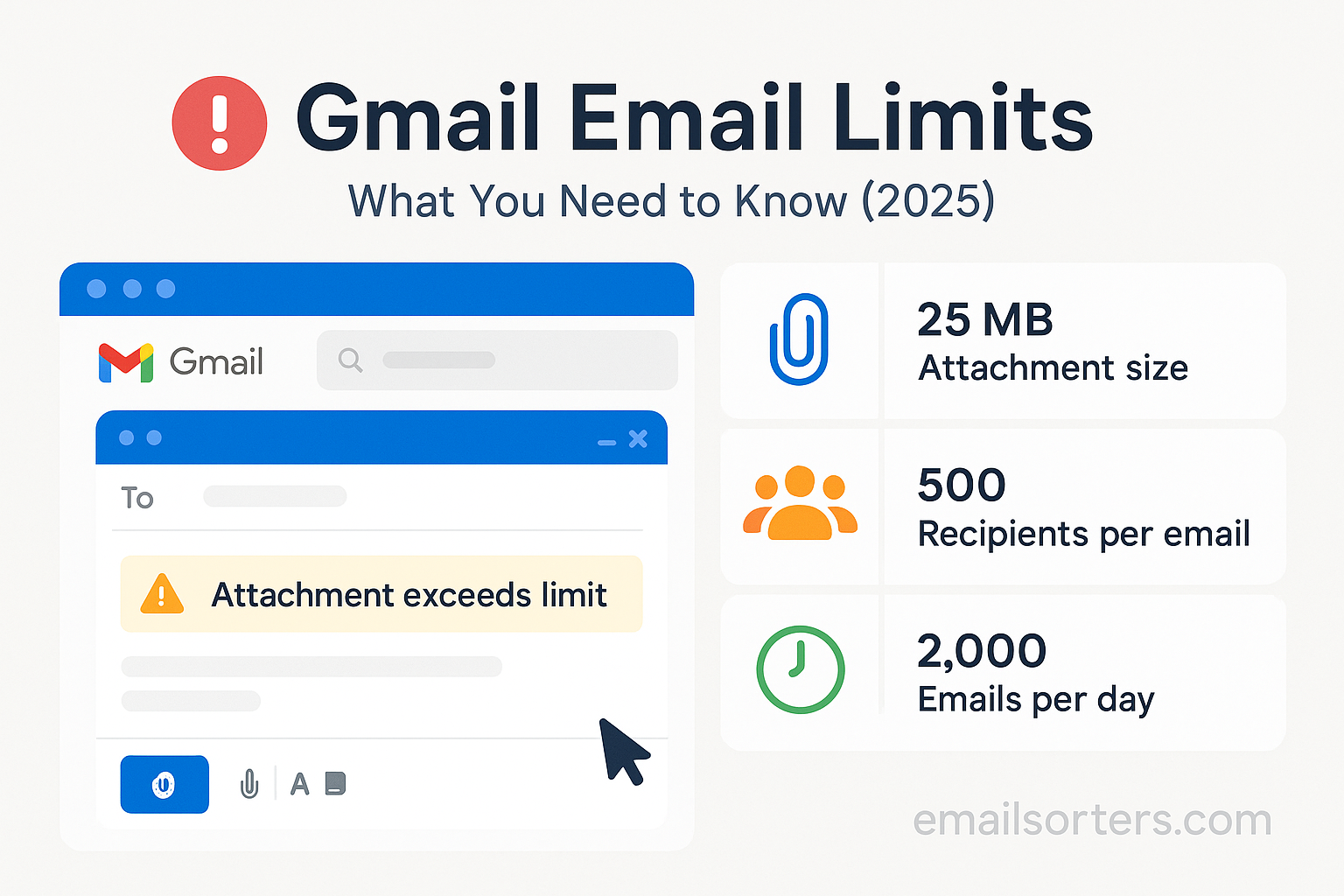
If you’re using a regular Gmail account; that is, an account ending in @gmail.com; there’s a hard daily limit. You can send emails to up to 500 different email addresses per day. That’s 500 total recipients, not 500 separate emails. If you send one message to 200 people, that counts as 200 toward your daily limit.
The limit resets after 24 hours, not at midnight. So if you hit the limit at 2 p.m., you’ll need to wait until 2 p.m. the next day before sending more. It’s also worth knowing that even drafts or emails stuck in your outbox can count toward the limit if Gmail processes them.
These rules apply whether you’re sending from your computer or the Gmail mobile app. The limits are the same across devices and browsers, and they apply to both text-only emails and emails with attachments.
Restrictions on Recipients and Messages
Gmail also limits how many recipients you can include in a single message. You can send to 500 email addresses in total, but the maximum for one email is also 500. That includes addresses in the To, CC, and BCC fields combined.
Also, Gmail doesn’t allow sending the same content to large groups too often. If you repeatedly send identical messages to multiple people, Gmail might block you temporarily. That’s part of its effort to cut down spam.
Some users try to send mass emails in small batches to avoid the limit, but this can still trigger warnings if Gmail detects a pattern. The safest path is to send fewer messages and make sure each one is customized enough not to appear as spam.
Gmail Email Limits for Google Workspace Users
Differences Between Gmail and Google Workspace Limits
Google Workspace, formerly known as G Suite, offers email accounts through a business domain like [email protected]. These accounts come with higher Gmail email limits than personal accounts. They’re designed for business use, so Google expects them to handle more messages.
A standard Google Workspace account allows up to 2,000 emails per day. That means you can send to 2,000 individual recipients in a 24-hour period. Again, this is a combined total across all messages. If you send one message to 300 people, you have 1,700 recipients left for that day.
This higher limit makes Workspace better suited for small businesses, teams, or anyone who needs to send more messages than a personal account allows. But even with a business plan, there are still caps on things like recipients per email and message size.
Sending Cap for Workspace Standard and Business Plans
Different Workspace plans have slightly different rules. The most basic Google Workspace Starter plan allows up to 2,000 messages per day. For higher-end plans like Business Standard or Enterprise, the caps may be more flexible based on usage and reputation, but Google doesn’t always publish exact numbers.
What’s consistent across all plans is the 2,000 daily recipient limit. That includes internal and external recipients. If you send a message to a group that contains 100 addresses, all 100 count toward your daily total; even if it’s a company-only group.
Workspace accounts can also run into trouble if they send too quickly. Gmail may stop a burst of emails that look suspicious, even if you haven’t hit the daily limit. That’s why pacing your messages is just as important as counting them.
Email Sending Limits for Bulk and Marketing Emails
Why Gmail Is Not Built for Bulk Emailing
Gmail was designed for communication, not mass distribution. While it works well for daily use and business messaging, it is not a solution for sending bulk emails to hundreds or thousands of people regularly. Gmail email limits are in place specifically to prevent this kind of use. If you try to use Gmail for mass marketing or bulk notifications, you will quickly run into blocks or even a temporary suspension of your account.
Bulk emails involve sending the same or similar content to large groups. This can happen when promoting a product, sharing a newsletter, or reaching out to contacts. Gmail recognizes this behavior and flags it if it exceeds what the system expects for a normal user. Even with Google Workspace, the platform isn’t meant for bulk use at a commercial level. That’s where email marketing platforms come in.
Using Gmail for something it wasn’t built for results in technical problems. Messages may go straight to spam, not get delivered, or trigger warnings that block your next batch. Gmail tracks send patterns, message repetition, bounce rates, and user engagement to determine whether your messages appear spammy. The more Gmail sees behavior that looks like bulk email activity, the more it limits your account.
Best Practices to Avoid Triggering Gmail Limits
If you do need to send a lot of messages using Gmail, there are ways to do it more safely. First, split large mailing lists into smaller groups and send messages at intervals throughout the day or over several days. Avoid sending one identical message to hundreds of people. Make small changes in wording, subject lines, and content to make each message look unique.
Use mail merge tools cautiously. Some tools let you send personalized emails in bulk using Gmail, but you should still respect the daily sending limits. Avoid adding hundreds of recipients in the BCC field. Gmail views this as suspicious behavior and may block the message.
Don’t attach large files to mass messages. Instead, use links to Google Drive or other cloud services. Gmail scans attachments, and sending too many in a short period raises red flags.
Always give recipients a way to opt out or reply. And most importantly, never send emails to people who didn’t agree to receive them. Consent matters, and Gmail’s systems can detect when messages are reported or flagged as unwanted.
What Happens When You Exceed Gmail Email Limits
Account Lockouts and Error Messages
When you hit Gmail’s sending limit, the system responds quickly. You may get an error like “You have reached a limit for sending mail.” Your emails may bounce, or Gmail may stop you from sending any more messages for a set period. This block typically lasts 24 hours for personal accounts and may be longer for Workspace accounts depending on the issue.
The error message may not be specific. Sometimes Gmail doesn’t tell you exactly what triggered the block. It could be too many recipients, too many messages too quickly, or suspicious content. Once the limit is reached, Gmail essentially freezes your ability to send.
In some cases, your whole account could be locked. You’ll still be able to read emails and access your inbox, but sending will be disabled. If Gmail suspects your account has been compromised or used for spam, you may need to verify your identity or reset your password.
Recovery After Hitting the Limit
If you’ve been blocked, the first step is to stop sending emails immediately. Continuing to try to send will not work and may extend the block. Wait the full 24 hours or until Gmail re-enables your account. Monitor your inbox for messages from Google that may explain the block or request action from you.
Once your account is active again, change your sending habits. Don’t repeat the same activity that caused the block. Reduce the number of recipients, slow down your sending, and check your email content for anything that may have looked suspicious.
In Google Workspace, administrators can view logs to see what happened and why the account was blocked. This helps pinpoint the issue and take steps to prevent it from happening again. Admins may also be able to request reviews or assistance from Google support if the account is used for valid business purposes.
Understanding Recipient Limits per Email
How Gmail Handles To, CC, and BCC Fields
Gmail has a strict limit on the number of total recipients in a single email. Whether you’re placing addresses in the To, CC, or BCC fields, the maximum number is 500 for personal accounts. For Google Workspace, the same rule applies unless the account has custom limits set by the administrator.
This total includes all fields together. So if you send an email with 100 in To, 200 in CC, and 200 in BCC, you’ve hit your 500-recipient limit. Going beyond that number results in an error, and the message won’t send.
The BCC field is often used to hide recipient names, especially in bulk messages. But Gmail monitors this closely. If it sees you’re regularly sending large batches through BCC, it may flag the behavior as spam-like. Gmail expects users to use BCC for occasional privacy, not mass communication.
To manage within these limits, keep recipient numbers low and split lists into smaller groups. This takes more time, but it avoids bounces and delays. And it helps your emails look more personal and less automated.
Managing Group Emails Within Gmail Rules
Many users rely on groups for quick emailing; especially in Workspace. If you’re sending messages to groups created in Google Contacts or Workspace, Gmail treats each recipient in the group as an individual. So a group with 50 people counts as 50 toward your daily and per-message limit.
Groups make messaging easier, but you still have to manage them within Gmail’s limits. Avoid sending to too many groups at once or sending the same message to the same group repeatedly in a short time. Gmail may still block the activity if it matches spam patterns.
For larger group communications, consider using Google Groups or external tools designed for distribution. These allow you to manage membership, permissions, and messages without hitting Gmail’s personal sending limits.
Gmail Attachment and Message Size Limits
Maximum Attachment Size per Email
While Gmail offers generous storage for regular use, it still places limits on how large each email can be. The maximum size of a single email, including attachments and message content, is 25 megabytes. This size includes everything; text, HTML formatting, inline images, and attachments combined.
If you try to attach a file that exceeds this limit, Gmail will automatically offer to upload it to Google Drive and send a link instead. This feature helps you share large files without worrying about delivery issues. But for users who depend on attachments, knowing the cap helps prevent delays and errors.
The 25 MB limit applies to outgoing messages only. For incoming emails, Gmail can receive up to 50 MB. But remember, just because Gmail can receive a 50 MB email doesn’t mean all email services can send one that large. Compatibility depends on the sender’s service as well.
Best Ways to Send Large Files in Gmail
If you often need to send large files, the best way is to upload them to Google Drive and insert the shareable link in your email. Gmail does this automatically if your attachment exceeds the size limit, but you can also do it manually for better control.
Use Google Drive’s permission settings to control who can view or download the file. You can limit access to certain email addresses or make the file public to anyone with the link. This ensures smooth delivery and avoids inbox overload for your recipients.
Avoid sending large video files or batches of high-resolution images as email attachments. These can slow down sending, lead to bounces, or annoy recipients. Cloud links are faster, safer, and easier to manage.
Gmail API and SMTP Sending Limits
Differences Between Web Interface and API Use
Gmail can be accessed through its web interface or connected through other tools via the Gmail API or SMTP. Each method follows a different set of rules for email sending limits. The web interface has the standard limits for personal and Workspace accounts; 500 and 2,000 recipients daily, respectively.
The Gmail API is used by developers and apps to send emails programmatically. It also follows the 2,000 daily limit for Workspace users but may throttle usage if the app sends messages too quickly. Google monitors traffic through the API for patterns that look like abuse.
SMTP is the protocol used when you connect Gmail to third-party email clients like Outlook or Thunderbird. When using SMTP, the same sending rules apply, but SMTP can also impose its own hourly and per-message rate limits. Exceeding these causes temporary blocks or errors.
Rate Limits for SMTP Sending
SMTP-based sending is subject to Google’s fair-use policy. If an app connected to your Gmail account sends too many messages too quickly; say, over 100 per hour; Gmail may block that app temporarily. This is especially important for mail merge tools and automated workflows.
SMTP blocks are harder to resolve, especially if you don’t monitor outgoing mail logs. Messages may appear to send but never arrive. For high-volume users, Gmail recommends using the Gmail API over SMTP, as it provides better control, more accurate error messages, and a safer sending process.
To avoid problems, slow down your SMTP message rate, use retry logic for failed sends, and avoid sending the same message repeatedly in a short time.
How to Monitor Gmail Email Usage
Using Google Admin Console for Workspace Accounts
If you’re a Google Workspace admin, you have access to the Admin Console where you can monitor how many messages each user sends daily. Go to Reports > Apps > Gmail to see activity. You can view graphs showing usage trends, messages sent, and spam detection data.
This visibility helps organizations manage sending limits and detect abuse early. If one user starts sending hundreds of emails per hour, admins can step in before Gmail blocks the account. The Admin Console also allows setting custom rules or warnings for users who approach limits.
Admins can also investigate blocked accounts, submit review requests to Google, or temporarily raise quotas for trusted users through support channels. While not guaranteed, this flexibility offers a better path for managing limits in a business setting.
Tracking Limits for Personal Gmail
For personal Gmail accounts, tracking is more manual. Gmail doesn’t show a dashboard with recipient counts or usage reports. If you’re getting close to the daily limit, Gmail won’t warn you ahead of time; it just blocks sending when the limit is hit.
To manage your activity, keep a rough count of recipients if you send many messages. Use spreadsheet tracking if you handle group outreach. Also, monitor bounce messages and delays. These can signal that Gmail has started throttling your account.
There are third-party tools that claim to help monitor Gmail sending, but use them with caution. Many violate Gmail’s terms of service or lack clear privacy protections. When possible, stick with Google’s built-in tools.
Gmail Alternatives for High-Volume Senders
Using Email Marketing Services Instead of Gmail
If your needs exceed Gmail email limits regularly, it’s time to move to a professional email marketing service. Platforms like Mailchimp, Sendinblue, ConvertKit, or Constant Contact are built for mass messaging. They allow you to send thousands of emails daily, manage lists, track opens and clicks, and stay compliant with email laws.
These services use dedicated servers and domain settings to improve deliverability. Messages sent through them are less likely to be marked as spam, especially when they follow proper sender authentication like SPF, DKIM, and DMARC.
Most of these tools offer free tiers for small lists, so you can try them before upgrading. They also provide analytics dashboards so you can see which emails perform best.
Pros and Cons of Switching to External Tools
The main benefit of switching is freedom from Gmail limits. You can manage larger audiences, schedule messages, and create automation flows. These tools also help you build professional-looking emails without technical skills.
However, switching also means learning a new system, paying monthly fees, and managing deliverability settings. You’ll need to maintain your email list and follow strict spam laws. If done right, though, the switch pays off in reliability and results.
For businesses or creators with more than a few hundred contacts, using email marketing platforms is not optional; it’s necessary.
Preventing Gmail Blocks and Suspension
Email Content Practices to Avoid Spam Flags
Gmail uses advanced filters to detect spam, and these filters don’t just look at how many emails you send; they also analyze the content. If your messages contain too many links, misleading subject lines, or trigger words, Gmail might mark them as spam or block them altogether. To avoid this, keep your subject lines honest and avoid overpromising. Don’t write in all caps or use excessive punctuation like multiple exclamation points.
Avoid embedding too many images or attaching large files without a clear reason. Plain text or lightly formatted HTML emails are less likely to raise red flags. If you include links, use full URLs rather than shorteners, which Gmail might treat with suspicion. And never copy content directly from promotional templates unless you’ve tested them before.
Watch your language. Words that sound like a sales pitch or scam can trigger spam filters. Phrases like “limited time offer,” “click now,” or “make money fast” can land your message in junk folders. Instead, keep your tone professional and clear.
Maintaining a Healthy Sending Reputation
Even if you stay within Gmail’s limits, your sending behavior can affect how Gmail treats your messages. If you often get flagged, blocked, or reported as spam, Gmail may start filtering your emails automatically; even if they aren’t technically breaking rules.
Build your reputation slowly. Start with small batches of messages, and increase your volume over time. Make sure your recipients know who you are and expect your emails. If users open your messages, click on links, and reply, Gmail sees you as trustworthy.
Use an email domain that’s tied to your business or project. Avoid switching sender names frequently or using multiple aliases. Keep your contact lists clean by removing inactive addresses and unsubscribes. And never buy email lists; those are often full of outdated or fake contacts that harm your reputation.
Gmail Limits and Spam Detection Algorithms
How Gmail Identifies Suspicious Activity
Gmail watches for behavior that looks unnatural. Sending messages at high speed, copying identical content to multiple people, and getting high bounce rates can all set off alerts. If you send messages to non-existent addresses, Gmail assumes you’re not maintaining your list properly.
Spam reports also carry a lot of weight. If too many people mark your email as spam, even by mistake, Gmail might block you from sending more. This applies to both personal and business accounts.
Google uses machine learning to decide if a message seems unwanted. These systems are constantly updating based on new patterns. That’s why a method that worked a year ago might fail now. Sending messages that people read, reply to, and mark as “Not spam” helps keep your sender profile in good standing.
Staying Within Safe Sending Patterns
Send messages during normal business hours and space them out over time. Don’t wait until the end of the day and send 500 messages in one go. That kind of burst traffic can seem suspicious.
Use different message templates for different audiences. Even if the core message is the same, small changes in greeting, body, and closing can reduce the appearance of bulk spam. Use personalization whenever possible; address people by name, mention something relevant, or refer to previous contact.
If you send regular updates, newsletters, or alerts, stick to a predictable schedule. Whether it’s weekly, monthly, or daily, Gmail learns to expect your messages and treats them more favorably when they follow a pattern.
Can Gmail Limits Be Increased?
What Google Allows for Limit Extensions
Most Gmail email limits are fixed. For personal accounts, there is no option to raise the cap. For Google Workspace users, Google offers some flexibility but only in limited ways. Administrators can contact Google Support to request reviews if they believe the user’s sending pattern is legitimate.
Some business plans may offer slightly higher thresholds based on history, domain reputation, and user behavior. But even then, the limits do not change significantly. Google’s goal is to keep the platform stable and reduce risk for all users.
If you need more capacity, the official recommendation is to use a third-party email service rather than ask Google to raise the cap. Workspace accounts are great for internal communication and client correspondence but are not built for bulk distribution.
Myths About Unlocking Gmail Limits
There are many false claims online about how to bypass or unlock Gmail’s sending limits. Some suggest using scripts, multiple aliases, or third-party tools to get around the rules. Others recommend using email forwarders or fake domains.
These tactics not only fail; they can get your account banned. Gmail’s systems are built to detect automation, duplicate patterns, and deceptive behavior. Short-term gains from these tricks are often followed by long-term damage to your account.
The only reliable path is to stay within Gmail’s stated limits or move your bulk communication to a service designed for it. There are no hidden loopholes or secret tools that give you more sends without risk.
Tips for Sending Emails Without Hitting Limits
Scheduling, Throttling, and Breaking Lists
When you have to send emails to a large group, break your list into smaller parts. Send to one segment in the morning, another in the afternoon, and the rest the next day. This helps you avoid triggering Gmail’s limit and spreads the load across a longer period.
Use scheduling tools built into Gmail or third-party plugins to space out messages. You can write all your emails at once and schedule them for future delivery at safe intervals. This is especially helpful when dealing with global contacts in different time zones.
If your list grows beyond 500 contacts, create sub-lists grouped by interest, location, or priority. This makes your messages more targeted and manageable. Not only does this keep you within Gmail’s rules, but it also improves engagement and response.
Practical Advice for Large Lists
Start small. Don’t dump 500 contacts into a BCC field and hit send. Send to your most active or engaged contacts first. These recipients are less likely to report spam and more likely to open and respond. That builds your reputation and prepares Gmail’s system for higher volume.
Test your messages on a small group before scaling up. Look at delivery time, engagement, and any bounce or spam warnings. Fix issues before repeating the message to others.
Always include a simple way for people to unsubscribe or reply if they no longer want to hear from you. This isn’t just polite; it’s also a signal to Gmail that your emails are welcomed, not forced.
Conclusion
Gmail is a powerful and reliable tool for email communication, but it comes with clear boundaries. These Gmail email limits are designed to protect the system, ensure fair use, and keep the platform from becoming a tool for spam or abuse. Whether you’re a casual user or a business professional, respecting these rules ensures your emails get delivered and your account stays in good standing.
Understanding the limits helps you plan better, avoid frustrating errors, and maintain trust with your audience. If your needs go beyond what Gmail allows, the answer isn’t to push the limits; it’s to use the right tools built for high-volume communication.
Stay informed, be consistent, and treat your recipients with respect. In doing so, you’ll use Gmail more effectively and keep your account safe, no matter how often you send.
Frequently Asked Questions
What is Gmail’s daily email sending limit?
Personal Gmail accounts can send to up to 500 recipients per day. Google Workspace users have a limit of 2,000 recipients daily.
How do I recover if my Gmail is blocked?
Stop sending immediately and wait for 24 hours. Gmail usually resets the sending ability after that period. Avoid repeating the same behavior once access returns.
Can I increase Gmail limits for my account?
No, Gmail does not allow users to manually increase sending limits. For higher needs, use a Workspace plan or a professional email marketing service.
How many recipients can I send to at once?
You can send to a maximum of 500 email addresses in one message across To, CC, and BCC fields combined.
What tools help avoid Gmail sending errors?
Use scheduling tools, Google Workspace Admin Console, and email marketing platforms like Mailchimp or Sendinblue for high-volume emails.


