
Finding a specific conversation within your search gmail by date process involves using built-in filters to isolate messages by their arrival time. This system turns your massive inbox into a searchable archive, allowing you to pinpoint a date range for any receipt, project update, or personal record without manual scrolling.
11 Easy Methods to Search Gmail by Date
- Before operator: Input before:YYYY/MM/DD into the search bar to locate every email that arrived prior to your chosen day.
- After operator: Use after:YYYY/MM/DD to filter your results and view only the messages received following a specific start date.
- Between two dates: Combine both after: and before: operators to create a custom window that isolates a single month or week.
- Older than (relative time): Type older_than:1y or 6m to find messages based on how long they have been sitting in gmail by date.
- Newer than (relative time): Utilize newer_than:30d to focus your attention on the most recent communications from the last few weeks or months.
- Advanced search menu: Access gmail’s advanced search by clicking the slider icon to select a center date and a range visually.
- Exact day (workaround): Search for a single day by setting the after: to the previous day and before: to the following day.
- Mobile app date filter: Enter manual operators into the smartphone search field to navigate your history since mobile lacks the visual calendar tool.
- View oldest emails first: Hover over your email count and select “Oldest” to flip your entire inbox into a chronological historical view.
- Date + sender combination: Layer a date operator with from:name to find a specific person’s message within a restricted and narrow timeframe.
- Date + attachment filter: Pair has:attachment with your date query to locate lost files or images from a past year or season.
1. How to search Gmail by date before a specific day?
To search Gmail for emails before a specific day, type before:YYYY/MM/DD (e.g., before:2023/11/15) into your search bar. This command tells the search operators to filter your entire inbox and only display messages that arrived prior to that date. It is the most effective way to establish a fixed date range when you search Gmail for older archives.
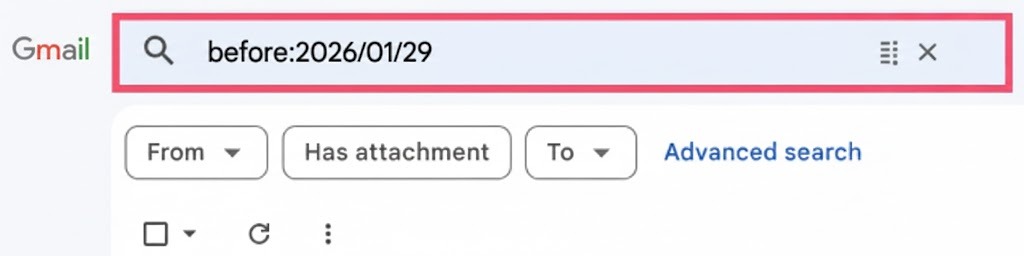
Using the “Before” operator for inbox maintenance
When you decide to clean up your digital life, the before:YYYY/MM/DD command becomes your most valuable tool. It allows you to set a hard ceiling on your inbox. If you want to find every newsletter, receipt, or personal thread that arrived before the start of last year, you simply input the date of New Year’s Day. This instantly clears the recent clutter from your view, allowing you to focus on the mail that has been sitting in your account for years.
The beauty of using these search operators is that they work across every folder. Unlike scrolling, which only shows you the “Primary” tab by default, typing a command into the bar searches your entire database. It’s a surgical approach to finding data that would otherwise remain buried under thousands of newer entries.
Why the YYYY/MM/DD format is non-negotiable
You might be tempted to type the date in the way you normally write it, such as “December 1st” or “12/01/2024.” However, when you search Gmail, the system requires a specific technical structure to understand your request. You must always lead with the four-digit year, followed by the two-digit month, and then the two-digit day.
- Correct: before:2022/05/20
- Incorrect: before:05/20/2022
Using the wrong format is the number one reason users see a “No results” message. If your search fails, the first thing you should check is whether you swapped the month and the day. By sticking to the standard format, you ensure that Gmail’s servers can index your date range instantly, delivering your results in milliseconds.
2. How to search Gmail by date after a certain date?
To search for emails in Gmail after a specific date, you must enter the after:YYYY/MM/DD operator into the search bar. For instance, typing after:2024/06/15 will filter your messages to only show those received from that day onward. This is the most efficient way to narrow your gmail search when looking for recent project updates or late-arriving receipts.
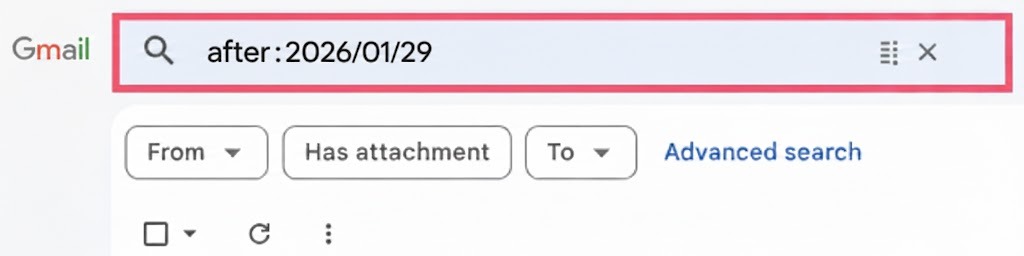
Navigating the “After” operator for recent mail
When you search Gmail using this method, you are effectively setting a starting point for your results. If you know a specific conversation began during a summer holiday, you can jump straight to that timeframe without scrolling through months of irrelevant winter mail. The after:YYYY/MM/DD command acts as a gatekeeper, ensuring that your results page remains clean and focused on the timeline that actually matters to your current task.
This is particularly helpful when you are tracking a specific range of correspondence. Often, we remember when a project started, but not exactly when it finished. By setting the “after” parameter, you can view the entire evolution of a thread from that start date to the present moment. It transforms your inbox from a chaotic pile into a chronological record of your progress.
Pro-Tip: Combining operators for surgical precision
While searching for mail after a certain day is powerful on its own, its true potential is realized when you layer it with other terms in the search bar. If you are looking for a specific sender but only from the last few months, you can combine a name with your date command.
- Example: from:Sarah after:2024/01/01
- Example: has:attachment after:2023/12/31
By using these combinations, you reduce the “noise” in your gmail search results. You aren’t just looking for every email from Sarah; you are looking for the Sarah who emailed you this year. This level of detail helps you find the right information in seconds, allowing you to get back to your work without the mental fatigue of a long, manual search.
3. How to search Gmail emails between two dates?
To search Gmail for emails between two specific dates, use the after:YYYY/MM/DD and before:YYYY/MM/DD search operators together. For example, typing after:2023/05/01 before:2023/05/31 in your search bar creates a custom window, displaying only the messages that arrived during that specific calendar month.
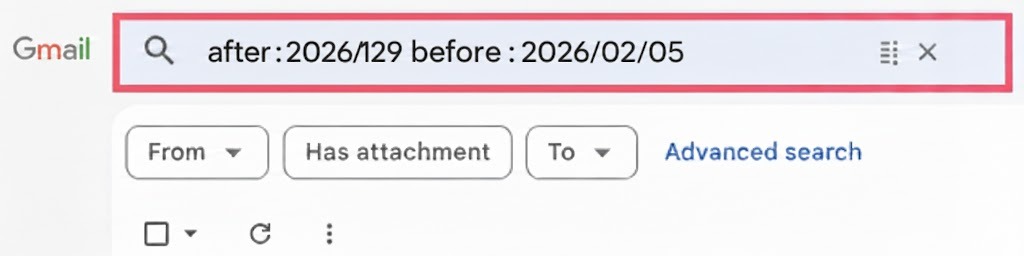
When you combine these two commands, you are building a virtual container for your messages. This method is the most reliable way to create a specific date range that excludes the years of noise surrounding a particular event. Instead of looking at every invoice you have ever received, you can isolate the exact week of a business trip or a project launch.
The beauty of this dual-operator approach is that it is highly precise. When you set a date range in gmail, the system looks at the timestamps of every thread in your account. If a message falls even one minute outside of your specified window, it won’t appear. This allows you to audit your communications with total certainty that you are seeing only what is relevant to that slice of time.
Why you should use the “sandwich” method
Think of your search query as a sandwich where the after: and before: commands are the bread. Everything you want to find sits in the middle. This “search date range gmail” strategy is vital for professionals who handle high volumes of correspondence. You can narrow down thousands of results to a handful of items in seconds.
By placing the earlier date after the “after” command and the later date after the “before” command, you create a chronological bridge. This logic ensures that gmail search operators after before inclusive behavior works in your favor. Your search results will show the messages sent within that timeframe, providing a clean, manageable list that makes your workflow much smoother.
Common scenarios for date-range searches
You can apply these filters to almost any situation where you need to verify history. Here are a few ways you might use a specific date range to get answers:
- Tax Preparation: Locate all receipts by searching between January 1st and December 31st of a previous year.
- Performance Reviews: Find every email you sent to your manager during a specific quarter to track your accomplishments.
- Travel Planning: Pull up flight confirmations and hotel bookings from a trip you took three summers ago.
- Project Audits: Isolate a two-week window where a critical decision was made in a long-running email thread.
By using these commands, you stay organized without needing to create hundreds of manual labels or folders. The search bar does the filing for you, pulling data from your archives based on the timeline you define.
4. How to search Gmail by exact date?
To search Gmail by an exact date, use the on:YYYY/MM/DD operator in your search bar. For example, entering on:2024/10/25 will display every email that arrived specifically on October 25, 2024. This command acts as a precise filter, allowing you to isolate emails from a twenty-four-hour window without needing to set a start or end point.
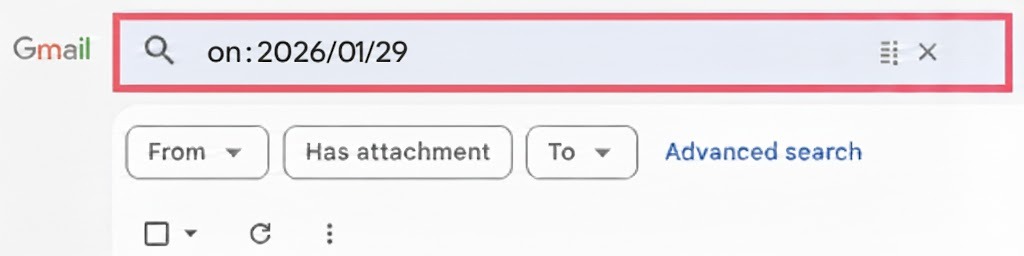
When you need to find a message from a day you remember clearly—perhaps the day of a specific meeting or a holiday—this single operator is much more efficient than typing out a full range. It tells the system to ignore the broader gmail search operators after before date format yyyy/mm/dd logic and focus exclusively on one calendar square. This precision is perfect for those “I know it was sent last Tuesday” moments, saving you the mental energy of calculating a multi-day span.
Refining your results for a specific day
By using this command, you create an incredibly narrow date range that eliminates the noise of the surrounding days. However, even a single day can be busy. To get to your target faster, you can combine the exact date with a keyword or a sender’s name. For instance, searching on:2024/05/12 invoice will only show you invoices received on that specific Sunday.
This approach is highly effective because it leverages the backend speed of the yyyy/mm/dd indexing. Instead of the server scanning weeks of data, it looks at one specific data point in your account history. Whether you are searching for a flight confirmation or a quick reply from a colleague, using the “on” command ensures you aren’t distracted by mail that arrived even a few hours before or after your target time.
5. How to use older_than and newer_than in Gmail?
In Gmail, older_than and newer_than are search operators used to filter emails based on a relative timeframe rather than a specific calendar date. For instance, typing older_than:1y reveals every message received more than a year ago, while newer_than:7d shows only those from the last week. This allows you to create a “sliding window” for your search that updates automatically every day.
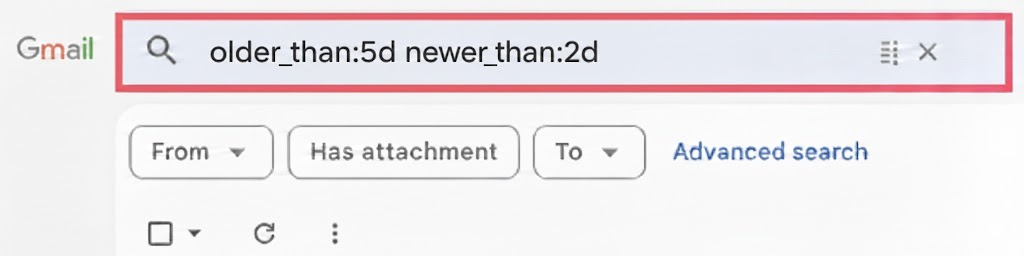
When you use these commands, you are essentially telling your inbox to measure time backward from the current moment. Unlike fixed dates, which remain stagnant, these relative filters are dynamic. If you check the gmail search newer_than operator documentation, you’ll see that this is the most efficient way to manage a fast-moving inbox. It helps you Type the operator and instantly clear out recent noise or target deep archives without ever looking at a calendar.
Using relative time for inbox maintenance
This method is perfect for those who want to keep their storage lean. Instead of manually calculating what the date was six months ago, you can use these shortcuts to group emails by age. This is particularly useful for clearing out social notifications, old newsletters, or promotional updates that lose their value after a few weeks. By using relative terms, you ensure your search is always current to the exact minute you hit enter.
To use these effectively, you simply combine a number with a letter representing the time unit (d for days, m for months, or y for years). Here are several ways you can apply this to your own inbox:
- Older_than:1y – Use this to find all messages that are at least one year old, perfect for annual digital spring cleaning.
- Older_than:6m – Isolate emails from the previous half-year to identify threads that have likely gone cold.
- Older_than:15d – Target mid-range clutter, such as shipping notifications or two-week-old alerts that are no longer relevant.
- Newer_than:2m – Focus on recent projects and conversations from the last sixty days to keep your current tasks top-of-mind.
- newer_than:7d – Quickly pull up everything that arrived in the last week, which is great for catching up after a vacation.
By mastering these relative operators, you move beyond the limitations of the traditional search bar. You gain the ability to “slice” your inbox by its age, making it much easier to perform bulk actions like archiving or deleting. It’s a professional-grade tactic that ensures you spend less time searching and more time actually handling your important mail.
6. How to filter Gmail by date using Advanced Search?
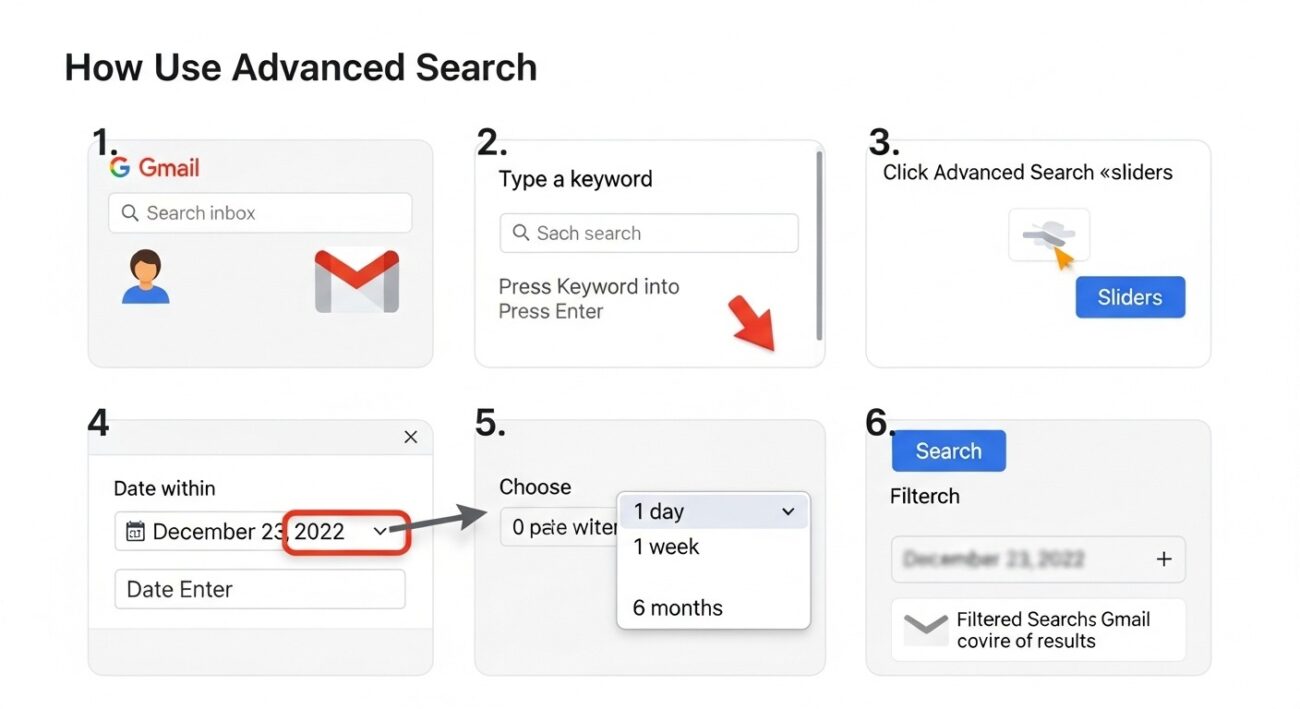
Filter Gmail by date using Advanced Search by clicking the search options icon located on the right side of your search bar. This opens a dedicated Advanced Search Panel (Desktop) where you can specify a date range without memorizing complex commands. It is the most user-friendly way to search emails by date if you prefer a visual interface over manual typing.
While power users love operators, sometimes you just want to point and click to find old emails. The built-in menu acts as a guided assistant, translating your selections into the background code that Gmail search emails require.
Step-by-Step Guide to the Visual Filter
If you are moving from another client,perhaps trying to search moz thunderbird by date, you will find Gmail’s web interface is quite intuitive once you locate the “sliders” icon. Here is how to navigate it:
- Step 1: Access your inbox: Log into your Gmail account on a desktop browser.
- Step 2: Trigger the search: Type a keyword in the search bar and press Enter to load the initial results.
- Step 3: Open the Panel: Click on the “Advanced search” (sliders) icon on the far right of the bar to reveal the hidden options.
- Step 4: Pick your target date: Locate the “Date within” field and use the calendar icon to select your central day (e.g., December 23rd, 2022).
- Step 5: Set your range: From the dropdown menu on the left, choose a timeframe—such as 1 day, 1 week, or 6 months—to create a buffer around your target date.
- Step 6: Refine and execute: Add other parameters like sender or subject if needed, then press “Search” to display all emails matching your specific range.
7. How to search Gmail by date on mobile
On Android and iOS, the Gmail app lets you filter emails by date using touch-friendly filters right under the search bar. You can still type date operators if you want, but most people will find the visual filters faster and easier.
Step-by-step mobile date filtering
- Open the Gmail app
Launch Gmail on your Android or iPhone and tap the Search bar at the top. - Reveal the search filters
When the keyboard appears, look just below the search bar for a row of filter chips. - Find the date filter
Swipe the chips left or right until you see Anytime or Date. Tap it. - Choose a quick range
Pick a preset like Older than a week, Older than 6 months, or Older than a year to jump back in time fast. - Set a custom range
Need exact dates? Tap Custom range, then use the calendar to select a start and end date, for example December 18 to December 23, 2022. - Apply the filter
Tap OK or Apply. Your inbox refreshes instantly to show only emails from that period.
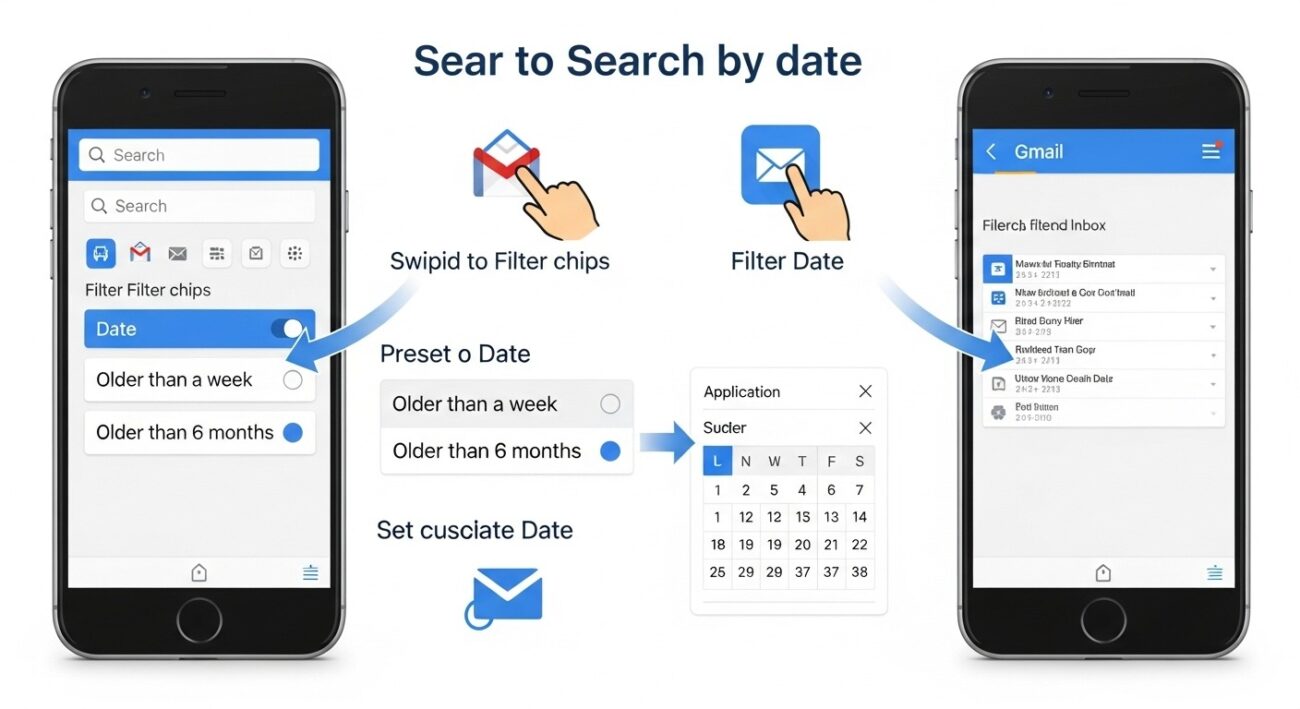
Using these steps allows you to maintain the same level of control on your phone as you have on your computer. Whether you are at an airport trying to find a booking from six months ago or sitting in a meeting needing a quick archive check, these commands ensure you aren’t held back by a simplified mobile menu.
8. How do I sort Gmail emails by date (oldest to newest)?
To sort Gmail from oldest to newest on a desktop, hover your cursor over the email count (e.g., “1–50 of 2,500”) in the top right corner of your inbox and select “Oldest” from the dropdown menu. This action instantly reverses the chronological order, allowing you to Sort Gmail Inbox results to see your earliest messages first without having to click through every page of your history.
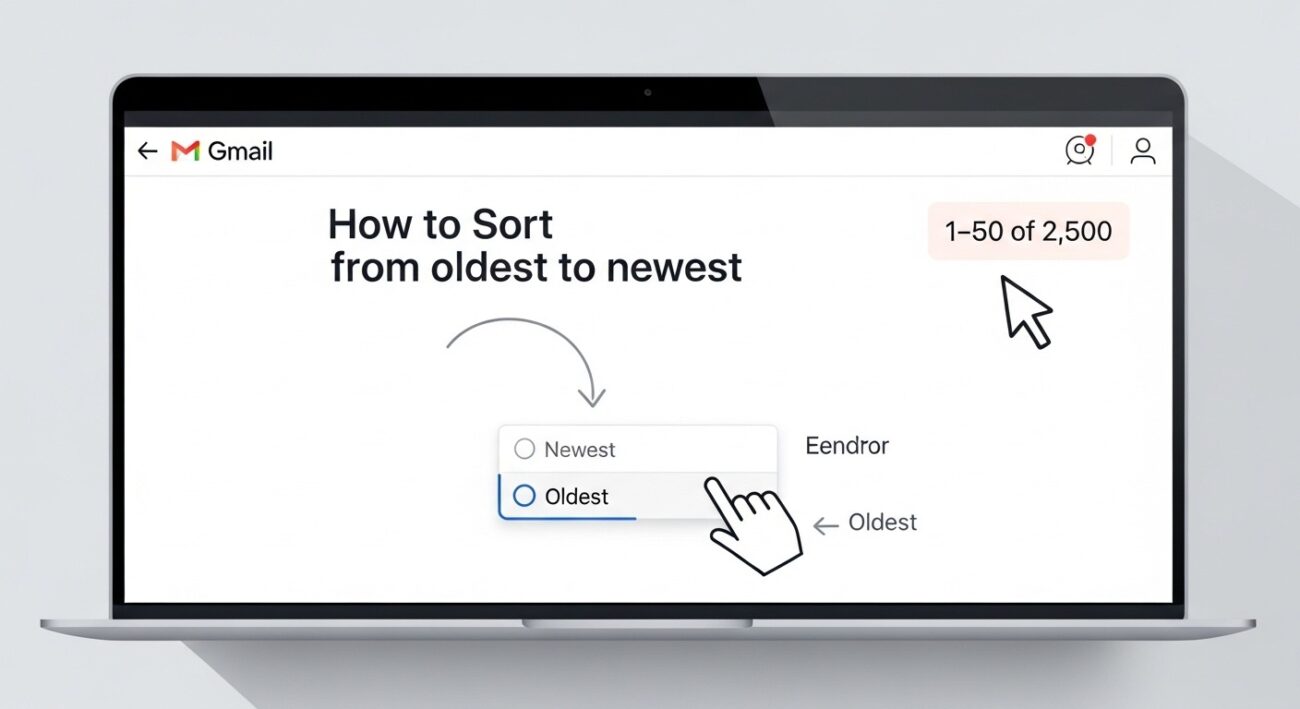
While Gmail naturally organizes your mail with the most recent arrivals at the top, sometimes you need to dig into the roots of your account. By using this built-in sorting feature, you can Sort emails in Gmail by date to find your first welcome emails or long-forgotten registrations. It is a quick way to look back in time without needing to type specific Search Operators into the search box.
Navigating the hidden sort menu
Many people miss this feature because it only appears when you interact with the pagination numbers. If you are looking at your All Mail folder, look toward the top right—just above the first email in the list. When you hover over those numbers, a small menu appears. Selecting “Oldest” takes you to the very last page of your inbox history. This is much more effective than manually clicking the “Back” arrow hundreds of times, especially if you have an account that has been active for a decade or more.
If you have a search active, Gmail might default to a “Relevance” sort. In these cases, look for the same number range in the top right to switch back to a chronological view. It ensures that your results are displayed in a clean, logical timeline, making it far easier to track the evolution of an old conversation or find a document from the very beginning of a project.
9. How to search Gmail emails by year?
To search Gmail emails by year, use the after:YYYY/MM/DD and before:YYYY/MM/DD operators to bracket the entire twelve-month period. For example, typing after:2023/12/31 before:2025/01/01 is the most reliable way to search gmail by year for 2024 results. This command ensures you find emails by date in Gmail without missing a single day.
When you want to look back at a full year of messages, you are likely trying to reconcile your finances or review a past project’s progress. Simply typing the year “2022” into the search bar often isn’t enough because it will pull up any email containing that number—even if it’s in a phone number or a tracking code. To get a clean archive, you need to set boundaries that cover every day from January to December.
You can quickly create these boundaries by using the last day of the previous year and the first day of the following year as your limits. If you want to see everything from 2022, your search would look like this: after:2021/12/31 before:2023/01/01. This logic creates a “container” that holds exactly 365 days of data. It’s a clean way to keep your personal life separate from your work history when you are digging through thousands of old threads.
Beyond those basic commands, you can combine this with your labels to get even more specific results. If you want to find emails by date in Gmail specifically for your “Expenses” label in 2023, you can type label:expenses after:2022/12/31 before:2024/01/01. This clears out your daily newsletters and social updates, leaving you with a professional, yearly record that you can export or review for your records. Using these date ranges helps you avoid the frustration of a cluttered search page, giving you exactly what you need for your annual review or tax filing.
10. How to find old Gmail emails by date?
Find old Gmail emails by date using search operators to bypass the hundreds of pages in your current inbox. By entering older_than:1y or a specific before:YYYY/MM/DD command, you can instantly reveal messages from years ago that would otherwise require hours of manual scrolling. This is the most direct way to solve the problem of how to find old emails when you need a record from a previous home or a past job.
When you are digging through an account that is several years old, your biggest enemy is the sheer volume of “noise” from the present day. To get past this, you have to tell Gmail to ignore your recent activity. Using the gmail search by date older than logic allows you to set a starting point deep in your history. It’s like jumping to the very back of a library to find an original manuscript instead of looking through the new releases at the front door.
Jumping to the beginning of your history
Sometimes, you don’t just want to find a specific message; you want to see the very first thing you ever received. The most efficient way to do this is to sort gmail oldest to newest using the pagination menu. By hovering over the numbers in the top right corner and selecting “Oldest,” you flip your entire account upside down. This takes you to the literal “Page 1” of your digital life, showing you the foundation of your email history.
If you have tens of thousands of messages, even this sorting trick might feel slow. In those cases, you can combine sorting with a rough date estimate. If you know you started your account around 2015, try searching before:2016/01/01. This gives you a much smaller pool of data to sort through, making it easy to find that one specific old thread without the system getting bogged down by your current data. It turns a massive, intimidating archive into a searchable, organized database.
11. How to search Gmail emails by date with attachments?
To search Gmail for emails with attachments within a specific date range, combine the has:attachment operator with your chosen date commands in the search bar. For instance, entering has:attachment after:2024/01/01 before:2024/01/31 instantly filters your inbox to show only the files, documents, and images received during that single month.
This method is the most effective way to locate a lost PDF or image when you can only remember the general timeframe of its arrival. Instead of reading through hundreds of text-only threads, this combination finds emails with attachments specifically, creating a visual gallery of your data. It turns your archive into a searchable file cabinet, making it much easier to track down project assets or old receipts without needing the exact filename.
How to use date and file filters together
Using these commands allows you to be incredibly specific about what you are looking for. You aren’t just filtering by time; you are filtering by the type of data contained within that time. This is a vital skill for anyone who handles high volumes of digital paperwork or media. By layering these search strings, you can ignore 99% of your inbox and focus only on the messages that carry a payload.
Here are the most common ways to combine these tools to get the best results:
- Find all PDFs from last year: Type has:attachment filename:pdf older_than:1y to see every document that has been sitting in your account for over 12 months.
- Locate images from a specific trip: Use has:attachment filename:jpg on:2023/08/15 to pull up photos sent on a specific day.
- Identify large files for cleanup: Try has:attachment larger:10M before:2022/01/01 to find massive emails from years ago that are eating up your storage space.
- Search for spreadsheets by season: Use has:spreadsheet after:2024/03/01 before:2024/06/01 to find financial reports or project trackers from a specific quarter.
By mastering these combinations, you stop being at the mercy of your memory. You don’t need to remember the name of the file or even the person who sent it; as long as you have a rough idea of the “when,” the search bar does the heavy lifting for you. This ensures you can find the data you need to stay productive, whether you’re working on a laptop or checking your mail on the go.
Can you search Gmail by date without using operators?
Yes, you can search Gmail by date without using operators by using the built-in “Search Chips” or the Advanced Search dropdown menu. These visual tools allow you to select a calendar date to filter your messages through a point-and-click interface. It is a perfect alternative for those who find a search operator of gmail difficult to memorize or prefer a more intuitive, non-technical way to manage their inbox.
While many pros swear by typing code, the interface provides a powerful way to search Gmail without ever touching your keyboard. When you click into the search bar, Gmail often suggests “Search Chips”—small bubbles that represent common filters. By selecting the “Anytime” chip, you can pick from preset ranges like “Last 7 days” or “Last 3 months.” This bypasses the need for a gmail search by date operator while still giving you the same precision you’d get from manual commands.
Using the Visual Calendar Tool
If those presets don’t quite fit your needs, the “Custom range” option within the Search Chips or the Advanced Search menu is your best friend. This opens a small calendar view where you can pick a “start” and “end” date with your mouse. This is technically how you build a search date range without knowing any search operators. Once you click “Apply,” Gmail automatically generates the backend code for you, showing you exactly what it would have looked like if you had typed it manually.
This visual method is particularly useful for complex tasks, like finding a meeting invite when you can’t remember the gmail search operator has:calendar command. You can simply use the interface to select “Invitations” and then pick the week of the event on the calendar. It’s a stress-free way to navigate your history, ensuring that even if you forget the specific search operators, you still have total control over your digital archives.
What date operators does Gmail support?
Gmail supports several powerful date-based search operators to filter messages by specific dates, including before:, after:, on:, older_than:, and newer_than:. These Gmail search operators act as the technical vocabulary for your inbox, allowing you to bypass manual scrolling by defining a precise timeline for your queries.
When you use these tools, you are leveraging the core system’s capability to manage your digital history. For example, the older_than: and newer_than: commands are designed for relative time—perfect for cleaning out newsletters from the last few months. Meanwhile, before: and after: are the industry standard for fixed points in time. Using the correct format (YYYY/MM/DD) ensures that the system understands your request instantly, helping you maintain an organized and searchable archive without the frustration of “No results found” errors.
What is the difference between before:and older_than:in Gmail?
The primary difference between before: and older_than: in Gmail is that before: uses a static, fixed calendar date while older_than: uses a dynamic, relative timeframe that changes every day. This distinction determines whether you are targeting a specific moment in history or setting a moving expiration date for your messages.
When you Search for emails, choosing the right command depends on your goal. If you are preparing for an audit of the year 2022, a fixed date is your best friend. However, if you are performing routine maintenance and deleting emails that have lost their relevance over time, a relative operator is far more effective. Using gmail search operators newer_than older_than allows you to automate your cleanup workflow without needing to manually update your search strings every month.
To help you decide which tool to use for your next personal Gmail filter, here is a direct comparison:
| Feature | before:YYYY/MM/DD | older_than:[number][unit] |
| Type | Fixed / Static | Relative / Dynamic |
| Best For | Finding archives from a specific event. | Daily cleanup and deleting emails. |
| Example | before:2023/01/01 | older_than:1y |
| Behavior | Always shows the same results. | Results change as time moves forward. |
| Units | Specific Days | Days (d), Months (m), Years (y) |
If you are looking to delete emails older than a certain threshold to free up your storage, the relative operator is the standard choice. It creates a sliding window that ensures your inbox stays lean without you having to recalibrate your search every time you want to perform a “digital sweep.” By understanding this technical nuance, you gain much finer control over how you manage and preserve your long-term email data.
Is Gmail date search based on sent date or received date?
Gmail date searches (after:, before:, older_than:, newer_than:) focus on the specific timestamp attached to every message in your account history. When you search Gmail between two dates, the system looks at the moment of delivery or dispatch to decide what shows up on your screen. For your incoming mail, this means the filter triggers based on when the email arrived in your inbox. For your outbound emails, it relies on the exact time you sent the message.
This approach keeps your results accurate whether you are hunting for a received invoice or an old reply you wrote months ago. You might notice that a whole conversation appears even if only a single reply falls within your window. This happens because Gmail groups related messages together to keep your threads intact. This conversational grouping is a specific way the platform organizes data, which differs from how you might search AOL mail where individual messages usually stand alone.
Does Gmail date search work differently on mobile?
Yes, Gmail date searching works differently on mobile compared to the desktop web interface because the Gmail app lacks the visual “Advanced Search” toggle found on a computer. While the underlying search engine is the same for (Android/iOS) users, you must rely on manual commands in the search bar to filter your history. This means you have to be more deliberate with your syntax to find specific messages or archived emails while on the go.
Navigating these differences helps you avoid frustration when you are away from your desk. Here are the primary ways the mobile experience shifts:
- No Calendar Picker: Unlike the desktop version, you cannot click a calendar icon to select dates. You must type out the full string, such as after:2024/01/01, to see your results.
- Simplified Interface: The mobile app prioritizes speed, which means advanced filtering options are tucked away. You can learn more about managing your mobile settings if you ever need to delete a Gmail account on iPhone or clean up your device storage.
- Search Chips: After you perform a manual date search, the app provides “chips”—small bubbles below the search bar—that let you quickly stop unwanted emails in Gmail by filtering for unread messages or specific senders within that timeframe.
- Manual Folder Sorting: On a phone, it is often harder to move emails to folders in Gmail in bulk. Using date operators helps you isolate old messages first, making it easier to select and organize them without endless scrolling.
Are Gmail date searches affected by time zones?
Yes, Gmail date searches (e.g., before:YYYY/MM/DD, after:YYYY/MM/DD) are affected by time zones because the system calculates your search results based on your account’s local Time Zone settings. When an email is received, its timestamp is recorded in Coordinated Universal Time (UTC), but Gmail translates that data to match the clock on your device. This means a message sent at 11:55 PM on Monday in London might appear as Tuesday morning if you are searching from a location further east, like Tokyo.
This behavior is important to keep in mind when you search email on iPhone or a desktop, as the timing of an email might shift slightly across different dates depending on where you are currently located. If you are struggling to find a specific thread from a late-night conversation, expanding your date range by one day in either direction is the best way to ensure you don’t miss any messages due to a midnight time-shift. This logic is a common standard for most modern platforms, including when you search Apple Mail, where ensuring the correct local time alignment is vital for pinpointing precise records.
What are the limitations of Gmail date filtering?
Gmail’s date filtering is a set of rules that defines how the search engine retrieves messages based on their timestamp. While incredibly powerful, there are several limitations regarding automation and indexing that you should understand to avoid missing vital records.
One of the primary hurdles is that standard date searches often exclude the Trash and Spam folders by default. If you are looking for an old confirmation that was automatically filtered out months ago, a basic command might return zero results. To fix this, you must explicitly tell Gmail to look in every corner of your account by adding in:anywhere to your query. This is a broader approach compared to the way you might use Yahoo Mail search operators to browse folders.
Additionally, searching for dates within long email threads can sometimes lead to cluttered results. Because Gmail groups related messages into conversations, a search for a specific day might pull up a thread that started weeks earlier or ended days later, simply because one reply in the middle matched your date.
Final Thought
This guide was designed to transform your inbox from an overwhelming “tapestry” of old messages into a precise, searchable database. By moving beyond basic scrolling and mastering the technical syntax of date operators, you gain the ability to navigate years of data in seconds.
Whether you are performing a “surgical strike” on your storage with older_than:2y or locating a single lost attachment from a specific week, these tools provide a level of control that standard search simply cannot match. Consistency is your best friend here—keep the YYYY/MM/DD format in your muscle memory, and you will never find yourself lost in your own archives again.


