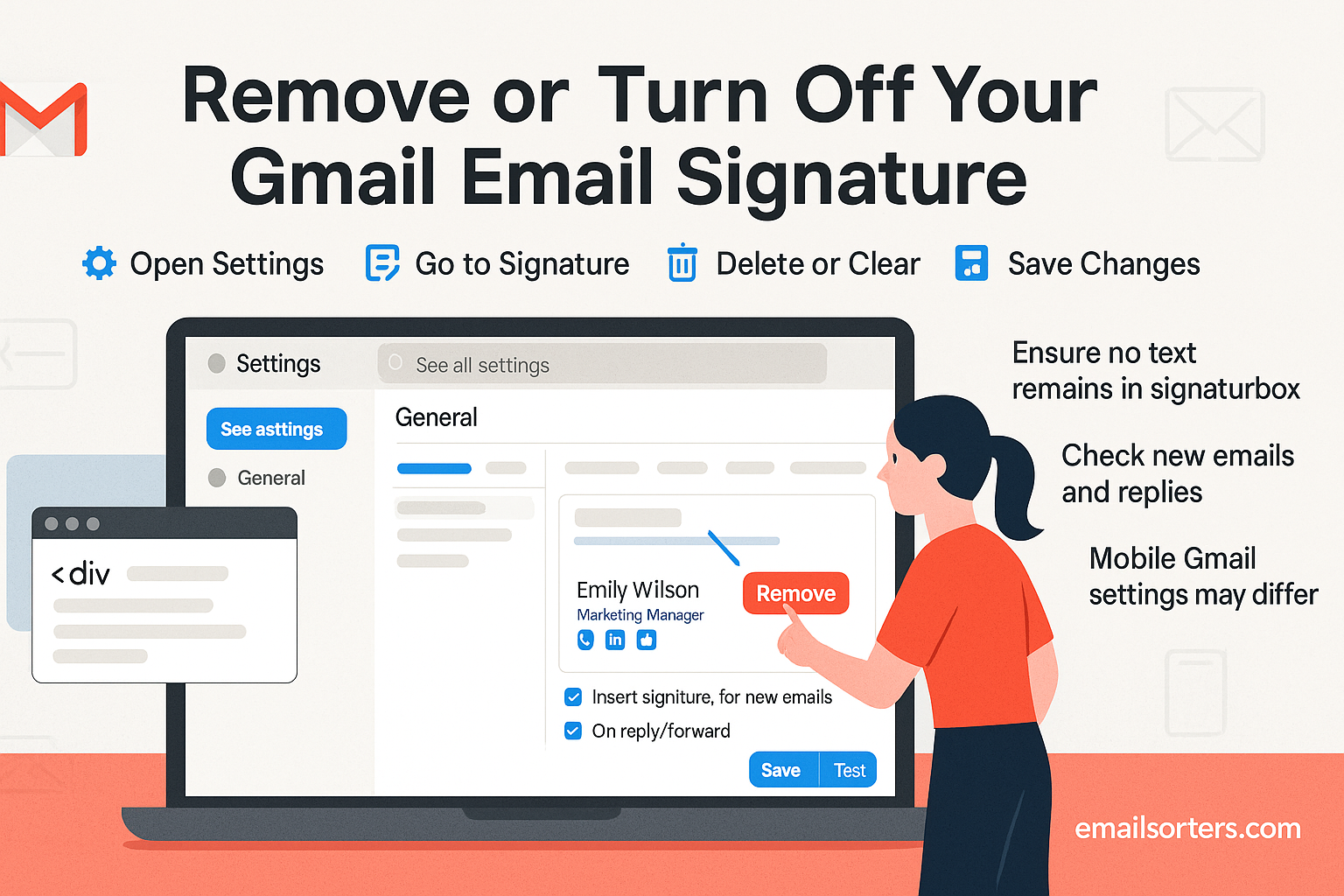
Remove Gmail signature when it no longer fits your emails. Maybe you switched jobs, changed phone numbers, or just don’t want a signature showing up anymore. Whatever the reason, leaving an outdated sign-off at the bottom of your messages can look unprofessional, or just plain annoying.
The good news? Gmail makes it super easy to delete or turn off your signature in just a few clicks. No messy steps, no confusion.
Email signatures are often linked to your professional identity; job title, company logo, phone number, and more. But when you switch jobs, rebrand your business, or even change email addresses, that old signature can send the wrong message. If you don’t update or remove it, recipients might still associate you with outdated information, which could be confusing or unprofessional. Turning off your signature ensures your email is neutral until you’re ready to add updated details.
Keeping Personal Emails Minimal
Not every email needs a signature. When you’re writing quick messages to friends, family, or informal contacts, a professional signature can feel out of place. Removing it simplifies your email and helps it feel more conversational. Some users also choose to keep their inbox free from promotional links or CTAs when using Gmail for personal use. Turning off the signature ensures your email stays clean and distraction-free.
Understanding Gmail’s Signature Settings
Where Gmail Stores Signature Preferences
Gmail stores your email signature settings directly within your account’s preferences. Each email account you add to Gmail; whether it’s a Google Workspace address or a personal Gmail.com address; has its own unique signature setting. That means if you use multiple Gmail addresses, you’ll need to manage the signature for each one individually.
Gmail signatures are not stored locally; they’re cloud-based. So when you update or remove a signature, the change is instantly reflected across devices using the Gmail web interface. However, if you also use the Gmail mobile app, those settings are managed separately.
Differences Between Web and Mobile App Settings
A common point of confusion is that Gmail’s mobile app has its own independent signature setting. This means disabling your signature on the desktop doesn’t automatically affect the mobile app. In fact, the Gmail mobile app often defaults to a generic “Sent from my mobile device” signature unless turned off separately.
If you want to completely remove your Gmail signature, you’ll need to check both the desktop browser and mobile app settings. Each has its own toggle and editing interface.
Step-by-Step Guide to Remove Your Gmail Signature on Desktop
Accessing Gmail Settings
- Log in to your Gmail account using a web browser.
- Click the gear icon in the top right corner of your inbox.
- Select “See all settings” from the dropdown.
Navigating to the Signature Section
- Inside the “General” tab, scroll down until you see the “Signature” section.
- You’ll see a list of signatures (if you’ve created multiple), along with a text box showing the content of the active one.
Deleting or Disabling the Signature
- To remove the signature content:
- Click inside the signature text box and delete all the text, links, or images.
- Alternatively, if you have multiple signatures, you can click the “Delete” button next to the one you no longer want to use.
If Gmail doesn’t allow saving with an empty signature, you can choose the option “No signature” under the default settings for your address.
Saving Your Changes
- Scroll to the bottom of the settings page.
- Click “Save Changes” to confirm and exit.
Now, when you compose or reply to an email, the signature will no longer appear at the bottom.
How to Remove a Gmail Signature from the Mobile App
Using the Gmail App on Android
- Open the Gmail app on your Android device.
- Tap the menu icon (three lines) in the top left corner.
- Scroll down and tap “Settings.”
- Choose the Gmail account you want to modify.
- Tap “Mobile Signature.”
- Delete all the text in the field.
- Tap “OK” to save.
Using the Gmail App on iOS
- Open the Gmail app on your iPhone or iPad.
- Tap the menu icon (three lines).
- Go to Settings, then select your Gmail account.
- Tap “Signature Settings.”
- Clear the text field.
- Tap the back arrow or “Done” to save your changes.
Once saved, your mobile Gmail messages will no longer include a signature unless you add one again manually.
Turning Off Your Signature Temporarily
Leaving the Signature Field Blank
If you’re unsure about permanently deleting your signature, you can simply leave the content blank. On desktop, choose “No signature” in the Gmail settings. This disables it without losing your existing design or links; you can switch back later if needed.
Creating Alternative Signatures
Some users choose to create a blank signature or a simpler version for different scenarios. Gmail supports multiple signature templates per address, so you can assign a different one for new emails and replies; or keep one inactive altogether.
To switch quickly between signatures, use the pen icon in the Gmail compose window to choose a different signature or turn it off manually for that message.
Removing Signatures from Multiple Gmail Accounts
Switching Between Profiles
If you manage more than one Gmail account; such as personal, business, or client addresses; you need to update each one individually. Signatures are tied to the specific Gmail account, so switching users won’t carry over signature settings.
To manage them:
- Log out and into each Gmail account on desktop.
- Repeat the signature removal process in each profile’s settings.
Removing Signatures Per Account
In the signature settings area, Gmail will show a dropdown of your email addresses or aliases if they’re connected to the same login. Ensure you’re editing the correct address and not leaving a default signature on an alias you forgot to check.
Common Issues When Removing Gmail Signatures
Signature Still Appears in Replies
If you’ve disabled your signature but still see it in replies, double-check your settings. Sometimes Gmail caches the compose interface and reloads the last-used version. Try refreshing your browser or clearing the browser cache.
Also ensure you saved changes properly after removing the signature from the settings page. Unsaved changes can result in old signatures persisting.
Cache or Sync Problems
Mobile app users may still see the signature even after deleting it on desktop. This is because mobile signatures are set separately. Open your Gmail app and follow the steps above to remove it directly from the mobile device. If it persists, restarting your phone or reinstalling the app may help.
Tips for a Signature-Free Look
Checking Format and Spacing
After turning off your signature, send a test email to yourself. Check how the message appears to recipients. If unnecessary space or line breaks remain where the signature used to be, clean up your email formatting. A neat email bottom gives your message a more polished appearance; even without a signature.
Making Emails Feel Cleaner
For users shifting to minimal or personal email communication, removing the signature can be refreshing. It avoids clutter, prevents distractions from your main message, and helps create a cleaner, more human tone in every email you send.
Conclusion
Whether you’re switching jobs, simplifying your inbox, or just giving your emails a more casual tone, removing your Gmail signature is easy and reversible. By following a few simple steps; on both desktop and mobile; you can turn off your signature entirely or keep it hidden until you need it again. Always remember to double-check settings across devices, especially if you use Gmail on both desktop and mobile.
Removing your signature doesn’t mean reducing your professionalism; it simply lets you communicate on your terms. And whenever you’re ready to reintroduce a signature, Gmail makes it just as easy to turn it back on.


