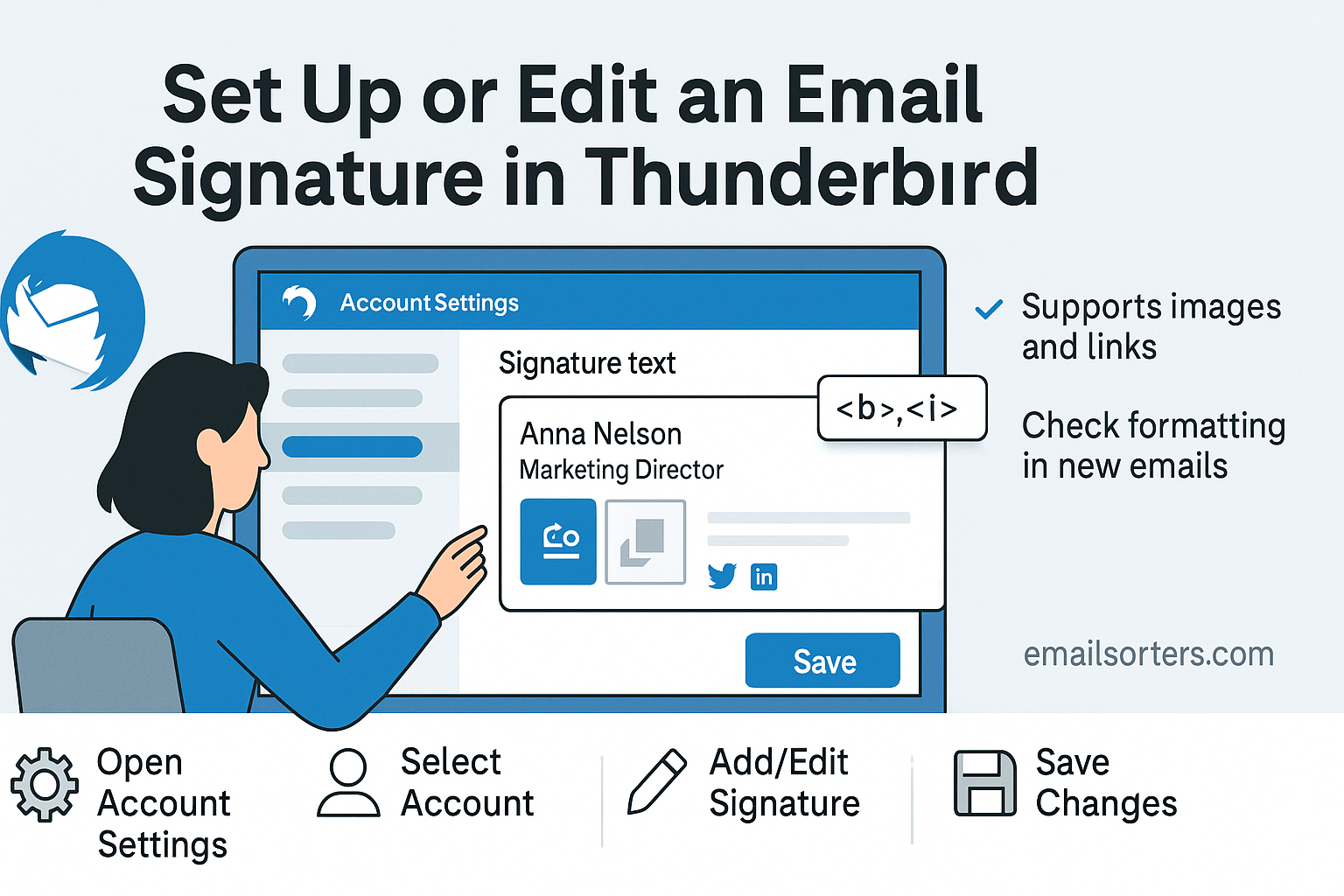
Thunderbird signature setup is a simple but powerful way to make your emails look more professional. Every message you send reflects your identity, and a well-designed signature ensures that your recipients always have the right details, whether it’s your name, title, contact info, or even links and a logo.
Thunderbird makes it easy to create or update your email signature. You can keep it minimal with just your name and role, or go further with styled text, clickable links, and even HTML for branding.
In this guide, I’ll walk you step by step through how to add, edit, and customize your signature in Thunderbird so your emails always leave a polished impression.
What Is a Thunderbird Email Signature?
An email signature in Thunderbird is a block of text or styled content automatically added at the end of your emails. This could be something simple, your name and title, or a more detailed signature with your company name, phone number, logo, and social media links. Either way, the signature helps communicate who you are, what you do, and how people can follow up.
For businesses, this signature is essential for branding. It reinforces identity in every email and ensures that clients or customers always know how to reach the sender. For individuals, especially freelancers or nonprofit organizers, a signature adds clarity and professionalism to messages.
Using Thunderbird’s built-in tools, each email account can have its own unique signature. This flexibility is useful if you manage multiple email identities in one place, such as personal, work, and project-based addresses.
How Thunderbird Handles Email Signatures Per Account
Unlike some email clients that apply one global signature, Thunderbird lets you set a custom signature for every email account you add. Whether you’re using IMAP, POP3, or SMTP accounts, each one can have a distinct footer.
You’ll find the signature field within each account’s settings, meaning you don’t have to change the global app preferences just to update a single address. This design makes Thunderbird ideal for users managing different roles or brands from the same dashboard.
Also, Thunderbird offers support for both plain text and HTML signatures. That means you can keep it simple or go more detailed with colors, logos, and links—depending on how you want your emails to appear.
Thunderbird Signature Formats: Plain Text vs HTML
Plain text signatures are exactly what they sound like: simple, unformatted lines of text. These are best used when you want maximum compatibility across all email clients, especially in technical, legal, or minimalist communication. If your messages don’t require any branding or visuals, this is the simplest and most reliable choice.
You can still include basic information such as name, title, phone number, and even URLs (though they won’t appear as clickable links unless the recipient’s email client automatically recognizes them). The benefit of plain text is that there’s zero chance of formatting errors or rendering issues across email platforms.
It’s also the recommended format if you’re dealing with legacy systems or contacts who prefer basic email formats. Some secure email systems may strip or block HTML, in which case your message—and your signature—could be affected if not in plain text.
Advantages of HTML Signatures in Thunderbird
For those who want their emails to look more polished, Thunderbird supports HTML signatures. With HTML, you can format your signature with fonts, colors, hyperlinks, embedded images, and more.
This is especially useful for professionals who want to include:
- Company logos
- Linked social icons
- Calendly or booking links
- Brand color schemes
- Clear formatting for readability
Thunderbird allows you to write HTML directly or paste preformatted code into the signature field. This means you have full control over layout, spacing, alignment, and other visual details.
However, HTML signatures come with a few responsibilities. You’ll need to test them across devices to make sure they display properly and ensure any images you include are hosted online—not embedded locally (more on that later).
If you’re aiming for a branded experience and want to leave a strong impression, HTML is the format to use.
How to Create a Signature in Thunderbird
The process starts with opening the Thunderbird application. On the left side of the window, you’ll see a list of your email accounts. Right-click on the account you want to update and choose “Settings.” You’ll then see a page with account-specific preferences.
Scroll down to the section labeled “Signature text.” This is where you can type or paste the content of your email signature. If you want to use rich formatting—colors, images, links—make sure to check the box labeled “Use HTML.”
This area is also where you can insert HTML code directly if you’re comfortable with coding or pasting in a pre-built design. Thunderbird will interpret and apply the formatting when you send messages from that account.
Creating Signatures Per Email Account
Each Thunderbird account has its own settings page, and each can have its own unique signature. This is useful if you want to use a more casual sign-off for your personal email and a detailed, branded signature for your work address.
To set up per-account signatures, repeat the steps in the previous section for each email identity. This customization ensures your recipients always get the right context depending on who you’re writing as.
You can even include different language versions of your signature if you communicate with global audiences—just add the relevant version to the appropriate account.
Basic Formatting and Layout Tips
Even without advanced HTML, you can format your signature in a way that looks clear and professional. Separate your name, title, and contact info with line breaks. Keep your lines short and aligned to the left for easier reading. Avoid excessive spacing or symbols, which can make the message look cluttered.
Here’s an example of a simple but effective layout in plain text:
nginxCopyEditJohn Smith
Marketing Consultant
Acme Corp
[email protected] | (555) 123-4567
www.acmecorp.com
If you use HTML, you can enhance the design while keeping this core layout intact. Use fonts that are easy to read, maintain logical spacing, and don’t overwhelm the signature with too much content.
Add Images, Links, and HTML Styling in Your Thunderbird Signature
Adding an image to your Thunderbird signature can help with brand recognition and visual clarity. To do this effectively, it’s best to use a hosted image—one that lives online, rather than on your local machine.
While Thunderbird allows you to add images directly via HTML, inserting a file from your computer often causes it to appear as an attachment for recipients. To avoid this, upload your logo or headshot to a trusted image hosting service. Then, use the <img> tag in your HTML code to display it.
Example:
htmlCopyEdit<img src="https://yourdomain.com/logo.png" alt="Company Logo" height="50">
Make sure your image is appropriately sized. Logos should be no more than 100 pixels tall to prevent overwhelming the email content.
Linking to Websites or Social Media
To include hyperlinks in your Thunderbird signature, use anchor tags in your HTML. These can direct readers to your website, LinkedIn profile, or a booking calendar.
Example:
htmlCopyEdit<a href="https://linkedin.com/in/johnsmith">Connect on LinkedIn</a>
Place links next to icons or text, but be careful not to add too many. Three to five links is typically enough. Group social media icons in a horizontal line or keep them at the bottom of your signature.
Writing or Pasting HTML Code Directly into Signature Field
If you’re comfortable with HTML, you can write your own signature using tags for styling, links, and layout. Alternatively, use a free email signature generator to build the design and copy the HTML output. Paste this code into the signature field with the “Use HTML” box checked.
Always preview your signature by composing a new message in Thunderbird. This helps verify that the formatting is correct and that links and images appear as intended.
Step-by-Step: Set Up or Edit Signature in Thunderbird
If you’re setting up a signature in Thunderbird for the first time or updating an old one, the steps are straightforward. Here’s how to do it properly:
- Open Thunderbird and access account settings
Launch Thunderbird. In the left-hand panel, right-click the email account you want to update and select “Settings.” This opens the account-specific options. - Find the signature section
Scroll down to the section labeled “Signature text.” This is the area where you’ll enter or update your email signature. - Enable HTML if needed
If you want to use images, links, or any formatting, check the box that says “Use HTML.” Without this enabled, Thunderbird will treat your signature as plain text. - Enter or paste your signature content
Type in your signature manually, or paste HTML code directly into the field. If you’re using an HTML signature created elsewhere, ensure all tags are properly closed, and image URLs are correct. - Add logos, links, or formatted text
If you’re including images or social icons, make sure they are hosted online. Insert the image using an<img src="">tag. For links, use<a href="">. - Save changes
Once you’re happy with the content, simply close the settings window. Thunderbird saves changes automatically. - Preview your signature
Create a new email and see how the signature appears. This lets you double-check formatting, test clickable links, and confirm that your image loads correctly.
This process works independently for each email account. If you use Thunderbird to manage multiple inboxes, repeat these steps for every account where you want a custom signature.
Troubleshooting Thunderbird Signature Issues
Sometimes, even after setting up your signature, it might not appear as expected. Here are a few common problems and what you can do to fix them:
Signature Not Displaying Correctly
If your signature doesn’t show up at all in a new message, first verify that it’s assigned to the correct account. Go back to Account Settings and check the “Signature text” field for that email address. If the field is empty or HTML is disabled, the signature won’t appear.
Also, Thunderbird won’t show the signature in replies if your settings are configured not to include it. Check your composition preferences to make sure it’s allowed on both new messages and replies.
HTML Elements Not Rendering
When links appear as plain text or images don’t align properly, it’s usually because the “Use HTML” box wasn’t checked during setup. Go back to the signature field and enable that setting.
Another issue could be improper HTML formatting. Tags like <br>, <p>, or <img> must be correctly used. A single missing quotation mark or unclosed tag can cause the entire signature to display as plain text.
If you’re copying HTML from a website or template, try pasting it into a basic code editor first to check for errors before inserting it into Thunderbird.
Images Not Showing to Recipients
You might see your image in your own email preview but hear from others that it didn’t appear in their inbox. This is usually because the image file was attached locally rather than linked through a web URL.
To fix this, upload the image to a cloud storage or hosting service, then use the full HTTPS path in your Gmail HTML signature. This ensures it loads from the web, not your device.
Also, avoid using very large image files. Aim for lightweight PNGs or JPGs no more than 100 KB in size to ensure fast loading and better email deliverability.
Some email clients automatically block external images by default. To minimize issues, always include alt text with your <img> tags. This gives recipients context even if the image doesn’t load.
Managing Multiple Signatures in Thunderbird
Thunderbird doesn’t have a built-in “signature manager” for switching between multiple signatures within one account. However, there are still ways to manage different sign-off styles for users who juggle multiple roles or contexts.
Per-Account Signatures for Different Identities
The simplest method is to create a separate signature for each email account. Thunderbird allows you to configure a unique signature per identity, making this setup ideal for users managing personal, freelance, and organizational emails in one client.
Each time you switch sender identities in a message, Thunderbird will automatically insert the corresponding signature.
Switching Signatures Manually
If you want to use different signatures within a single account—for example, one for internal emails and another for client messages—you can store your alternate signatures as text files. Simply copy and paste the appropriate version into the body of your email as needed.
Alternatively, you can use Thunderbird’s “Identities” feature. This allows you to set up secondary profiles under a single email account, each with its own name, reply-to address, and signature. You’ll find this by going to Account Settings > Manage Identities.
Use of Signature Templates (Stored Locally)
If you frequently switch between several signature types, consider keeping HTML signature files saved locally on your device. You can open these in a browser or editor, copy the contents, and paste into Thunderbird as needed.
This approach takes a few extra clicks but gives you full control over what you send, especially when dealing with unique clients, multilingual needs, or marketing campaigns.
Final Tips for Clean and Professional Thunderbird Signatures
After setting up your signature in Thunderbird, it’s important to fine-tune it for long-term use. Whether you’re writing personal notes, leading client discussions, or managing multiple inboxes, the way your emails look plays a part in how people respond to you.
Keep It Simple and Readable
Less is usually more. Stick to essential information—your name, job title, organization, contact number, and relevant links. Avoid adding large quotes, overly long disclaimers, or multiple banners unless required by your company. Use line breaks to separate sections, and aim for a layout that takes up no more than five to seven lines.
Fonts should be easy to read. Stick with standard choices like Arial, Verdana, or Helvetica. Avoid mixing more than two fonts in a single signature, and keep your font size between 10pt and 12pt for clarity. Choose colors that are professional and accessible on both light and dark backgrounds.
Host Images Online for Better Deliverability
If you use logos or social media icons in your Thunderbird signature, host them on a secure, reliable server. This ensures they load correctly across different email clients and don’t show up as attachments or missing files.
Use HTTPS links for images to avoid triggering spam filters. Avoid using overly large graphics or animated GIFs, which can distract from your message and increase email load times.
Always include alt text for each image in your HTML code. This provides a fallback in case the image doesn’t load, which helps recipients understand what was intended to appear in that space.
Test Across Devices and Email Clients
Once your signature looks good in Thunderbird, send test messages to yourself and colleagues using different email providers—Gmail, Outlook, Apple Mail, and others. Open your emails on both desktop and mobile devices to make sure formatting, spacing, and image placement stay consistent.
This kind of testing helps identify hidden problems like broken links, cut-off images, or unreadable font sizes. It’s the best way to ensure your signature appears the same way to everyone you email.
If you update your signature regularly or use different computers, consider saving your HTML signature in a plain text editor so you can reuse or reapply it easily. Having a backup prevents data loss and saves time when setting up new accounts or devices.


