Most people ignore the secret Gmail hacks hiding in their settings menu. You likely use Gmail every single day. Yet, you probably stick to the default settings. That costs you time. I have spent years optimizing email workflows for high-performance teams. I know exactly which settings change the game.
This guide covers the specific features that turn a chaotic inbox into a streamlined command center. We will cover undoing mistakes, bulk deleting spam, and sending self-destructing messages. These aren’t just tips; they are essential protocols for modern work.
Ready to fix your inbox? Let’s look at the specific steps to take control.
How do you unsend an email after hitting send?
The “Undo Send” feature recalls an email immediately after you click send. By default, Gmail gives you five seconds. This is rarely enough time to catch a mistake. Go to Settings > General and change the “Send cancellation period” to 30 seconds. This gives you a safe buffer for errors.
We have all been there. You hit “Send” and immediately realize you forgot the attachment. Or maybe you misspelled the client’s name. That five-second panic window is too short.
I changed my settings to 30 seconds ago. It has saved me from countless unprofessional errors.
Here is the exact setup process:
- Click the gear icon (Settings) at the top right of your dashboard.
- Select “See all settings.”
- Locate the “Undo Send” section near the top.
- Click the dropdown menu next to “Send cancellation period.”
- Select 30 seconds.
- Scroll to the bottom and click Save Changes.
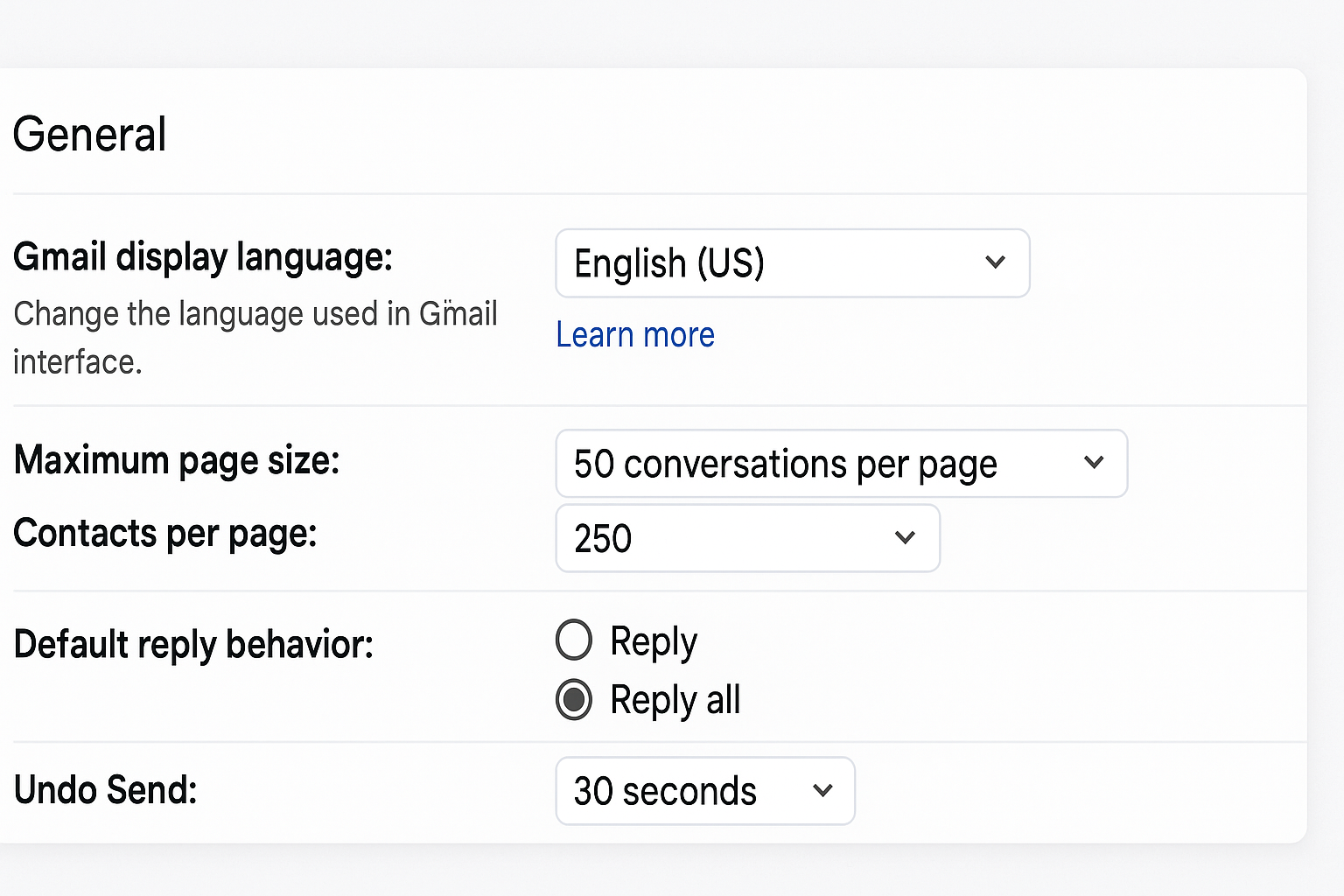
Now, whenever you send an email, a black box appears at the bottom left. It says “Message sent” with an “Undo” link. You have half a minute to stop the process. The email drafts pop back open, allowing you to fix the error. This simple change is the most valuable of all Gmail hacks.
What is the fastest way to delete spam emails?
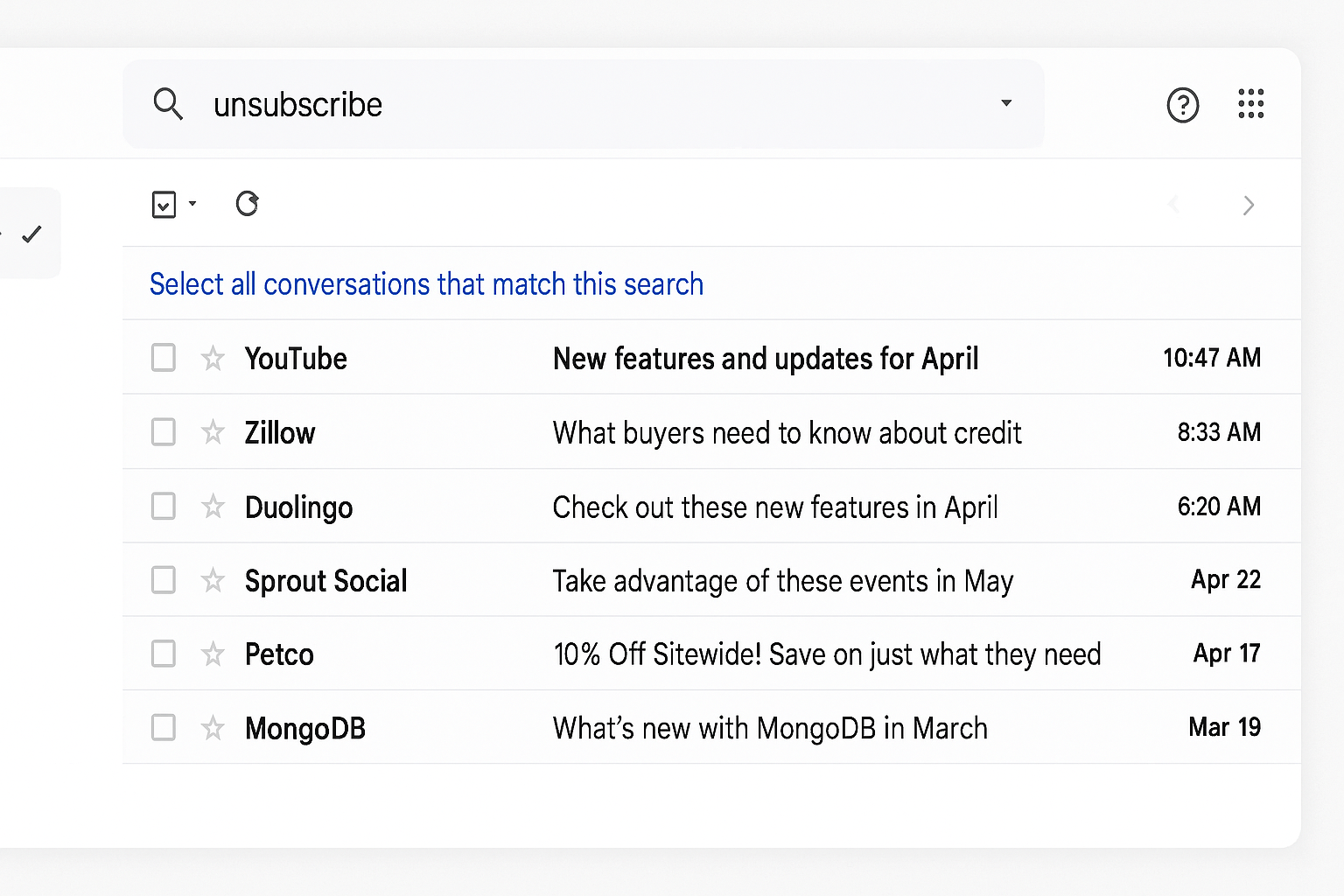
Search for “unsubscribe” to isolate and bulk delete marketing emails instantly. Type “unsubscribe” into the Gmail search bar. Select the checkmark box at the top left to select all visible messages. Then, click “Select all conversations that match this search” to delete thousands of emails at once.
Marketing emails clog your storage. They bury important client communications. Manually deleting them one by one is a waste of life.
Execute this cleanup strategy:
- Type unsubscribe in the top search bar.
- This filters your view to show only newsletters and marketing blasts.
- Click the select all box (top left square icon).
- Crucial Step: A blue text link will appear saying, “Select all conversations that match this search.” Click it.
- Press the Trash can icon (Delete).
Warning: check the list briefly before deleting. Sometimes legitimate transactional emails (like receipts) contain an unsubscribe link.
If you need a more automated approach, consider setting up a filter. You can tell Gmail to automatically apply a label to these emails or skip the inbox entirely. This keeps your primary view clean for real work. For more on automated sorting, read about AI email automation.
How can you send confidential emails that self-destruct?
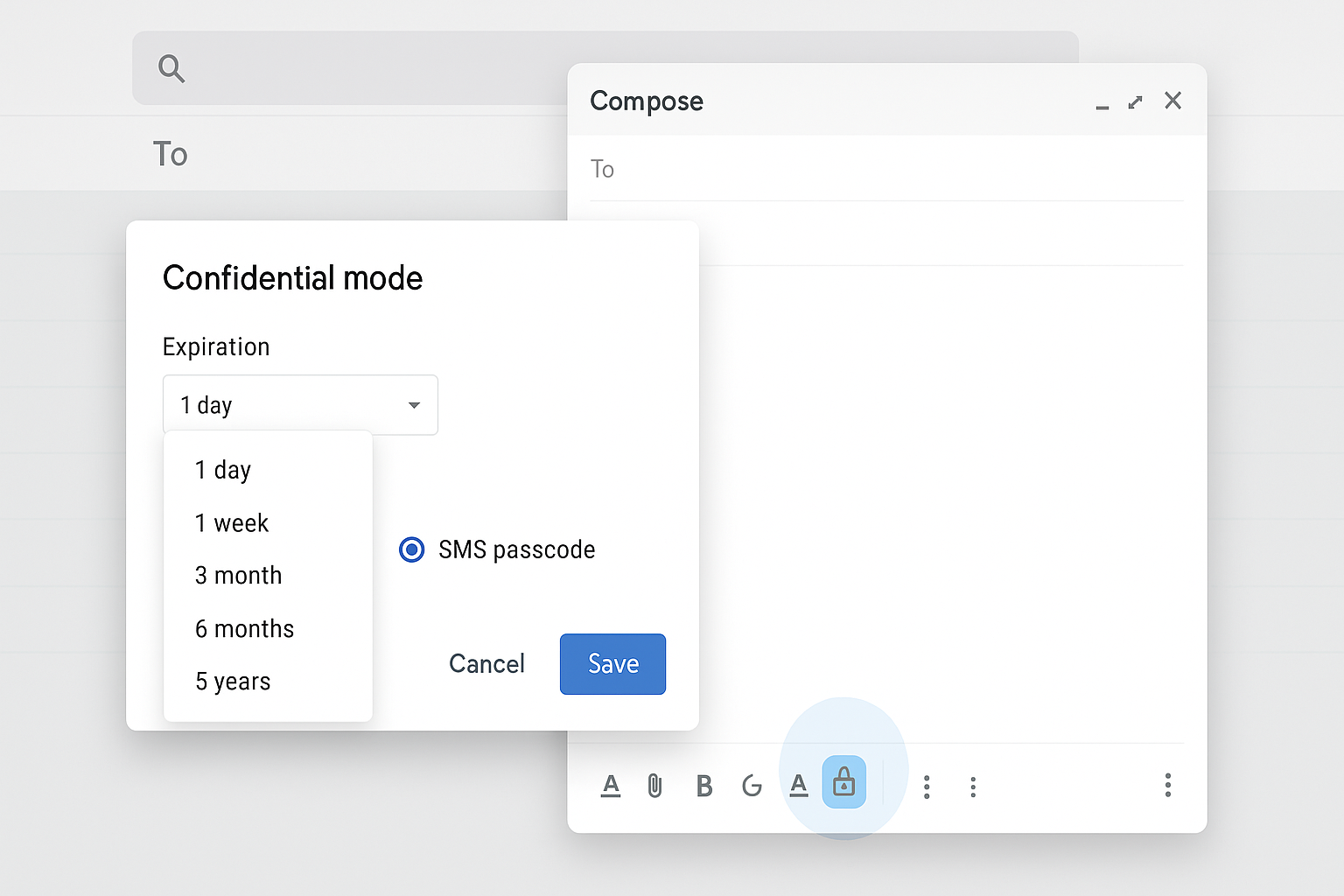
Confidential Mode prevents recipients from forwarding, copying, printing, or downloading your email. It also allows you to set an expiration date. Compose a new message and click the lock-and-clock icon at the bottom. This ensures sensitive data disappears after a set time.
Security is non-negotiable when sharing financial data or passwords. Standard email is permanent. If the recipient gets hacked in two years, your data is compromised. Confidential Mode solves this.
How to secure your data:
- Open a Compose window.
- Look for the icon resembling a lock with a clock (bottom toolbar).
- Click it to open “Confidential mode.”
- Set Expiration: Choose 1 day, 1 week, or up to 5 years.
- Require Passcode: Choose “SMS passcode.” Google will text a code to the recipient’s phone. They cannot open the email without it.
On the recipient’s end, they see a link to the content. They cannot forward it to anyone else. Once the timer runs out, the body text vanishes. It leaves only a “Message Expired” notification. This is vital for maintaining security in a business environment.
Is it possible to use Gmail without an internet connection?
Yes, Gmail Offline lets you read, search, and reply to messages without Wi-Fi. Go to Settings > Offline and check “Enable offline mail.” Your computer stores a local cache of your inbox. Emails written offline automatically send once you reconnect.
This feature is a lifesaver for travelers. I draft responses on flights or trains where Wi-Fi is spotty. It turns dead time into productive time.
Setup Instructions:
- You must use the Google Chrome browser.
- Click the Settings gear > See all settings.
- Click the Offline tab (far right).
- Check the box for “Enable offline mail.”
- Storage Settings: Choose to store emails from the last 7, 30, or 90 days.
- Security Option: Choose whether to keep or remove offline data when signing out. I recommend removing data if you use a shared computer.
- Click Save Changes.
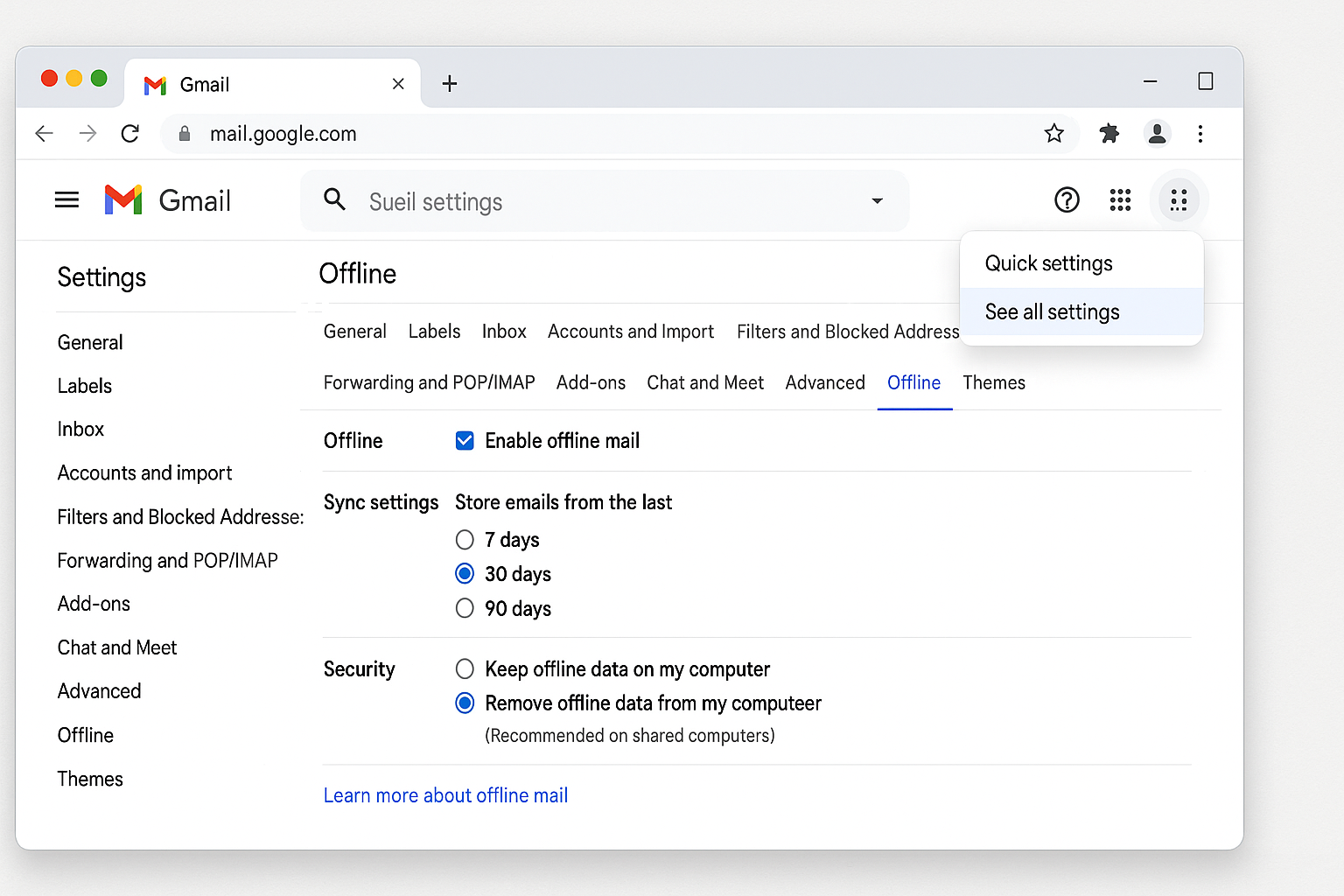
Note on Storage: Ensure you have hard drive space. Storing 90 days of email with attachments can take up several gigabytes. This seamless workflow is a cornerstone of solid productivity.
How do you schedule emails for later delivery?
Schedule Send allows you to write emails now and deliver them at a specific future time. Click the small white arrow next to the blue “Send” button. Select “Schedule send” and pick your date and time. This is perfect for respecting time zones.
Sending an email at 2:00 AM looks unprofessional. It suggests you have no work-life balance. Or, perhaps you want your email to arrive at the top of the client’s inbox at 8:00 AM Monday morning.
The Workflow:
- Write your email as usual.
- Do not click the big blue Send button.
- Click the arrow next to it.
- Choose Schedule send.
- Pick a preset time (Tomorrow morning) or “Pick date & time” for specifics.
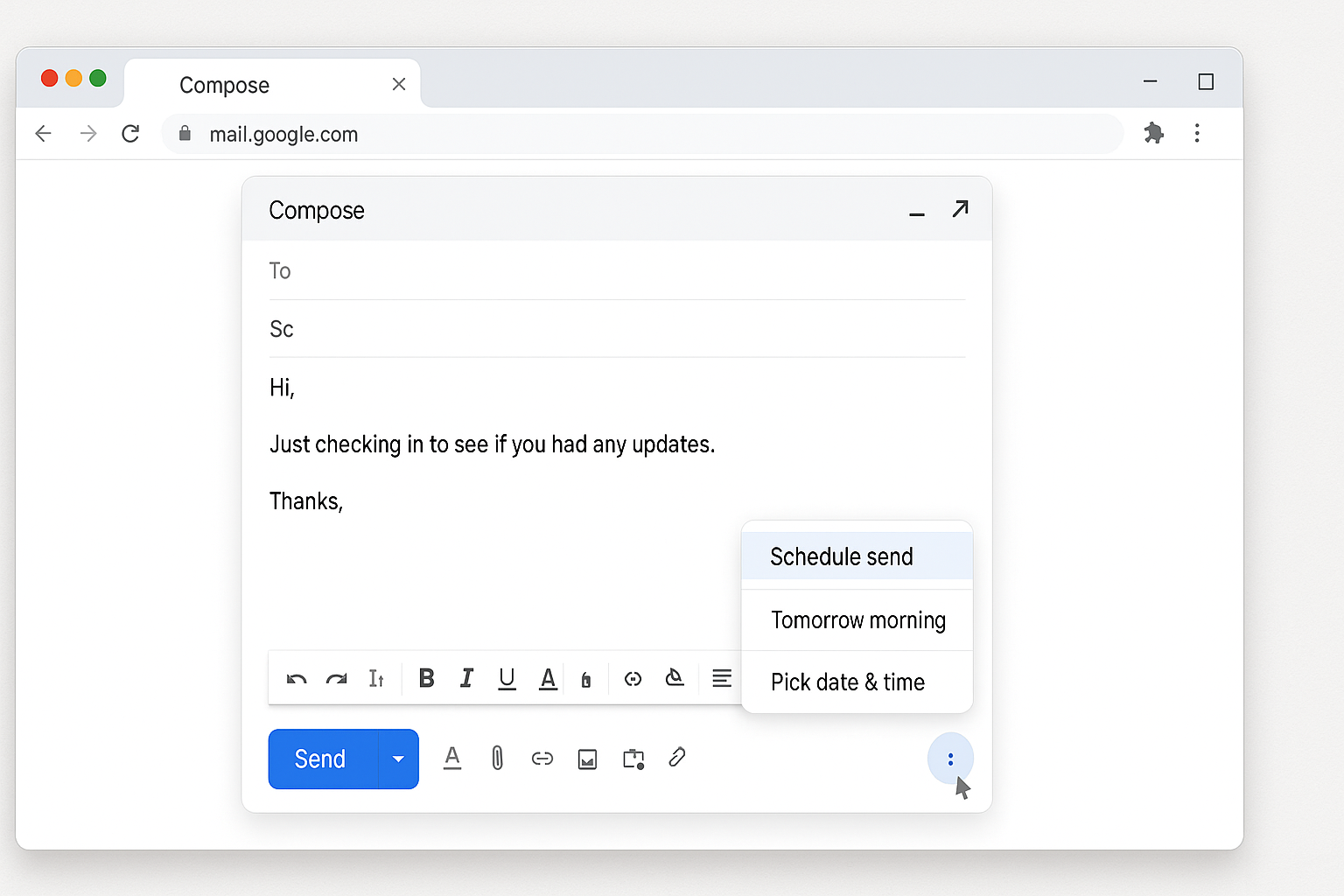
Your email moves to the “Scheduled” folder. You can edit or cancel it anytime before it goes out. This tool helps you manage client expectations and maintain boundaries.
What is the best way to organize your inbox with labels?
Labels categorize emails into folders like “Work,” “Travel,” or “Finance” for instant retrieval. Unlike folders, you can apply multiple labels to a single email. Select an email, click the Label icon, and create a new name. Use colors to make them visual.
A messy inbox kills focus. You waste brain power scanning for urgent items. Labels provide visual cues that help you scan faster.
Steps to Organize:
- Select an email.
- Click the Label icon (looks like a tag) in the toolbar.
- Type a new name (e.g., “Urgent Project”).
- Click Create.
- Color Code: Go to the left sidebar. Hover over your new label. Click the three dots. Choose a Label color.
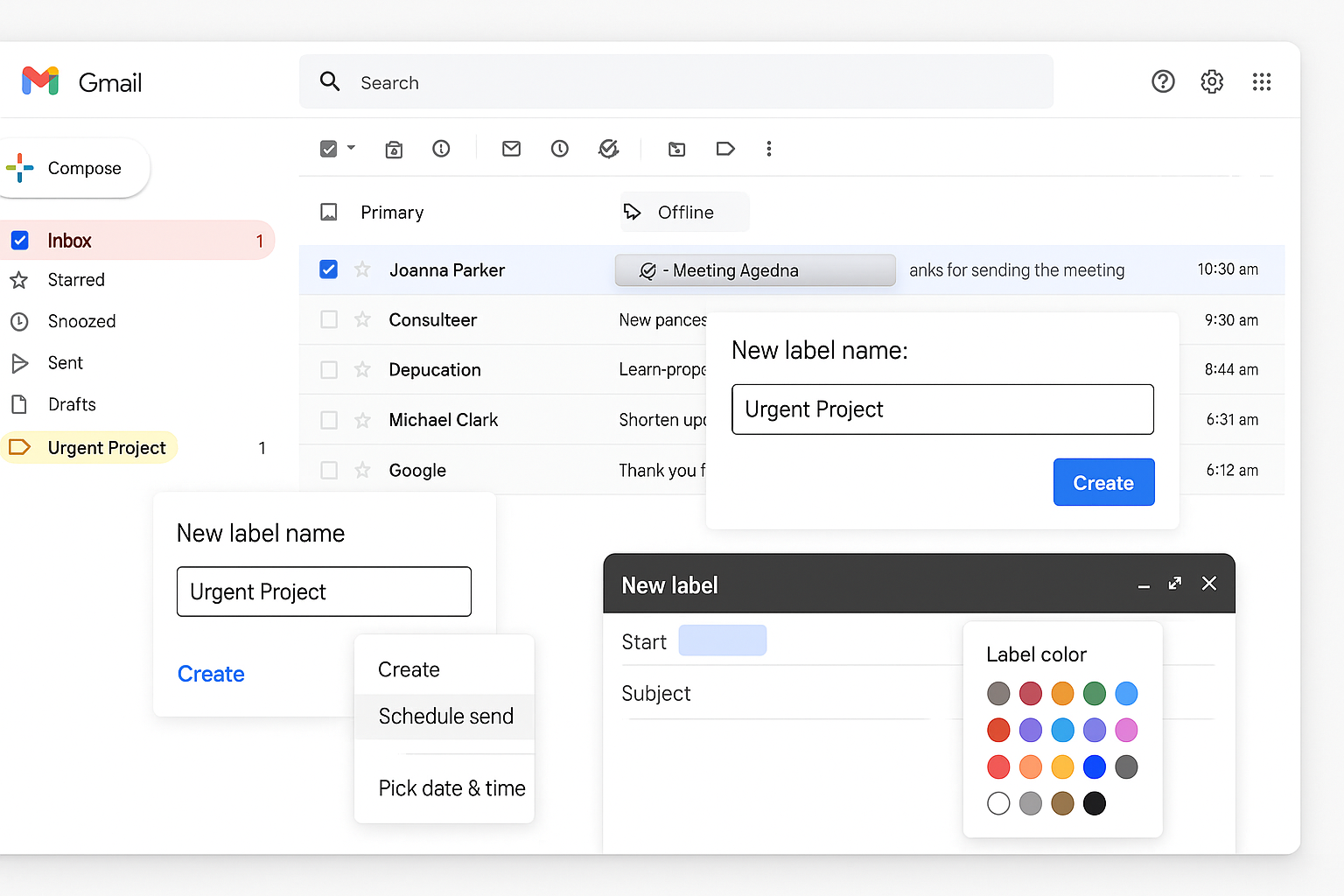
Pro Strategy: Combine labels with filters. Tell Gmail: “If email is from @boss.com, apply label ‘Priority’ and color it Red.” This automates your organization. If you manage high volumes of mail, look into best AI productivity strategies to automate this further.
How do templates save you hours of typing?
Templates let you insert pre-written responses into new emails with two clicks. Write your common text, click the three dots menu, and save it as a template. This eliminates re-typing the same answers for FAQs, invoices, or introductions.
Consistency is key. You should not type the same “Thanks for your inquiry” paragraph five times a day. It invites typos and wastes time.
How to Enable and Use:
- Enable First: Go to Settings > Advanced > Enable Templates. Save changes.
- Create: Compose a new email. Type the text you want to save.
- Save: Click the three dots (bottom right of compose window).
- Hover over Templates > Save draft as template > Save as new template.
- Use: Next time, click the three dots > Templates > Click the name.
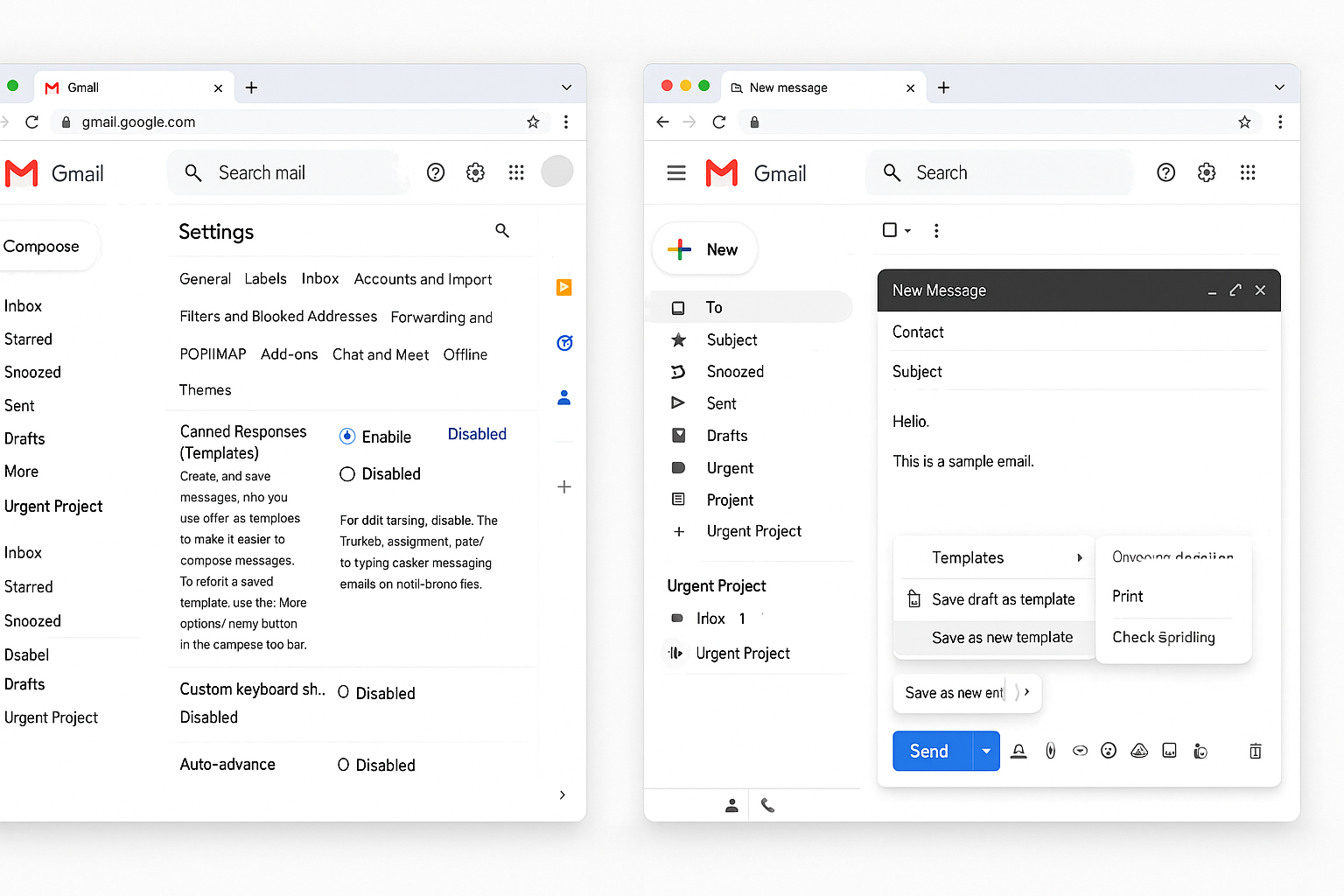
The text populates instantly. You can still edit it to add specific details. This is essential for sales teams or support roles. It functions like a lightweight CRM. For more complex needs, businesses often upgrade to AI tools for business.
Why should you use keyboard shortcuts?
Keyboard shortcuts significantly speed up email processing by reducing mouse usage. Press C to compose, R to reply, or # to delete. You must enable “Keyboard shortcuts” in the General Settings tab before they will work.
Mouse clicks are slow. Shortcuts are instant. Once you build muscle memory, you can clear an inbox in half the time.
Top Shortcuts to Learn:
- C: Compose new message.
- /: Focus search bar.
- E: Archive conversation.
- #: Delete conversation.
- Shift + I: Mark as read.
Mastering these keeps your hands on the keyboard and your focus on the content.
Take back control of your inbox
Tools are only useful if you actually use them. You do not need to implement every single hack on this list today. That leads to burnout. Instead, start small.
Turn on “Undo Send” right now. It takes ten seconds and saves you from panic later. Once that is done, try scheduling your next email to arrive during business hours. These small shifts compound over time. You stop reacting to every notification and start working on your own terms.
Your inbox should be a tool that serves you, not a to-do list created by everyone else. Set these rules today and get back to the work that actually matters.


