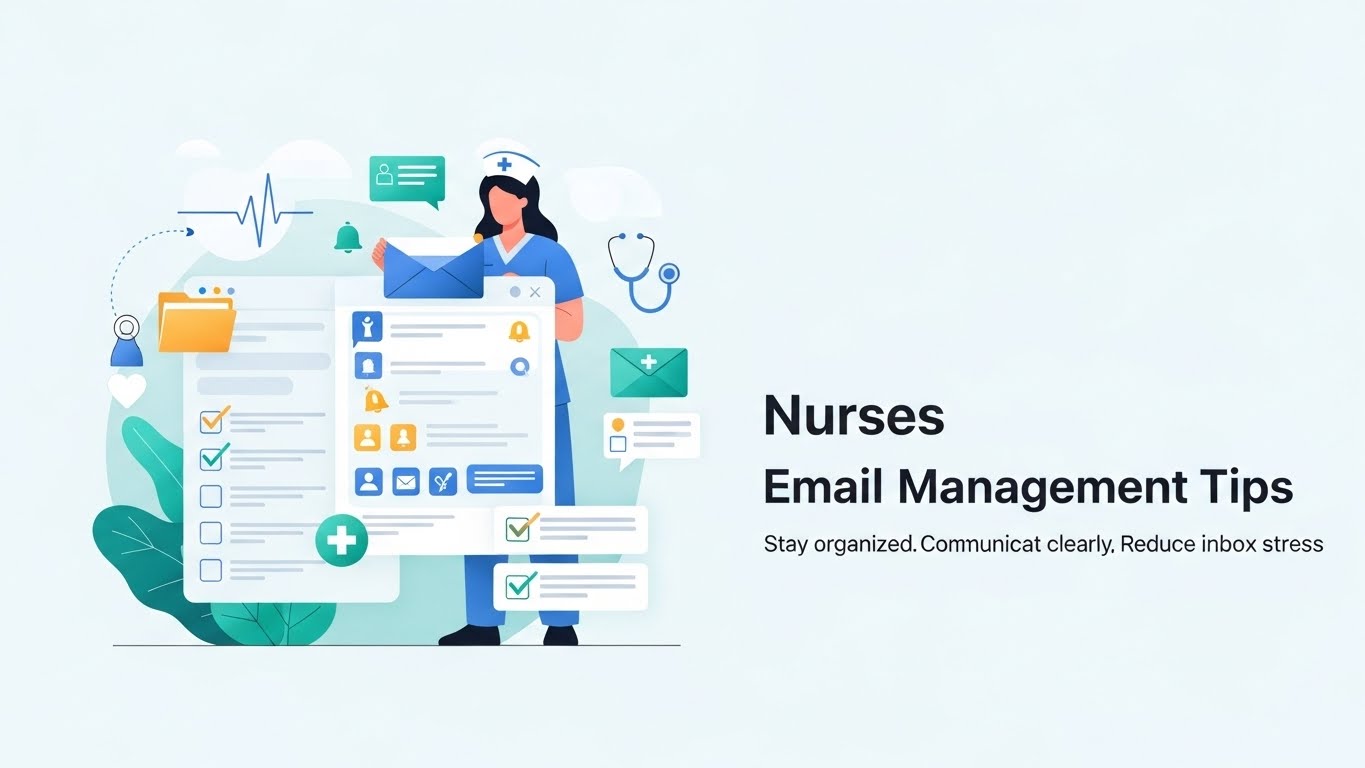
Nurses email management is not just about keeping a tidy inbox; it is a critical component of patient safety and professional efficiency. In a high-pressure clinical environment, an inbox cluttered with shift updates, lab alerts, physician orders, and mandatory training notifications can lead to missed instructions or delayed care. By implementing structured organization strategies, nurses can reduce stress, ensure compliance, and focus more on patient care than administrative chaos.
Healthcare environments produce a relentless stream of data. A single 12-hour shift can generate dozens of emails ranging from “Urgent: Bed Availability” to “FYI: Cafeteria Menu.” Without a system, the critical messages get lost in the noise.
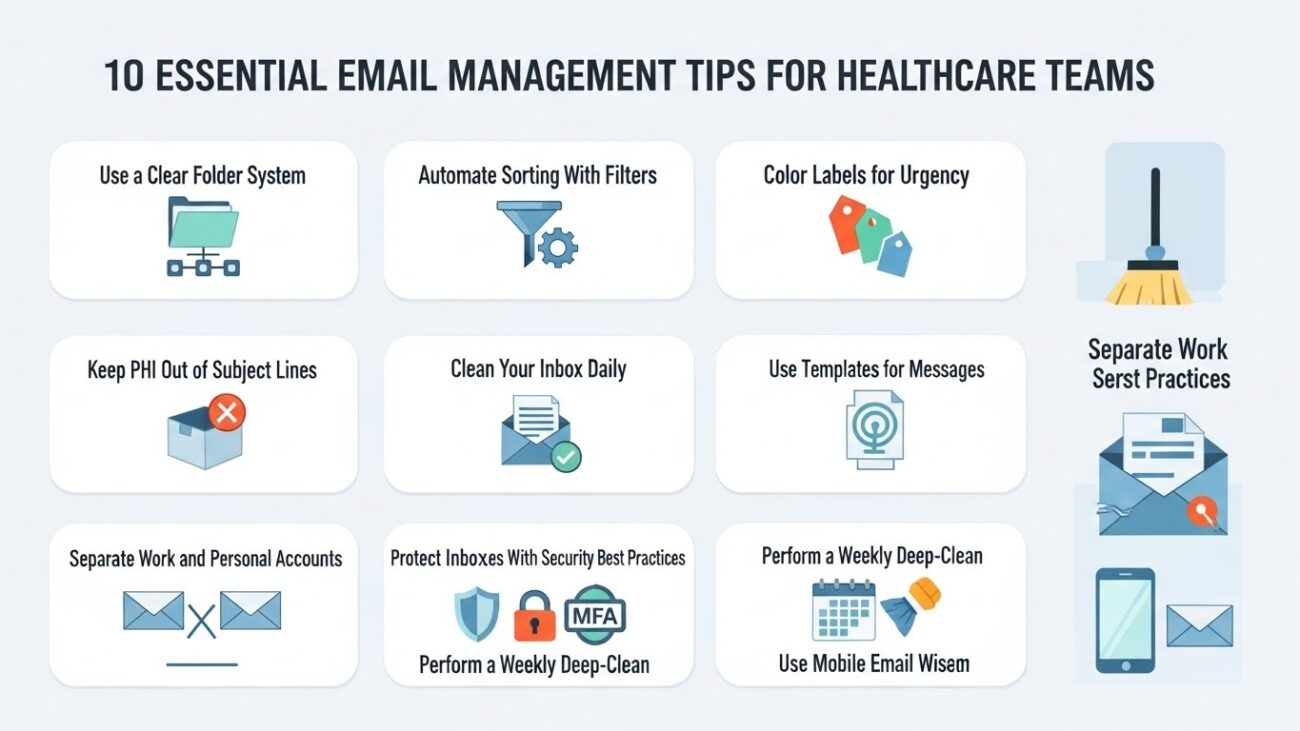
Quick Guide: The 10 Essential Tips
- Use a Clear Folder System
- Automate Sorting With Filters
- Use Color Labels for Urgency
- Keep PHI Out of Subject Lines
- Clean Your Inbox Daily
- Use Templates for Common Messages
- Separate Work and Personal Accounts
- Protect Inboxes With Security Best Practices
- Perform a Weekly Deep-Clean
- Use Mobile Email Wisely
1. Nurses Email Management Starts With a Folder System
A tailored folder system separates critical clinical data from administrative noise, preventing nurses from missing urgent patient updates. By categorizing emails into specific buckets like “Patient Updates,” “Medication Orders,” and “HR Training,” nurses can prioritize their attention instantly, ensuring that life-saving information isn’t buried under general hospital newsletters.
Why Nurses Need Structured Folders
The nursing workflow is nonlinear. You might be checking email while waiting for labs, during a shift handoff, or quickly at a nursing station between rounds. A chaotic inbox increases cognitive load. When you open your email, you shouldn’t have to scan through 50 lines of text to find the one message about a medication change.
A folder system acts as a triage center. Just as you triage patients in the ER based on acuity, you must triage your emails based on relevance and urgency. This distinction helps you mentally switch gears between “Clinical Mode” (patient care) and “Admin Mode” (compliance, scheduling, HR).
For more broad strategies on organizing digital workspaces, you can explore general email management best practices.
Recommended Folder Structure for Nurses
To set this up effectively, create a hierarchy that mirrors your daily duties:
- Patient Updates: Direct messages regarding patient status changes.
- Lab & Diagnostics: Alerts for new results (Pathology, Radiology, Bloodwork).
- Medication Orders: Pharmacy communications and physician verifications.
- Shift Schedules: Upcoming rosters, swap requests, and overtime opportunities.
- Team & Charge Nurse: Internal unit communication and huddle notes.
- HR & Training: Mandatory competencies, license renewals, and benefits.
- Urgent / STAT: A temporary holding folder for items requiring action within the hour.
- Archived Cases: Closed loops on discharged patients (adhering to retention policies).
Unit-Specific Examples
Different specialties require unique folders.
- ICU Nurses: Add “Critical Alerts” and “Ventilator Protocols.”
- ER Nurses: Add “Triage Updates” and “Ambulance Diversion Status.”
- Case Managers: Add folders for “Insurance Auth” and “Discharge Planning.”
2. Automate Nurses Email Management Using Filters and Rules
Filters and rules automatically route incoming emails to specific folders based on keywords or senders, reducing manual sorting time. This automation ensures that system-generated messages, like lab results or pharmacy alerts, land directly in their designated folders, keeping the main inbox clear for direct human-to-human communication.
Why Automation Matters in Healthcare
Nurses receive a high volume of automated notifications. If your hospital uses an EMR that sends email alerts for every new order, your inbox can flood within an hour. Automation acts as a digital gatekeeper. It prevents “alert fatigue,” a dangerous phenomenon where nurses become desensitized to notifications because there are simply too many of them.
If you are using Microsoft tools at your hospital, specific Outlook email management rules can be a game-changer for setting this up.
Useful Filters to Implement Immediately
Set these rules in your email client (Outlook, Gmail, or hospital-specific webmail):
- The “Orders” Rule:
- Condition: If the sender is “Physician Order Entry” or specific doctor email addresses.
- Action: Move to “Medication Orders” folder.
- The “HR” Sweep:
- Condition: If the subject contains “Benefits,” “Payroll,” or “Policy.”
- Action: Move to “Admin/HR” folder.
- The “STAT” Flag:
- Condition: If the subject or body contains “STAT,” “Critical,” “Immediate,” or “Code.”
- Action: Mark as High Priority (Red Flag) and keep in Primary Inbox.
3. Enhance Nurses Email Management With Color Labels
Color labels provide instant visual cues that help nurses identify urgent tasks during rapid shift changes or brief downtime. By assigning colors like Red for immediate action and Green for completed tasks, nurses can scan their inbox in seconds and know exactly what requires their attention before their next patient round.
Visual Cues for Tired Eyes
Toward the end of a shift, reading comprehension can dip due to fatigue. Color coding bypasses the need to read every subject line in detail. If you see a block of red in your inbox, you know you cannot clock out yet. If you see only blue and green, you know the remaining emails are informational and can wait.
Suggested Color System
Most email clients allow for “Categorization” or “Labeling.”
- Red (Immediate / STAT): Labs showing critical values, urgent staffing requests, or immediate physician questions.
- Yellow (Today / Shift): Tasks that must be done before you clock out (e.g., finishing a documentation note, replying to a manager).
- Blue (Info Only): Newsletters, cafeteria menus, general announcements.
- Green (Completed / FYI): Emails you have handled but need to keep for reference.
4. HIPAA-Compliant Nurses Email Management: Subject Line Safety
Keeping Protected Health Information (PHI) out of subject lines is a mandatory HIPAA requirement to prevent accidental data exposure. Subject lines are often visible in pop-up notifications on lock screens; using generic terms protects patient privacy while ensuring the recipient knows the nature of the message.
HIPAA Reminders for Email
Email is a vulnerability. A phone left on a nursing station counter might light up with a notification. If the subject line reads “John Doe’s HIV Result,” that is a breach. If it reads “New Lab Result,” it is secure.
Strictly Avoid in Subject Lines:
- Full Patient Names (e.g., “Smith, John”)
- Specific Diagnoses (e.g., “Chemo Schedule,” “Sepsis Protocol”)
- Medical Record Numbers (MRN)
- Detailed Appointment Reasons
Safe Subject Line Alternatives
You need to convey urgency without revealing details.
- Instead of: “Jane Doe Blood Sugar Critical”
- Use: “Urgent: Lab Result – Room 302”
- Instead of: “Mr. Smith’s Discharge Papers”
- Use: “Discharge Documentation Required”
- Instead of: “Follow up on leg amputation”
- Use: “Surgical Follow-Up Query”
5. Daily Routines for Effective Nurses Email Management
A daily 5-minute inbox cleaning routine prevents backlog accumulation and ensures no critical patient updates are missed overnight. This short, consistent habit helps nurses reset their mental state after a shift, ensuring they leave work feeling organized rather than overwhelmed by pending digital tasks.
Preventing the “Backlog Avalanche”
If you skip checking email for three shifts in a row, you might return to 100+ unread messages. This causes anxiety and increases the risk of deleting something important while trying to “catch up” quickly.
The 5-Minute End-of-Shift Routine
Before you hand off your patients and clock out:
- Scan for Red Flags: Ensure no “STAT” emails are unread.
- Delete the Junk: Swipe away automated newsletters or cafeteria updates.
- Archive: Move handled clinical emails to their folders (Patient Updates, Orders).
- Forward/Delegate: If a task isn’t done, flag it for your next shift or email the incoming nurse if appropriate (via secure channels).
For more techniques on maintaining this routine, check our guide on email management tips.
6. Streamline Nurses Email Management With Templates
Email templates save time by providing pre-written, professional text for repetitive communications like handoff notes, clarification requests, and discharge instructions. Instead of typing the same paragraph ten times a shift, nurses can insert a template, fill in the specific blanks, and send the message in seconds.
Efficiency in Communication
Nurses often send the same types of messages repeatedly. “I need clarification on this dose,” or “The patient is ready for transport.” typing these out manually is a waste of time and invites typos.
Helpful Templates to Create
Store these in your “Signatures” or “Templates” feature.
Template 1: Medication Clarification Request
Subject: Clarification Needed – Order for [Room Number/Initials]
Dr. [Name], Regarding the order for [Medication Name] for the patient in Room [Number]. Please clarify the [Dose/Frequency/Route]. Current order reads: [Insert Order]. Please advise. Thank you, [Your Name], RN
Template 2: Shift Handoff Notice (Secure Internal Only)
Subject: Shift Handoff Update – [Unit Name]
Team, Handoff complete for Room [Number]. Pending items:
- [Pending Lab]
- [Pending Consult] Contact me if questions arise before [Time].
7. Separate Accounts for Professional Nurses Email Management
Separating personal and work emails is essential to avoid compliance risks, minimize distractions, and maintain a professional boundary. Using a work email for personal business can lead to IT security flags, while sending work documents to a personal email is often a fireable HIPAA violation.
Avoiding the “Compliance Trap”
It is tempting to forward a schedule or a continuing education certificate to your Gmail so you can print it at home. Don’t. Once hospital data leaves the secure server and enters a personal Google or Yahoo server, you have lost control of that data’s security.
Advice for Nurse Job Seekers
If you are applying for new positions, do not use your current hospital work email. If you leave that job, you lose access to all your application threads. Create a dedicated professional email address (e.g., [email protected]) strictly for career management, licensing, and certifications.
8. Security Best Practices in Nurses Email Management
Nurses must protect their inboxes by using strong passwords, enabling multi-factor authentication, and logging out of shared workstations. Hospitals are prime targets for cyberattacks, and a nurse’s compromised email account can be a gateway for hackers to access the entire hospital’s patient database.
The “Shared Station” Risk
Nursing stations are high-traffic zones. You might log in to check email, get distracted by a patient alarm, and run off. If you stay logged in, anyone—staff, visitors, or patients—could access your account.
Must-Do Security Steps
- Always Log Out: Never minimize the window; actually click “Log Out.”
- Beware of Phishing: Hackers send emails looking like “HR Payroll Updates” or “IT Password Reset.” Check the sender address carefully.
- Multi-Factor Authentication (MFA): Ensure your IT department has set up MFA so that even if someone gets your password, they need your badge or phone to log in.
- No Public Wi-Fi: Never check work email on the coffee shop Wi-Fi across the street unless you are using a VPN.
9. Weekly Maintenance for Better Nurses Email Management
A weekly deep-clean involves reviewing folders for misplaced PHI, deleting unnecessary files, and archiving old threads to keep the system efficient. This maintenance step ensures that the email storage limit isn’t reached and that the folder structure remains relevant to the current patient load.
The “Sunday Reset”
Pick a day (it doesn’t have to be Sunday) to spend 15 minutes auditing your inbox.
- Review Folders: Did a “Lab Result” accidentally end up in “HR”? Move it.
- Empty Trash: Permanently delete items to free up server space.
- Update Rules: If you are no longer working with “Dr. Jones,” remove the rule that highlights his emails.
- Archive: Move emails related to discharged patients into the “Archived Cases” folder.
10. Mobile Safety in Nurses Email Management
Nurses should only use hospital-approved mobile apps, never screenshot PHI, and ensure their device is encrypted and password-protected. While mobile access allows for flexibility during float shifts or breaks, it introduces significant security risks if the device is lost or stolen.
The BYOD (Bring Your Own Device) Dilemma
Many hospitals allow nurses to check email on personal phones. However, this usually grants the hospital the right to remote-wipe your phone if it is lost.
Rules for Safe Mobile Use
- No Screenshots: Never screenshot an email containing patient info to text to a doctor. This leaves a permanent image on your personal camera roll.
- Turn Off Previews: Configure your phone settings so that email notifications show “New Message” rather than the actual text of the message on the lock screen.
- Secure Apps: Use the official app provided by IT (e.g., Microsoft Outlook with Intune Company Portal) rather than the native iPhone Mail app, as secure apps offer better encryption.
Career Insights: Email Management for Job Seekers (NY & PA)
This section is tailored for nurses in New York and Pennsylvania seeking employment or advancement.
How Organization Boosts Your Career
A clean email system gives you a competitive edge. When a recruiter from a top magnet hospital emails you, a delayed response because the email went to “Spam” or got buried under newsletters can cost you the interview. Organized nurses respond faster and appear more professional.
Job Market Insights: New York (NY)
New York hospitals, especially in NYC, move incredibly fast. The competition is fierce.
- Folder Strategy: Create folders for “NYC Hospitals,” “Upstate NY Jobs,” and “Recruiters.”
- Document Readiness: Keep a folder named “Credentials” containing your NYSED license verification, infection control certification, and BLS/ACLS cards. When a recruiter asks for these, you can reply in 2 minutes, not 2 days.
- Agency vs. Staff: If you are dealing with travel agencies, filter their emails separately from direct hospital HR emails so you don’t mix up offers.
Job Market Insights: Pennsylvania (PA)
Pennsylvania has high demand in specialized sectors like Long-Term Care (LTC), Cardiac, and Behavioral Health.
- Regional Folders: Organize by “Pittsburgh Hospitals,” “Philly Hospitals,” and “LTC Facilities.”
- Onboarding Speed: PA employers often require rapid turnaround for background checks (Act 33/34 clearances) and TB tests. Keep a folder “Onboarding/Clearances” to track these specific email threads.
- Licensing: Keep your PA State Board of Nursing renewal emails flagged. Missing a renewal notification because of a messy inbox can lead to a lapsed license and immediate suspension from work.
While you refine your inbox system, nurses comparing roles across New Jersey and Pennsylvania can review career opportunities for practical nurses to see typical workplaces (hospitals, outpatient centers, LTC) and tailor folders for recruiters, HR, and onboarding communications.
Conclusion
An organized inbox makes nurses more efficient, reduces clinical mistakes, and significantly lowers workplace stress. It transforms email from a source of anxiety into a reliable tool for communication. Furthermore, for job-seeking nurses in competitive markets like NY and PA, a structured email system provides a distinct professional edge, ensuring no opportunity is missed.
By adopting these ten tips—from using folders and automation to adhering to strict security protocols—nurses can reclaim their time and focus on what truly matters: providing exceptional patient care.
If you are looking for tools to help automate this process further, consider exploring specialized email management software.


