HIPAA-compliant email management serves as the backbone of patient trust and legal safety in modern healthcare. While email remains a core tool for appointment requests, lab updates, and physician instructions, it carries risks that other industries simply don’t face. A single mistake, like forwarding a message to the wrong recipient, can trigger a breach, resulting in massive fines and reputational ruin.
This guide covers the specific protocols, technical safeguards, and organizational habits required to handle high-volume, high-risk inboxes securely.
Why does email management matter so much in healthcare?
Managing healthcare email requires balancing operational speed with strict data protection. Healthcare inboxes receive high-volume messages containing Protected Health Information (PHI). Without organized systems, medical professionals risk missing critical patient updates, causing legal penalties, financial fines, and compromised patient care.
Healthcare providers operate under high pressure. When an inbox is cluttered, the risk of human error increases. You might miss a lab result buried under administrative newsletters or accidentally reply to a patient with information meant for a specialist.
Organized inboxes reduce this stress. By implementing email management best practices, you ensure that every piece of data is accounted for and protected.
Common risks of poor email habits
If your team lacks a clear strategy, you open the door to:
- Unencrypted PHI: Sending sensitive data in plain text that hackers can intercept.
- Lost Messages: Buried emails lead to missed appointments or delayed diagnoses.
- Unauthorized Storage: PHI sitting in “Deleted Items” or unauthorized folders.
- Misdirected Information: Forwarding sensitive emails to the wrong person due to auto-complete errors.
- Device Exposure: Downloading patient reports to personal laptops or phones.
What actually counts as PHI in an email?
PHI includes any information in an email that can be linked to a specific patient’s health or identity. This is not limited to diagnoses; it covers names, dates, contact details, and even payment information. If you can identify the person from the data, it is PHI.
Many healthcare workers mistakenly believe that if they don’t explicitly state a disease, the email is safe. This is false. Even an email saying “Your appointment is confirmed” sent to a specific patient address constitutes PHI because it links an individual to a medical visit.
The Detailed PHI List
You must treat an email as sensitive if it contains:
- Identity: Full names, initials, email addresses, phone numbers, home addresses.
- Dates: Birthdates, admission dates, discharge dates, or date of death.
- Medical Data: Medical Record Numbers (MRN), prescription details, lab results, diagnostic reports.
- Visuals: X-rays, MRIs, CT scans, or photos of injuries.
- Financials: Insurance ID numbers, claim numbers, billing information.
How do HIPAA’s Privacy and Security Rules apply to email?
The Privacy Rule controls who accesses data, while the Security Rule dictates how that data is technically protected. The Privacy Rule requires authorization before sharing PHI, whereas the Security Rule mandates encryption, access controls, and audit trails for electronic PHI (ePHI).
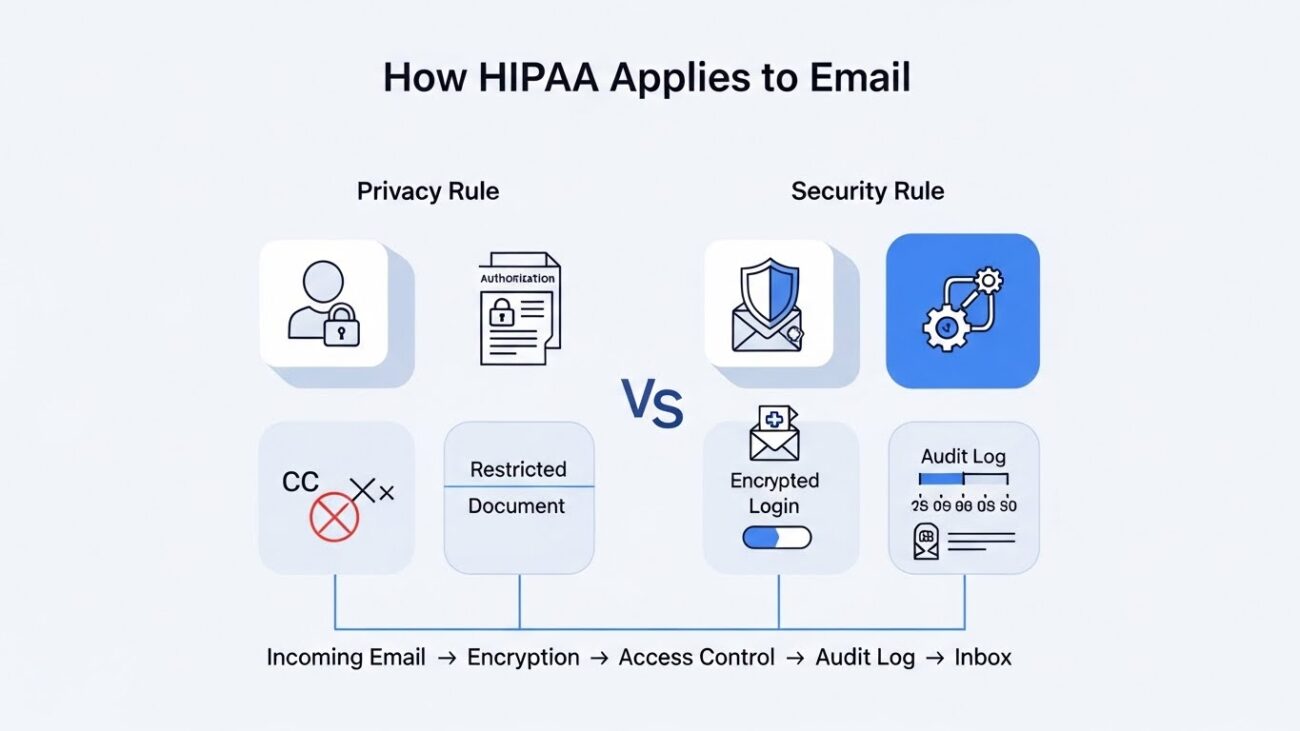
The Privacy Rule
This rule focuses on the “Who.” It limits disclosure to the minimum necessary standard.
- Authorization: You cannot CC a patient’s family member on a result email unless the patient has signed a release.
- Minimum Necessary: If a billing specialist needs to see an email to process a claim, they should not see the full clinical notes if they aren’t relevant to the bill. Email workflows don’t stop at clinicians; revenue-cycle teams rely on precise, minimum-necessary details to submit claims without exposing excess PHI. For a deeper look at the role of medical billing and coding specialists in patient care and how accurate documentation supports compliant communications, reviewing this perspective can help teams calibrate what to include in messages. Aligning privacy controls with coding/billing handoffs shortens reimbursement cycles and lowers breach risk.
The Security Rule
This rule focuses on the “How.” It covers the technical safeguards you must implement.
- Encryption: Scrambling data so it is unreadable without a key.
- Access Controls: Ensuring only authorized personnel can log in.
- Audit Trails: Keeping a record of who opened what email and when.
Which email platforms are actually HIPAA compliant?
A compliant email platform must support encryption, access controls, audit logs, and backups, and the provider must sign a Business Associate Agreement (BAA). If a provider like Google or Microsoft will not sign a BAA with your organization, that platform is not compliant, regardless of its security features.
Many practices make the mistake of using standard, free Gmail accounts. These are not secure enough for healthcare operations. You need enterprise-level email management software configured specifically for healthcare.
5 Non-Negotiable Technical Features
- End-to-End Encryption: Data must be encrypted at rest (on the server) and in transit (while moving between sender and receiver).
- Access Controls: The system must support unique user IDs, automatic logouts, and role-based access.
- Audit Logs: You need the ability to track every login and email access event to investigate potential breaches.
- Automatic Data Backups: To prevent data loss during system failures, ensuring continuity of care.
- Secure Server Storage: Servers must have physical security, firewalls, and intrusion detection systems.
Why is encryption critical for PHI?
Encryption protects data by converting it into unreadable code that only authorized parties can decipher. HIPAA mandates encryption for transmitting PHI to prevent interception by hackers. It acts as a safety net: even if an email is stolen, the thief cannot read it.
Without encryption, email travels across the internet like a postcard—anyone handling the mail can read the back. Encryption puts that message in a locked, steel box.
Best Encryption Practices
- Automatic Rules: Set your system to encrypt outgoing emails automatically if they contain keywords like “Patient,” “DOB,” “MRI,” “SSN,” or “Diagnosis.” This protects you when human memory fails.
- Secure Portals: Instead of emailing a PDF of lab results, upload the document to a secure patient portal and email a notification link. This keeps the heavy data off the email server.
- Attachment Security: If you must email a file, password-protect the PDF or zip file. Send the password via a separate channel, like a text message or phone call.
How should you organize a PHI-safe folder system?
A structured folder system separates clinical data from administrative clutter, ensuring critical patient information is prioritized. Use clear, distinct categories for Patient Communication, Lab Results, Physician Orders, and Referrals to prevent mistakes and ensure timely responses.
A chaotic inbox is a liability. By moving emails into designated folders immediately, you reduce the chance of opening a sensitive email in a public space or overlooking an urgent order.
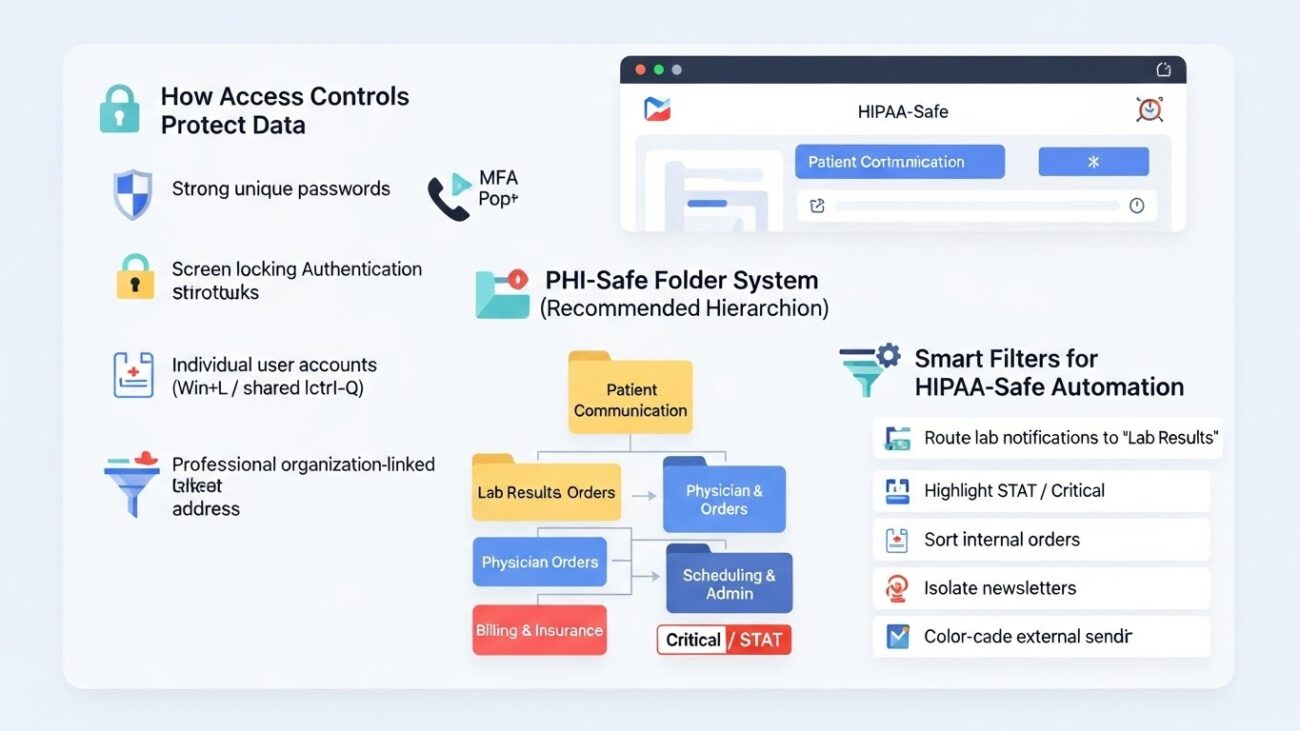
Recommended Folder Hierarchy
- Patient Communication: Store direct questions, post-visit instructions, and care updates here.
- Lab Results & Diagnostics: A dedicated home for blood work, pathology reports, and imaging alerts. This prevents life-altering results from getting lost.
- Physician Orders: Keep medication updates and treatment changes separate to avoid clinical errors.
- Referrals: Track incoming and outgoing specialist requests here.
- Billing & Insurance: Isolate claims and denials to make financial auditing easier.
- Scheduling & Admin: Keep shift schedules and policy updates away from patient data.
- Critical / STAT: Use this for emergency instructions that require immediate action.
For more on structuring your folders, check out these email management tips.
Can you use filters to automate HIPAA compliance?
Yes, automation rules save time and reduce risk by routing emails to the correct folders instantly. You can configure your email client to identify senders or keywords and move them automatically, ensuring that sensitive data lands in a secure location without manual sorting.
Automation minimizes human touchpoints, which reduces the chance of accidental deletion or filing errors.
5 Rules to Implement Now
- Route Lab Notifications: Filter emails from domains like @labcorp.com or @questdiagnostics.com directly into your “Lab Results” folder.
- Flag Urgent Care: Create a rule that highlights any email containing “STAT,” “Critical,” or “Urgent” in bright red.
- Sort Internal Traffic: Move emails from your internal domain (e.g., @hospital.org) that contain “Order” to the “Physician Orders” folder.
- Isolate Newsletters: Send non-clinical updates to a “Read Later” folder to keep your main view clear.
- Highlight External Senders: Use a rule to color-code emails from outside your organization. This helps you spot phishing attempts immediately.
If you are using Microsoft’s ecosystem, specific Outlook email management strategies can help you set these rules up efficiently.
How do you limit PHI in email bodies and subject lines?
Never include specific patient identifiers or medical details in a subject line. Subject lines are often visible in pop-up notifications on phones and locked screens. Keep them neutral, and inside the email body, use the minimum amount of information necessary to do the job.
Subject Line Safety
- Unsafe: “John Smith Diabetes Test Results”
- Unsafe: “Referral for patient with broken leg”
- Safe: “Secure Message: Test Results”
- Safe: “Referral Information Enclosed”
Body Content Safety
When writing the email, assume it could be forwarded.
- Use MRN numbers instead of full names if your policy allows.
- Use initials (e.g., “Patient J.D.”).
- Use neutral phrasing: “Regarding your visit last Tuesday” instead of “Regarding your foot amputation.”
What are the rules for handling email attachments safely?
Attachments must be encrypted, never downloaded to personal devices, and viewed through secure applications. Files like PDFs and images often contain the bulk of a patient’s private data. Once a file is downloaded to an unencrypted desktop, it becomes a major vulnerability.
Attachment Protocols
- Encrypt by Default: Use tools that automatically encrypt outgoing attachments.
- No Personal Devices: Never download a patient list or chart to your personal iPhone or home laptop. This is a common cause of breaches.
- Clean Downloads Folder: If you must download a file to a work computer, delete it from the “Downloads” folder immediately after uploading it to the patient’s chart.
- Use Web Viewers: Utilize preview functions in your secure email client to read documents without saving them locally.
When should you delete or archive healthcare emails?
Follow your organization’s retention policy, which typically ranges from six to seven years for clinical records. Do not keep emails longer than required, but ensure you archive necessary clinical correspondence securely before deleting it from your active inbox.
Archiving vs. Deleting
- Archiving: Moving an email to a secure, long-term storage server. This is for data you might need for legal defense or continuity of care.
- Deleting: Permanently erasing data. Do this for duplicate reports, old appointment reminders, and non-clinical chatter.
- Trash Management: Empty your “Deleted Items” folder regularly. Putting an email in the trash doesn’t remove the risk if the trash is never emptied.
How do access controls and authentication protect data?
Strict access control relies on strong, unique passwords and Multi-Factor Authentication (MFA) to prevent unauthorized entry. MFA adds a critical layer of defense; even if a hacker steals your password, they cannot access the account without the code from your phone or token.
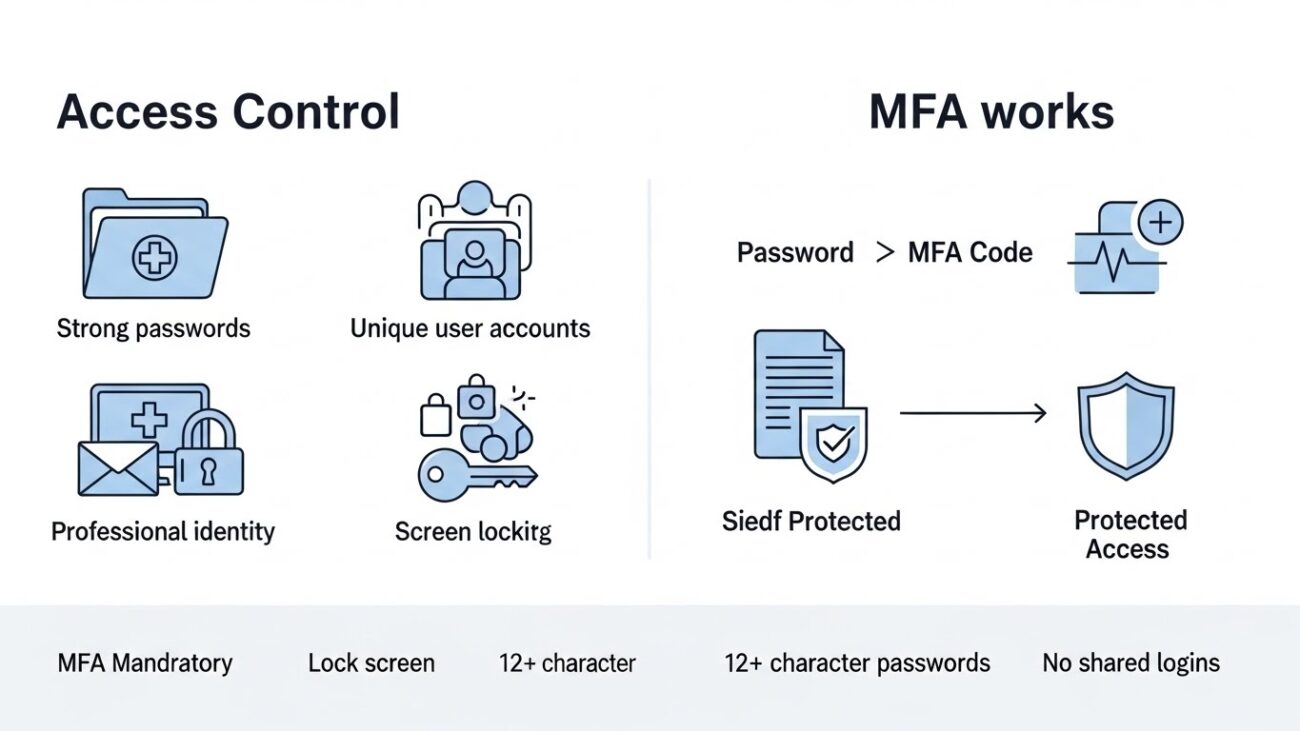
Best Practices for Access
- MFA is Mandatory: Enable it for every account that touches PHI.
- Lock Your Screen: Hit Win + L (Windows) or Cmd + Ctrl + Q (Mac) every time you step away from your desk, even for ten seconds.
- Complex Passwords: Use a mix of characters and lengths (12+ characters).
- No Shared Accounts: Every user needs their own login. Shared accounts make it impossible to audit who made a mistake.
- Professional Identity: Ensure you are using a professional email address linked to your organization, not a generic provider.
What are the most common HIPAA email violations to avoid?
Most violations stem from human error, such as sending emails to the wrong recipient, replying all with PHI, or using unencrypted personal accounts. Awareness is your best defense against these accidental breaches.
The “Don’t” List
- Don’t use the “Reply All” button unless you have verified every single recipient on the list.
- Don’t forward patient data to your personal email to “work on it at home.”
- Don’t leave your email inbox open on a screen visible to the waiting room.
- Don’t send PHI to unverified vendors or unknown email addresses.
- Don’t assume an attachment is safe just because the email body is vague.
How do you maintain a clean inbox daily, weekly, and monthly?
Consistent maintenance routines prevent data buildup and ensure you spot security issues early. By following a set schedule, you turn compliance into a habit rather than a chore.
Daily Checklist
- [ ] Clear Criticals: Process and file all emails in the “Critical/STAT” folder.
- [ ] File PHI: Move patient emails out of the inbox and into their respective secure folders.
- [ ] Empty Downloads: check your computer’s download folder and delete any patient files.
- [ ] Log Out: Ensure you have logged out or locked your station before leaving.
Weekly Checklist
- [ ] Review Folders: Check your “Sent” folder to ensure no PHI was sent unencrypted.
- [ ] Empty Trash: Permanently delete items in the trash and spam folders.
- [ ] Audit Rules: Ensure your automation rules are sorting emails correctly.
Monthly Checklist
- [ ] Archive: Move older clinical messages to the long-term archive.
- [ ] Update Security: Change passwords if prompted and review active sessions.
- [ ] Clean Up: Unsubscribe from newsletters that clutter your view.
For a broader look at tools that can help with these routines, visit [suspicious link removed].
Conclusion
HIPAA-compliant email management is essential for patient safety, legal protection, and professional healthcare operations. It requires more than just good intentions; it demands the right tools, strict habits, and a vigilant mindset.
By following strong organization strategies, automating your workflows, and applying strict security practices, healthcare workers can ensure that every email is handled correctly. This detailed workflow helps avoid violations, improves clinical efficiency, and ultimately protects the most important asset in healthcare: the patient.


