Change signature in Outlook and keep your emails looking fresh, professional, and up to date. Whether you’ve switched jobs, updated your contact info, or just want a cleaner design, Outlook makes it easy to edit your signature in a few simple steps.
The good news? You can create different signatures for different accounts, set unique ones for replies and forwards, or even add logos and links for branding. Outlook’s built-in editor works across desktop, web, and mobile, so your updated signature follows you wherever you send email.
In this guide, I’ll walk you step by step through how to change your email signature in Outlook, on Windows, Mac, and Outlook Web. By the end, you’ll be able to update or customize your sign-off anytime you need.
Why Updating Your Email Signature in Outlook Matters
Personal and Professional Branding
Your email signature is like your business card. It reflects who you are, what you do, and what kind of experience others can expect from working with you. A well-designed signature reinforces your personal brand and shows that you pay attention to detail. Whether you’re a marketing manager, freelance consultant, or executive assistant, a clean, informative signature helps build trust in your communication.
Professionally, it shows consistency. When everyone at a company uses a similar signature layout, it reinforces brand identity across every email sent. That’s especially important in client communication, business development, and external support channels.
Keeping Information Accurate
Outdated contact information, broken links, or a wrong title can confuse, or worse, make you look careless. If you’ve recently changed roles, moved offices, or updated your phone number, your email signature should reflect that change immediately.
For people switching departments or using different Outlook accounts, this becomes even more important. It avoids miscommunication and helps recipients reach the right person or department the first time.
Maintaining a Consistent Tone
The tone of your emails extends beyond your words. Visual elements like fonts, formatting, and color play a role in how you’re perceived. A neat signature with thoughtful design signals professionalism and respect for your recipient’s time. Whether you’re emailing internally or externally, a consistent tone across email threads starts with a signature that matches your communication style.
Key Differences Across Outlook Platforms
Outlook for Windows
Outlook for Windows is the most feature-rich version and gives you the most flexibility when editing and applying email signatures. You can create multiple signatures, assign defaults for new emails or replies, and apply different formatting with ease. You can also insert images, hyperlinks, and tables with full HTML support. The settings are located within the File > Options > Mail section.
Outlook for Mac
Outlook for Mac offers similar features, though the layout differs slightly. You’ll find the signature settings under Outlook > Preferences > Signatures. While most formatting features mirror the Windows version, some rich HTML formatting may behave differently. If you switch between Mac and Windows frequently, it’s a good idea to test how your signature looks in both environments.
Outlook Web App (OWA)
Outlook on the web has become much more capable. You can create, edit, and assign email signatures directly through the browser. Navigate to Settings, then “Compose and reply,” where you’ll find signature options. Most formatting features work, including bold text, links, and images, although some complex HTML elements might be stripped or modified. The web version automatically syncs across browsers, but does not affect the desktop app.
Outlook Mobile (Brief Mention)
Outlook’s mobile app allows you to set a basic signature, but only in plain text. Outlook HTML signature or rich text formatting, including logos and links, won’t display. For consistent branding across mobile, you can include a simplified signature or refer to a separate guide for using mobile-friendly email clients with HTML support.
HTML vs Plain Text Signatures in Outlook
When to Use HTML
HTML signatures let you include elements like colored text, logos, social media icons, and clickable links. This is ideal for professionals who want to present a branded, clean image with minimal effort. You can add your company’s logo, link your calendar, or provide icons for LinkedIn or Twitter. HTML is the best choice if you want consistent formatting across emails or are part of a team using standardized branding.
This format also lets you organize content better, using columns or tables for neat alignment. If your signature is used for external communication, HTML helps you make a lasting impression without being overly flashy.
When Plain Text Is Sufficient
There are situations where plain text is the better choice. If you work in IT, legal, or security-focused fields, plain text may be required to prevent compatibility or deliverability issues. Some recipients disable images or prefer simple messages, and plain text ensures your message comes through clearly.
Also, for mobile-only users or people in regulated industries, plain text avoids the complications that can arise from broken formatting or blocked images. It’s also faster to load and universally readable.
How to Change Email Signature in Outlook: Step-by-Step
Outlook Desktop (Windows or Mac)
- Open Outlook and click on the “File” tab at the top left corner.
- Select “Options,” then click “Mail” in the left-hand menu.
- Click the “Signatures…” button under the “Compose messages” section.
- A pop-up window will appear showing all available signatures. Click “New” to create a new one or select an existing signature to edit.
- In the editing box, make changes to your name, title, contact info, and formatting. You can insert images by clicking the image icon and selecting a file from your device.
- Use the formatting toolbar to apply fonts, bold or italic text, colors, and alignment.
- Assign the signature to your email account in the drop-down menus labeled “New messages” and “Replies/forwards.”
- Click “OK” to save the signature and “OK” again to close the settings window.
Outlook Web App (OWA)
- Open Outlook in your preferred web browser.
- Click the gear icon (top right corner) and choose “View all Outlook settings.”
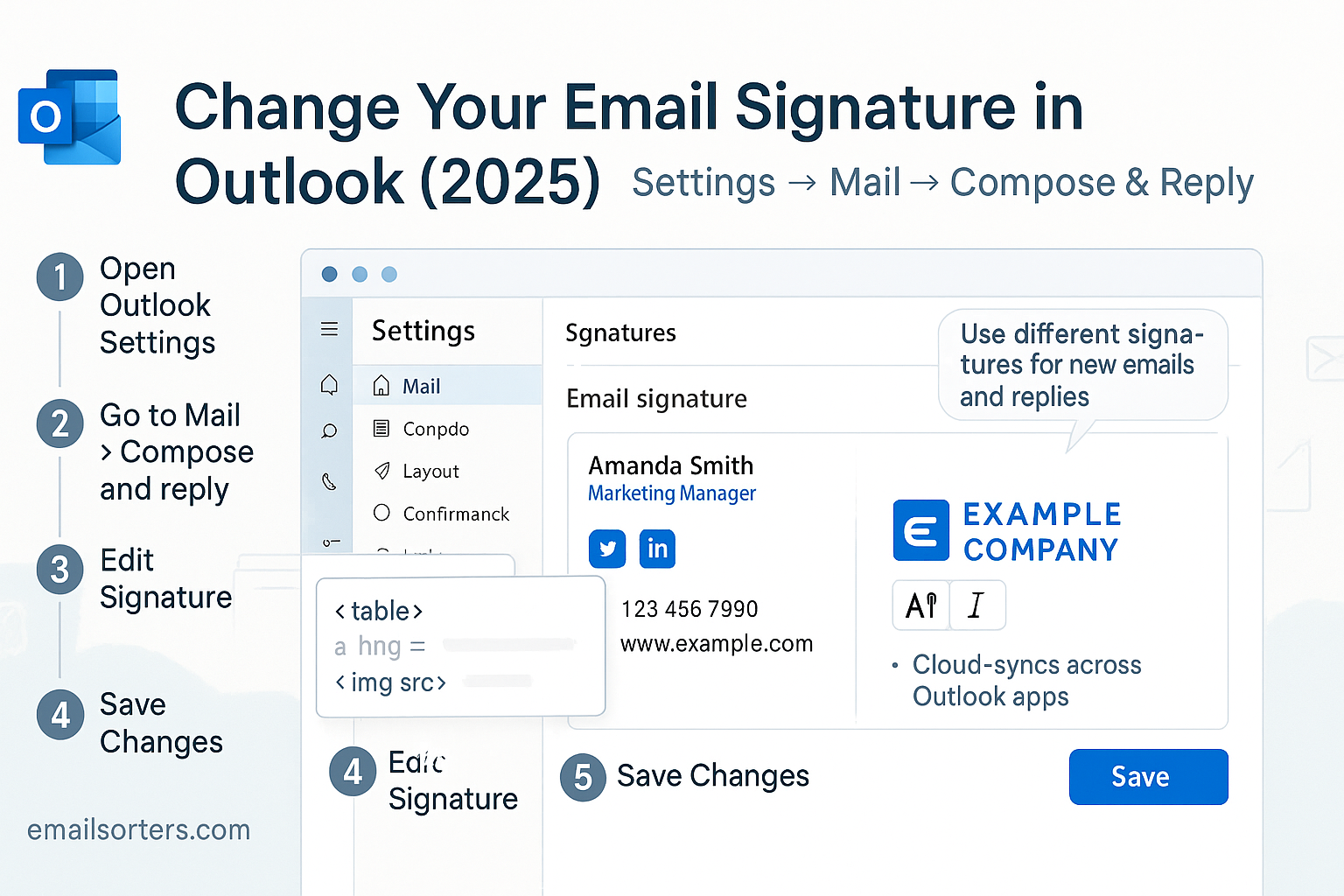
- Navigate to “Mail,” then click “Compose and reply.”
- You’ll see a text box for editing your email signature. Enter or update your signature content here.
- Use the built-in formatting tools to adjust fonts, insert links, and upload logos.
- Check the boxes to automatically include your signature in new messages or replies if desired.
- Click “Save” before closing the settings.
Outlook Mobile
The Outlook mobile app does not support rich HTML formatting. You can only enter plain text by going to the app’s Settings, tapping your account, and selecting the “Signature” option. For branding or custom formatting, consider emailing from a desktop or using a mobile email client with HTML support.
How to Include Logos, Links, and Icons Properly
When you’re updating your email signature in Outlook, it’s not just about text. Adding images, clickable links, and social media icons can make your signature look polished and informative. But the key is doing it in a way that looks good to every recipient and works across email platforms.
To include a company logo or headshot, insert the image directly into the signature editor. In Outlook desktop, click the image icon and browse to upload the file. In Outlook web, use the formatting bar’s picture tool. Always make sure the image file is not too large—ideally under 100 KB—and saved in a common format like PNG or JPG. Avoid using attachments; instead, embed the image so it displays in-line.
For links, highlight the text or image you want to make clickable, then click the link icon to add the URL. This can be your website, portfolio, calendar booking page, or social media profile. If you’re adding social icons (LinkedIn, Instagram, etc.), upload the icon images and link each one individually.
It’s best to host your images online using a trusted service or your website’s media server. This ensures that recipients can load the image from a stable source. Images inserted from local drives might not render or could turn into attachments. Always use HTTPS links for security and to avoid triggering email filters.
Keep the layout organized. If you’re using multiple icons or lines of contact information, space them out with simple tables or line breaks. Overcrowding can make your signature look cluttered and unprofessional.
Lastly, always test. Send a test email to yourself to confirm the logo displays, links work, and the format looks the way you intended.
Common Issues When Updating Your Signature
Even though Outlook makes it relatively simple to change your signature, users still run into common problems—especially when working with HTML content or switching between devices.
One frequent issue is the signature not saving. If you make changes in the signature editor and they disappear after saving, check whether you have multiple Outlook profiles or if you forgot to assign the signature to your account under default settings. Make sure to click “OK” and not just “Close” to confirm your edits.
Another issue is images not displaying correctly. This often happens when an image is embedded from a local file path that only exists on your computer. To fix this, host the image on a public server or cloud service, then insert it using the image’s direct link. Be sure the link starts with “https://” to ensure it works in secure email environments.
Formatting problems are also common, especially when copying from Word or a design program. Hidden formatting or non-standard fonts may not render correctly. To solve this, first paste your content into Notepad or a basic text editor to strip formatting, then reformat it in Outlook using the built-in tools.
Sometimes, your signature may appear correctly in new emails but not in replies or forwards. This usually means you didn’t assign the signature under the “Replies/forwards” dropdown in settings. Go back into the signature settings and make sure it’s selected for both new messages and replies.
Lastly, Outlook sometimes overrides formatting when syncing across devices. If your Outlook desktop app and web version don’t match, reapply the signature in both places and test to make sure consistency is preserved.
Managing Multiple Signatures in Outlook
If you use Outlook for both personal and professional communication, managing multiple signatures can help you stay organized. Outlook allows you to create and store several signatures, each with its own format, content, and use case.
To create more than one signature, open the signature editor and click “New.” Give each signature a descriptive name, like “Work Signature” or “Personal Gmail.” You can edit each one individually and switch between them as needed.
Assign default signatures under the “Choose default signature” section for each email account. This way, Outlook will automatically apply the correct signature when you send a message from that account.
If you switch roles or projects frequently, you might want to create a few variations of your professional signature—for example, one that includes a calendar link and one that doesn’t. While sending an email, you can easily swap signatures using the message toolbar dropdown in Outlook desktop or web.
This flexibility is especially useful for freelancers, consultants, and anyone managing multiple brands. Just be sure each version of your signature is updated when your contact information or branding changes.
Outlook Signature Settings to Double Check
After updating your signature, it’s worth reviewing a few key settings to ensure everything is applied correctly and consistently.
First, check which signature is set as the default for new emails and which one applies to replies or forwards. These are two separate dropdowns in Outlook’s signature settings window. You can use the same signature for both or customize them depending on your audience.
For example, some professionals prefer to include a full signature in new emails but use a shorter version—just name and phone number—for replies. That’s a personal preference, but it should be consistent across your communications.
If you use multiple Outlook accounts, make sure the correct signature is assigned to each one. You can set a default per account, but each profile manages its own settings separately.
Another tip is to confirm whether Outlook is overriding any formatting rules. Sometimes add-ins or company-wide settings may strip out certain HTML elements. If your signature looks different than expected, try disabling any signature-related plugins or checking with your IT admin.
Branding Tips for Teams Using Outlook
For organizations with multiple team members, email signatures are part of your outward-facing brand identity. When each employee has a different style, tone, or design in their email signature, it can send mixed signals to clients and partners. That’s why companies often standardize their signatures across all accounts.
The first step to branding consistency is choosing a shared signature template. This includes standard font choices, logo placement, color schemes, contact details, and optional elements like social media links or scheduling tools. A uniform signature builds familiarity and reinforces professionalism across your messages.
To manage these templates across a team, especially in a business setting using Microsoft 365, consider using centralized signature management tools. Solutions like CodeTwo or Exclaimer let IT or marketing teams create one signature design and deploy it across all user accounts automatically. This means employees don’t need to edit or maintain their own signatures—reducing the risk of errors or outdated information.
For small businesses without such tools, you can still create a signature in Outlook, export it as HTML, and distribute it internally with setup instructions. Encourage team members to test the formatting and confirm all links work correctly before using it in live emails.
It’s also important to monitor how signatures perform on different devices. What looks good in Outlook on a desktop might get compressed or clipped on mobile or webmail clients. Responsive design is essential. Using tables for layout, specifying fixed image widths, and limiting the use of embedded fonts can help prevent visual issues.
Even with a shared design, each user should personalize certain elements—such as their name, job title, and direct contact number—while keeping the layout intact. This strikes the right balance between consistency and clarity.
For companies with seasonal promotions or announcements, rotating signature banners or updates is another effective branding tactic. Just remember to keep it subtle and relevant to your business goals.
Final Thoughts
Changing your email signature in Outlook isn’t just about aesthetics—it’s about communication, clarity, and professionalism. Whether you’re refreshing your contact info, adding a branded banner, or correcting an outdated job title, updating your signature ensures your emails reflect your current role and the image you want to present.
Outlook’s tools in 2025 make it easier than ever to manage signatures across devices, whether you’re using desktop, web, or mobile. You have the flexibility to create multiple signatures, tailor them to different audiences, and troubleshoot common formatting problems without technical skills.
As a final step, always test your signature. Send a sample email to yourself or a colleague, open it on different devices, and double-check links, logos, and alignment. A few minutes of testing can save you from months of sending emails with a broken or outdated signature.
Think of your signature as your digital handshake—it closes every email you send. Make sure it’s as polished and intentional as your message.


