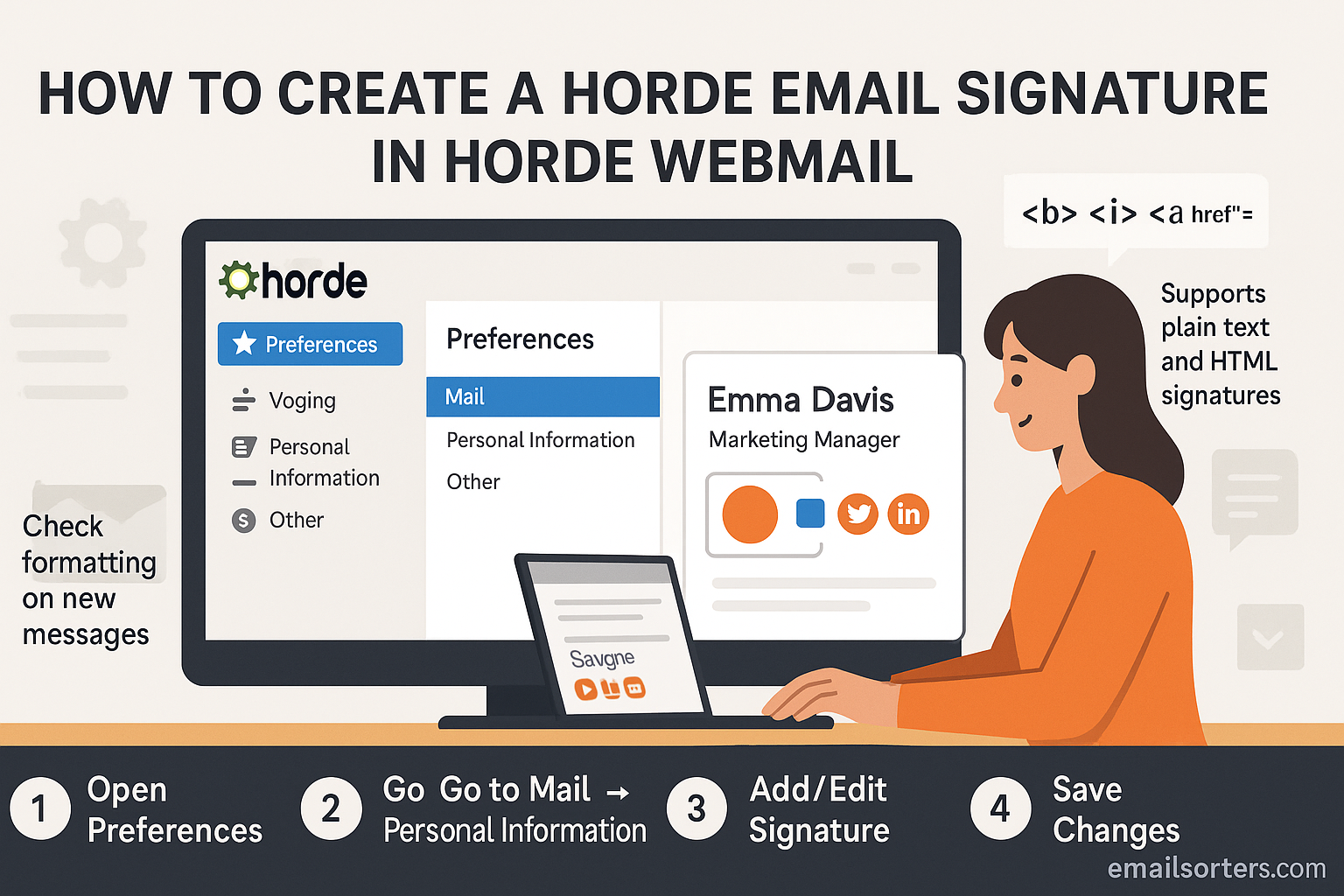
Horde email signature setup is a quick way to add professionalism and consistency to every message you send through Horde Webmail. Instead of typing your name or contact details manually at the end of each email, you can create a signature once and have it appear automatically.
Whether you want a simple text sign-off or a styled block with your job title, phone number, and links, Horde makes it easy to set up and update your signature directly in the webmail interface.
In this guide, I’ll show you step by step how to create, edit, or change an email signature in Horde Webmail, so your emails always end with a polished, professional touch.
Understanding the Importance of a Horde Email Signature
Why a Horde Email Signature Matters
Your email signature is the digital equivalent of a handshake. It closes your message with a lasting impression and tells the recipient who you are, where you’re from, and how to reach you. Whether you’re communicating with clients, vendors, or colleagues, an effective signature strengthens your credibility.
In a crowded inbox, a clean and professional signature helps you stand out. It’s more than just your name and phone number—it’s a branding opportunity with a big impact. A concise, well-formatted sign-off shows attention to detail, which speaks volumes in every professional exchange.
Consistent signatures across a company also create a unified image, much like employees wearing the same badge. It builds trust with external contacts. On a personal level, if you’re networking or job hunting, a thoughtful signature makes you appear approachable and organized. Adding a tagline or helpful links makes you more memorable.
Branding and Contact Efficiency
An email signature works like a digital business card. With a quick glance, recipients can find your full name, title, company, phone number, and website. It eliminates the need for back-and-forth searching and makes it easy to connect.
For freelancers and business owners, a signature can be even more powerful. Adding portfolio links, booking pages, or social media icons boosts visibility and encourages conversions. A subtle call-to-action in your signature acts as a quiet sales tool, guiding people toward your services.
Best of all, your signature travels with your emails. When messages are forwarded, your contact details and branding go along too—expanding your reach without extra effort. Done right, a Horde Webmail signature isn’t just helpful—it’s strategic.
Getting Started with Horde Webmail
Accessing Your Horde Webmail Account
Before you can create a signature, you’ll need to log in to your Horde Webmail interface. Usually, this is done through your hosting provider’s webmail URL—often something like yourdomain.com/webmail. Once you arrive, enter your email address and password. After logging in, you’ll see the Horde dashboard, which includes access to your inbox, folders, address book, and preferences.
If you’re managing multiple email accounts, make sure you’re in the correct account where you want to add the signature. Horde keeps preferences and settings separate per account, so your signature won’t automatically apply across other addresses unless configured individually.
Once you’re inside Horde, take a moment to explore the user interface. It may look dated compared to modern email clients, but it’s surprisingly powerful under the hood. The real magic begins when you access the settings to personalize your email experience.
Navigating to Preferences and Mail Settings
To set up your Horde email signature, you’ll first need to locate the Preferences section. This is typically found in the top menu bar. Click on “Preferences”, then select “Mail” under the submenu. Within the Mail settings, look for “Personal Information”—this is where signature customization happens.
The “Personal Information” panel allows you to edit various identity details, including the “Full Name,” “From” address, and of course, the signature block. If you’re setting up a signature for the first time, you’ll see an empty field where your custom signature will go. If there’s a pre-existing one, you can simply replace or modify it.
Once you’re here, you’re ready to begin crafting your personalized sign-off. It’s straightforward, but Horde gives you just enough tools to create both a plain text and an HTML version, depending on how polished you want your emails to look.
Steps to Add a Signature in Horde
Creating a Basic Text Signature
Creating a text signature in Horde is simple and functional. Start by entering your name, job title, and contact information into the signature field under “Personal Information.” You might write something like:
makefileCopyEditJohn Smith
Marketing Director, BrightMedia Inc.
Phone: (123) 456-7890
Email: [email protected]
Website: www.brightmedia.com
Keep the layout clean. Avoid long sentences or marketing fluff in a text signature. Your goal here is clarity. A text signature ensures that no matter what device or client your recipient uses—even the ones that strip out formatting—your message is delivered in a readable format.
Once you’ve entered your signature, scroll to the bottom of the settings page and click “Save”. From now on, your outgoing emails will automatically include this signature unless you manually remove it while composing.
A text signature works well for most general use cases. However, if you’re looking to make a visual impact, you’ll want to upgrade to an HTML signature—which we’ll cover in the next section.
Saving and Applying the Signature
After crafting your signature, it’s crucial to verify that it’s saved correctly. Click the “Save” button at the bottom of the Personal Information page. Then, compose a new email to confirm it’s applied. If you don’t see it, go back to settings and double-check that the correct identity is selected under “Your Default Identity.”
In some cases, users might have multiple identities within Horde—such as for different departments or roles. Make sure the one you edited is the active default. You can set this from the same preferences screen. Once set, your signature will appear automatically in new emails, saving you time and ensuring consistency with every message you send.
How to Add an HTML Email Signature in Horde
HTML Signature Preparation
If you’re looking to make your emails stand out with color, branding, or logos, an HTML email signature is the way to go. Before diving into Horde, you’ll need a prepared HTML signature. This could be something you’ve coded yourself, received from a designer, or generated using an online email signature builder. Make sure the HTML code is clean and hosted images are accessible online—not embedded, as Horde doesn’t support embedded media directly.
A simple HTML signature might include styling elements like bold text, hyperlinks, or logos. For example:
htmlCopyEdit<p><strong>Jane Doe</strong><br>
<span style="color: #666;">Lead Developer at WebWorks</span><br>
<a href="mailto:[email protected]">[email protected]</a> |
<a href="https://webworks.com" target="_blank">webworks.com</a><br>
<img src="https://webworks.com/logo.png" alt="WebWorks Logo" height="40">
</p>
Ensure all links and images are correct. Broken URLs or missing graphics can leave a poor impression. For best results, host images on a reliable server and use HTTPS URLs to avoid mixed-content warnings in secure email clients.
Inserting HTML into the Signature Field
Once your HTML signature is ready, go back to the “Preferences” section in Horde, then “Mail,” and click on “Personal Information.” In the identity settings, look for the signature box. Unlike plain text, inserting HTML here requires enabling a special option.
Right above or below the signature input box, there should be a checkbox labeled something like “Enable HTML Composition” or “Compose messages in HTML by default.” Make sure this is checked. Then, paste your HTML code directly into the signature field.
If you don’t see your design preview correctly after saving, it may be because HTML is not enabled globally. Double-check that you’ve activated HTML composition in both the preferences and the message composition interface.
Enabling HTML Composition in Horde
To ensure your HTML signature displays properly, you need to enable HTML as the default composition format. Go to Preferences > Mail > Composition, and find the option labeled “Default Composition Mode.” Set it to HTML.
Also, under Preferences > Global Preferences > Display Options, confirm that HTML rendering is allowed. Without these settings in place, even a perfectly formatted HTML signature may render as plain text or fail to show images and links properly.
Once everything is enabled and your code is pasted in, hit Save. Now, when you create a new email, you should see your polished signature appear automatically, complete with styling and clickable links.
Testing and Verifying Your Signature
Sending a Test Email
After setting up your signature—especially if you’ve gone the HTML route—it’s crucial to test it thoroughly. Open a new email and send a message to yourself or a trusted colleague. Pay attention to the way your signature appears in both desktop and mobile views, as well as across different email clients like Gmail, Outlook, or Apple Mail.
Are the images displaying? Are the links clickable? Is the text formatting consistent? If anything looks off, go back into your settings and re-check your HTML. Sometimes, it’s just a small missing tag or an incorrectly formatted URL that throws off the entire layout.
Also, open your test email on both a computer and a smartphone. Mobile responsiveness can make or break your professional appearance, especially when logos are involved. An oversized image or broken line can turn a sleek signature into a visual mess.
Troubleshooting Common Issues
If your signature doesn’t show up, or if it’s displaying incorrectly, don’t panic—there are a few common culprits:
- HTML not enabled: Make sure you’ve checked “Compose messages in HTML” in your settings.
- Missing image files: Hosted images must be accessible via a live URL. Double-check for typos or broken links.
- Security settings in recipients’ email clients: Some clients, like Outlook, may block images by default.
- Copy-paste formatting issues: If you copied HTML from a web browser instead of a code editor, invisible characters may interfere.
To troubleshoot, view the source code of your email in the recipient inbox (if supported), or use browser developer tools if testing in a webmail environment. Clean up your code and re-test until your signature renders as intended.
Customization Tips for a Professional Horde Email Signature
Best Practices for Signature Design
Creating a signature that’s both visually appealing and functional requires more than just pasting your name into a box. The best email signatures are concise, on-brand, and easy to read. Think of your signature as your digital storefront—it should represent your identity and invite interaction.
Keep the structure simple. Use a maximum of four to six lines. Start with your name, title, and company. Then include your phone number, email address, website, and optionally, links to social media. Use standard fonts like Arial or Helvetica for maximum compatibility. Add colors sparingly to highlight important information, like your name or company URL.
If you want to include a logo or social media icons, make sure they’re optimized for email—small file sizes (under 50KB) and responsive dimensions (no wider than 600px). Also, make sure you don’t overload your signature with too many links or slogans; clutter can reduce clarity and professionalism.
What to Include and What to Avoid
Include:
- Full name and job title
- Company name and website
- Phone number with country code
- Business email address
- Logo or headshot (optional)
- Social media links (if professional)
- Legal disclaimers or confidentiality notices (if applicable)
Avoid:
- Inspirational quotes (these can be polarizing or unprofessional)
- Personal social media links unless relevant to your role
- Overuse of colors or fonts
- Animated GIFs or embedded videos
- Too many links or excessive contact information
Less is more. A good rule of thumb: if your signature is longer than your email body, it’s probably too much. Stick to essentials and make sure every element serves a purpose.
Managing Multiple Identities and Signatures
Setting Up Multiple Signatures
Horde Webmail allows you to manage different identities under a single email account—ideal for users juggling multiple roles or departments. For each identity, you can set up a unique signature.
Navigate to Preferences > Mail > Personal Information, then look for the “Identities” section. Click “Create New Identity.” Here, enter the name, email alias, and signature details relevant to that specific role. You can replicate your main layout and just change the job title or contact details for each version.
This feature is especially handy for freelancers, team leads, or users managing general and support inboxes. Each signature can reflect a distinct tone or branding element tailored to the context of the message being sent.
Switching Between Signatures in Horde
When composing a new email, Horde allows you to choose which identity—and thus which signature—you want to use. In the message window, look for a drop-down menu labeled “From.” Select the desired identity, and the associated signature will appear automatically.
It’s a simple way to keep your communications organized and contextually appropriate. Whether you’re sending a client update, a support response, or an internal memo, the right signature helps set the tone and manage expectations.
Keeping Your Signature Up to Date
When and Why to Update
Your email signature should evolve just as your career or business does. If you’ve changed job titles, phone numbers, or rebranded your website, it’s time for a refresh. Sending outdated contact information not only creates confusion but also reflects poorly on your professionalism.
Another reason to update? Design trends and formatting standards shift over time. A signature created five years ago might not be mobile-optimized or visually consistent with your current branding. Even small updates, like changing a font color to match a new logo, can make a big difference in how your emails are perceived.
Updating periodically also lets you refine your message. Maybe you want to add a link to your latest blog post or a CTA to book a consultation. These subtle marketing touches can be folded into your signature without disrupting its core purpose.
Editing Existing Signatures
To update your Horde Webmail signature, head back to Preferences > Mail > Personal Information. Choose the identity you want to edit, then modify the text or HTML in the signature box. Don’t forget to review formatting—sometimes changes can throw off spacing or layout if you’re using HTML.
Once you’ve made your edits, scroll down and hit Save. Test your changes by composing a new message and reviewing the updated signature. Be sure it appears correctly across devices and email clients before considering the job done.
If you’re working within a company, it might be helpful to set a quarterly reminder to check your signature for accuracy. Even a small typo can lead to missed calls or emails, so periodic maintenance is key.
Email Signature Etiquette in Business Communication
Formal vs. Informal Signatures
Context matters when choosing how formal or informal your email signature should be. For professional interactions, think corporate clients, government contacts, or legal correspondence, a more traditional and structured signature is appropriate. This includes your full name, title, company name, phone number, and possibly a formal disclaimer or confidentiality notice.
In contrast, internal communications or casual follow-ups might benefit from a more relaxed tone. You could skip titles, use a shortened version of your name, or include a fun sign-off. For example:
CopyEditCheers,
Mike
However, even in casual settings, your signature should remain clear and functional. If people need to reach you or verify who you are, they should be able to do so without extra effort.
Legal Disclaimers and Compliance
In certain industries—especially legal, financial, or healthcare sectors—a disclaimer at the end of your email signature may be required. These typically address confidentiality, liability, or compliance with regulations like GDPR or HIPAA.
Here’s a simple example:
Confidentiality Notice: This email and any attachments are confidential and intended solely for the use of the individual to whom it is addressed. If you have received this email in error, please notify the sender and delete it from your system.
Keep disclaimers brief and easy to read. Place them after the main contact information so they don’t distract from your identity. If your company has specific wording for compliance reasons, always follow that guideline precisely.
Advanced Signature Styling Technique
Using Tables and Images
For more advanced formatting, HTML tables are your best friend. They allow for clean alignment of text and graphics, such as placing your logo on one side and contact details on the other. Here’s a simple layout example:
htmlCopyEdit<table>
  <tr>
    <td><img src="https://example.com/logo.png" alt="Logo" height="50"></td>
    <td>
      <p><strong>Jane Doe</strong><br>
      Marketing Director<br>
      <a href="mailto:[email protected]">[email protected]</a><br>
      <a href="https://example.com">example.com</a></p>
    </td>
  </tr>
</table>
Avoid using complex CSS or JavaScript in your signature, most email clients strip this out or render it inconsistently. Stick with inline styles and simple HTML elements to ensure compatibility.
Images should be optimized for quick loading. Use PNG or JPG files under 100KB and host them securely. Avoid attachments—embedded images can trigger spam filters or cause rendering issues.
Mobile Optimization Considerations
With more people reading emails on smartphones than desktops, mobile optimization is critical. Use responsive layouts or single-column designs that adapt well to smaller screens. Avoid wide tables or large logos that require horizontal scrolling.
Test your signature across various mobile clients—Gmail, Apple Mail, Outlook Mobile—to see how it performs. Fonts should be large enough to read on small displays (typically 14px or higher), and links should be spaced so they’re easy to tap without accidentally hitting the wrong one.
Design with the thumb in mind. Clear, clickable elements and minimal clutter go a long way in making your signature mobile-friendly.
Security Considerations with HTML Signatures
Safe Use of External Links and Images
When using HTML, every image and link adds a layer of vulnerability. Make sure all external content in your signature is hosted on secure (HTTPS) servers. Never link to questionable domains, and avoid shortening services like bit.ly—they may look suspicious to spam filters.
Links should always display the full, trusted domain so recipients know what they’re clicking. For example:
htmlCopyEdit<a href="https://yourcompany.com">www.yourcompany.com</a>
If you must use tracking parameters (e.g., for marketing emails), ensure they’re transparent and privacy-compliant. Avoid over-stuffing your signature with clickable elements. One or two links are usually enough.
Avoiding Phishing Triggers
Poorly coded HTML signatures can sometimes trigger phishing alarms in recipient inboxes. This is especially true if your signature includes suspicious code, broken images, or obscure tracking pixels. Keep things clean and straightforward. Avoid:
- Obfuscated or encoded URLs
- JavaScript
- Embedded forms or input fields
If your emails start landing in spam folders after adding an HTML signature, strip it back and test each component individually. It’s always better to be safe than sorry when it comes to email security.
Signature Sync Across Devices and Email Clients
Horde on Different Devices
If you use Horde Webmail on multiple devices—such as a laptop and a tablet—your signature settings should remain consistent since they’re stored server-side. As long as you access your email through the Horde web interface, your signature will follow you.
However, if you use an external mail client (like Outlook or Apple Mail), your Horde signature won’t automatically appear. You’ll need to replicate your signature in each external client manually.
Keep a backup copy of your signature text and HTML in a note or document. That way, you can easily copy-paste it when setting up email on new devices or apps.
Ensuring Consistency
To keep your signature consistent across platforms:
- Use the same HTML and text signature in each client
- Host any images externally (not locally)
- Test emails from each client and device
- Avoid relying on unique styling features from one specific mail app
Staying consistent not only reinforces branding but also ensures your communications look polished no matter how or where they’re sent.
Backing Up Your Signature for Future Use
Exporting HTML and Text Versions
Once you’ve perfected your signature, save both the text and HTML versions in a safe place. Store them in a cloud folder, notes app, or password-protected document. That way, you won’t have to rebuild it from scratch if you switch hosts, get a new device, or migrate email clients.
You can copy the code straight from Horde’s signature editor. Paste the text into a .txt file and the HTML into a .html file. Make sure the file includes any relevant image URLs or resource links for quick setup later.
Reusing Signatures When Switching Hosts
If you’re moving from one hosting provider to another—or changing email platforms entirely—having a signature backup ensures a seamless transition. As long as your images are hosted externally and your HTML is valid, you can paste it into any new webmail or client interface with minimal adjustment.
Always check how your signature renders in the new system. Email clients interpret code differently, so minor tweaks might be necessary. But if you’ve followed best practices, reusing it should be a breeze.
Conclusion
Creating a professional email signature in Horde Webmail isn’t just about adding your name at the bottom of a message—it’s about presenting yourself clearly, confidently, and consistently. Whether you opt for a simple text signature or an HTML design with visual branding, the process is straightforward with the right guidance. From setting up preferences and inserting code, to testing across devices and maintaining it over time, each step helps you communicate with polish. Take a few minutes to get it right—you’ll make every email you send more effective.
FAQs
Can I use images in my Horde signature?
Yes, you can use externally hosted images in your HTML signature. Just make sure the image links use HTTPS and are stored on a reliable server.
Why doesn’t my signature show in replies?
If your signature isn’t appearing in replies, check your Horde preferences. Make sure the correct identity is selected and HTML composition is enabled.
How do I disable a signature temporarily?
When composing a message, you can manually delete the signature before sending. Horde does not currently offer a toggle to disable signatures by default per email.
What file formats are supported in HTML signatures?
You can link to standard web image formats like JPG, PNG, and GIF. Avoid embedding files directly or using unsupported formats like TIFF or BMP.
Is there a character limit for Horde email signatures?
Horde doesn’t have a strict character limit, but keep your signature concise. Excessively long signatures can be flagged by email clients or appear unprofessional.


