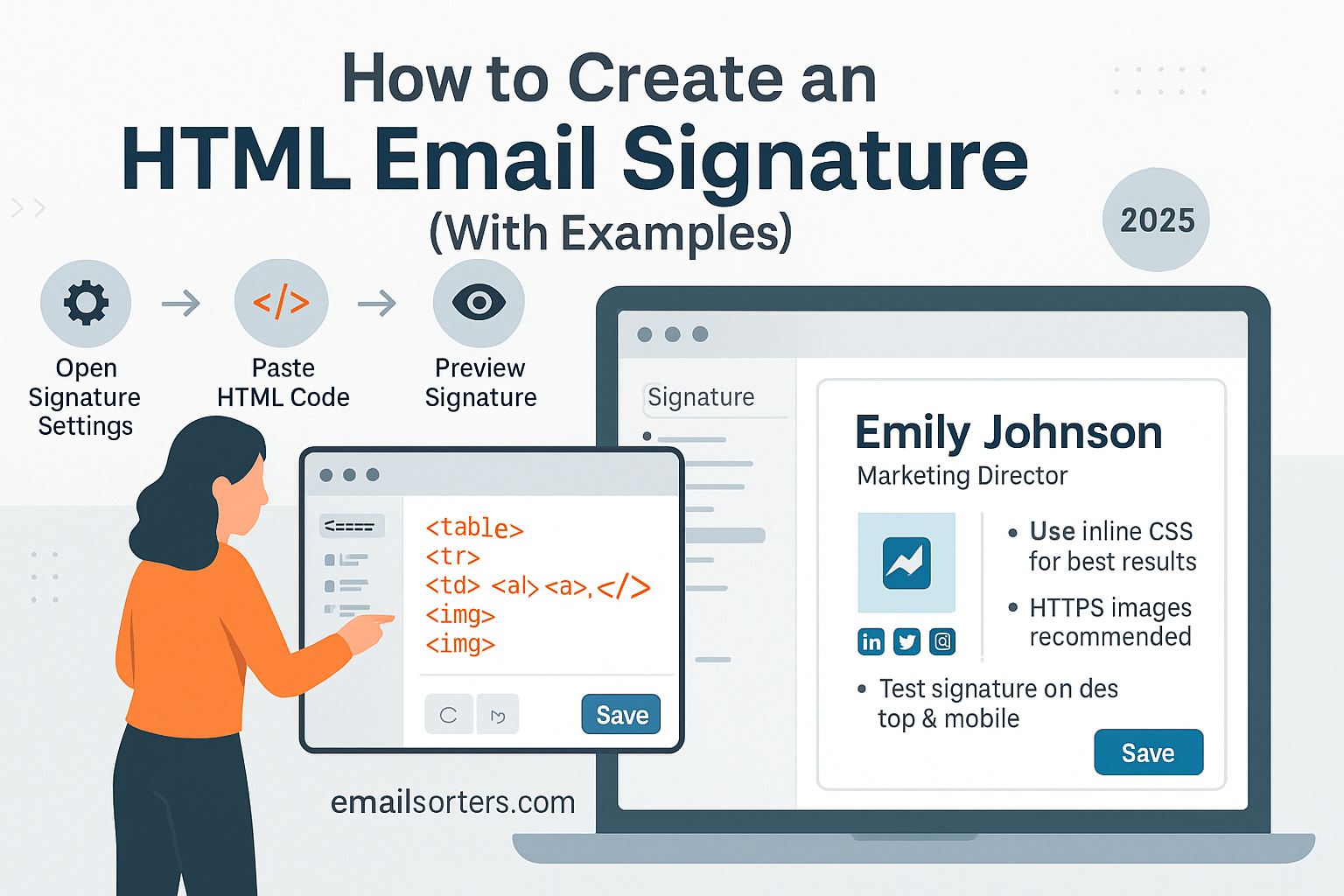
Create an HTML email signature and turn a plain sign-off into a polished, on-brand finish. With simple HTML and inline styles, you can add logos, links, and social icons, so every email looks consistent and professional. The trick is keeping it lightweight and compatible across Gmail, Outlook, and Apple Mail: use table layouts, inline CSS, and hosted images over HTTPS.
Below are three ready-to-use templates: a minimal text signature, a business “card” with a logo, and a compact personal variant. Swap in your details, colors, and links, then paste into your email client’s signature editor (HTML mode if available).
Why Use an HTML Email Signature?
Advantages Over Plain Text
HTML email signatures go far beyond the limitations of plain text. While a basic signature might include your name and contact info on a few lines, an HTML signature lets you create a visually engaging layout that mirrors your branding. It offers structure, styling, color, and clickable elements, giving your emails a polished, professional finish every time you hit send.
You can incorporate design elements like logos, custom fonts, social icons, links to resources, and call-to-action buttons—all styled to fit your brand’s personality. HTML also supports better alignment and spacing, helping your content look crisp and consistent across platforms. In contrast, plain text can appear bland, uneven, or misaligned depending on how it renders in different inboxes.
Branding, Styling, and Engagement
An HTML signature makes a strong first impression, especially in client or B2B communication. It’s an extension of your brand identity, mirroring your website, business card, or other touchpoints. You can align colors with your brand palette, include a banner for current promotions, and use professional fonts to maintain consistency.
And the benefits aren’t just aesthetic. A well-designed HTML signature helps drive traffic and engagement. Whether it’s a link to your calendar, a blog, or your latest offer, people are more likely to click when it’s visually inviting and easy to find. Think of it as a soft, built-in CTA that enhances every message.
What You Need Before You Start
Content and Contact Info
Before diving into code, gather the core content you want in your signature. This typically includes:
- Full name
- Job title
- Company name
- Phone number
- Email address
- Website URL
- Physical address (optional)
Decide whether you’ll also include promotional text, disclaimers, or booking links. Keeping it concise helps maintain a clean design.
Logo, Headshot, and Icons
Prepare any images you plan to use—your company logo, a headshot, or social media icons. These should be:
- Optimized for web (under 100 KB per image)
- Hosted on a secure HTTPS server
- Sized appropriately (logos around 100–200 px wide; icons at 24×24 or 32×32 px)
Avoid uploading images directly to the email client. Instead, use hosted links in the HTML to ensure compatibility.
Email Client Requirements
Each email platform has its quirks. Outlook is notoriously rigid with formatting, while Gmail strips some embedded code. Always test your design in the client you use. Make sure to use inline CSS for styling—most clients ignore or strip out <style> tags and external CSS.
Basic Structure of an HTML Email Signature
HTML Tags to Know
You don’t need to be a developer to build an HTML email signature, but a few essential tags will help you get started. Signatures typically use <table> elements for layout, since many email clients render tables more reliably than <div> elements. You’ll also use <tr> and <td> to create rows and columns within that table.
Use <img> for logos and icons, <a> for hyperlinks, and <span> or <p> for text content. Keeping your structure simple and clean ensures broader compatibility across platforms.
Here’s a very basic outline:
htmlCopyEdit<table>
  <tr>
    <td><img src="logo-url" alt="Company Logo" width="120"></td>
    <td>
      <p><strong>Your Name</strong><br>
      Your Job Title<br>
      <a href="mailto:[email protected]">[email protected]</a></p>
    </td>
  </tr>
</table>
Inline CSS and Layout Tables
Inline CSS means writing your styles directly into the HTML tag, like so:
htmlCopyEdit<p style="color: #333; font-family: Arial, sans-serif; font-size: 14px;">Your Text</p>
This is crucial, as many email clients ignore CSS in the <head> or external stylesheets. Stick to basic styles like font family, size, color, padding, and border. Layout should always be built with tables to avoid display issues—divs and flex layouts often break or look messy in Outlook or mobile views.
Responsive Considerations
Although responsiveness in email is limited, you can still design a layout that looks good on both desktop and mobile. Keep the total width of your signature under 600 pixels and use relative widths where possible. Avoid using fixed widths for images and text blocks unless absolutely necessary.
If your email platform supports media queries, you can use them for more advanced responsiveness—but many email clients won’t respect them, so default to mobile-friendly simplicity.
Step-by-Step Guide to Create HTML Email Signature
Step 1 – Write the HTML Code
Start by opening a plain text editor or an HTML email signature generator. Build the structure using a table. Organize the rows and columns to position your logo, text, and icons correctly. Each piece of content, name, title, contact details, gets its own block inside a <td> (table data cell).
htmlCopyEdit<table cellpadding="0" cellspacing="0" style="font-family: Arial; font-size:14px;">
  <tr>
    <td style="padding-right:10px;">
      <img src="https://yourdomain.com/logo.png" alt="Logo" width="100">
    </td>
    <td>
      <p style="margin:0;"><strong>Jane Smith</strong></p>
      <p style="margin:0;">Marketing Director<br>
      <a href="mailto:[email protected]" style="color:#007BFF; text-decoration:none;">[email protected]</a><br>
      <a href="https://yourcompany.com" style="color:#007BFF;">yourcompany.com</a></p>
    </td>
  </tr>
</table>
Step 2 – Style with Inline CSS
After laying out the elements, apply inline CSS to each tag. Use style="" inside each tag to define font size, line height, margin, color, and alignment. Avoid using external fonts, JavaScript, or complicated animations, as they’re not supported in email clients.
Good inline styling includes:
- Consistent padding
- Readable font sizes (14–16px)
- Brand-consistent colors
- Clear hierarchy with bold or sized-up text
Step 3 – Insert Logos and Icons
Use hosted images only. Upload your logo or icons to your website or a secure image host and grab the direct HTTPS links. Add images using the <img> tag and set the alt attribute in case the image doesn’t load.
htmlCopyEdit<img src="https://yourdomain.com/linkedin-icon.png" width="24" alt="LinkedIn" style="margin-right:5px;">
To add multiple icons in a row, place them inside their own <td> or <span> blocks.
Step 4 – Add Clickable Links
Hyperlink everything your recipients might interact with—your email address, website, social media, or booking links. Use <a href=""> tags and style them to remove underlines and match your brand color.
htmlCopyEdit<a href="https://calendly.com/janesmith" style="text-decoration:none; color:#007BFF;">Book a Meeting</a>
You can also hyperlink images by wrapping them in anchor tags:
htmlCopyEdit<a href="https://linkedin.com/in/janesmith">
  <img src="linkedin-icon-url" width="24" alt="LinkedIn">
</a>
Step 5 – Finalize the Code
Once you’ve assembled all parts—text, links, images, and styles—test the code in an HTML-friendly email platform. Save your code in a .html file or copy it to your clipboard for pasting into your email client’s signature settings.
Always preview before final use. Tiny spacing issues or misaligned elements are easier to fix early on.
Example 1: Simple HTML Signature
Layout and Code
Here’s a clean, minimal HTML signature ideal for professional emails:
htmlCopyEdit<table cellpadding="0" cellspacing="0" style="font-family: Arial, sans-serif; font-size:14px; color:#333;">
  <tr>
    <td style="padding-right:10px;">
      <img src="https://yourdomain.com/logo.png" alt="Company Logo" width="100">
    </td>
    <td>
      <p style="margin:0;"><strong>Jane Smith</strong></p>
      <p style="margin:0;">Marketing Director | Acme Corp</p>
      <p style="margin:0;"><a href="mailto:[email protected]" style="color:#007BFF; text-decoration:none;">[email protected]</a> |
      <a href="https://acme.com" style="color:#007BFF;">www.acme.com</a></p>
    </td>
  </tr>
</table>
Mobile-Friendly Tips
Keep the signature under 600px wide, use scalable text sizes, and test line breaks to ensure clarity on narrow screens. Avoid stacking icons or content horizontally if screen space is tight—opt for vertical alignment or icon rows that wrap naturally.
Example 2: HTML Signature with Social Media and Logo
Layout and Code
This example includes a logo, professional title, contact information, and clickable social media icons—all styled with inline CSS for compatibility:
htmlCopyEdit<table cellpadding="0" cellspacing="0" style="font-family: Helvetica, Arial, sans-serif; font-size:14px; color:#333;">
  <tr>
    <td style="padding-right:15px;">
      <img src="https://yourdomain.com/logo.png" alt="Company Logo" width="100">
    </td>
    <td>
      <p style="margin:0;"><strong>John Doe</strong></p>
      <p style="margin:0;">Business Development Manager</p>
      <p style="margin:0;"><a href="mailto:[email protected]" style="text-decoration:none; color:#1a73e8;">[email protected]</a> |
      <a href="https://company.com" style="color:#1a73e8;">www.company.com</a></p>
      <p style="margin:8px 0 0 0;">
        <a href="https://linkedin.com/in/johndoe" target="_blank" style="margin-right:8px;">
          <img src="https://yourdomain.com/icons/linkedin.png" width="24" alt="LinkedIn">
        </a>
        <a href="https://twitter.com/johndoe" target="_blank" style="margin-right:8px;">
          <img src="https://yourdomain.com/icons/twitter.png" width="24" alt="Twitter">
        </a>
        <a href="https://facebook.com/yourpage" target="_blank">
          <img src="https://yourdomain.com/icons/facebook.png" width="24" alt="Facebook">
        </a>
      </p>
    </td>
  </tr>
</table>
Styling for Branding
To ensure your signature reflects your company’s identity, use brand colors for links and call-to-actions. Keep font size and family consistent with your website. If your logo uses specific spacing or alignment, mirror that structure in your table design. For CTAs (like “Book a Call” or “Download Our Guide”), create a styled link using background colors and padding to mimic a button.
How to Add Your HTML Signature to Popular Email Clients
Gmail
- Open Gmail, click the gear icon, and choose “See all settings.”
- Scroll to the “Signature” section under the General tab.
- Click “Create new”, name your signature.
- Paste your HTML code directly into the box. If pasting doesn’t render HTML, use a browser extension like “HTML Inserter for Gmail” or copy the rendered output from an HTML file preview.
- Assign the signature to your email address and save changes at the bottom.
Outlook
- Open Outlook and go to File > Options > Mail > Signatures.
- Click “New” and name your signature.
- Use the signature editor’s toolbar to format text or paste rendered HTML.
- If inserting code directly, open the HTML in a browser, copy it visually (not the source), then paste.
- Set it as your default signature and click OK.
Apple Mail
- Open Mail and go to Preferences > Signatures.
- Select the account and click “+” to create a new signature.
- Close Mail, then go to
~/Library/Mail/V10/MailData/Signatures/and find the signature file. - Replace its content with your HTML (using a code editor).
- Lock the file to prevent overwriting, then relaunch Mail to apply.
Thunderbird
- Go to Account Settings from the hamburger menu.
- Check “Use HTML” under the signature editor.
- Paste your full HTML code.
- Use the “Write” window to verify correct formatting and links.
Common HTML Signature Mistakes to Avoid
Embedding Images Instead of Linking
Many email clients block embedded images or treat them as attachments, making your email look suspicious or cluttered. Instead, host images on a secure (HTTPS) server and link them via the <img src="url"> method.
Overuse of Fonts or Colors
Too many font styles, sizes, or colors make your signature look unprofessional and inconsistent. Stick to one or two fonts (preferably web-safe ones), a consistent size, and no more than two brand-aligned colors. Avoid using script fonts or excessive italics.
Ignoring Mobile Design
What looks neat on desktop might break on mobile. Use fluid layouts, appropriate line spacing, and preview your design on a smartphone. Avoid using fixed-width tables or oversized images that could overflow smaller screens.
Testing Your Signature Across Devices
How to Test for Consistency
Send test emails to different accounts—Gmail, Outlook, Yahoo, Apple Mail—and view them on both desktop and mobile devices. Compare rendering quality, alignment, and whether all links and images load correctly.
Check dark mode compatibility. Some clients invert colors or display white text on a black background. Ensure your design remains legible and balanced in both light and dark themes.
Tools to Use (Email on Acid, Litmus)
Email preview services like Email on Acid or Litmus allow you to preview how your HTML signature looks across dozens of email clients at once. They simulate rendering on Gmail, Outlook versions, iOS, Android, and more. While these tools often have paid plans, they’re worth it if you send high-volume emails or manage branding for a team.
Maintaining and Updating Your Signature
When to Refresh Your Design
Update your signature every time there’s a change in your role, branding, contact info, or call-to-action. Even seasonal campaigns or new products can be promoted with a fresh CTA button or link added to your existing layout.
Creating Template Versions
Keep a saved .html version of your signature in a secure folder. If you manage multiple roles or teams, build different versions in advance—for example, one with a promotional banner and another for day-to-day communication. Replacing parts of your signature becomes easier when you work from a structured template.
Security and Compliance Best Practices
Avoiding Spam Triggers
To keep your emails out of spam folders, avoid using phrases like “Click here!” or embedding too many links in your signature. Don’t include JavaScript, Flash, or background images, and host all signature assets on secure HTTPS domains.
Check your signature size too. Bloated code or images above 100 KB can flag your email as suspicious. Compress images and streamline your layout to avoid bloating.
Legal Disclaimers and Footer Notes
Depending on your industry, you may need to include legal disclaimers—especially in finance, healthcare, or law. Add these at the bottom of your signature in small, gray text, separate from your main contact information. Keep it brief but clear, and always use company-approved language if applicable.
Conclusion
An HTML email signature is more than just a sign-off—it’s a branding asset, a marketing tool, and a professional touchpoint rolled into one. With a few lines of well-structured code and some thoughtful design, you can make every email a reflection of your identity and values. Whether you’re adding social media icons, a logo, or a CTA button, a clean, mobile-responsive signature elevates your presence and encourages engagement.
Take time to test and optimize your design, keep it up to date, and ensure it represents the professional tone you want to convey. With the examples and tips in this guide, you’re ready to build a signature that doesn’t just end your message—but continues the conversation.
FAQs
Can I create an HTML signature without coding?
Yes. Many online tools like HubSpot, WiseStamp, or Signature.email allow you to build and export HTML signatures without writing any code.
What file types are best for logos?
PNG is ideal for logos due to its transparency and clarity. Use JPG for photos and keep all images under 100 KB for fast loading.
How do I make links open in a new tab?
The target="_blank" attribute opens links in a new browser tab, but note that most email clients ignore this in signatures for security reasons.
Will HTML signatures work on mobile?
Yes, if designed correctly. Use responsive layouts, readable font sizes, and test on mobile devices to ensure compatibility.
Can I use HTML signatures in all email clients?
Most major clients support basic HTML signatures. However, advanced features like CSS animations or web fonts may not render consistently.


