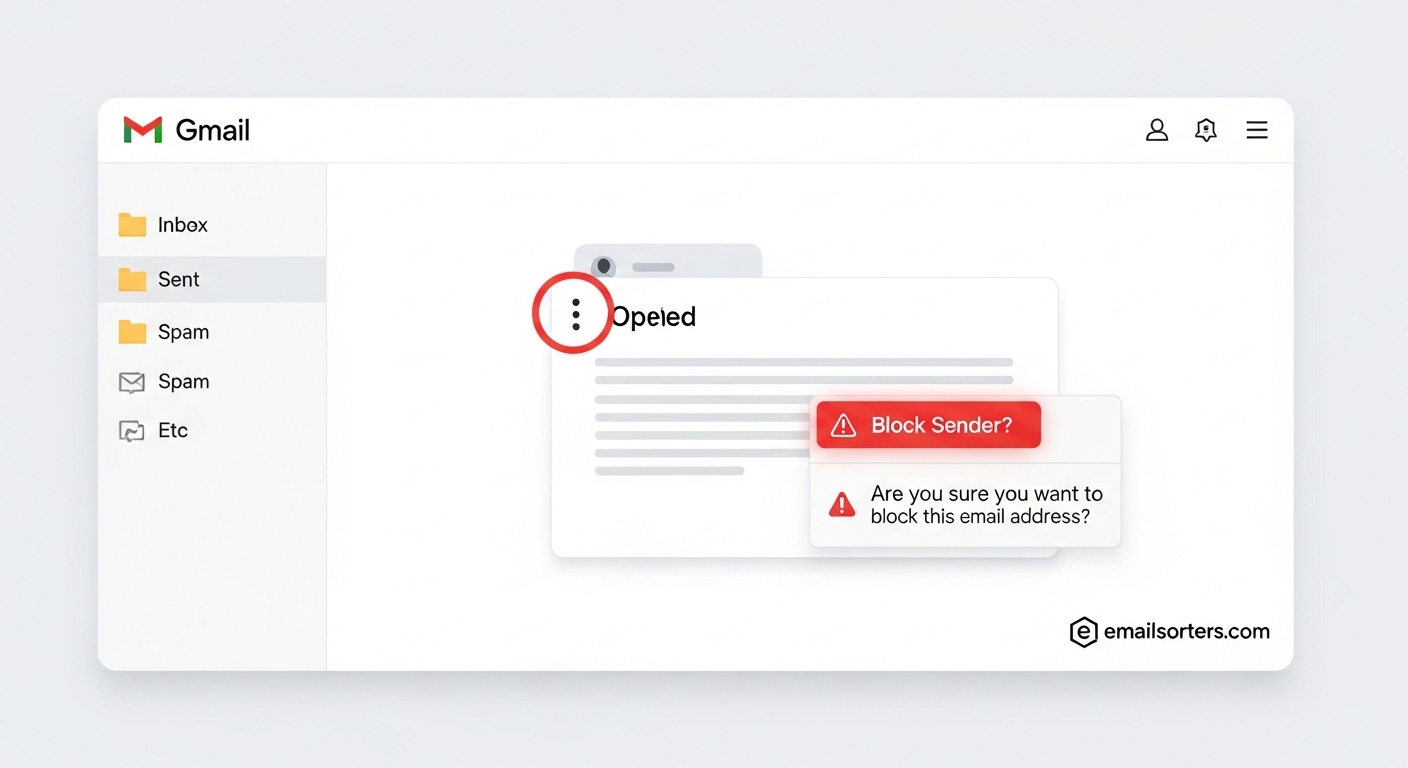
How to Block an Email Address in Gmail? To block a sender instantly, open the unwanted email in your inbox. Click the three vertical dots located next to the Reply arrow. Select “Block [Sender Name]” from the dropdown menu. This action automatically routes all future messages from that address directly to your Spam folder.
Blocking is the fastest way to silence a persistent nuisance. You do not need to delete emails manually every day. This tool creates a permanent rule for that specific address.
When you block someone, Gmail takes over. It intercepts the message before it hits your Inbox. The email lands quietly in your Spam folder. You never see the notification. The sender never gets a bounce-back message. It is a clean, private break.
This method works best for individuals. If a specific person harasses you or a salesperson will not quit, use this feature. It is simple, effective, and fully reversible if you change your mind later.
How Can You Block Someone in Gmail on a Computer?
To block someone on a computer, open the email in your browser. Click the three vertical dots in the top-right corner of the message pane. Select “Block [Name]” from the dropdown menu. A grey banner will appear to confirm that future messages will go directly to Spam.
The desktop version of Gmail makes this easy. You can handle this in seconds. You do not need to leave your inbox.
Step-by-Step Desktop Instructions
Follow this exact path to stop a sender:
- Log in to your Gmail account.
- Open the email from the person you want to block.
- Locate the three vertical dots (⋮). Look inside the email message area next to the Reply arrow. Do not use the dots at the top of the browser.
- Click the dots to see the menu.
- Select “Block [Sender Name].”
- Confirm your choice if a pop-up appears.
A grey box will appear at the top. It says you blocked the sender. If you make a mistake, click “Unblock sender” in that same box.
Quick Tip: Blocking vs. Reporting Spam
You see “Report Spam” next to “Block.” They do different things.
- Block: Stops a specific person or company. Use this for newsletters or annoying marketers.
- Report Spam: Tells Google the email is dangerous. Use this for scams or phishing.
What Happens After You Block a Sender on Gmail Desktop?
Once you block a sender, their emails skip your Inbox entirely. They land in the Spam folder automatically. They stay there for 30 days before Google deletes them. The sender receives no notification that you blocked them, which keeps your decision private and avoids conflict.
You might wonder where the emails go. They do not vanish instantly.
Gmail moves blocked messages to the Spam folder. This acts as a safety net. If you block the wrong person, you can still find the email.
Here is what to expect:
- No Notification: The sender gets no warning. To them, the email went through.
- 30-Day Limit: Emails sit in Spam for 30 days. After that, Google deletes them.
- Searchable: You can still find these emails if you search for the sender’s name.
This system gives you peace of mind. You remove the distraction without destroying data immediately.
How Do You Block an Email Address in the Gmail App (Android & iPhone)?
To block a sender on mobile, open the email in the Gmail app. Tap the three horizontal dots next to the sender’s name (not the top corner). Select “Block [Sender Name]” from the bottom menu. This process works identically on both Android and iOS devices.
You are rarely at your desk when spam strikes. You are likely on your phone. Fortunately, the mobile app lets you manage this easily.
The process helps you keep your inbox clean while on the go. Whether you use an iPhone or a Samsung, the buttons are in the same place.
Step-by-Step Mobile Instructions
It is easy to click the wrong button on a small screen. Follow these steps carefully:
- Open the Gmail app on your device.
- Tap the unwanted message to open it.
- Locate the three dots. This is the tricky part. Look for the dots next to the sender’s name (under the subject line). Do not tap the dots at the very top of the screen.
- Tap the dots to open the sender menu.
- Select “Block [Name].”
- A grey banner will appear confirming the block.
If you block someone by mistake, tap “Unblock sender” on that same grey banner immediately.
Android vs. iOS Differences
Google has unified the design. The steps above work for both platforms. However, the “Unblock” banner might disappear faster on iOS. If you miss it, you will need to dig into settings later.
Can You Block Someone in Gmail Without Opening the Email?
No, you cannot block a specific email address in Gmail without opening the message first. You must open the email to access the specific block option in the menu. However, you can select multiple emails from the inbox view to report them as spam instantly.
Many users want to avoid opening spam. They fear pixel tracking or malware. Sadly, the “Block” button lives inside the message.
If the email looks dangerous, do not open it. Instead, long-press the email in your inbox list. Once selected, tap the three dots at the top right and choose “Report spam.”
This moves the message away safely. It also trains Gmail to catch similar threats. This helps you manage your storage and avoid hitting Gmail email limits due to junk pile-ups.
Here is the third section of the article. It covers the essential maintenance steps: unblocking errors and advanced domain blocking.
How Do You Unblock an Email Address in Gmail?
To unblock a sender, click the Gear icon and select “See all settings.” Go to the “Filters and Blocked Addresses” tab. Scroll down to find the blocked list. Check the box next to the name you want to restore and click the “Unblock” button.
You might change your mind. Maybe you blocked a friend by mistake. Or perhaps a company you blocked is sending an important receipt.
Restoring access is simple on a desktop. However, the Gmail mobile app does not show this full list. You must use a computer to manage the master list effectively.
Steps to Unblock on Desktop
- Open Gmail on your computer.
- Click the Settings gear (top right).
- Select “See all settings.”
- Click “Filters and Blocked Addresses.”
- Scroll down to see the list of names.
- Find the email address.
- Click “Unblock” on the right side.
The sender can now email you again. If you blocked them to stop spam emails in Yahoo or other accounts forwarding to this one, remember to check those sources too.
How Do You Block Emails From an Entire Domain in Gmail?
You cannot use the standard block button for a whole domain. Instead, you must create a filter. Click the search options icon. Type “*@domain.com” in the “From” field. Click “Create filter.” Check the box labeled “Delete it” to block every address from that website.
Spammers are tricky. They rarely use the same name twice. They send one email from “[email protected]” and the next from “[email protected].”
Blocking “Alice” does not stop “Bob.” You need to block the “@spam.com” part. This cuts off the entire operation.
How Do You Create a Filter to Auto-Delete Emails From a Domain?
*To auto-delete domain emails, open the search bar options. In the “From” field, enter the domain (e.g., @badsite.com). Click “Create filter.” Check “Delete it” and “Also apply filter to matching conversations.” Click “Create filter” again to wipe them out instantly.
This is the strongest weapon you have. It acts like a guard at the gate.
- Click the sliders icon in the Gmail search bar.
- Type the domain in the “From” section. Use the asterisk (e.g.,
*@company.com). - Click “Create filter” at the bottom.
- Check “Delete it.”
- Click “Create filter” to finish.
Now, you will never see an email from that company again. It skips the Trash and vanishes. This is excellent for cleaning up storage, similar to how you might sort Gmail by size to find and delete big files.
How Do Filters Compare to Gmail’s Built-In Blocking Feature?
Blocking is a simple tool that sends emails directly to Spam. Filters are advanced tools that allow you to archive, label, delete, or forward messages automatically. Use blocking for quick fixes on specific people. Use filters for long-term organization and managing entire domains.
Think of blocking as a hammer. It smashes the problem by sending it to the junk pile. Filters are like a scalpel. They offer precision.
With filters, you do not just block. You can:
- Skip the Inbox: Archive newsletters automatically so you can read them later.
- Mark as Read: Stop the notification badge from annoying you.
- Star It: Highlight emails from your boss or family.
- Delete Permanently: Bypass the Trash folder entirely.
If you want to sort Gmail by size or clean up specific categories, filters are the superior choice.
What’s the Difference Between Blocking, Reporting Spam, and Unsubscribing?
Use Unsubscribe for newsletters you legally joined. Use Block for persistent individuals or annoying marketers. Use Report Spam for phishing, scams, or unsolicited bulk mail. Using the right tool protects your security and improves Gmail’s filtering AI.
It is easy to confuse these three options. Using the wrong one can actually hurt you.
Here is a simple guide on when to use each:
1. Unsubscribe
- Best for: Legitimate newsletters you are tired of (e.g., Old Navy, Netflix).
- Why: It is polite and keeps your “spam reputation” clean.
- Warning: Only click “Unsubscribe” if you trust the sender.
2. Block
- Best for: Ex-partners, annoying salespeople, or someone harassing you.
- Why: It stops them from reaching your inbox without alerting Google.
3. Report Spam
- Best for: Scams, fake prizes, phishing attempts, or malware.
- Why: This trains Google. It helps protect other users from the same attack.
Why Are Some Unwanted Emails Still Appearing Even After Blocking?
Emails still appear because spammers change their addresses constantly. Blocking “[email protected]” does not stop “[email protected].” Sophisticated spammers also use “spoofing” to fake their identity. You need domain-level filters to stop these shifting targets effectively.
You blocked the sender, but the emails keep coming. It feels like a game of whack-a-mole. This happens for three main reasons.
1. The Address Changed
Spammers know you block them. So they use software to generate new addresses. Today it is “[email protected],” and tomorrow it is “[email protected].” Your block on John does nothing to stop Sara.
2. Email Spoofing
Advanced hackers hide their true address. They make the email look like it came from Amazon or PayPal. When you block the visible address, you might fail to block the hidden real source.
3. You Are on a List
If your email leaked in a breach, it is public. Multiple different spam groups might have it. Blocking one group does not stop the others.
How Can You Strengthen Spam Filtering and Reduce Unwanted Messages?
To reduce persistent spam, stop sharing your primary email address publicly. Use a secondary “burner” email for sign-ups. Create broad filters for keywords like “unsubscribe” or “opt-out” to catch bulk mail. Regularly review your security settings to ensure no unauthorized apps have access.
How Can You Block Bulk Emails, Newsletters, or Automated Messages?
To stop bulk emails, use the “Unsubscribe” link found at the bottom of the message. For persistent newsletters that lack a link, use Gmail’s “Filter messages like this” option to auto-delete them. You can also drag these emails to the “Promotions” tab to keep your primary inbox focused.
Blocking individual newsletters one by one takes forever. You need a bulk strategy.
Most newsletters are not malicious. They are just annoying. The best way to handle them is the Unsubscribe button. Gmail often places a large “Unsubscribe” link at the top of the message near the sender’s name. Click it. It works faster than blocking.
If the button is missing, use a Filter.
- Open the email.
- Click the three dots.
- Select “Filter messages like this.”
- Choose “Delete it.”
This stops the clutter without you needing to block each specific address.
Is Blocking an Email in Gmail Permanent and Safe?
Yes, blocking is safe and fully reversible. The sender receives no notification that you blocked them, protecting your privacy. The block remains in place until you manually remove the address from your settings. You can review and unblock users at any time without them knowing.
You might worry about the consequences. Will they know? Is it rude?
Rest assured, blocking is a private action. The sender gets no bounce-back error. They simply think you ignored them. This safety feature allows you to cut ties with harassers or spammers without fear of retaliation.
It is also not permanent. If you patch things up with an old friend, you can unblock them in seconds. You are in total control.
When Should You Block Someone in Gmail, And When Should You Use Other Options?
Block someone when they are harassing you or sending unsolicited personal emails. Use “Report Spam” for dangerous scams or phishing. Use “Unsubscribe” for legitimate marketing emails you no longer want. Choosing the right method keeps your inbox clean and protects your sender reputation.
You need a clear rule for when to act. Use this simple checklist to decide:
- Is it a scam or virus? -> Report Spam.
- Is it a company you bought from? -> Unsubscribe.
- Is it a person annoying you? -> Block.
- Is it a whole domain spamming you? -> Create a Filter.
Take Back Your Inbox
You do not have to live with a messy inbox. You now know how to block an email address in Gmail using every tool available.
Start small. Block the three most annoying people in your inbox right now. Then, create one filter for that persistent spam domain. You will feel the difference immediately. For more tools to organize your digital life, visit [suspicious link removed] and regain your focus.
Does the sender know if I block them in Gmail?
No, the sender receives no notification whatsoever. Gmail protects your privacy. When they send an email, it looks normal on their end. They do not get a “bounce back” error message. The email simply vanishes into your Spam folder silently. To the sender, it appears as if you just ignored their message. They cannot distinguish between a blocked account and a busy person. This prevents awkward confrontations.
Can I block emails on my iPhone Gmail app?
Yes, you can block directly from the iOS app. The process mirrors the Android version exactly. First, open the specific email. Look for the three horizontal dots next to the sender’s name. Be careful not to tap the dots at the very top of the screen. Tap the correct dots and select “Block [Name]” from the bottom menu. This action syncs immediately. It blocks them on your computer and iPad too.
What is the difference between blocking and muting in Gmail?
Blocking is a security measure. It sends emails directly to the Spam folder. You will likely never see them again. Muting is an organizational tool. Muted emails skip the Inbox but stay in your “All Mail” folder. They do not trigger notifications. Use Block for harassment, spam, or toxic senders. Use Mute for annoying family threads or “Reply All” office chains that do not concern you.
How do I block a whole domain in Gmail?
You cannot use the standard “Block” button for an entire website. That button only stops one specific address. To stop a whole domain, you must create a Filter. Open the search bar and type *@domain.com. Select “Create filter.” Choose the “Delete it” option. This acts as a firewall. It stops every single email address associated with that company from reaching your inbox.
Why am I still getting emails from a blocked sender?
Spammers act quickly. If you block them, they often switch to a new email address instantly. They might change “[email protected]” to “[email protected].” Your block on the first address does not cover the second one. Also, some hackers “spoof” their identity to look like a trusted source. You must block the new address manually. If the problem persists, create a filter to auto-delete any email containing their specific keywords.
Does blocking an email delete old messages?
No, blocking only affects the future. It stops new messages from entering your Inbox. It does not erase the history. All previous emails from that person remain in your Inbox or Archive. If you want to remove the old clutter, you must search for their name and delete those conversations manually.
Can a blocked contact still chat with me on Google Chat?
Blocking an email address in Gmail usually blocks their Google account across services. This includes Google Chat and Hangouts. They cannot message you. However, if they use a different email address for Chat than they do for email, you might need to block them in the Chat app separately.
Final Thoughts
Your inbox is your personal space. You do not owe anyone your attention. Blocking unwanted emails is not rude. It is a necessary act of digital self-care.
We covered the manual block button for specific individuals. We discussed advanced filters for aggressive domains. You now have the power to decide who reaches you.
Do not hesitate to use these tools. A clean inbox reduces anxiety. It helps you focus on the messages that actually matter. Technology should serve you, not annoy you. Take control of your Gmail account today and enjoy the silence.


