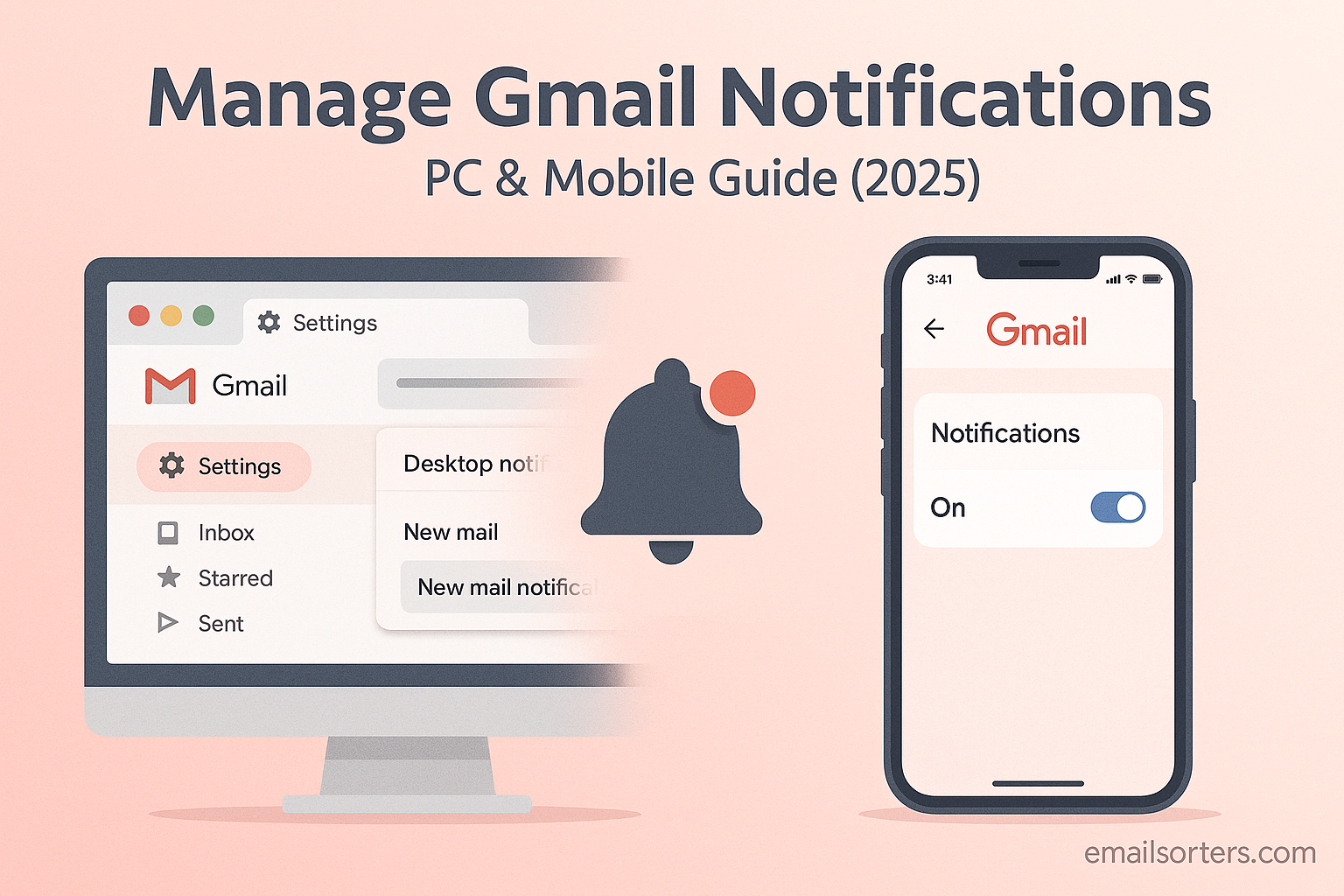
Learning how to manage Gmail notifications effectively is the key to reducing digital distractions and reclaiming your focus. Constant alerts for every incoming message can disrupt workflow and create unnecessary stress. This guide provides a definitive walkthrough of every setting available on both PC and mobile devices. Based on extensive hands-on testing of the Gmail platform, we will show you how to customize alerts to ensure you only see what is truly important. By mastering these controls, you can transform Gmail from a source of noise into a streamlined communication tool.
The process to manage Gmail notifications is not a one-size-fits-all solution. The settings differ significantly between your web browser, your Android phone, and your iPhone. Many users are unaware of the granular control available, from setting custom sounds for specific contacts to silencing entire categories of email. This guide covers all of it. We will explore every menu and feature, providing clear, step-by-step instructions that empower you to build a notification system that works for you, not against you.
Part 1: How to Manage Gmail Notifications on a PC
Your computer is where many important emails are read and answered. Controlling desktop alerts is the first step toward a more focused work environment. Gmail’s web interface offers several core settings, but your browser also plays a critical role in how these notifications are delivered.
Accessing Gmail’s Core Notification Settings
First, you need to know where to find the main controls within Gmail itself. These settings are the foundation for all desktop alerts.
- Open Gmail in your web browser.
- Click the Settings gear icon in the top-right corner.
- Click the “See all settings” button.
- In the “General” tab, scroll down to the “Desktop Notifications” section.
Here, you will find the primary options that determine which emails trigger a pop-up alert on your screen. This central location is the starting point to manage Gmail notifications on your desktop.
Understanding Your Notification Choices
Gmail provides three main choices for desktop alerts. Choosing the right one depends entirely on how you use your email.
- New mail notifications on: This option will alert you for every single incoming email that lands in your primary inbox. It is the most disruptive setting and is best for users who need to see every message the moment it arrives.
- Important mail notifications on: This is the default and recommended setting for most users. Gmail uses its own algorithm to decide which emails are important. It considers factors like who sent the email, how you have interacted with similar messages in the past, and whether the email was sent directly to you. You can help train this filter by marking emails as important or not important.
- Mail notifications off: This option disables all pop-up notifications from Gmail. You will not receive any alerts for new messages. This is the best choice for those who prefer to check their email on their own schedule without interruptions.
This is the first and most crucial decision when you manage Gmail notifications. For most people, letting Gmail filter for “Important” mail provides a good balance between staying informed and avoiding distraction.
Browser-Specific Notification Management
Enabling notifications in Gmail is only half the battle. You must also grant your web browser permission to display them. Each browser handles this process differently.
Google Chrome
As a Google product, Chrome has the most seamless integration. When you first enable notifications in Gmail, a pop-up will appear asking for permission. If you miss it, you can adjust the setting manually.
- Click the three-dot menu in the top-right corner of Chrome.
- Go to Settings > Privacy and security > Site Settings.
- Click on Notifications.
- Here, you can see which sites are allowed or blocked. Ensure
mail.google.comis in the “Allowed to send notifications” list.
Mozilla Firefox
Firefox also requires explicit permission to show alerts.
- Go to the Gmail website.
- Click the padlock icon to the left of the address bar.
- Find the “Send Notifications” permission and make sure it is set to “Allow.”
- If it is not there, go to Firefox Settings > Privacy & Security and scroll to “Permissions.” Click the “Settings…” button next to Notifications to manage site permissions manually.
Microsoft Edge
Edge, being based on Chromium, has a process very similar to Google Chrome.
- Click the three-dot menu in the upper-right corner.
- Navigate to Settings > Cookies and site permissions.
- Find and click on Notifications.
- Verify that
mail.google.comis not in the “Block” list and is present in the “Allow” list.
Proper browser configuration is a critical step to successfully manage Gmail notifications, as the browser acts as the final gatekeeper for all alerts.
Part 2: How to Manage Gmail Notifications on Mobile
Mobile devices are where notifications can be most intrusive. Fortunately, both Android and iOS offer powerful, granular tools to control Gmail alerts, allowing you to customize your experience far beyond what is possible on a desktop.
Customizing Gmail Alerts on Android
Android offers the most detailed control over app notifications, allowing users to set preferences on a per-label basis.
Primary Notification Settings
Inside the Gmail app on Android, you can set general rules for your entire inbox.
- Open the Gmail app.
- Tap the three-line menu (hamburger menu) in the top-left corner.
- Scroll down and tap Settings.
- Select the email account you wish to modify.
- Tap on “Notifications” and choose your desired level: “All,” “High priority only,” or “None.” “High priority only” is the mobile equivalent of “Important mail only” on desktop.
Per-Label Notification Control
This is where Android’s ability to manage Gmail notifications truly shines. You can assign different alert rules to different labels.
- From the same account settings menu, tap “Manage labels.”
- Tap on any label, for example, a custom label named “Work.”
- You can now set specific notification rules for just that label. You can enable or disable notifications and even set a custom notification sound for any email that gets filtered into the “Work” label. This means you could have a distinct sound for emails from your boss while keeping alerts for newsletters silent.
Fine-Tuning Gmail Alerts on iOS
The iPhone also provides robust options for managing alerts, both within the Gmail app and at the system level through iOS settings.
In-App Notification Settings
The Gmail app for iOS has its own set of notification controls.
- Open the Gmail app and tap the hamburger menu.
- Go to Settings and select your account.
- Tap on “Notification settings.”
- Here, you can choose between “All new mail,” “Primary only,” “High priority only,” or “None.” The “Primary only” option is a great choice for users who want to see regular emails but avoid alerts for social media updates and promotions. This is a simple way to manage Gmail notifications for a cleaner experience.
System-Level iOS Controls
iOS provides another layer of control through the main Settings app.
- Open the iPhone Settings app.
- Go to Notifications > Gmail.
- Here, you can control the style of the alert (Lock Screen, Notification Center, Banners) and toggle sounds and badges (the red number on the app icon).
- You can also use “Scheduled Summary” to bundle non-urgent Gmail alerts and have them delivered at specific times of the day, a powerful tool for reducing interruptions.
Using iOS Focus Modes
For ultimate control, you can integrate Gmail into Apple’s Focus Modes.
- Go to Settings > Focus.
- Select or create a Focus profile, such as “Work” or “Personal.”
- Under “Allowed Notifications,” you can specify that only alerts from certain apps, like Gmail, can come through when that Focus is active. You can even allow alerts from specific people. This advanced technique allows you to completely manage Gmail notifications based on your current activity or time of day.
Advanced Strategies for Notification Control
Beyond the standard settings, there are several other techniques you can use to further refine your alert system and reduce email clutter. These methods help you handle specific situations and types of messages.
Muting Specific Email Conversations
Sometimes a single email thread with many participants can generate dozens of notifications. Instead of turning off all alerts, you can simply mute the conversation.
- Open the noisy email thread in Gmail (on either PC or mobile).
- Click or tap the three-dot menu.
- Select “Mute.”
The conversation will be archived and will no longer appear in your inbox or generate notifications. It will only reappear if you are directly mentioned or addressed. This is a surgical way to manage Gmail notifications for specific threads.
Controlling Promotional and Social Emails
A major source of notification overload comes from non-essential categories. A key strategy is to prevent these emails from triggering alerts in the first place. This is where tools for managing your inbox come into play. You can learn how to stop Gmail promotions from ever hitting your main inbox. By ensuring these messages are properly categorized, they will not trigger “Primary only” or “High priority” notifications. Similarly, you can take steps to remove ads from Gmail for an even cleaner interface.
Thinking About Security and Confidentiality
Managing your email is not just about convenience; it is also about security. Unwanted or suspicious emails can be a risk. Gmail security highlights the ongoing need for vigilance. For sensitive communications, you should use features like Gmail Confidential Mode, which adds an extra layer of protection to your messages. Being a responsible user of any email provider, including legacy platforms like AOL Mail or Yahoo Mail, involves being aware of security best practices.
Successfully managing your notifications is a proactive process. It involves using the full suite of tools Gmail and your devices provide to create a system that serves your needs.
Frequently Asked Questions (FAQ)
1. Why do I get two notifications for the same email on my phone?
This almost always happens when you have your Gmail account set up in two different apps on your phone. For example, you might be using both the official Gmail app and your phone’s default mail app (like Apple Mail or Samsung Mail). Both apps are fetching the same email from the server and generating their own separate notifications. To fix this, you must choose one app to handle your Gmail account. It is best to disable notifications for your Gmail account in one of the apps, or remove the account from the app you do not wish to use.
2. Is there a way to get notifications for emails from only one specific person?
Yes, this is possible, especially on Android. The most effective method is to create a filter in the desktop version of Gmail. Set up a filter where the “From” address is your specific person’s email, and have the filter apply a unique label (e.g., “VIP”). Then, in the Android Gmail app, go to Settings > [Your Account] > Manage labels. Find your “VIP” label and turn on notifications just for it, even giving it a custom sound. For all other labels and your general inbox, set the notifications to “None.” This ensures you are only alerted for messages from that one sender.
3. My Gmail notifications suddenly stopped working. How can I fix this?
This is a common issue with several potential causes. First, check your app and system settings using the steps in this guide to ensure nothing was accidentally turned off. Second, check your phone’s battery saver or power optimization modes. These modes often restrict background data and app activity, which can prevent the Gmail app from checking for new mail and sending notifications. Third, try clearing the app’s cache. Go to your phone’s Settings > Apps > Gmail > Storage and tap “Clear cache.” If none of these work, a full account resync (removing and re-adding the account) often resolves the problem.
4. Can I have different notification sounds for my work and personal Gmail accounts on the same phone?
Absolutely. The Gmail app allows you to set notification preferences on a per-account basis. Go into the Gmail app’s Settings menu. You will see each account you have added listed separately. Tap on your work account, go into its notification settings, and set a specific sound. Then, go back, tap on your personal account, enter its notification settings, and choose a different sound. This is a fantastic way to know what kind of email has arrived without even looking at your phone.
5. How can I turn off the notification badge (the red dot with a number) on the app icon?
The notification badge is controlled at the operating system level, not within the Gmail app itself. On an iPhone, go to Settings > Notifications > Gmail and toggle the “Badges” switch to off. On most Android phones, you can long-press the Gmail app icon, tap the “(i)” or “App info” button, go to “Notifications,” and look for an option called “App icon badges” or similar wording to disable it. This is a great option for people who find the persistent number stressful but still want to receive pop-up alerts for new messages.