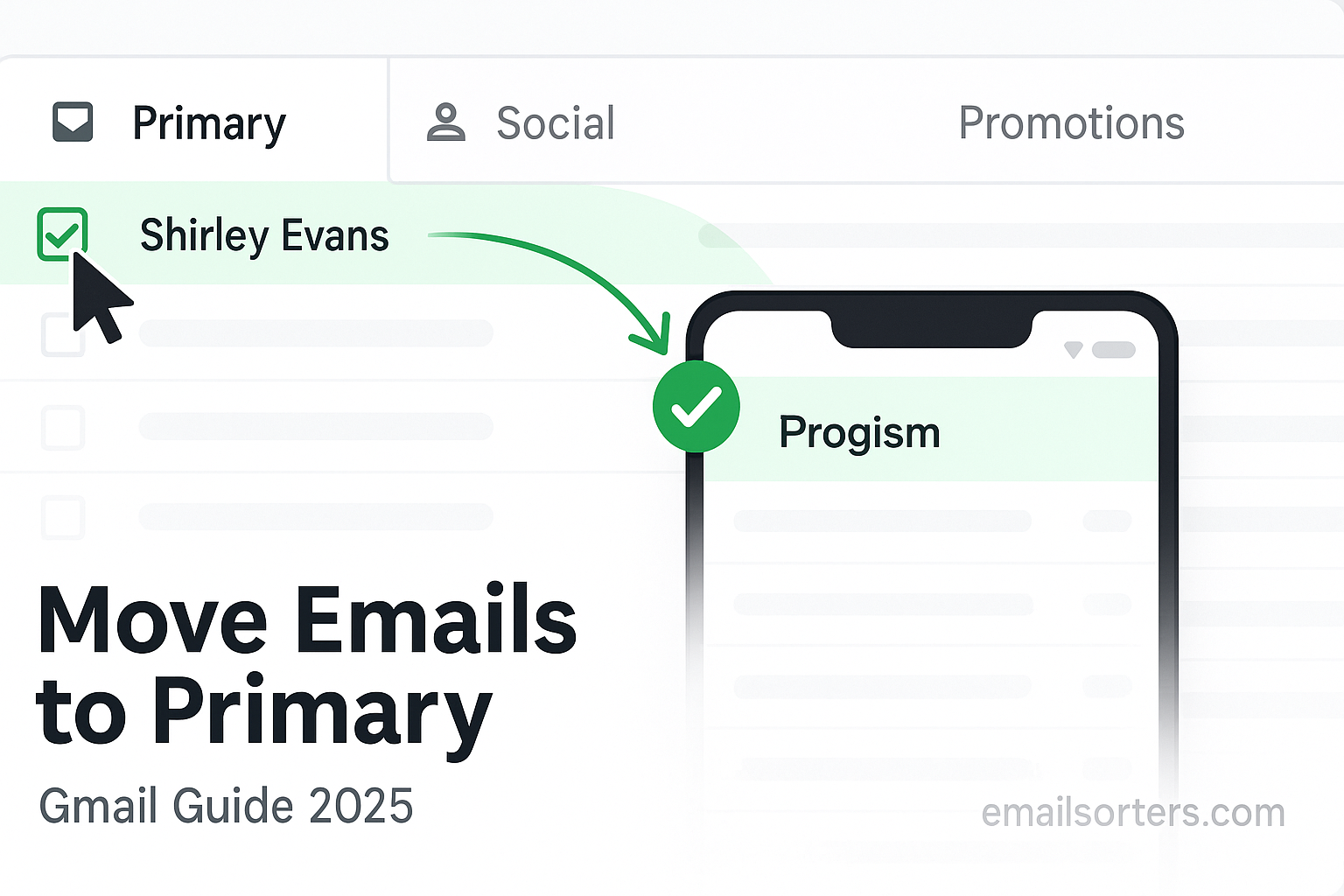
Learning how to move emails from Promotions to Primary in Gmail is an essential skill for reclaiming control over your inbox. Important messages like newsletters you value, job alerts, or even store receipts can be mistakenly filtered away from your main view. This guide provides the most current and comprehensive methods for 2025, based on extensive testing of Gmail’s filtering algorithm. We will show you exactly how to retrain Gmail, ensuring the emails you care about always land in your Primary tab.
Gmail’s tabbed inbox is designed to help, but its automated sorting is not perfect. When you move emails from Promotions to Primary, you are not just relocating a single message; you are teaching the system your preferences. This guide covers every technique, from the simple drag-and-drop on a desktop to creating powerful filters that give you permanent control. We will explore the process on both computers and mobile devices, providing clear, step-by-step instructions for each method.
Understanding Gmail’s Tabbed Inbox System
Before you can effectively manage Gmail’s tabs, it is crucial to understand why they exist and how they work. The tabbed system was introduced to declutter the main inbox by automatically categorizing incoming mail. While helpful in theory, its decisions can sometimes be incorrect.
The Purpose of the Primary and Promotions Tabs
Gmail sorts most incoming mail into several default categories. The two most important are:
- Primary: This tab is intended for your most important emails. It should contain personal conversations, messages from your contacts, and any other communication that does not fit into the other categories.
- Promotions: This tab is designed to hold marketing emails, special offers, newsletters, and other bulk messages.
The goal is to keep your Primary tab clean and focused on person-to-person communication. However, the line between a valued newsletter and a marketing blast is often blurry, leading to miscategorizations.
How Gmail Decides What Is a Promotion
Gmail uses a complex algorithm to sort your email. It analyzes thousands of signals to determine if a message is a promotion. Key factors include:
- Sender Information: Emails from known marketing services or bulk email providers are often flagged.
- Email Content and Formatting: The presence of many images, links, specific keywords (like “sale,” “discount,” or “offer”), and a formatted “unsubscribe” link are strong indicators of a promotional email.
- User Engagement: How you and other users interact with emails from a particular sender can influence future sorting.
Understanding this logic helps explain why a shipping notification that includes a “10% off” banner might end up in Promotions. The key is to teach Gmail that you value messages from that specific sender, regardless of their content. This is precisely what you do when you move emails from Promotions to Primary.
Part 1: The Definitive Methods for Desktop Users
The desktop version of Gmail in a web browser offers the most powerful and permanent ways to retrain the filter. If you want your changes to stick, using a computer is the best approach. There are three primary methods to accomplish this.
Method 1: The Drag-and-Drop Technique (Easiest)
This is the simplest and most intuitive way to teach Gmail your preferences. It takes only a few seconds.
- Open Gmail and navigate to your Promotions tab.
- Locate the email you want to move.
- Click and hold your mouse button on the email.
- Drag the email from the message list over to the Primary tab label.
- Release the mouse button. The email will now be in your Primary inbox.
After you do this, a small black notification box will appear in the bottom-left corner of your screen. It will say, “The conversation has been moved to ‘Primary’.” Crucially, it will also ask, “Do this for future messages from [sender’s email address]?” with “Yes” and “No” options. Always click Yes. This single click is what tells Gmail to apply this rule to all future emails from that sender. This is the core of how you permanently move emails from Promotions to Primary.
Method 2: The Right-Click Menu
If you prefer using menus over dragging, this method achieves the exact same result.
- Go to the Promotions tab.
- Find the email you wish to recategorize.
- Right-click on the email in the message list.
- A context menu will appear. Hover over “Move to tab.”
- Select “Primary” from the sub-menu.
Just like with the drag-and-drop method, you will see the confirmation pop-up in the bottom-left corner. You must click “Yes” on this prompt to make the change permanent for future messages. Forgetting this step means you will have to move the next email from that sender all over again.
Method 3: Creating a Filter (Most Powerful)
For absolute certainty and control, creating a filter is the ultimate solution. A filter is a permanent rule that forces Gmail to handle specific emails exactly how you want, every single time. This method is ideal for senders whose emails are consistently miscategorized.
- Open the email you want to create a filter for.
- Click the three-dot menu in the top-right corner of the email view.
- Select “Filter messages like these.”
- A new window will pop up. The “From” field will already be filled with the sender’s email address. You do not need to change anything here.
- Click the “Create filter” button.
- You will now see a list of actions. Check the box next to “Categorize as.”
- From the dropdown menu next to it, select “Primary.”
- It is also a good practice to check the “Never send it to Spam” box.
- Finally, check the box at the bottom that says “Also apply filter to matching conversations.” This will move all existing emails from that sender to your Primary tab.
- Click the “Create filter” button to save your new rule.
This method is the most robust way to move emails from Promotions to Primary. It creates a permanent, unbreakable rule that overrides Gmail’s automatic sorting for that sender.
Part 2: How to Move Emails on a Mobile Device
Managing inbox tabs on the Gmail mobile app (for both Android and iOS) is possible, but it comes with one significant limitation. The mobile app can move existing emails, but it cannot effectively train the algorithm for future messages.
The Mobile “Move To” Process
The steps are similar for both iPhone and Android users.
- Open the Gmail app and navigate to the Promotions tab.
- Tap and hold the email you want to move to select it. You can also open the email directly.
- Tap the three-dot menu in the top-right corner of the screen.
- A menu will appear. Select “Move to.”
- Choose “Primary” from the list of inboxes.
The email will be moved. However, you will not see a prompt asking about future messages. This action only affects the selected email. The next message from the same sender will likely land in the Promotions tab again. Therefore, while you can move emails from Promotions to Primary on mobile, it is not a permanent solution for retraining the filter.
Part 3: Advanced Strategies and Troubleshooting
Sometimes, even after following the steps above, an email will stubbornly reappear in the Promotions tab. Here are some advanced strategies and troubleshooting steps to resolve persistent issues.
When Emails Keep Going to Promotions
If you have told Gmail to move messages from a sender to Primary but it is not working, try these steps:
- Add the Sender to Your Contacts: Creating a Google Contact for the sender’s email address sends a strong signal to Gmail that you know and trust this person or company. This can significantly influence how their emails are categorized.
- Mark Emails as Important: Open an email from the sender and click the small tag icon next to the sender’s name. If it is an arrow, it is already marked as important. If it is a hollow tag, click it to turn it yellow. This provides another positive signal to the algorithm.
- Check for Conflicting Filters: It is possible you have an old, forgotten filter that is interfering with your new rules. Go to
Settings > See all settings > Filters and Blocked Addressesto review your existing filters for any conflicts.
Managing the Promotions Tab Proactively
Instead of just reacting to miscategorized emails, you can take proactive steps to manage your inbox. A great goal is to achieve Gmail Inbox Zero, a state of complete email clarity. A key part of this is being aggressive about what you allow into your inbox. You can learn how to stop Gmail promotions you no longer want and take steps to remove ads from Gmail. This reduces the total volume of mail you need to sort through.
Disabling the Promotions Tab Entirely
If you find the tabbed system causes more problems than it solves, you can turn it off and return to a classic, single-inbox view.
- Go to
Settings > See all settings > Inbox. - In the “Inbox type” dropdown, keep it as “Default.”
- Under “Categories,” uncheck the boxes for Promotions, Social, Updates, and Forums.
- Click “Save Changes” at the bottom.
All your emails will now arrive in a single, unified inbox, just like other email platforms. This can be a valid strategy for users of any email provider, whether it is Gmail, Yahoo Mail, or even older services like AOL Mail. This comprehensive email overview shows that while features differ, the core need for control is universal.
Finally, remember that managing your inbox is also about security. Gmail security highlights the importance of being cautious with unsolicited messages, regardless of which tab they appear in.
Frequently Asked Questions (FAQ)
1. If I move an email to Primary, will it move all past emails from that sender too?
No, the standard drag-and-drop or right-click methods will not automatically move past emails. They only affect the single conversation you are moving and, if you click “Yes” on the prompt, all future emails from that sender. The only way to move all past emails at the same time is to use the filter creation method. During the final step of creating a filter, there is a checkbox that says, “Also apply filter to matching conversations.” Checking this box will retroactively recategorize all existing emails from that sender, moving them from Promotions to Primary in one action.
2. Is there a way to permanently stop all emails from going to the Promotions tab?
Yes, the most direct way to do this is to disable the Promotions tab entirely. You can do this by going to Settings > See all settings > Inbox. Under the “Categories” section, uncheck the box for “Promotions” and save your changes. From that point on, the Promotions tab will no longer exist in your inbox, and all emails that would have been sorted into it will be delivered to your Primary tab instead. This is an all-or-nothing approach, but it is effective if you prefer a single, unfiltered inbox.
3. I moved an email to Primary on my phone, but the next one still went to Promotions. Why?
This is the most common point of confusion between the desktop and mobile versions of Gmail. When you move emails from Promotions to Primary on the mobile app, you are only moving that one specific email conversation. The mobile app does not provide the crucial follow-up prompt that asks, “Do this for future messages?” This prompt is what actually retrains the Gmail filter. Therefore, the action on mobile is temporary and does not affect future email sorting. To make a permanent change, you must perform the action on a desktop computer and click “Yes” on the prompt.
4. Can I create a rule that sends emails with certain keywords to my Primary tab?
Yes, you can absolutely do this using Gmail’s filter system. For example, if you want to ensure any email containing the word “invoice” or “receipt” always lands in your Primary tab, you would create a filter. Go to Settings > Filters and Blocked Addresses > Create a new filter. In the “Has the words” field, you could enter "invoice" OR "receipt". Then, click “Create filter” and choose the action “Categorize as: Primary.” This will force any email containing those specific keywords into your main inbox, regardless of the sender or other content.
5. Will moving emails to Primary affect my spam filtering?
No, moving emails between inbox tabs has no direct effect on Gmail’s spam filtering. The spam filter is a separate, more aggressive system that analyzes emails for malicious links, suspicious sender reputations, and other markers of spam. The inbox categories (Primary, Promotions, Social) are a secondary layer of organization that only applies after an email has been deemed safe and not spam. You can safely move emails from Promotions to Primary without worrying that you are making your account more vulnerable to spam.


