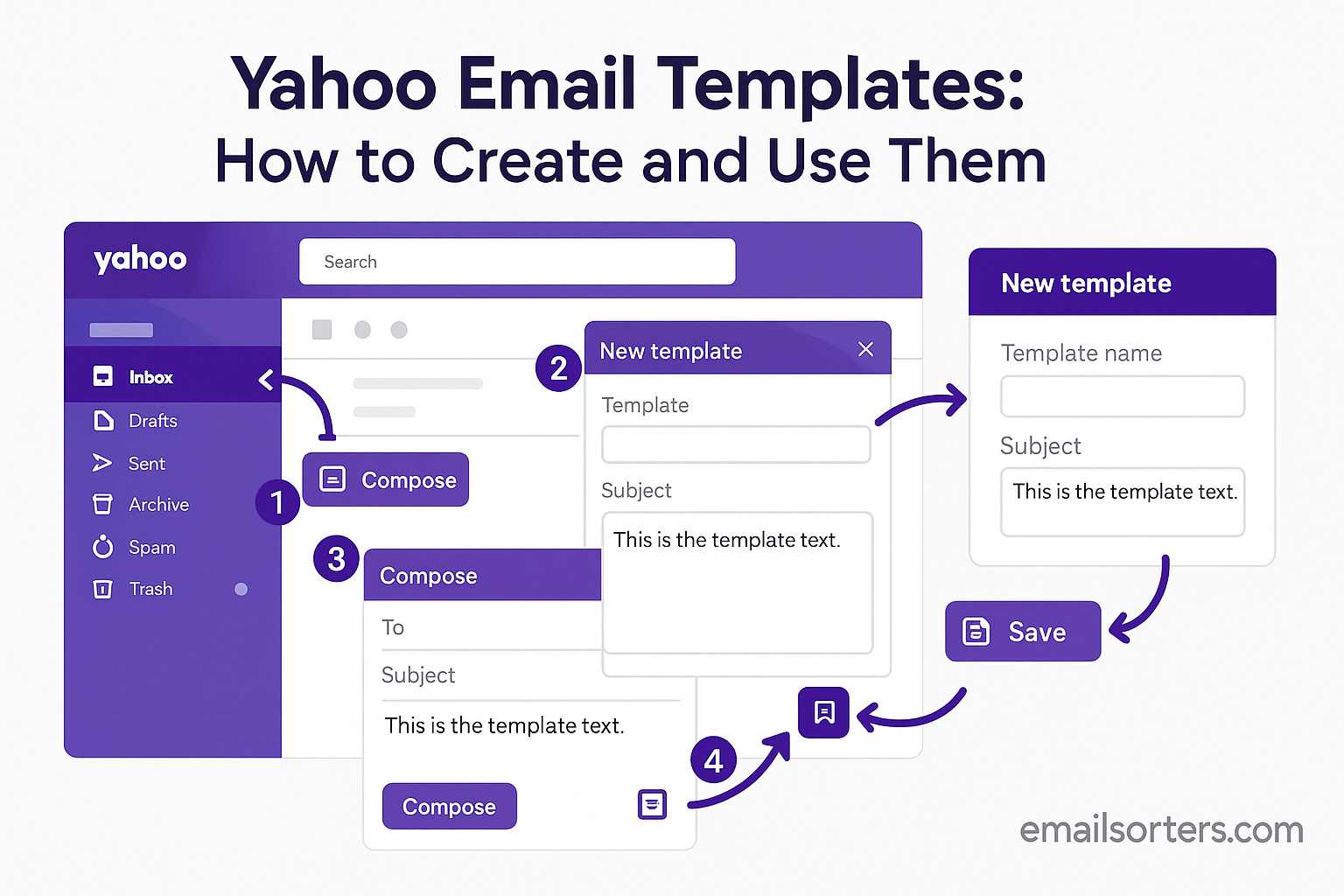
Managing email can take a lot of time, especially if you often send the same type of messages. Yahoo Mail does not have a built-in template feature like Gmail, but you can still create your own system for email templates by using drafts. This method allows you to prepare pre-written emails and use them whenever you need to send a message quickly. In this guide, you’ll learn how to create Yahoo email templates, manage them, and make them a valuable part of your daily communication.
What Yahoo Email Templates Are
A Yahoo email template is essentially a saved draft that you can reuse for future emails. Instead of typing out the same message every time, you can create a draft once and use it again and again. Think of it as a shortcut that helps you avoid repetitive typing. Whether you send appointment reminders, thank-you notes, or business updates, templates let you respond faster and more consistently.
Why They Can Save You Time
Using templates reduces the time you spend writing emails from scratch. Imagine sending twenty similar replies in a day. Without templates, you’d type the same sentences repeatedly. With templates, you write once and reuse it. This saves effort and helps ensure that your communication is clear and free of mistakes. For professionals, it means quicker responses and more focus on other tasks. For personal use, it means less hassle and more convenience.
Setting Up Yahoo Email for Templates
Checking If Yahoo Supports Templates Natively
Unlike Gmail, Yahoo Mail doesn’t offer a dedicated template feature. But that doesn’t mean you can’t use templates. Instead, you can rely on drafts. Drafts in Yahoo Mail save exactly what you type, including formatting, links, and signatures. You can save multiple drafts and reuse them when needed.
Workarounds for Creating Templates in Yahoo
The simplest workaround is to create a draft with your preferred message and leave it in your drafts folder. When you need it, open the draft, copy the text, and paste it into a new email. Another approach is to duplicate the draft each time you use it, so the original template remains unchanged.
For users who want more functionality, third-party tools or browser extensions can add template-like features. But for most people, using drafts directly within Yahoo Mail is enough.
Benefits of Using Templates in Yahoo Mail
The biggest benefit is efficiency. Templates save you from repetitive typing and help you avoid errors. They also make your communication more consistent, which is especially important in professional or business settings. Even though Yahoo doesn’t have a built-in template tool, its draft feature serves the same purpose with a little bit of creativity.
Creating a Yahoo Email Template
Writing a Reusable Email Draft
To create a template in Yahoo, start by composing an email draft. Write the message just as you would if you were sending it to someone. Use placeholders for information you’ll need to update each time, such as [Name] or [Date]. This makes it easier to personalize later while keeping the main structure intact.
Saving the Draft for Later Use
Instead of sending the draft, click the “Save Draft” option. The draft will appear in your drafts folder, where you can access it whenever you need. Be careful not to accidentally send the draft before saving it, especially if you’re using placeholders.
Editing and Updating Saved Drafts
When you want to use a draft as a template, open it, make the necessary changes, and either send it directly or copy it into a new message. If you want to keep the original draft unchanged for future use, make sure to duplicate it or copy the text into a fresh email before editing.
Using a Yahoo Email Template
Accessing Saved Drafts Quickly
To use a saved draft, open your Yahoo Mail account and go to the drafts folder. You’ll see a list of all the drafts you’ve created. Select the one you want to use. If you’ve named it clearly, finding it will be quick and easy.
Personalizing a Draft Before Sending
Before sending, update the placeholders in your draft with the recipient’s name, the correct date, or any other details that apply to the specific situation. This step is crucial because sending a generic draft without personalization can make the email feel impersonal.
Sending Your Template-Based Email
Once you’ve made the updates, you can send the email as usual. If you want to keep the draft for future use, copy the text into a new message instead of editing and sending the original draft. This way, your template remains available for the next time.
Organizing and Managing Yahoo Email Templates
Naming Drafts Clearly for Easy Access
When you save drafts in Yahoo, give them clear subject lines. Instead of leaving the subject blank or generic, use names like “Client Welcome Email” or “Meeting Reminder.” This makes it easy to identify the draft you need at a glance.
Deleting Outdated Drafts
Over time, some drafts may become outdated. Delete drafts you no longer use so your drafts folder doesn’t get cluttered. A tidy drafts folder ensures you can find the right template quickly.
Keeping Your Template Collection Simple
Avoid creating too many templates. Focus on the ones you actually need, such as common replies or frequent announcements. A smaller, well-organized collection is easier to manage and use effectively.
Best Practices for Yahoo Email Templates
Templates are meant to make email communication faster and easier, but how you create and use them makes a big difference.
Keep Messages Short and Direct
The best templates are clear and to the point. Long-winded messages often lose the reader’s attention. A short, focused email ensures the recipient understands the purpose right away. For example, if you are reminding a client of an appointment, include only the necessary details such as date, time, and location, instead of adding unrelated information.
Personalize for Each Recipient
Even though you are reusing content, you should always personalize it. Adding the recipient’s name, referencing a recent conversation, or including details specific to them makes the message feel genuine. Without personalization, a template can come across as cold or automated, which can hurt relationships over time.
Avoid Overloading with Links or Images
Emails that contain too many links or heavy images often load slowly and may be flagged as spam. Keep your templates clean with minimal formatting. If you need to include links, make sure they are relevant and few in number. A text-focused email is usually more reliable and ensures your message gets delivered.
Advanced Tips for Using Yahoo Templates
Once you’ve mastered the basics, you can make your Yahoo templates work harder for you by adding some advanced practices.
Pairing Templates with Yahoo Filters
Yahoo Mail allows you to create filters that automatically sort incoming emails. By combining templates with filters, you can respond more quickly. For example, if you often receive inquiries with similar subjects, you can use a filter to label those emails and then reply with a template. This creates a smooth workflow where emails are automatically organized and ready for a quick response.
Using Templates for Business Communication
If you run a business or handle client communication, templates can save hours of work each week. Common uses include customer service responses, sales follow-ups, billing reminders, and event invitations. With templates, your messages stay consistent, and your brand voice remains the same, no matter how many emails you send.
Combining Templates with Contact Lists
Yahoo Mail allows you to create contact lists. You can use these lists with templates to send messages to multiple recipients at once. For example, if you need to notify all team members of a meeting, you can create a contact list for your team and use a meeting reminder template. This ensures everyone receives the same clear message at the same time.
Common Problems with Yahoo Templates
While templates in Yahoo are useful, users may face certain issues if they are not careful.
Drafts Disappearing or Not Saving
Sometimes drafts don’t save correctly. This usually happens if you close the browser before Yahoo Mail finishes saving. To avoid losing your work, click the “Save Draft” option manually after writing. If you use Yahoo on mobile, ensure you have a stable internet connection when saving drafts.
Trouble Accessing Drafts on Mobile
Drafts saved on desktop are available on mobile, but the interface can sometimes make them harder to find. To access drafts on mobile, open the menu and look for the drafts folder. If it doesn’t show up, refresh your app or log out and back in. Keeping the Yahoo Mail app updated also helps prevent glitches.
Formatting Issues in Saved Drafts
If your draft looks different when you reuse it, the problem may be hidden formatting. Copying text from programs like Microsoft Word often brings invisible formatting codes that disrupt the email layout. To fix this, paste your text as plain text before saving it as a draft. You can then reapply bold or italic styles within Yahoo itself.
Yahoo Templates vs. Gmail Templates
Both Yahoo Mail and Gmail allow you to use templates, but they work in different ways.
Main Differences Between the Two
Gmail has a built-in template feature under its settings, while Yahoo relies on saved drafts. This means Gmail users can save and insert templates directly with fewer steps. In Yahoo, you need to copy drafts into new messages or duplicate them before editing.
Which Service Works Better for Business
For businesses that rely heavily on email, Gmail usually offers more flexibility because of its template feature and integration with other tools. It supports automation with filters, making it easier to handle large volumes of emails. Yahoo Mail is simpler and works well for individuals or small groups who need basic templates without extra features.
When to Use Yahoo Over Gmail
If you already use Yahoo Mail regularly and don’t want to switch platforms, creating templates with drafts is a practical choice. It avoids the need for additional tools or learning a new interface. Yahoo templates are best for personal use, small businesses, or anyone who values simplicity over advanced automation.
Security Considerations When Using Templates
Since email is often a target for scams and hacking, security should always be part of how you manage templates.
Avoiding Sensitive Data in Templates
Never include passwords, credit card numbers, or personal identification details in a Yahoo template. If your account were compromised, that information would be at risk. Templates should be limited to general communication and safe details.
Protecting Your Yahoo Mail Account
Always use a strong, unique password for your Yahoo account. Enabling two-factor authentication adds another layer of security. Regularly review your login history in account settings to make sure no one else has accessed your account.
Spotting and Preventing Phishing Risks
Be cautious when inserting links into templates. Only include links you trust and that lead to official websites. Before saving a template, double-check that every link is correct. This prevents you from accidentally sending harmful links to your contacts.
Collaboration with Yahoo Email Templates
While Yahoo Mail doesn’t have a built-in way to share templates, teams can still collaborate effectively by using simple methods to keep communication consistent.
Sharing Template Ideas with Teams
One effective approach is to create a shared document, such as a Google Doc or Microsoft Word file stored in a shared drive. Team members can add and edit template drafts there. Once finalized, each member copies the content into their own Yahoo account and saves it as a draft. This ensures everyone uses the same approved content.
Creating Standard Drafts for a Group
For organizations, having a set of standard drafts helps maintain consistency. These can include responses to customer inquiries, event invitations, or billing reminders. Assigning one team member to manage and update the drafts ensures the entire team always has accurate and up-to-date content.
Maintaining Consistency in Team Emails
Consistency builds trust with clients and partners. When emails from different team members all follow the same structure and tone, the organization appears more professional. Yahoo templates created through drafts help achieve this, even without a direct sharing feature.
Future of Templates in Yahoo Mail
Yahoo Mail continues to update its features to remain competitive, and templates are likely to become more important over time.
Possible Features Yahoo May Introduce
In the future, Yahoo could add a dedicated template feature similar to Gmail’s. This would allow users to create, organize, and insert templates directly without relying on drafts. Other possible updates include better integration with contact lists and the ability to share templates across accounts.
Why Templates Are Growing in Importance
As more people manage busy schedules, quick communication becomes a necessity. Templates help reduce time spent on repetitive tasks. Businesses, freelancers, and even personal users are finding them increasingly valuable. The demand for faster, more consistent communication will continue to push email providers to improve template features.
How Businesses Could Benefit More
If Yahoo introduces advanced template tools, businesses could respond to customer inquiries faster, send promotional messages with ease, and maintain brand consistency more effectively. Templates could become a key feature in helping businesses compete with companies using Gmail or Outlook.
Conclusion
Yahoo Mail may not have a built-in template system, but with the clever use of drafts, you can create your own effective email templates. From writing and saving reusable drafts to organizing them for quick access, this approach makes communication faster and more reliable. While Gmail offers more advanced template features, Yahoo Mail still works well for individuals and small businesses that value simplicity. By following best practices, personalizing messages, and keeping templates secure, you can make the most of this feature and improve your email efficiency.


